Access the Lab Environment in Skytap
You should have already received a Skytap URL as well as an IBM Cloud userid and password from an instructor. Open a browser and navigate to the URL, which will open the Skytap environment. The Skytap lab environment for the PoT should look similar to the screen shot shown below. For this lab you will be using the Ubuntu 64-bit 14.04 virtual machine.
Start the Virtual Machine
Click the run button as shown below to start the virtual machine that will be used for this lab.
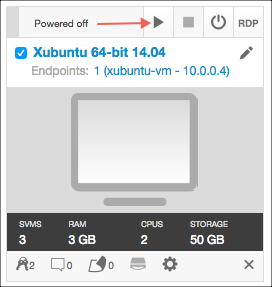
Once the virtual machine has started click on the screen image to launch a new browser window where you can start your lab exercise.
An IBM Cloud account is required to complete this exercise. If you already have an IBM Cloud account you may now proceed to Lab 1 - Introduction to Event Streams On IBM Cloud to begin the first lab exercise.
(Optional) Create a free IBM Cloud Account
If you do not have an IBM Cloud account complete the following steps to create an IBM Cloud userid and password.
IBMers who have an IBM Cloud account should have the paid account type. If not, they should have their account upgraded to a paid account.
-
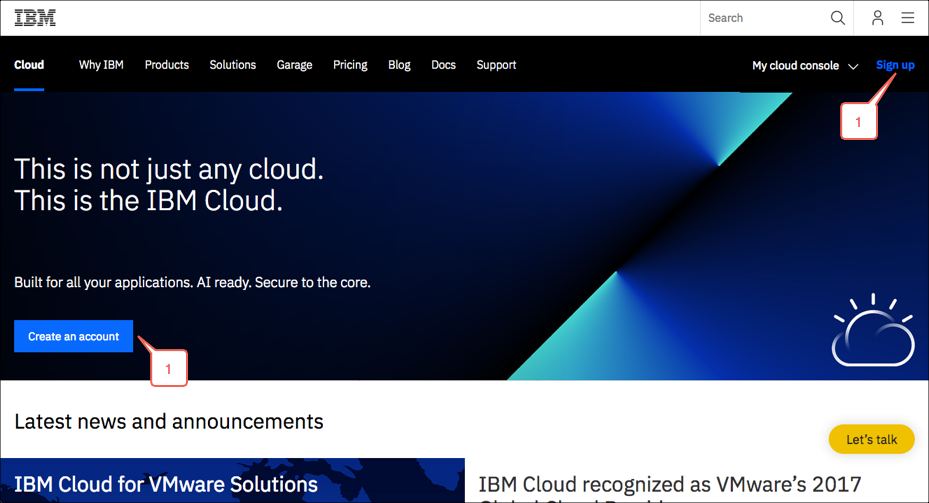
Use a web browser to navigate to the following URL: https://www.ibm.com/cloud/. A web page similar to the screen show below will appear. Click on either the Create an account button or the Sign up link to create a paid account.
-
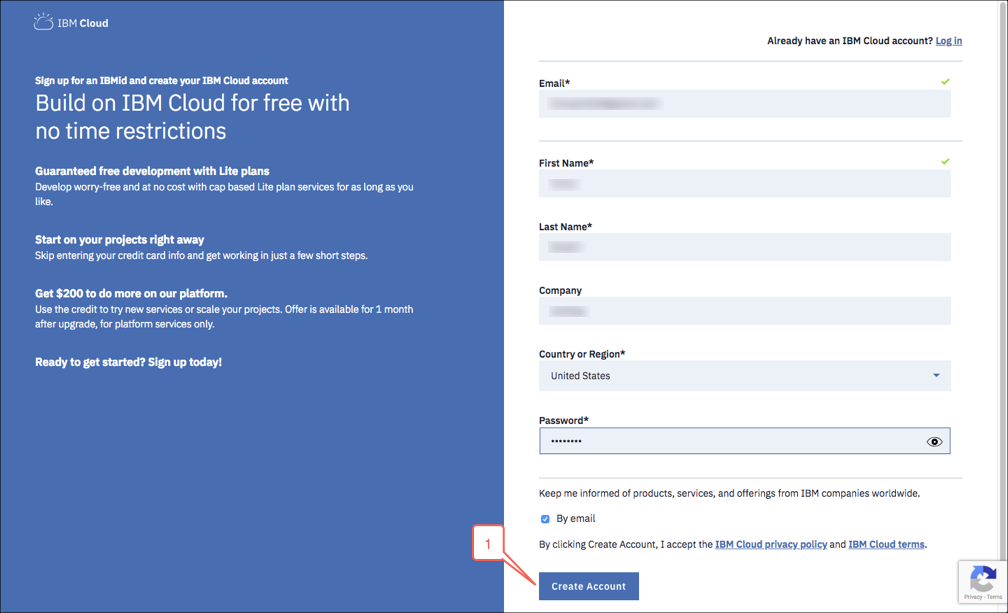
You will need a valid email address that you can access while using the lab image in order to complete the application. Examples include a Gmail, Yahoo or Outlook.com account. Complete all of the fields and then click on the Create Account button to proceed.
-
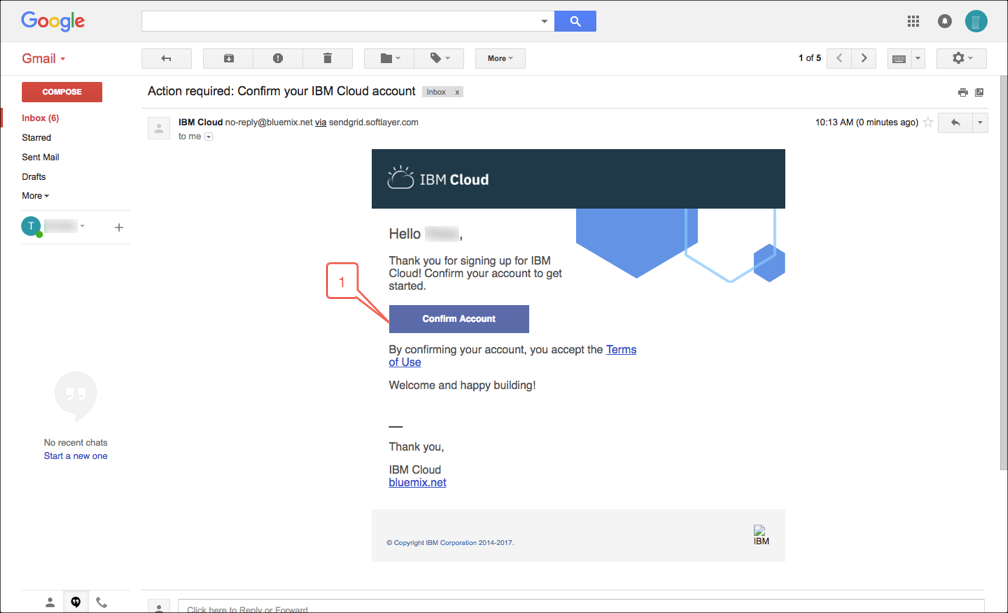
You should receive a confirmation email from IBM Cloud. Sign on to your email account in order to review the confirmation email. The email will contain a subject line similar to the following: Action required: Confirm your IBM Cloud account. Click on the Confirm Account button found in the email to complete the account setup.
-
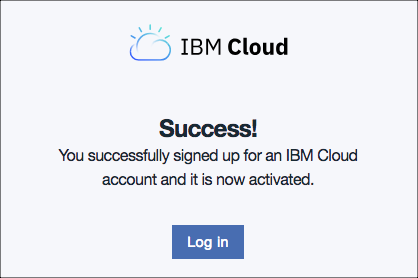
A new browser window/tab will open to confirm your registration.