Lab 7 - Using Multiple Multiple Certificates in IBM MQ
The objective of these exercises is to demonstrate the multiple certificate feature of IBM MQ and to show how different channels can use different certificates.
You will create two new queue managers, QM8 and QMC, for testing SSL channels.
Initially, by setting the queue manager CERTLABL property, we will configure QMC to use a certificate with label ‘ALL QMGR cert’.
We will then create a channel which will use a different certificate label ‘QM8 CHL cert’ (by setting the CERTLABL property on the receiver channel).
Finally you will create a second channel which will use the queue manager certificate label ‘ALL QMGR cert’.
CERTLABL refers to the labels inside the key repository. We can use iKeyMan to see this. Any label can be assigned by the MQ administrator and the label does not need to be related to the certificate. In this example the CN attribute of the certificates and the certificate labels happen to be the same for ease of use, but there is no requirement for this in general. Good practice for Distinguished Names is to choose certificate labels that ‘relate to’ the certificates DN.
View an overview of using Multiple Certificates for TLS Channels
You should be logged in as ibmdemo / passw0rd and MQ Explorer should be running.
Lab Setup
-
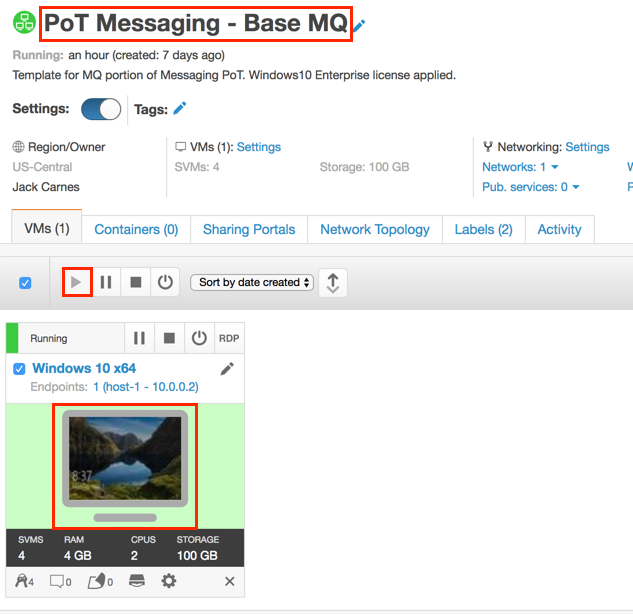
Once the Windows VMware image starts up, click the terminal icon to get to the Windows desktop.
-
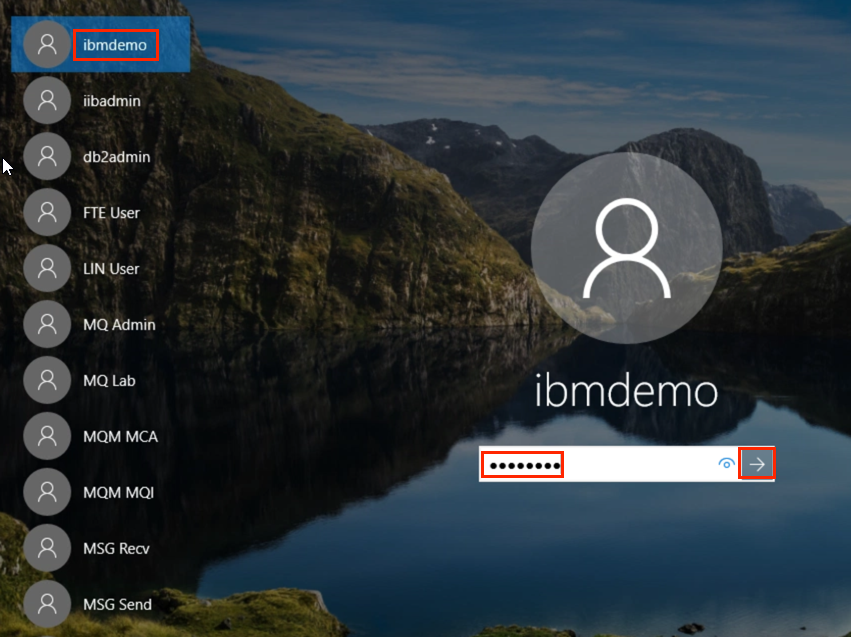
Sign in as ibmdemo by clicking the icon. Enter passw0rd for the password and click the right arrow.
-
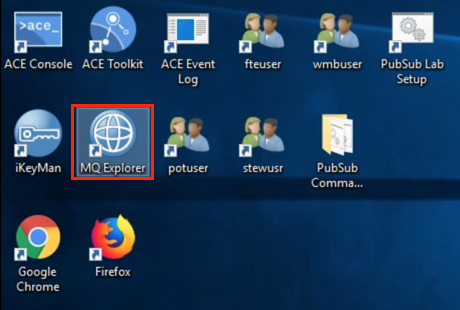
The indicated icon represents IBM MQ on this system.
-
Start the MQ Explorer by double-clicking the icon and selecting.
-
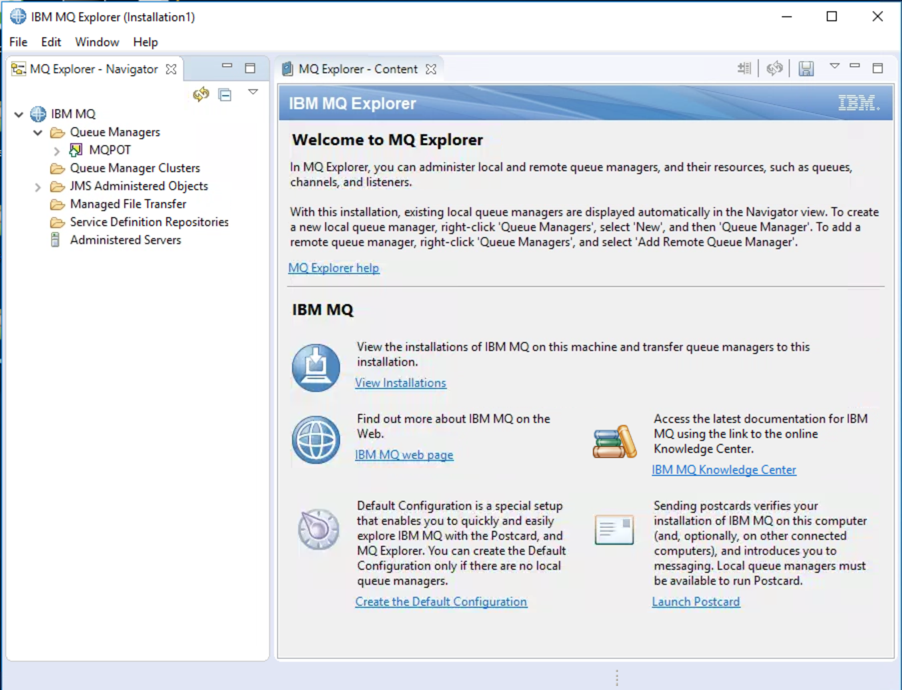
The welcome screen provides a nice selection of resources for the product. Note the various options on the Welcome screen and explore them if you would like. The first time you launch IBM MQ Explorer after an install of IBM MQ this Welcome screen will be displayed automatically.
Note: You may have different queue managers on your MQ Explorer depending on what labs have completed.
-
Open a command prompt by double-clicking the icon on the desktop.
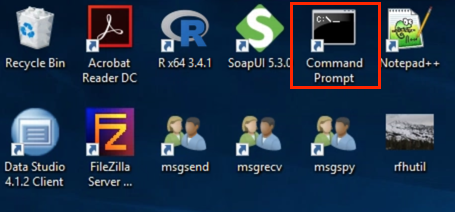
-
Run the dspmqver command to confirm the version of MQ installed.
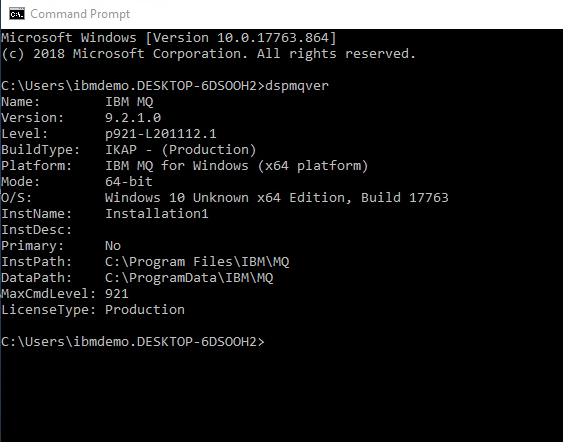
Create new queue managers
-
On MQ Explorer, right click on the ‘Queue Managers’ folder and choose ‘New’ and ‘Queue Manager’.
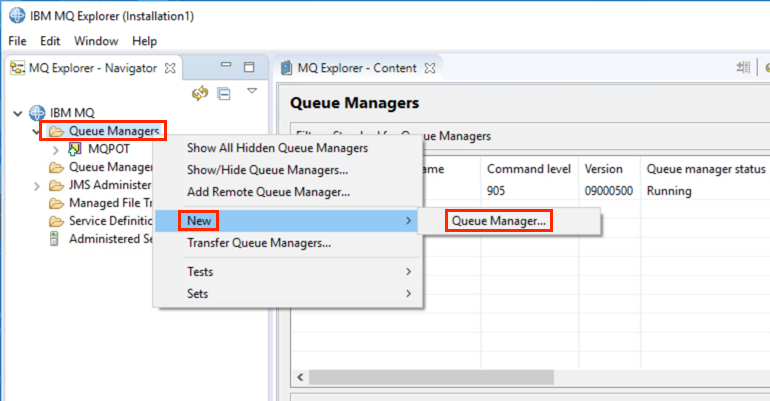
-
Provide ‘Queue manager name’ as ‘QMC’ and click ‘Next’.
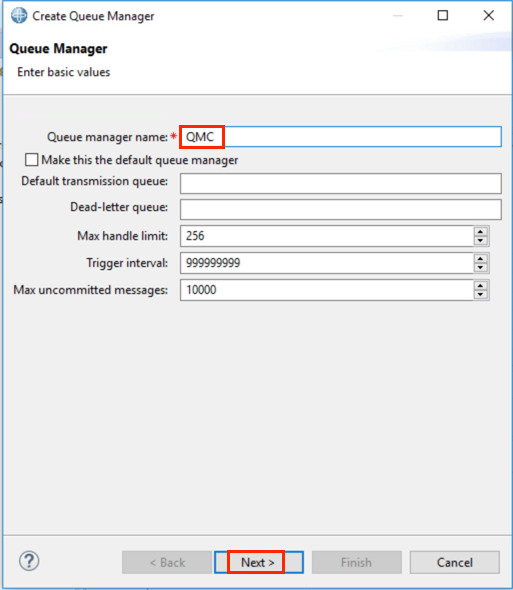
-
Accept the default values and click the ‘Next’ button.
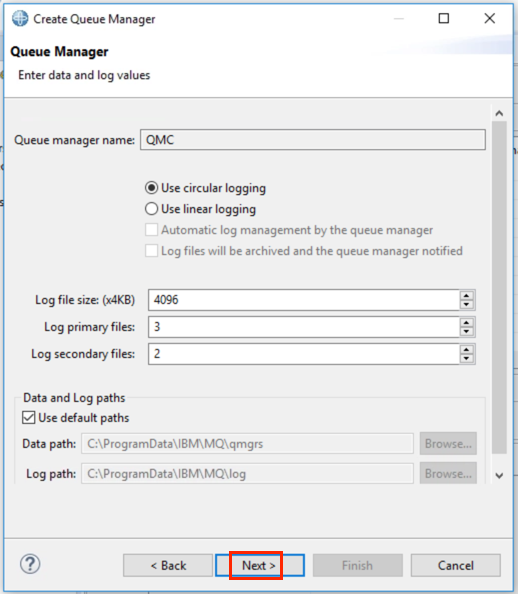
-
Accept the default values and click the ‘Next’ button.
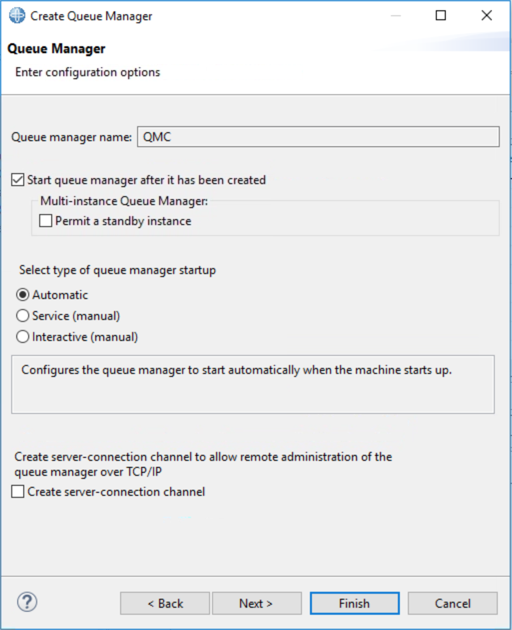
-
Provide the listener port as ‘1444’ and click on ‘Finish’ button.
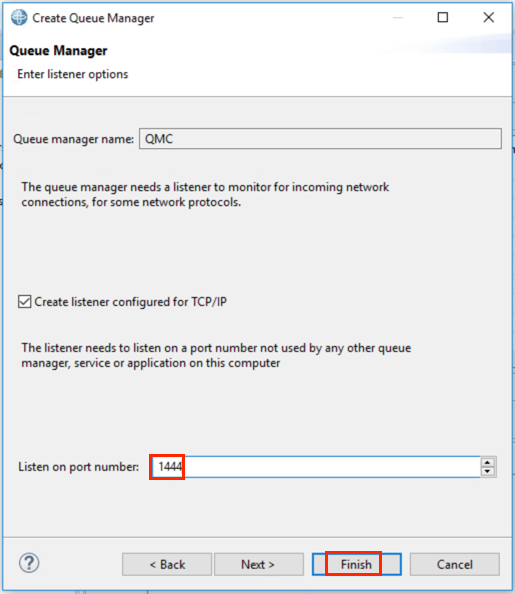
-
Alternatively, you can use the command prompt to create the queue manager by providing the following command.
crtmqm QMCAlso, start the queue manager QM8 using the command below.
strmqm QMCIf the queue manager is created on the command prompt, ensure that you create a listener by using the runmqsc editor provided by IBM MQ.
The command to create the listener is:
runmqsc QMC
DEFINE LISTENER('LISTENER.TCP') TRPTYPE(TCP) PORT(1444)
Start the listener using the command below:
START LISTENER('LISTENER.TCP')
END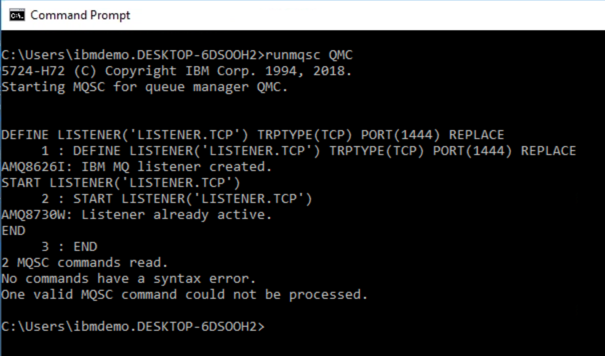
-
Repeat the above steps 1 - 5 to create another queue manager named QM8 using port 1454.
Exercise overview
Configure QM8 and QMC to use SSL
These are the steps you will perform:
-
Configure queue manager QMC to use SSL
-
Configure QMC queue manager SSL properties to specify the keystore
-
Configure QM8 SSL properties
-
Certificates are supplied in C:\PoT-messaging\STUDENT\Lab7 and will be added to the keystores
-
Define a SDR channel QM8.TO.QMC on MQPOT
-
Define the RCVR channel on QMC
-
Create a new SDR RCVR using the certificate specified in RCVR queue managers CERTLABL
Configure QMC queue manager SSL properties
On QMC we are going to specify the certificate this Queue Manager will use. This is achieved by setting the Queue Manager SSL property CERTLABL.
To configure QMC queue manager SSL properties:
-
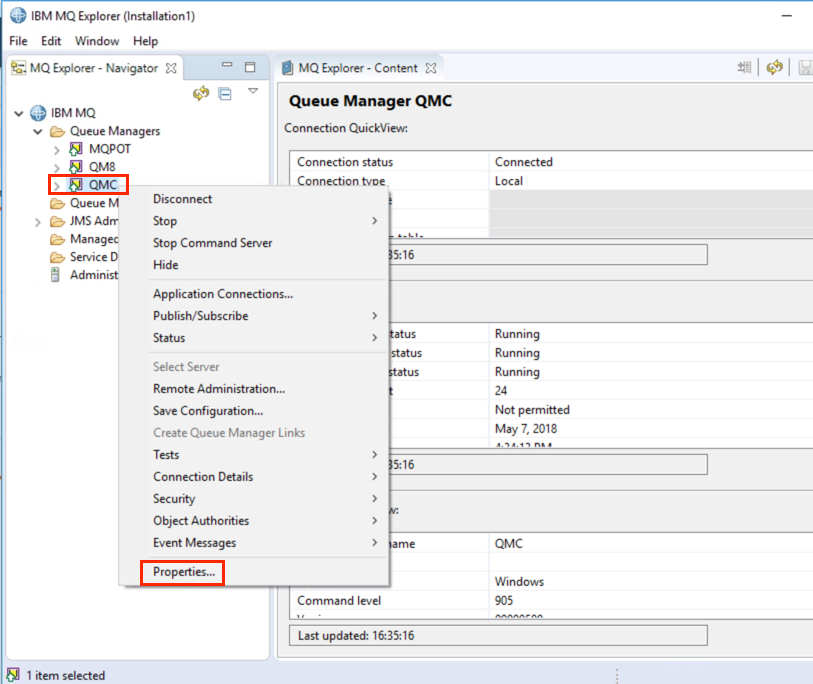
In MQ Explorer right click the queue manager name QMC and select Properties.
-
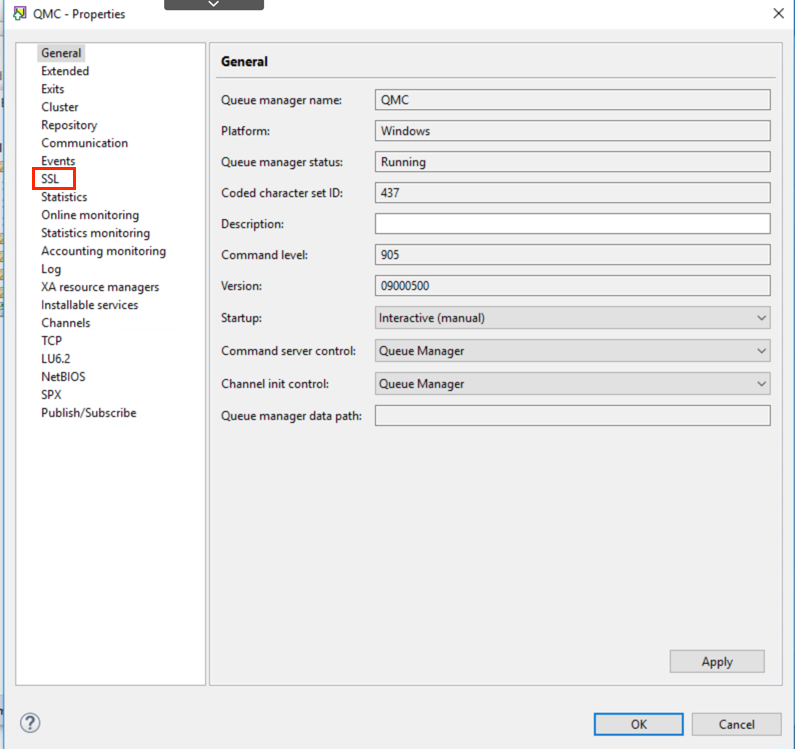
Once the QMC – Properties panel appears, select SSL.
-
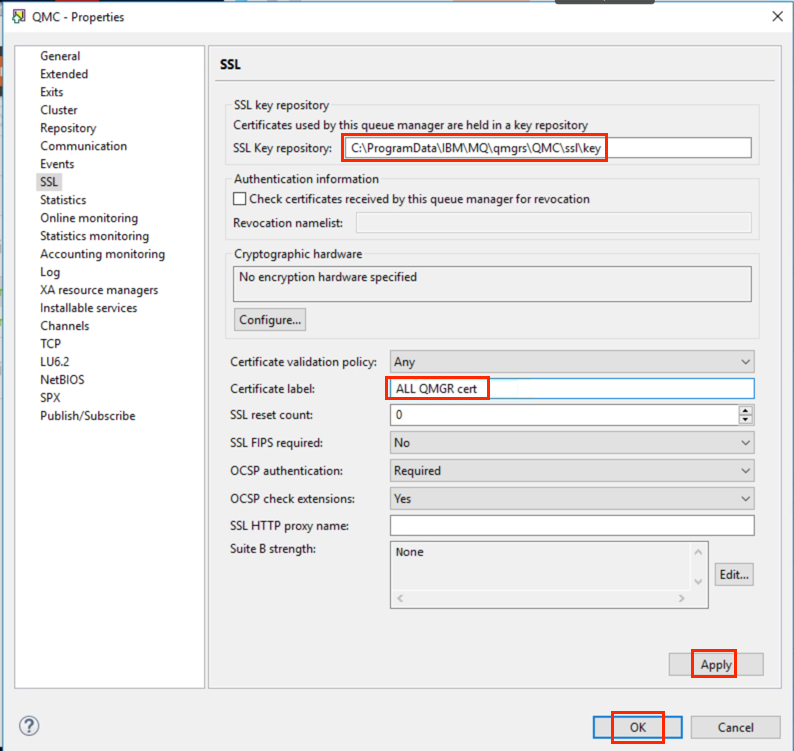
Check that the SSL key repository name is C:\ProgramData\IBM\MQ\qmgrs\QMC\ssl\key.
-
Alter the Certificate Label field on QMC to ‘ALL QMGR cert’.
-
Select Apply then OK.
Alternatively, you could use runmqsc command to enter the following command:
runmqsc QMC
ALTER QMGR CERTLABL('ALL QMGR cert')
Configure QM8 queue manager SSL properties
-
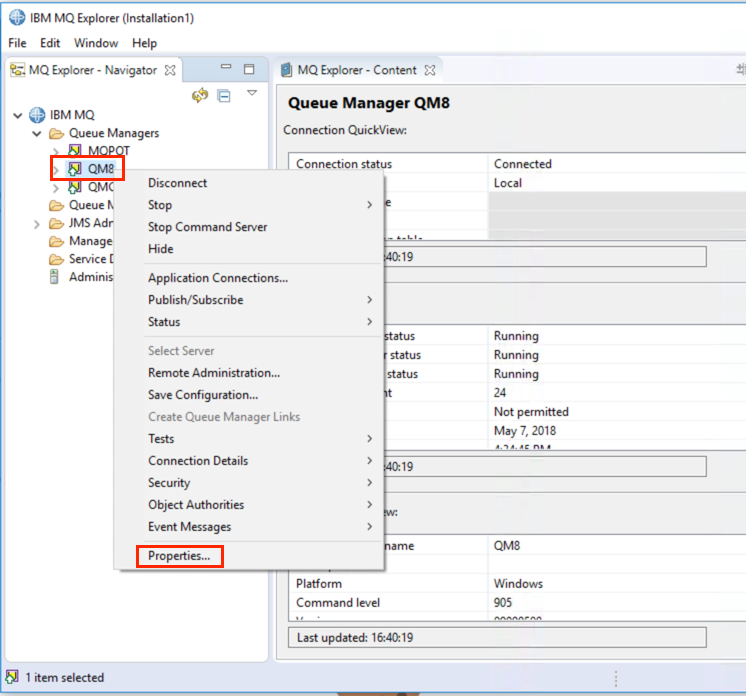
In MQ Explorer, right click the queue manager name QM8 and select Properties.
-
When the QM8 – Properties panel appears, select SSL.
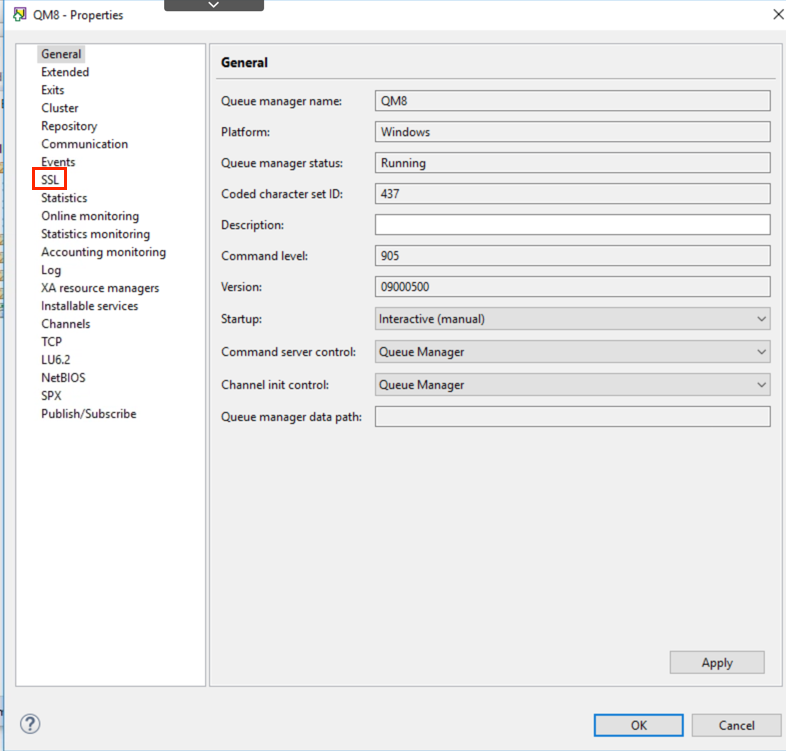
-
Check the SSL key repository name is C:\ProgramData\IBM\MQ\qmgrs\QM8\ssl\key.
-
Alter the Certificate Label field to ‘QM8 CHL cert’.
-
Select Apply then OK.
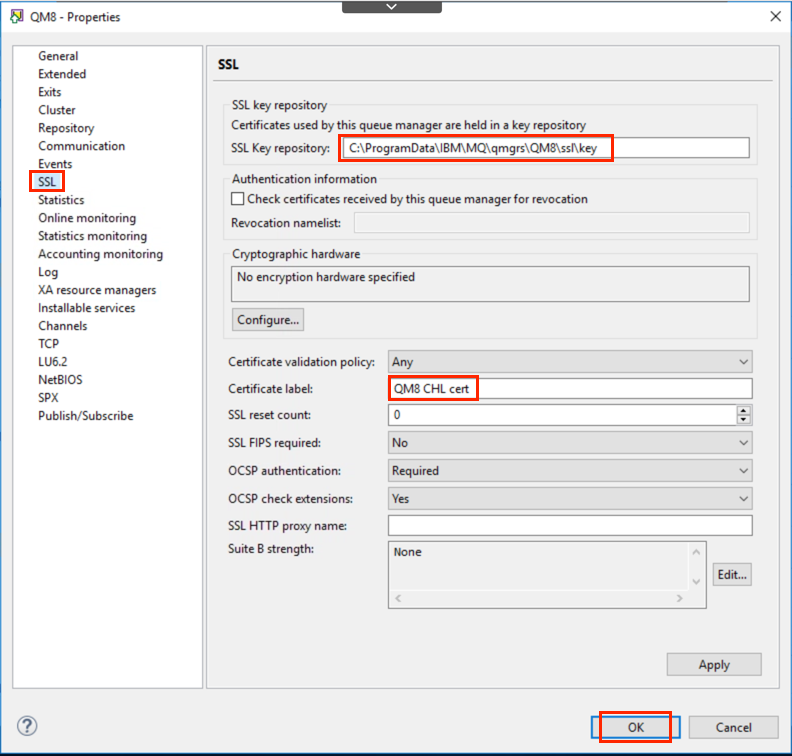
Alternatively, you could use runmqsc command to enter the following command:
runmqsc QM8
ALTER QMGR CERTLABL(‘QM8 cert')
Copy SSL keystore with certificates
The queue manager’s SSL directory should be empty for QM8 and QMC so you need to create this by copying one we have supplied.
For QMC copy the SSL keystore files
-
Open Windows Explorer by clicking the its icon on the task bar.

-
Navigate to ‘C:\PoT-messaging\MQ-PoT\student\Lab7\QMC ssl’:
-
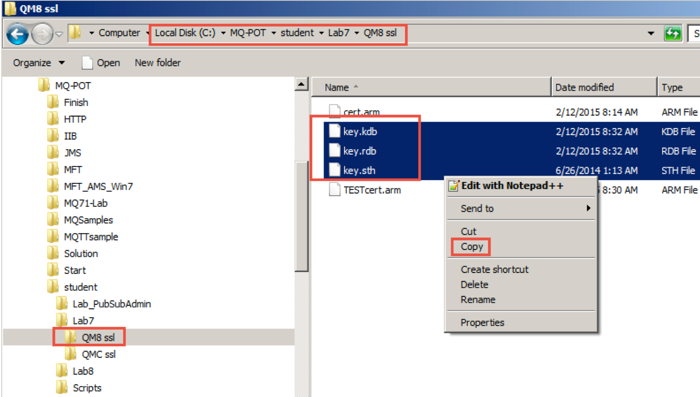
Select all the key.* files in the folder. Right-click and select copy.
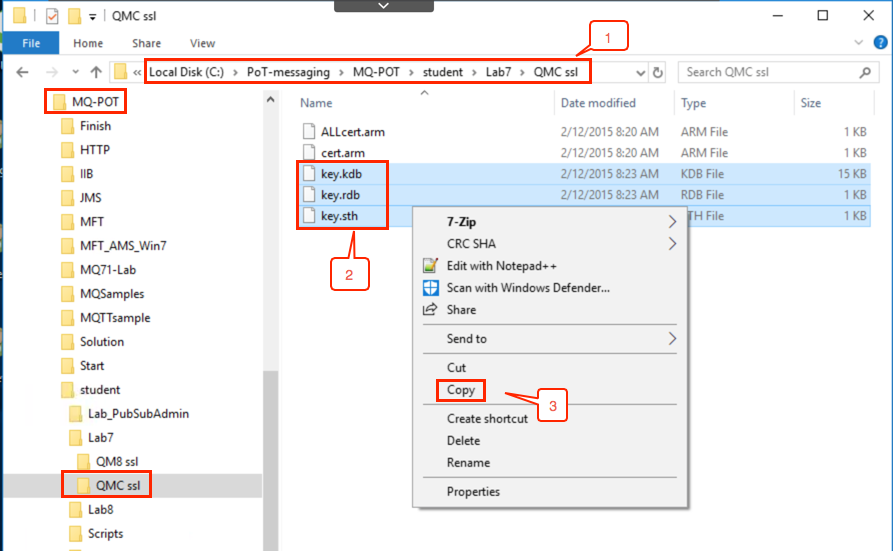
-
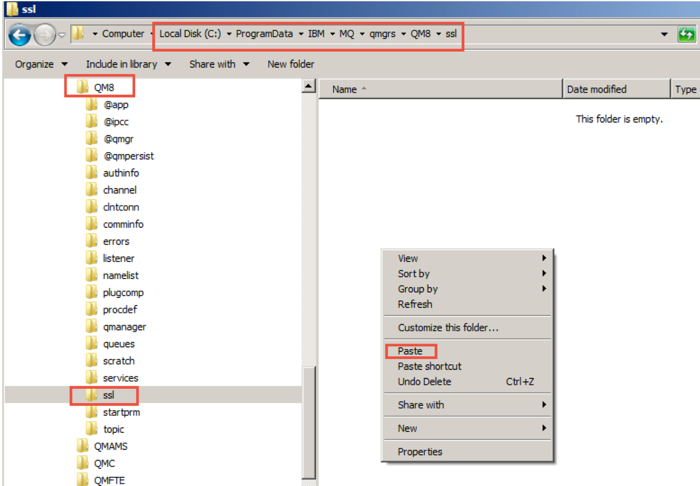
Navigate to ‘C:\ProgramData\IBM\MQ\qmgrs\QMC\ssl’ folder and paste the files into this empty folder.
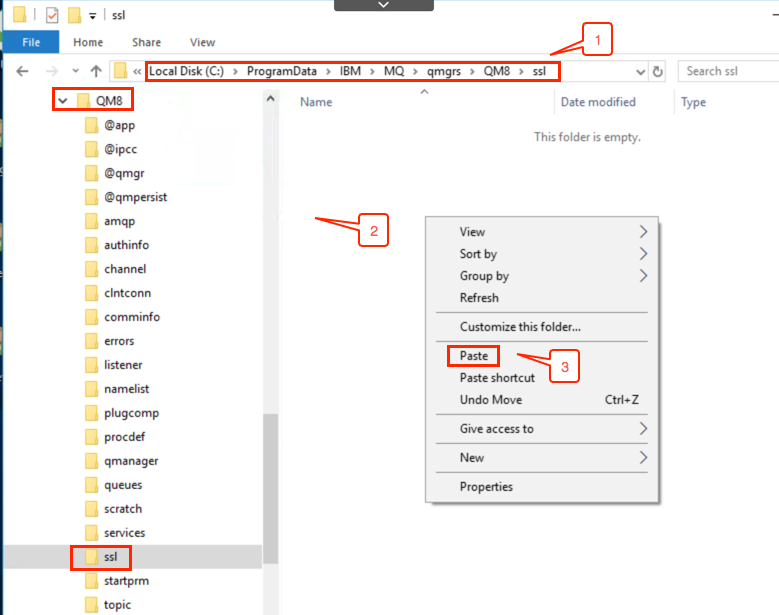
-
To do the same for QM8, repeat Steps 2 – 4 for QM8.
Copy all 3 files from ‘C:\PoT-messaging\MQ-POT\student\Lab7\QM8 ssl’ into the queue manager’s ssl directory ‘C:\ProgramData\IBM\MQ\qmgrs\QM8\ssl’.
-
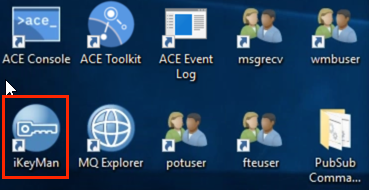
To check the certificates and view the certificate content open ikeyman GUI by double-clicking the icon on the desktop.
-
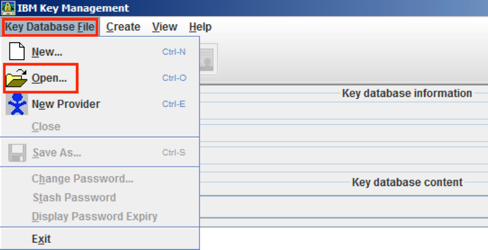
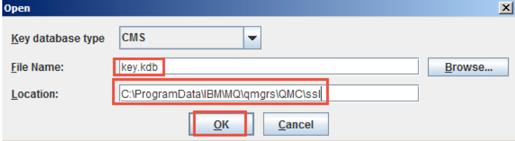
Select ‘Key Database File’, then click Open.
-
Enter the keystore name. For example ‘C:\ProgramData\IBM\MQ\qmgrs\QMC\ssl’:
-
Select OK.
-
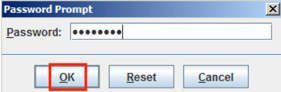
Enter the password which is password when prompted and click OK.
-
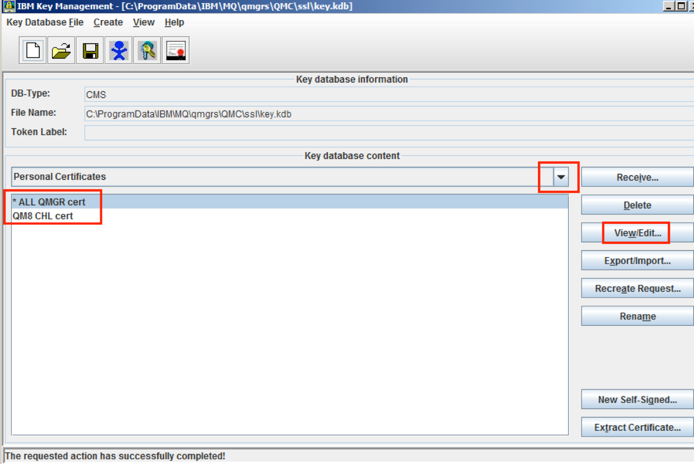
When Ikeyman opens, the personal certificates are displayed. You will see the installed certificate names listed. To review the content of a certificate you can select a certificate in the list and select ‘view/edit’.
-
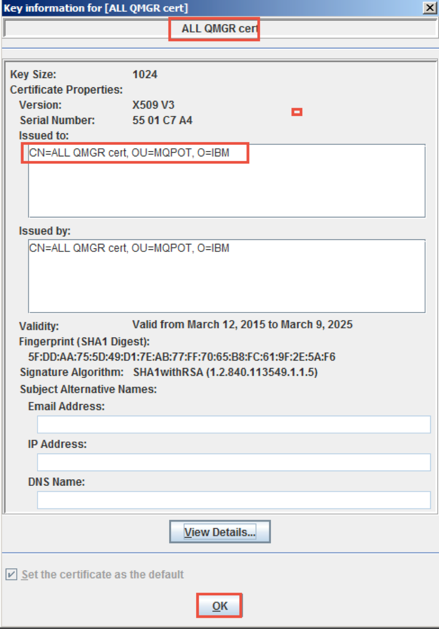
Select ‘ALL QMGR cert’ and click View/Edit.
-
If you want to review signer certificates you can use the pull down button.
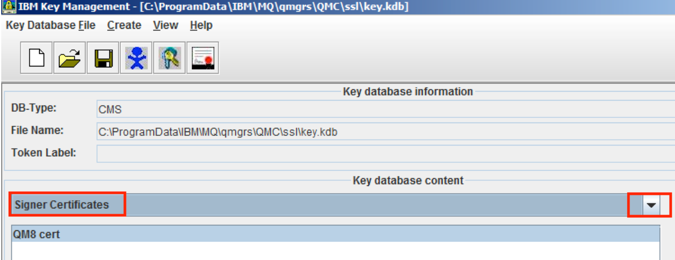
On QM8 define the SDR channel QM8.TO.QMC
-
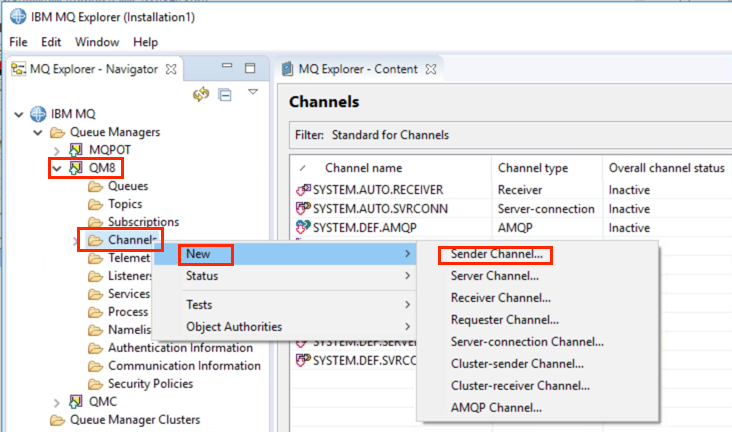
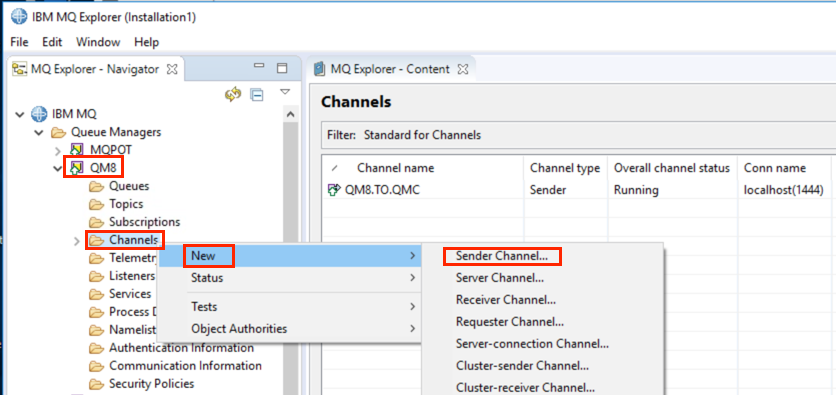
From the MQ Explorer, under QM8, right click channels, > New > Sender channel.
-
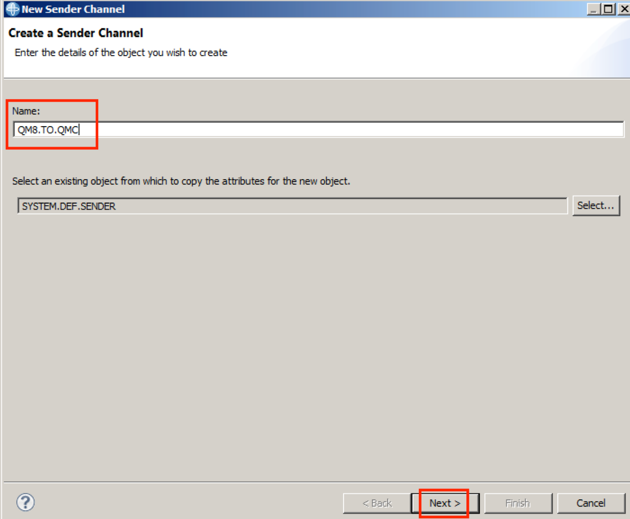
On the next panel, enter the channel name ‘QM8.TO.QMC’ and click Next.
-
Specify the properties below:
Property Value Connection Name localhost(1444) Transmission queue QMC.XMITQ 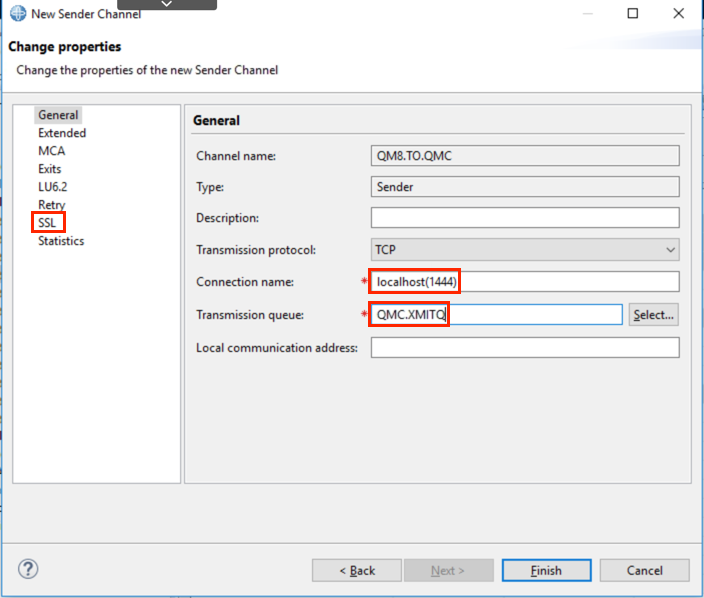
-
Select the ‘SSL’ from the Properties list on the left.
-
Use the pull down tab to select the SSL Cipher Spec and choose:
SSL Cipher Spec: ANY_TLS12_OR_HIGHER
-
Click finish.
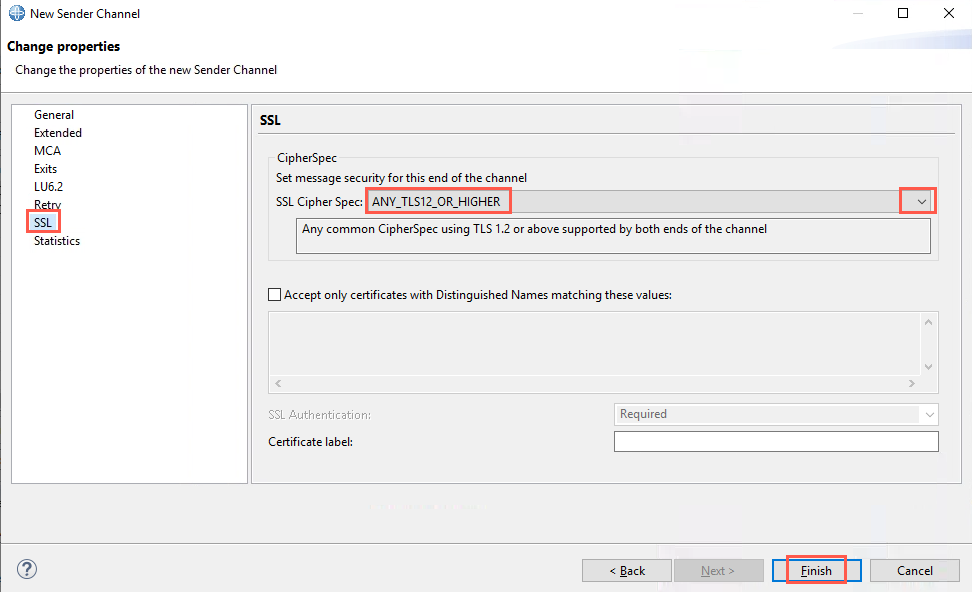
In this example we have left the Certificate label (CERTLABL) blank for this channel, therefore the certificate to be sent to the remote end will be QM8 queue manager CERTLABL property. We set this to ‘QM8 CHL cert’ when we configured the SSL properties on QM8.
-
Click OK to dismiss the results pane.
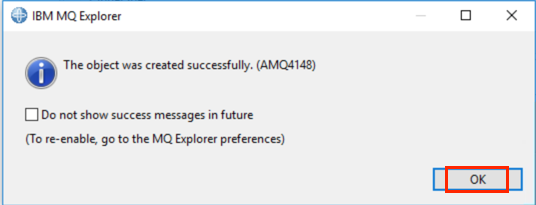
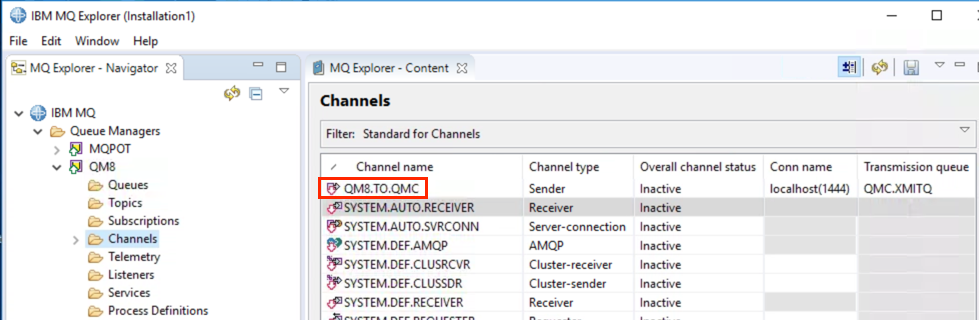
Channel ‘QM8.TO.QMC’ now appears in the channel list.
-
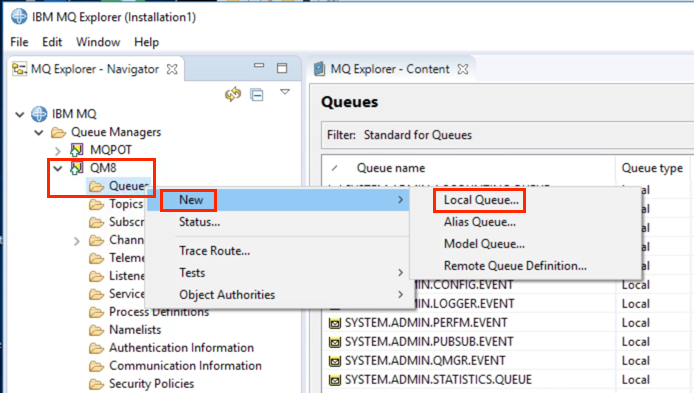
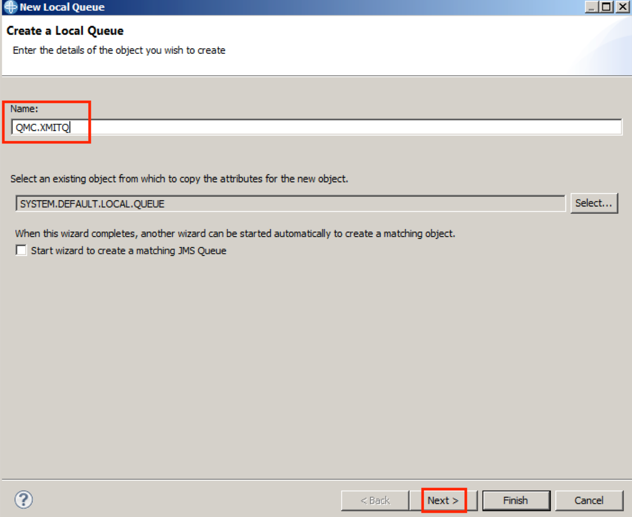
You also need to define the transmission queue QMC.XMITQ. In MQ Explorer, under QM8 right-click Queues and select New > Local Queue.
-
Enter Queue name QMC.XMITQ in the Name field and select Next.
-
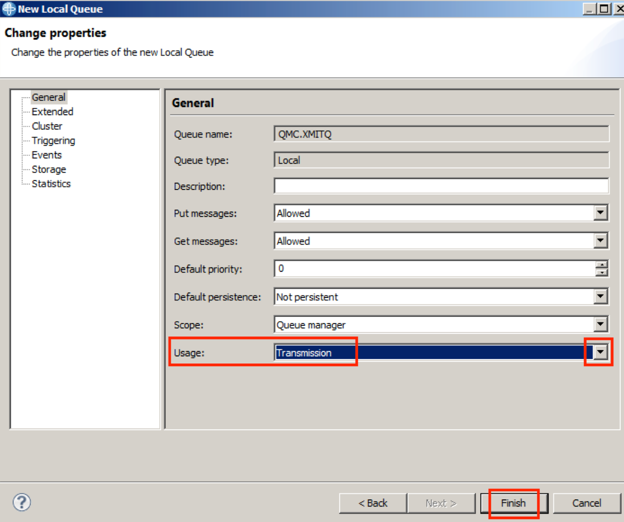
Alter the Usage field to ‘Transmission’.
-
Click Finish.
-
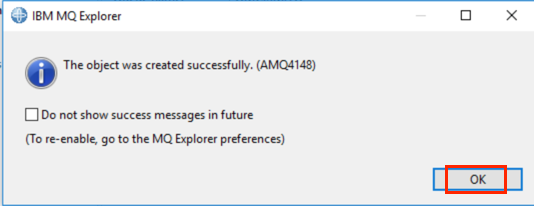
Click OK to dismiss the results pane.
-
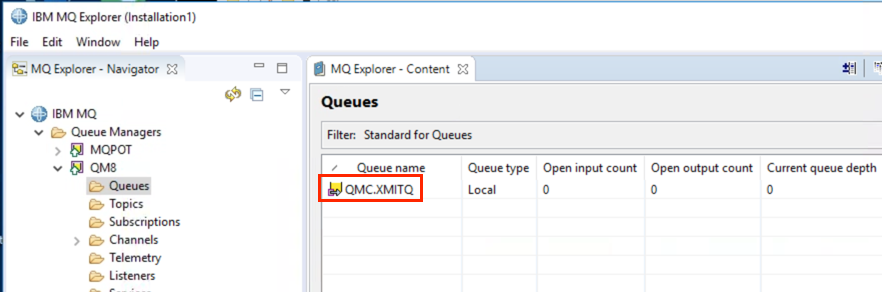
The new transmission queue QMC.XMITQ will appear in the Queues list.
On QMC define the RCVR channel
-
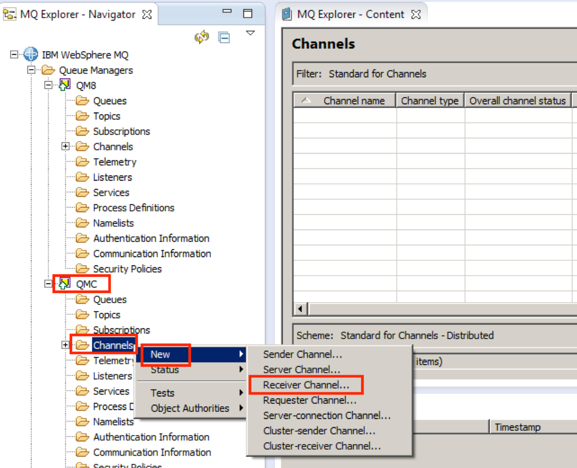
In the MQ Explorer under QMC, right-click Channels and select New > Receiver channel.
-
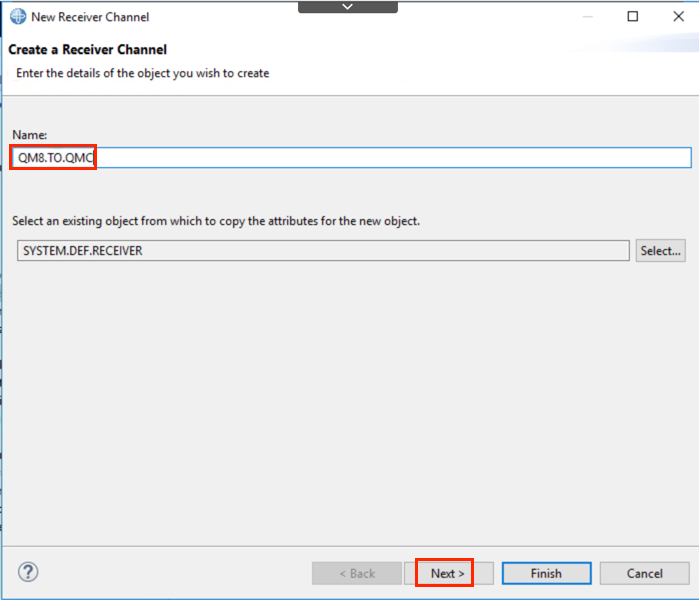
Enter channel name ‘QM8.TO.QMC’.
-
Click Next.
-
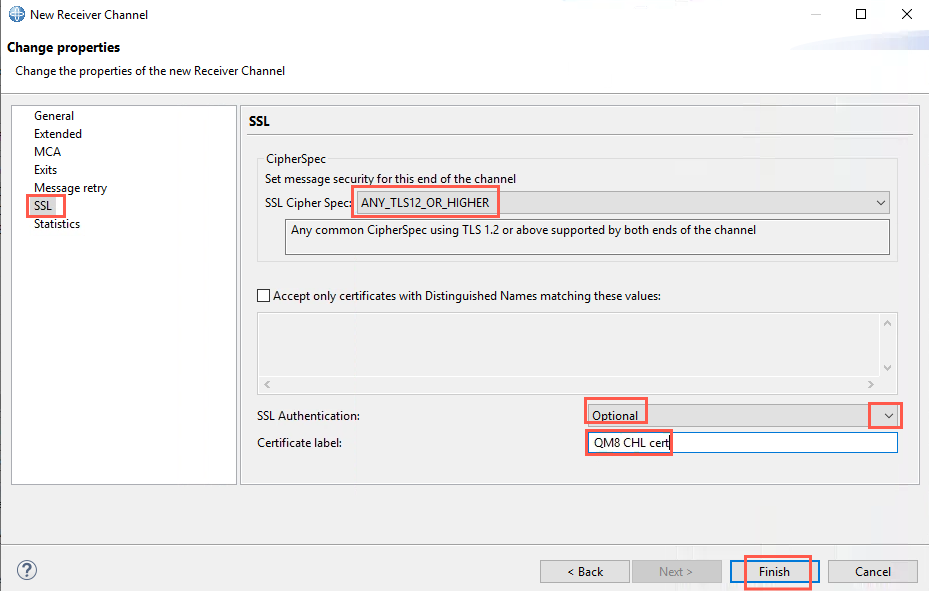
Select the ‘SSL’ from the Properties list on the left.
-
Use the pull down tab to select the SSL Cipher Spec and choose:
SSL Cipher Spec: ANY_TLS12_OR_HIGHER
SSL Authentication: Optional
Certificate label: ‘QM8 CHL cert’
-
Click finish.
-
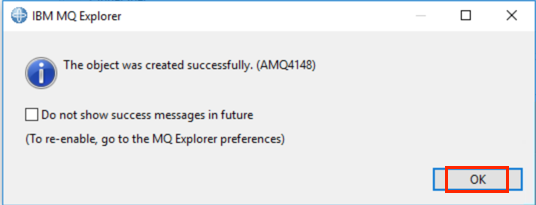
Click OK to dismiss the results pane.
-
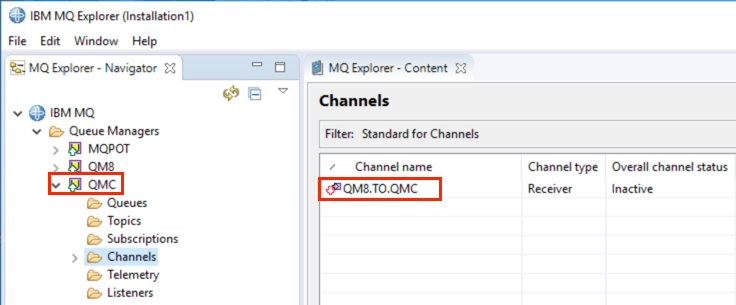
The receiver channel QM8.TO.QMC now appears in queue manager QMC Channels list.
Alternatively, you could issue the following commands from a runmqsc command prompt:
runmqsc QMC
ALTER CHL(QM8.TO.QMC) SSLCIPH(ANY_TLS12_OR_HIGHER) CERTLABL('QM8 CHL cert')
Setting the receiver channel certificate label as ‘QM8 CHL cert’ overrides the queue manager property CERTLABL for QMC (‘ALL QMGR cert’).
-
Refresh security for both queue managers to ensure we pick up all security changes.
-
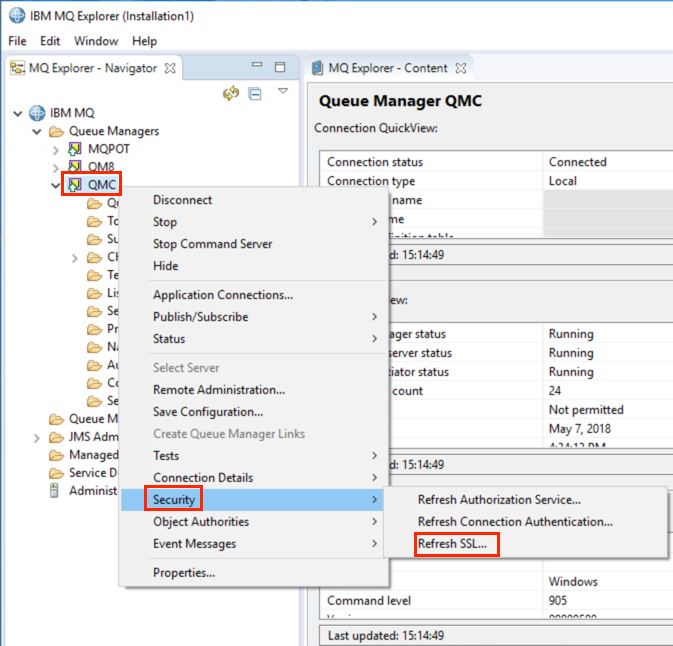
This can be done from the MQ Explorer. Right-click the queue manager QMC, and select Security > Refresh SSL.
-
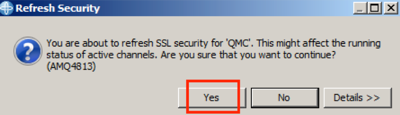
Click Yes to confirm the refresh.
-
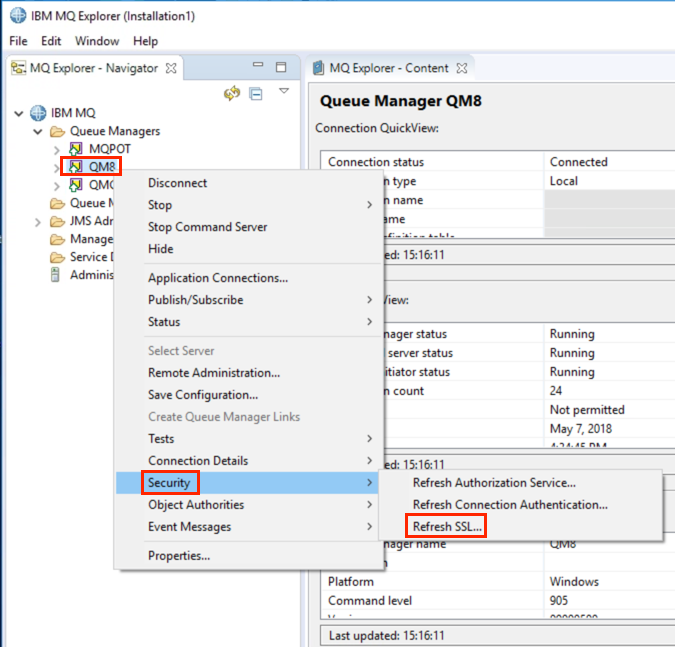
Repeat Step 10 – 11 for queue manager QM8.
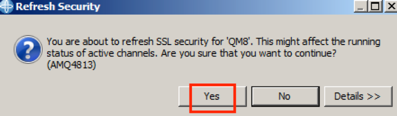
Alternatively, you could refresh security using the runmqsc command prompt by issuing the following command:
REFRESH SECURITY(*) TYPE(SSL)Note:
When the Refresh SSL operation is performed, all running SSL channels are stopped and restarted. However MQ Explorer will only wait 30 seconds, so if your channels take longer to refresh then you will see error message AMQ4562. The refresh will continue and channels will be restarted after the refresh completes. In case your channels do not restart, you should check the MQ error logs for messages. -
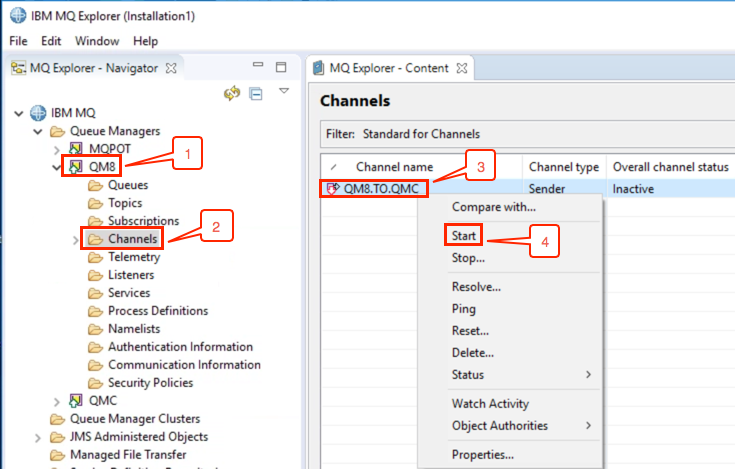
Now start the channel from the MQ Explorer. Under QM8 select Channels. Right-click channel QM8.TO.QMC and select Start.
-
Click OK to dismiss the results pane.
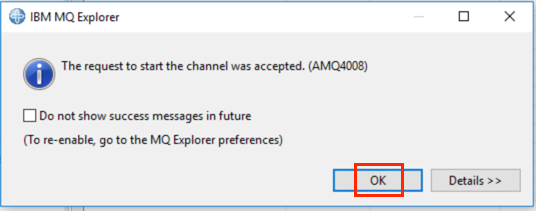
Alternately you could issue the following runmqsc command:
START CHL(QM8.TO.QMC)The channel should go to ‘running’ status.
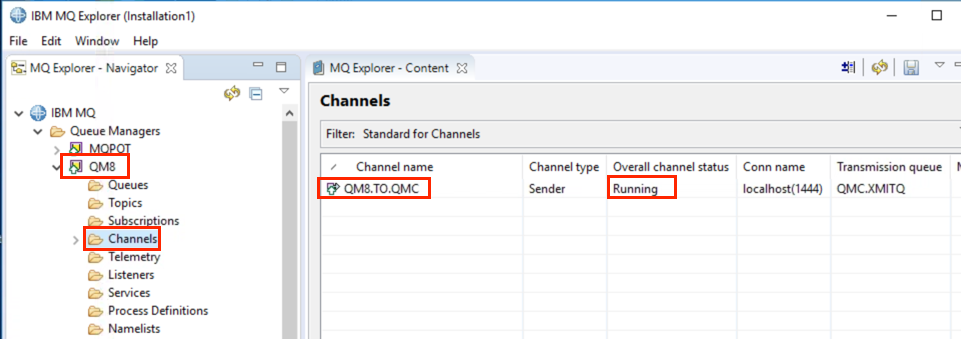
-
Check the channel status. From a command prompt enter:
runmqsc QM8
DIS CHS(QM8.TO.QMC) SSLPEER SSLCERTI SSLCIPH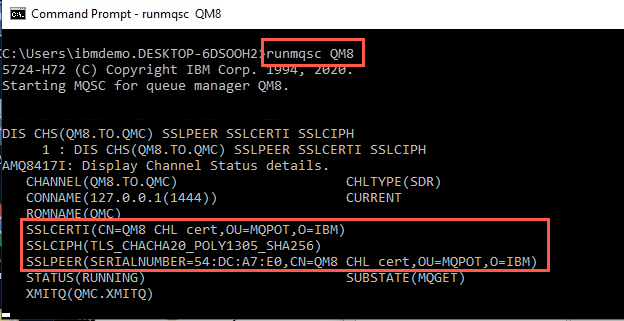
-
Look at the SSLPEER and SSLCERTI fields on the sender (QM8) side. SSLCERTI shows what the ‘remote’ side is using - in this case ‘QM8 CHL cert’ is being used. This was specified in the QM8.TO.QMC channel CERTLABL property and is used because the sender channel CERTLABL field was blank.
-
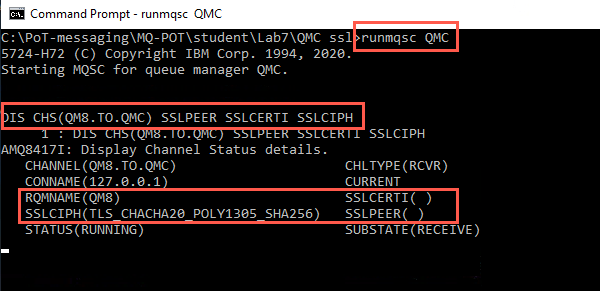
End the runmqsc command prompt and start it for QMC. Issue the same channel status command for QM8.TO.QMC.
Now look at the SSLPEER and SSLCERTI information on the receiver side of the channel. It shows what is being used by the remote side. We left the CERTLABL blank on the sender channel definition and this overrides the certificate specified in the queue managers CERTLABL property.
Create a new SDR RCVR channel using the certificate in the receivers queue manager property CERTLABL
If we create a second channel leaving the CERTLABL blank on the RCVR channel definition this should use the certificate specified in the queue manager property CERTLABL.
If you need help defining a new channel, refer to section “On QM8 define the SDR channel QM8.TO.QMC” Steps 1 – 13 to refresh your memory.
-
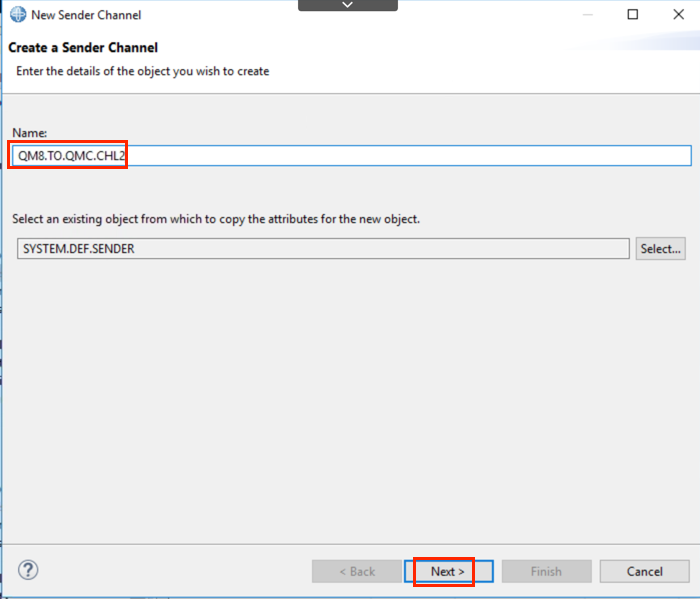
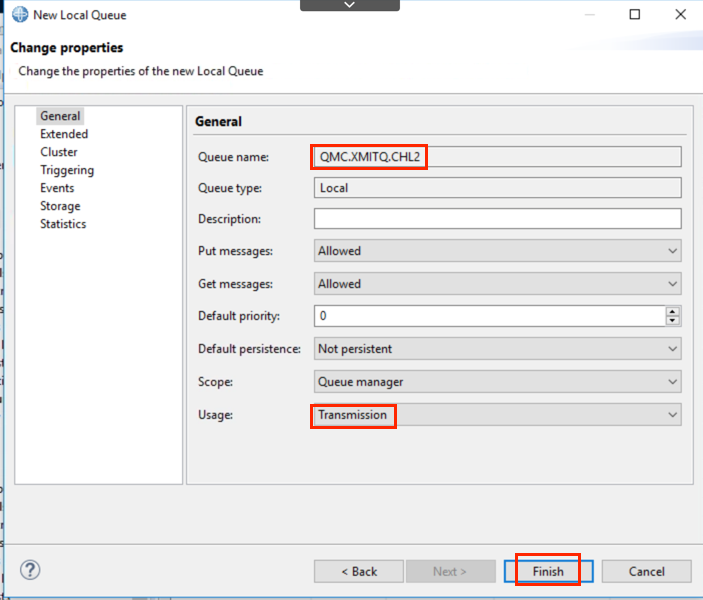
On QM8 create new SDR channel QM8.TO.QMC.CHL2 using the MQ Explorer as in previous steps specifying the SSL cipher ANY_TLS12_OR_HIGHER. Specify a different transmission queue name QMC.XMITQ.CHL2.
Use the following screen-shots as a guide.
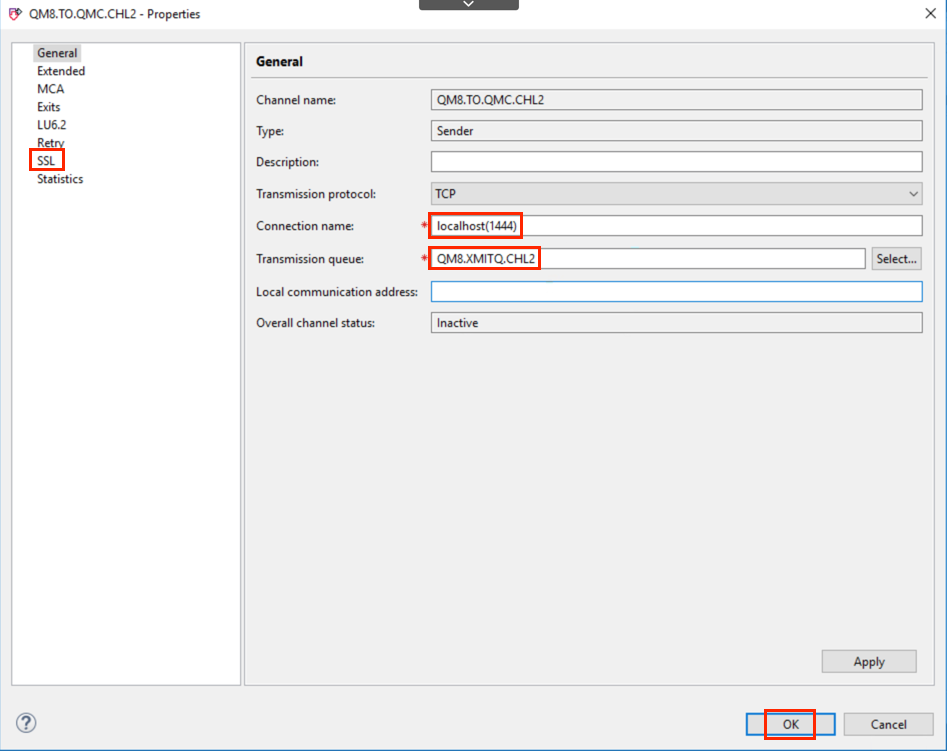
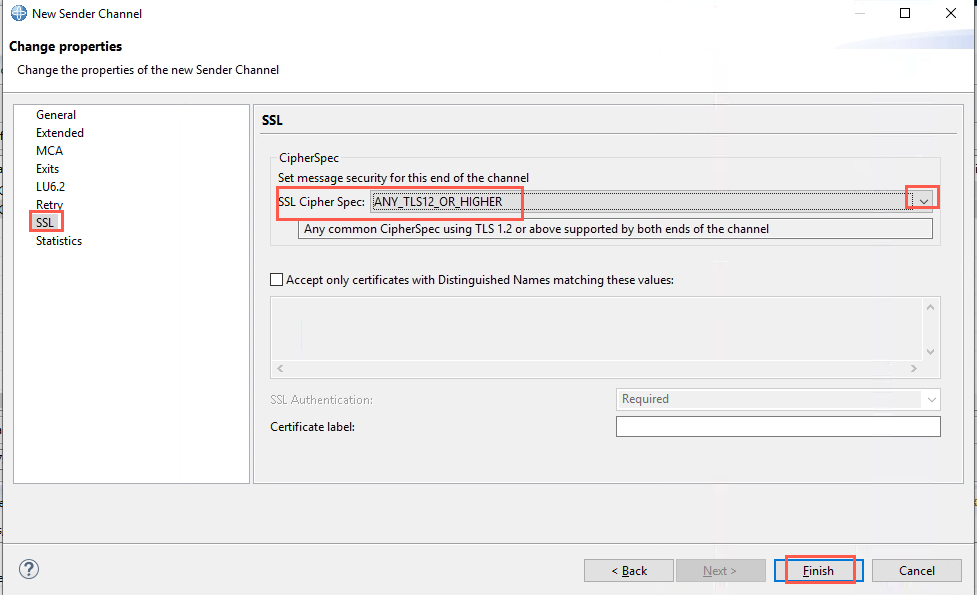
-
Create Local Queue QMC.XMITQ.CHL2 and specify Transmission in the Usage field.
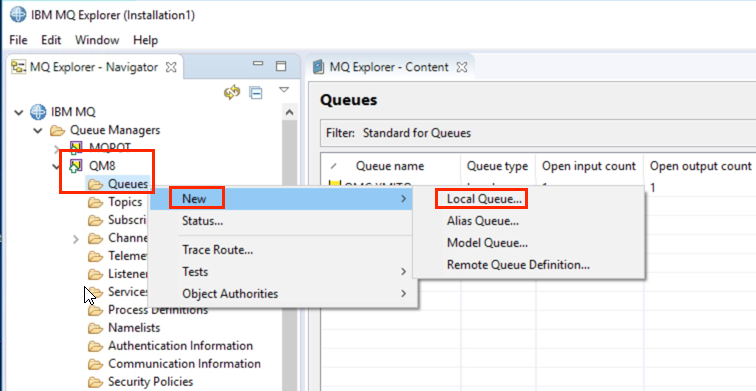
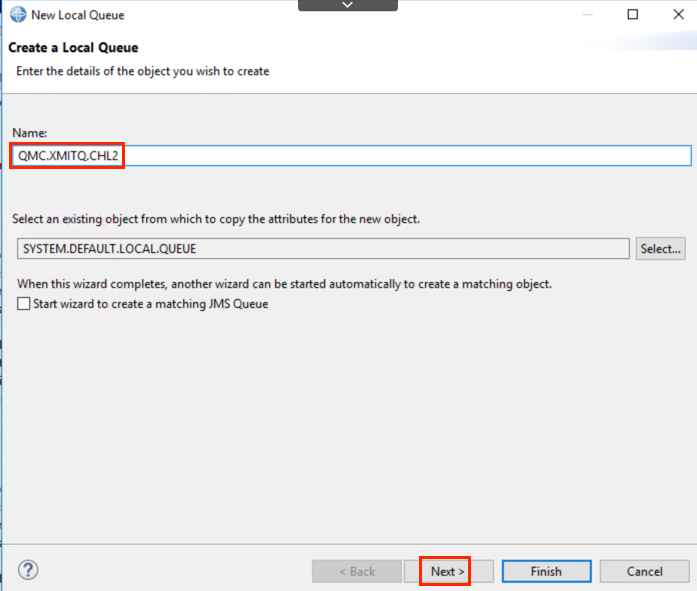
-
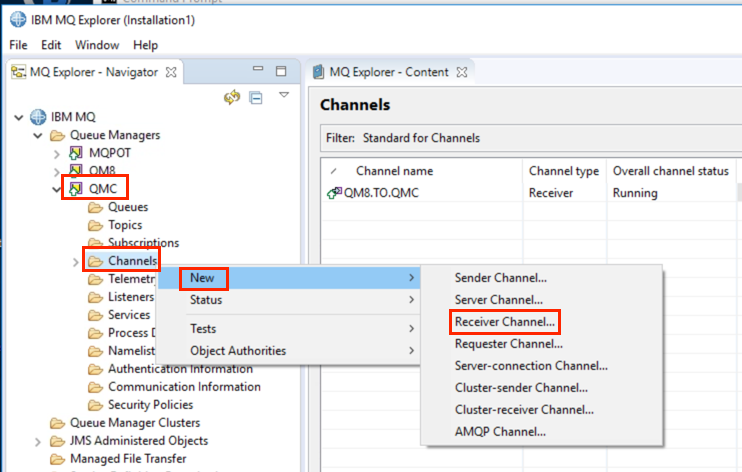
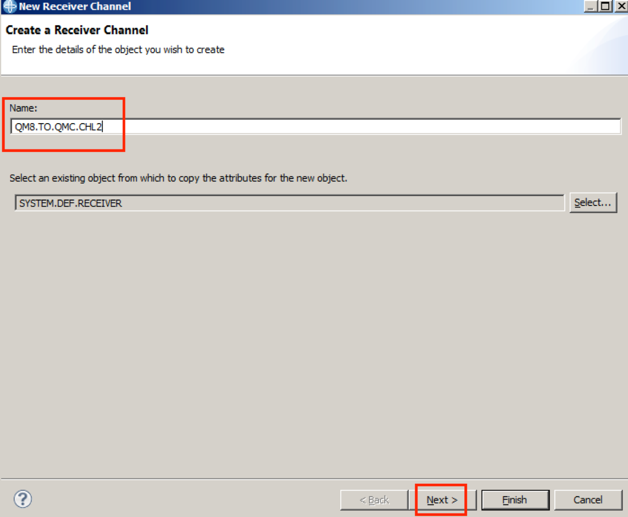
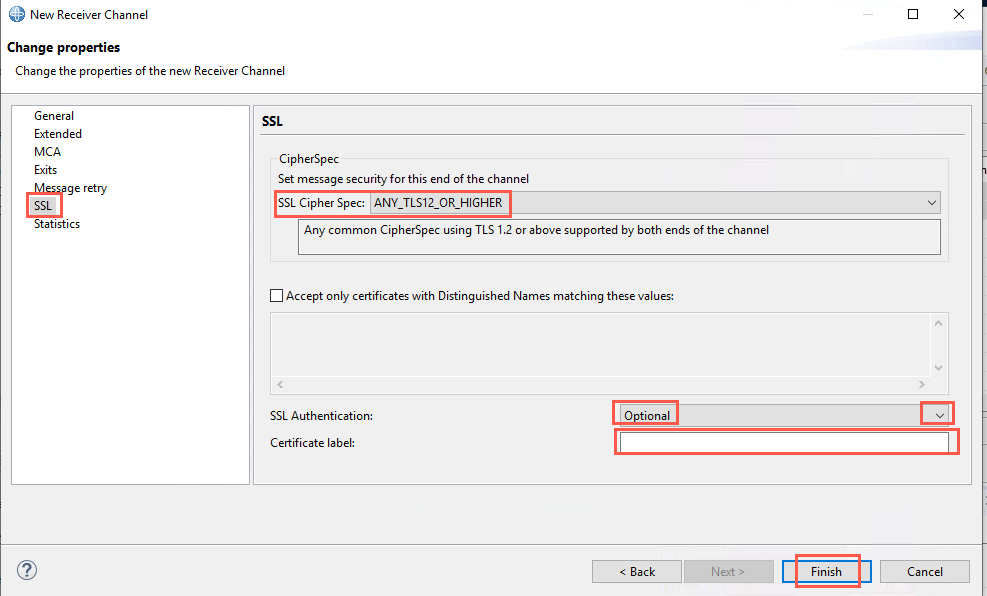
On QMC create new RCVR channel QM8.TO.QMC.CHL2 and leave the CERTLABL blank on the RCVR definition so this time the channel will be using the QMC queue manager SSL property CERTLABL. Using the pull-down for SSL Cipher Spec select ANY_TLS12_OR_HIGHER. Using the pull-down for SSL Authentication select Optional.
At this point there is no need to refresh security because none of the queue manager’s SSL attributes have changed and nothing in the key repository has been changed.
-
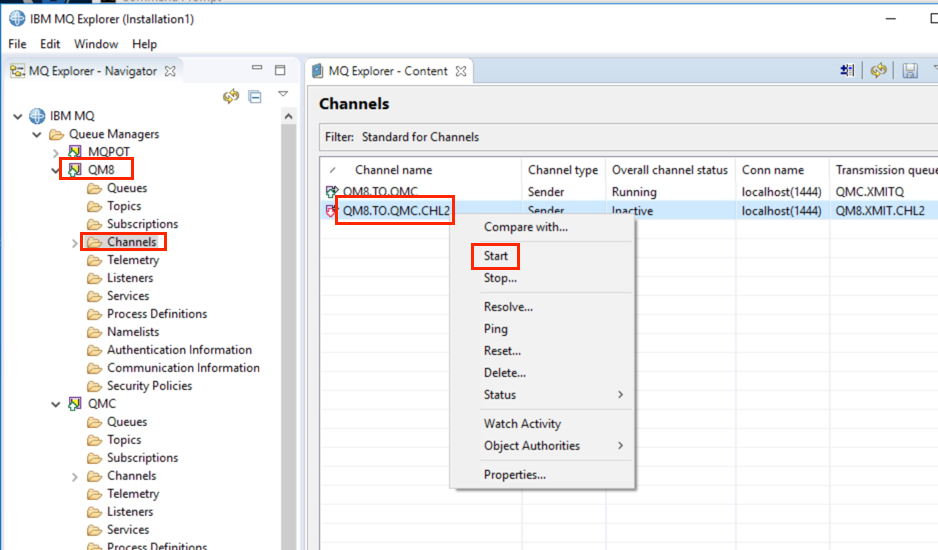
From QM8, start channel QM8.TO.QMC.CHL2.
 Note:
Note:
Note that if you do have any problems starting the channel you should check the queue manager error logs at both ends of the channel. If you do need to make any changes to the queue manager SSL attributes then a REFRESH SECURITY TYPE(SSL) will be needed. When the refresh SSL operation is performed, any running SSL channels are stopped and restarted. This can take a while but the MQ Explorer will only wait for 30 seconds at which point you will see error message AMQ4562. The refresh will continue and the channels will be restarted so you should see them go to a running state after a while. -
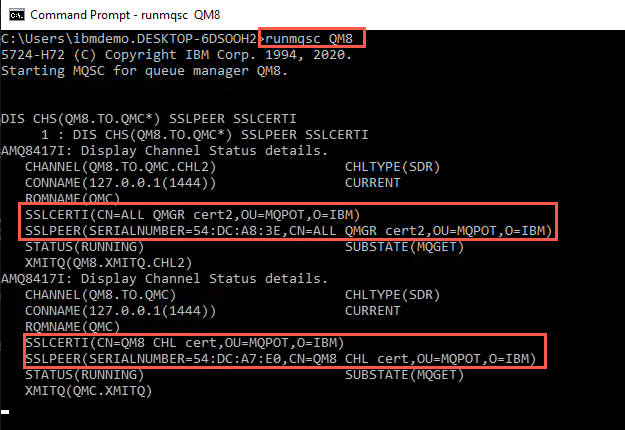
Display the channel status on QM8 using runmqsc QM8 then enter command:
DIS CHS(QM8.TO.QMC*) SSLCERTI SSLPEERYou should see QM8.TO.QMC.CHL2 is using ‘ALL QMGR cert2’, whereas QM8.TO.QMC is using ‘QM8 CHL cert’.
QM8.TO.QMC uses the certificate specified in the CERTLABL field of the channel definition. For QM8.TO.QMC.CHL2 we left the channel definition for CERTLABL blank so it is using the certificate specified in the queue manager property CERTLABL.
This concludes Lab 7.