Overview
With the release of IBM MQ version 8.0.0.2, IBM introduced new security capabilities where an LDAP repository may now be used for authentication and authorization purposes.
A queue manager may be configured to require an application to present a userid for authentication before granting access to the queue manager. The queue manager may be configured to accept either an O/S or LDAP defined userid. When using LDAP based authentication it is not necessary to have the LDAP userid defined as a local O/S user.
Once the userid has been authenticated, the queue manager’s Object Authority Manager (OAM) handles the authorization functions to manage access to MQ objects. You can configure a queue manager to present one of two userid’s to the OAM for authorization purposes:
-
The userid associated with the application that has connected to the queue manager. That is, the O/S userid that the application is running under.
-
The userid was presented during the authentication phase of connecting to the queue manager. An application may authenticate to a queue manager with a different userid and password combination from what the application is running under. The ADOPTCTX attribute on the Authentication Information (AUTHINFO) object that is active for the queue manager determines which method of authorization is used.
This lab exercise uses the ADOPTCTX option.
Changing the authorization method on a queue manager requires careful planning in order to avoid accidentally blocking all users from accessing a queue manager. OAM security authorizations are associated with the authorization method in place when they are configured.
If you change from O/S authorization to LDAP authorization, any existing O/S authorization rules that have been set become inactive and invisible. Likewise, when switching back from LDAP to O/S based authorization, all LDAP authorizations that had been defined become inactive and invisible, restoring the original O/S rules.
You configure authentication by configuring an Authentication Information (AUTHINFO) object in the queue manager. There are several options you may choose from when you are configuring authentication for a queue manager.
- You may configure authentication differently for applications that connect locally (CHCKLOCL) vs. those that use client connections (CKCHCLNT).
- For either connection type you may specify that authentication is:
- NONE, where authentication is not required.
- OPTIONAL, where applications are not required to provide a userid and password. Any applications that do provide a userid and password in the MQCSP structure will have them authenticated by the queue manager against the password store indicated by the AUTHTYPE. The connection is only allowed to continue if the userid and password are valid.
- REQUIRED, where all applications must authenticate when connecting to the queue manager. The connection is only allowed to continue if the userid and password are valid.
- REQDADM, where all client applications using a privileged userid must provide a userid and password in the MQCSP structure. Any locally bound applications using a non-privileged userid are not required to provide a userid and password and are treated as with the OPTIONAL setting.
Note:
The REQDADM value for the CHCKCLNT attribute is irrelevant if the authentication type is LDAP. This is because there is no concept of privileged userid when using LDAP user accounts. LDAP user accounts and groups must be assigned permission explicitly.
View a Deeper Dive into MQ Authentication
LDAP Fundamentals
LDAP Structure
A userid is stored as a record in an LDAP repository and has a number of attributes associated with it. The specific attributes that are available, and which of those are mandatory, are determined by the objectClass that the records are derived from. For this lab you will be using userids that are a part of the inetOrgPerson objectClass and groupids that are a part of the groupOfNames objectClass.
When configuring a queue manager to use an LDAP user repository there is more to be done than to just configure the queue manager to connect to the LDAP repository. Userid records defined in an LDAP repository have a hierarchical structure. In order to identify a specific record, you must be familiar with the directory structure. You will then use this information to properly configure the queue manager.
The following graphic illustrates the hierarchy that you will use in this lab:
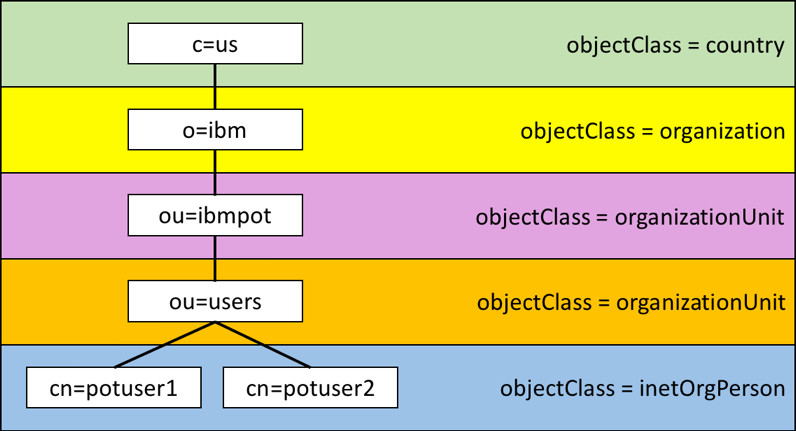
An example of identifying a specific user using a fully qualified domain name (FQDN) would be:
cn=potuser1,ou=users,ou=ibmpot,o=ibm,c=us
So an IBM MQ application could connect to the queue manager and present an FQDN as its userid. This, however, is a lot to provide and it would be simpler if you could configure the queue manager to assume all userids that are presented are found in one specific branch of the hierarchy. Then you could have the queue manager add that portion of the hierarchy to any userid that the application provides.
This is one of the purposes of a queue manager’s AUTHINFO object. The BASEDNU attribute of an AUTHINFO object is used to identify the portion of the FQDN that is common for all userids. An AUTHINFO object also has a USRFIELD attribute that may be used to help compose an LDAP userid. Refer to the following table to see how the AUTHINFO attributes are used to compose LDAP userids.
| Application Provides | USRFIELD | BASEDNU |
|---|---|---|
| cn=potuser1,ou=users,ou=ibmpot,o=ibm,c=us | ||
| cn=potuser1 | Appends: ou=users,ou=ibmpot,o=ibm,c=us | |
| potuser1 | Prepends: cn= | Appends: ou=users,ou=ibmpot,o=ibm,c=us |
There are a similar set of attributes to manage groupids.
Gather LDAP Server Data
Like many other software components, an LDAP server has a wide range of options that may be used to store and retrieve entries. In order to enable a queue manager to utilize an LDAP repository you must configure the queue manager’s objects to properly match LDAP’s objects. An LDAP server image has been provided to support this lab exercise. Before starting this exercise note the following information about the LDAP server:
| Entry | Description | Value |
|---|---|---|
| LDAP server name: | Host name or IP address of LDAP server. Include the port number in parenthesis if it is not the default value. | 10.0.0.5 |
| User name: | A valid LDAP userid that the queue manager may use to query the LDAP server. | cn=root |
| Password: | The password for the above user. | db2admin |
| Equivalent short user: | The LDAP attribute that is used to map between an LDAP entry and the underlying O/S. Examples for the inetOrgPerson objectClass would be either sn or uid. | sn |
| User object class: | The LDAP objectClass that the userid record is derived from. | inetOrgPerson |
| Qualifying user field: | The LDAP attribute that is used to identify the user. Refer to the previous section to determine what value to use. | cn |
| Use secure communications: | Determines whether to configure SSL/TLS communication between the queue manager and the LDAP. For this lab leave this value at NO. | NO |
| Authorization method: | Used to determine how the queue manager should query for user and group ID’s. For this exercise specify SEARCHGRP to indicate you will search for users and groups in an LDAP directory, and that the queue manager should use the Qualifying group field attribute to identify which group attribute to use to search for group membership. | SEARCHGRP |
| Allow nested groups: | Used to determine if access rights may be aggregated through a group’s hierarchy. | YES |
| user base DN: | Used to compose an FQDN for a userid as described above. (Note that this is a single field.) |
ou=users,ou=ibmpot,o=ibm,c=us |
| Group base DN: | Used to compose a FQDN for a groupid as described above. (Note that this is a single field.) |
ou=users,ou=ibmpot,o=ibm,c=us |
| Group object class: | The LDAP objectClass that the groupid is derived from. | groupOfNames |
| Qualifying group field: | The LDAP attribute that is used to identify the group. Refer to the previous section for an example of how to determine what value to use. | cn |
| Group membership field: | The LDAP attribute that is used to identify the members of the group. Refer to the previous section for an example of how to determine what value to use. | member |
The LDAP server that you will use for this lab contains 5 userids and 1 group. These IDs are:
| Userid | Password |
|---|---|
| cn=potuser1,ou=users,ou=ibmpot,o=ibm,c=us | passw0rd |
| cn=potuser2,ou=users,ou=ibmpot,o=ibm,c=us | passw0rd |
| cn=potuser3,ou=users,ou=ibmpot,o=ibm,c=us | passw0rd |
| cn=potuser4,ou=users,ou=ibmpot,o=ibm,c=us | passw0rd |
| cn=potuser5,ou=users,ou=ibmpot,o=ibm,c=us | passw0rd |
passw0rd uses a numeral zero for 0.
The group used for this lab is named authorized. It contains the following users:
- cn=potuser1,ou=users,ou=ibmpot,o=ibm,c=us
- cn=potuser3,ou=users,ou=ibmpot,o=ibm,c=us
- cn=potuser5,ou=users,ou=ibmpot,o=ibm,c=us
Queue Manager Integration with LDAP
Create and Configure a Queue Manager
New and existing queue managers may be configured for LDAP support. The IBM MQ version must be at least 8.0.0.2 or higher, and the CMDLEVEL property of the queue manager must be set to 801 or higher.
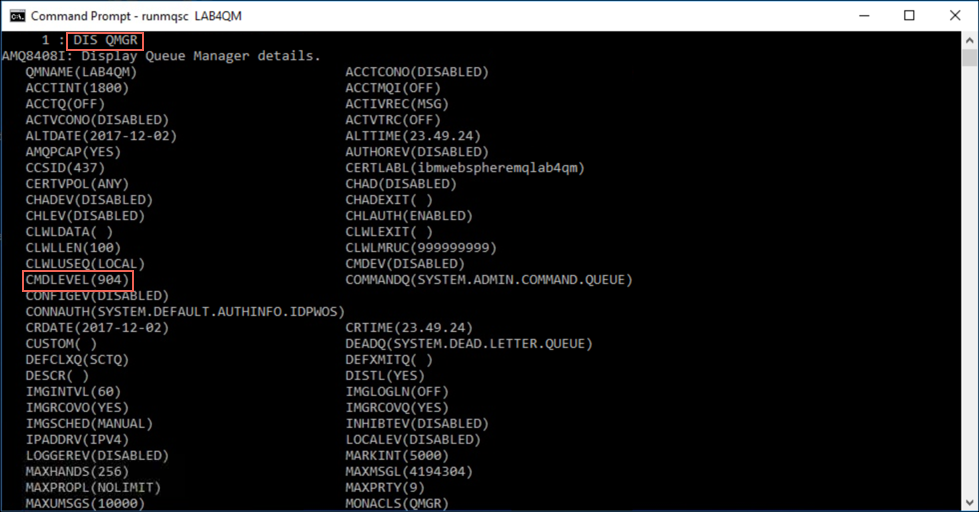
For this lab you will create a new queue manager and then configure it to connect to an LDAP server. Creating a new queue manager will automatically set the CMDLEVEL version to the latest level.
Complete the following steps to proceed:
-
Login to the Windows 10 x64 server image using the ibmdemo userid and a password of passw0rd. (Where 0 is numeral zero.)
-
Open a command prompt and then enter the following command to create and start a new queue manager:
 crtmqm -p 1430 -u SYSTEM.DEAD.LETTER.QUEUE LDAPQM
 strmqm LDAPQM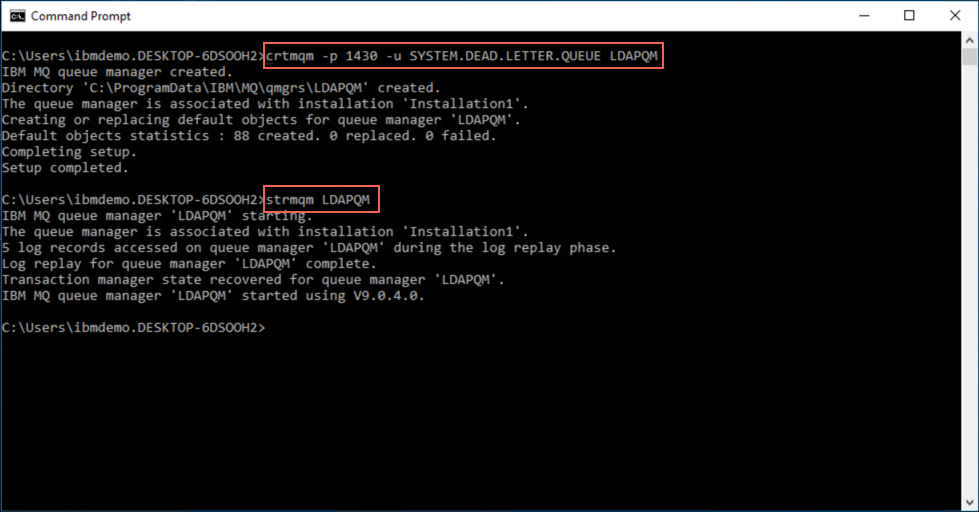
-
Execute the runmqsc command to open an MQ command prompt for the LDAPMQ queue manager.
runmqsc LDAPQM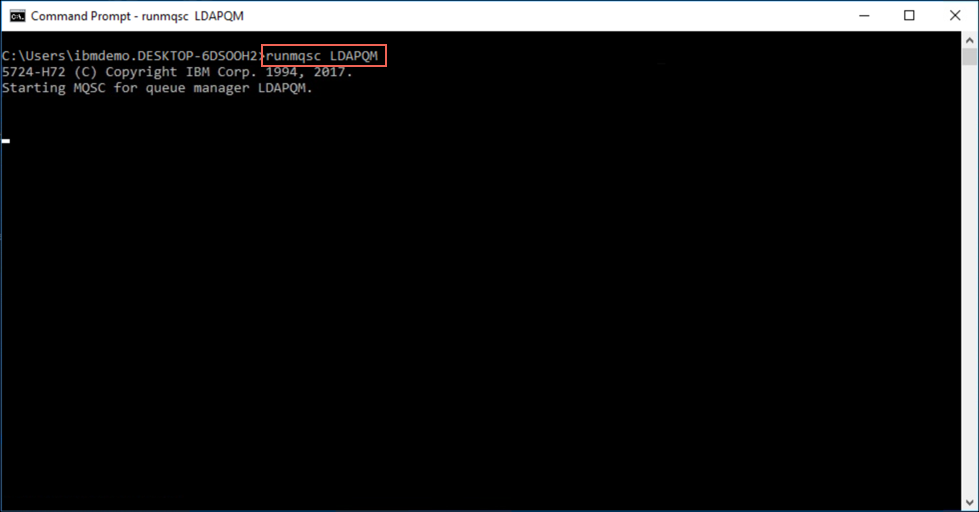
-
Use the following command to create a new AUTHINFO object that references the LDAP server. Pay close attention to ensure that the parameters included in the command match your LDAP server’s properties:
DEFINE AUTHINFO(USE.LDAP) AUTHTYPE(IDPWLDAP) ADOPTCTX(YES) CONNAME(10.0.0.5) CHCKLOCL(OPTIONAL) CHCKCLNT(REQUIRED) CLASSGRP('groupOfNames') CLASSUSR('inetOrgPerson') FINDGRP('member') BASEDNG('ou=users,ou=ibmpot,o=ibm,c=us') BASEDNU('ou=users,ou=ibmpot,o=ibm,c=us') LDAPUSER('cn=root') LDAPPWD('db2admin') SHORTUSR('sn') GRPFIELD('cn') USRFIELD('cn') AUTHORMD(SEARCHGRP) NESTGRP(YES)Note:
There is no option to have local connections on an MQ Appliance hosted queue manager. Omit the CHCKLOCL parameter when defining AUTHINFO objects for MQ Appliance hosted queue managers.
Also, note that at this time the CHCKLOCL parameter is set to OPTIONAL. Once you have finished configuring the queue manager for LDAP support you will change its value to REQUIRED to ensure that even local accounts must authenticate with the LDAP server.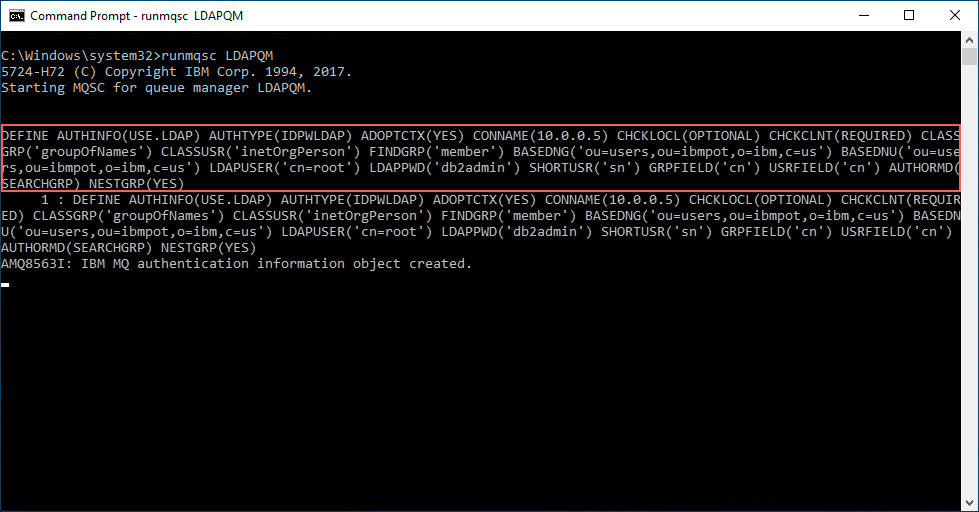
-
Next, execute the following command to reconfigure the LDAPQM queue manager to use the new USE.LDAP AUTHINFO object:
ALTER QMGR CONNAUTH(USE.LDAP)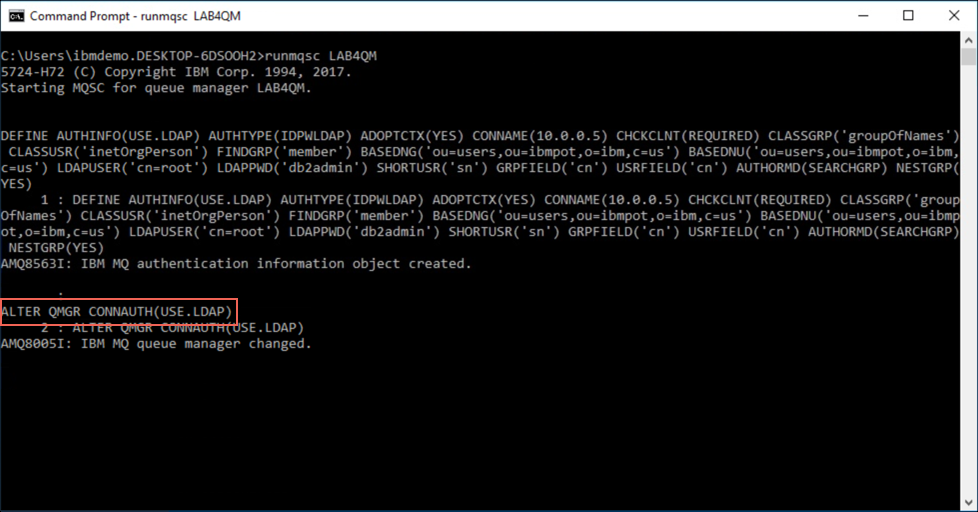
-
You must restart the queue manager in order to have the changes to the queue manager’s CONNAUTH attribute take effect. You need to enter the end command to exit the runmqsc command shell, then enter the following commands:
 endmqm -i LDAPQM
 strmqm LDAPQM
Important:
Now that the queue manager has been configured to access an LDAP server, and the queue manager has been restarted, you will need to use valid userid’s from the LDAP for both authentication and authorization. At this point in your configuration none of the LDAP userid’s will have any access to the queue manager or any of its objects until you start granting explicit authorities to all of the necessary objects.
Also, keep in mind that the IBM MQ “superuser” group, mqm, is known only to the O/S that the queue manager is running on. You will no longer be able to utilize membership within that group as you work with the queue manager’s objects. For this lab exercise you will use an LDAP group named authorized to function the same as the mqm group does in an O/S based authorization configuration. Complete the following steps to configure the authorized LDAP group to act as an MQ superuser. -
Use the following commands to enable a member of the authorized group to connect to, and control, all aspects of the queue manager:
setmqaut -m LDAPQM -t qmgr -g "authorized" +connect +inq +alladm
setmqaut -m LDAPQM -n "**" -t q -g "authorized" +alladm +crt +browse
setmqaut -m LDAPQM -n "**" -t topic -g "authorized" +alladm +crt
setmqaut -m LDAPQM -n "**" -t channel -g "authorized" +alladm +crt
setmqaut -m LDAPQM -n "**" -t process -g "authorized" +alladm +crt
setmqaut -m LDAPQM -n "**" -t namelist -g "authorized" +alladm +crt
setmqaut -m LDAPQM -n "**" -t authinfo -g "authorized" +alladm +crt
setmqaut -m LDAPQM -n "**" -t clntconn -g "authorized" +alladm +crt
setmqaut -m LDAPQM -n "**" -t listener -g "authorized" +alladm +crt
setmqaut -m LDAPQM -n "**" -t service -g "authorized" +alladm +crt
setmqaut -m LDAPQM -n "**" -t comminfo -g "authorized" +alladm +crt
setmqaut -m LDAPQM -n SYSTEM.MQEXPLORER.REPLY.MODEL -t q -g "authorized" +dsp +inq +get
setmqaut -m LDAPQM -n SYSTEM.ADMIN.COMMAND.QUEUE -t q -g "authorized" +dsp +inq +put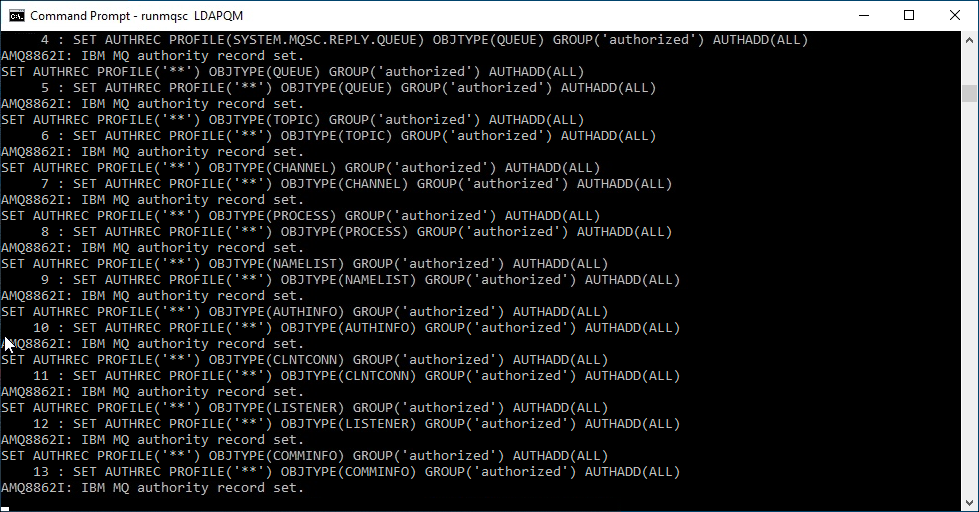
-
Now that all of the LDAP configuration settings have been completed start the runmqsc command shell for the LDAPQM queue manager and then enter the following command to change the USE.LDAP AUTHINFO object to require all local applications to authenticate:
Note:
Remember: the CHCKLOCL property is not supported on an MQ Appliance hosted queue manager.ALTER AUTHINFO(USE.LDAP) AUTHTYPE(IDPWLDAP) CHCKLOCL(REQUIRED) REFRESH SECURITY TYPE(AUTHSERV)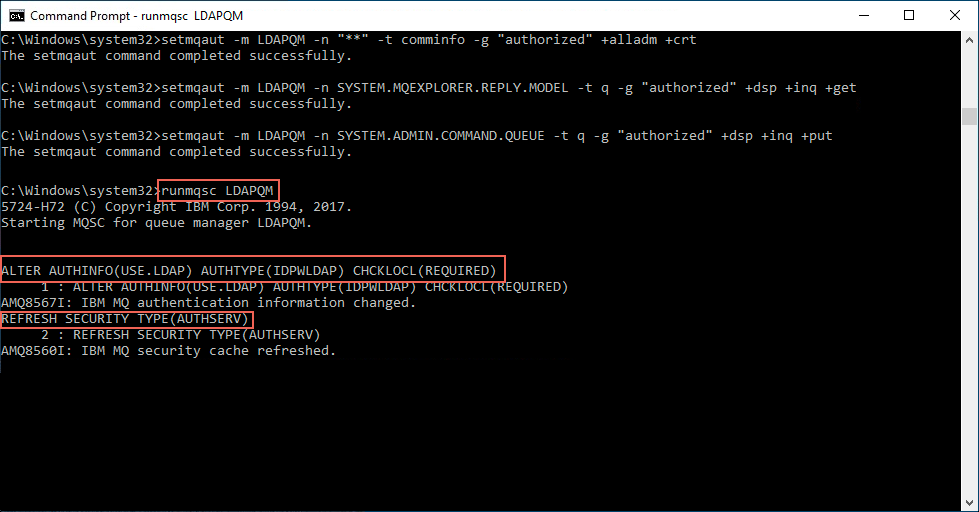
-
Enter the end command to exit the runmqsc command shell.
Verify Configuration
You have now completed all of the steps necessary to have the LDAPQM queue manager use an LDAP server for authentication and authorization. Complete the following steps to observe the differences in accessing a queue manager that is using an LDAP server.
-
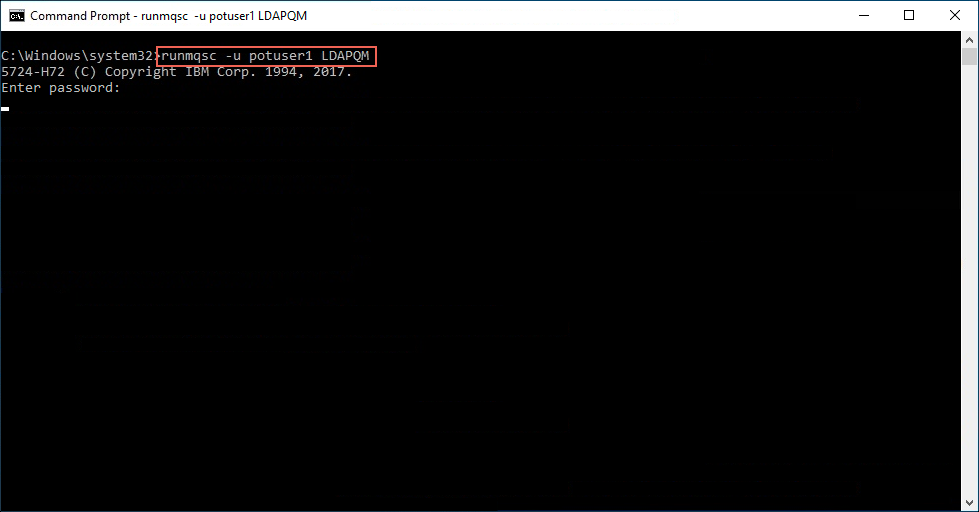
In order to use the runmqsc command to enter the MQ command shell you will need to provide the -u command line flag to specify a userid that is a member of the authorized group. Use the following command to enter the MQ command shell:
runmqsc -u potuser1 LDAPQMEnter passw0rd (where 0 is numeral zero) when prompted.
 Note:
Note:
You may recall from earlier in this lab that there were a total of 5 userids defined in this LDAP. You may use any of the userid’s that are a member of the authorized group. -
Test out running a few MQSC commands to ensure that your userid has sufficient authorization. Exit the MQSC command shell with the end command when you have finished.
 DEFINE QLOCAL(TEST) REPLACE
 ALTER QLOCAL(TEST) DESCR('Added a comment')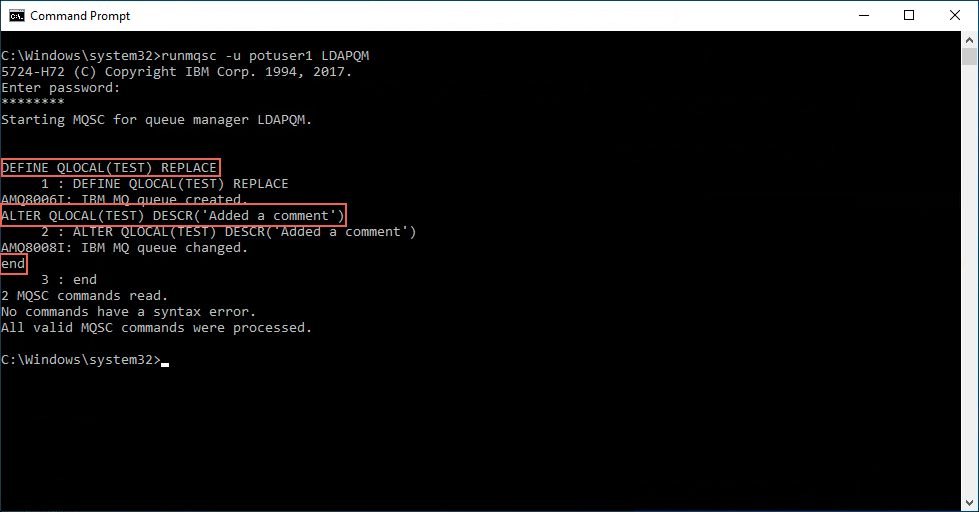
-
With authentication set to REQUIRED for both local and client connections, your applications will need to specify an appropriate userid and password in order to connect to the queue manager and access MQ objects.
The MQ sample applications have been updated to use the MQSAMP_USER_ID environment variable as the userid when connecting to a queue manager that has authentication set to REQUIRED. Set the environment variable with the following command:
set MQSAMP_USER_ID=potuser1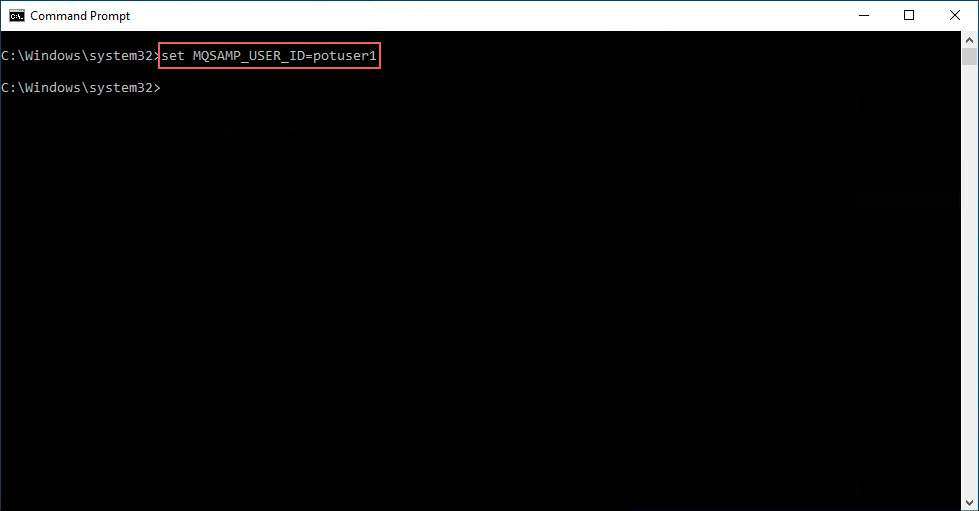
-
Try using the MQ sample applications to PUT and GET messages using the TEST queue you had created earlier.
 amqsput TEST LDAPQM
 amqsget TEST LDAPQM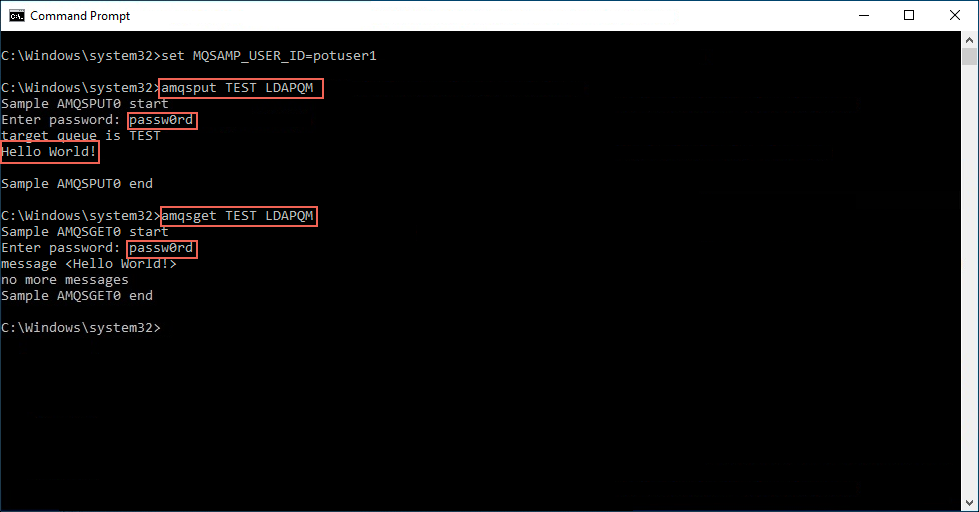
-
Retry the previous step with potuser2 set as the userid in the MQSAMP_USER_ID environment variable.
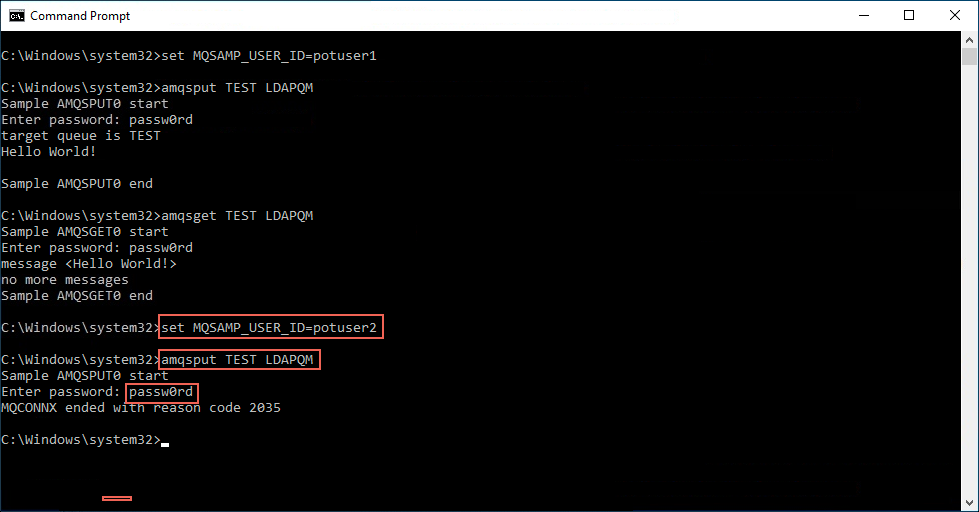
This shouldn’t be a surprise since the potuser2 userid hasn’t been granted any authorization to connect to the LDAPQM queue manager or to the TEST queue.
-
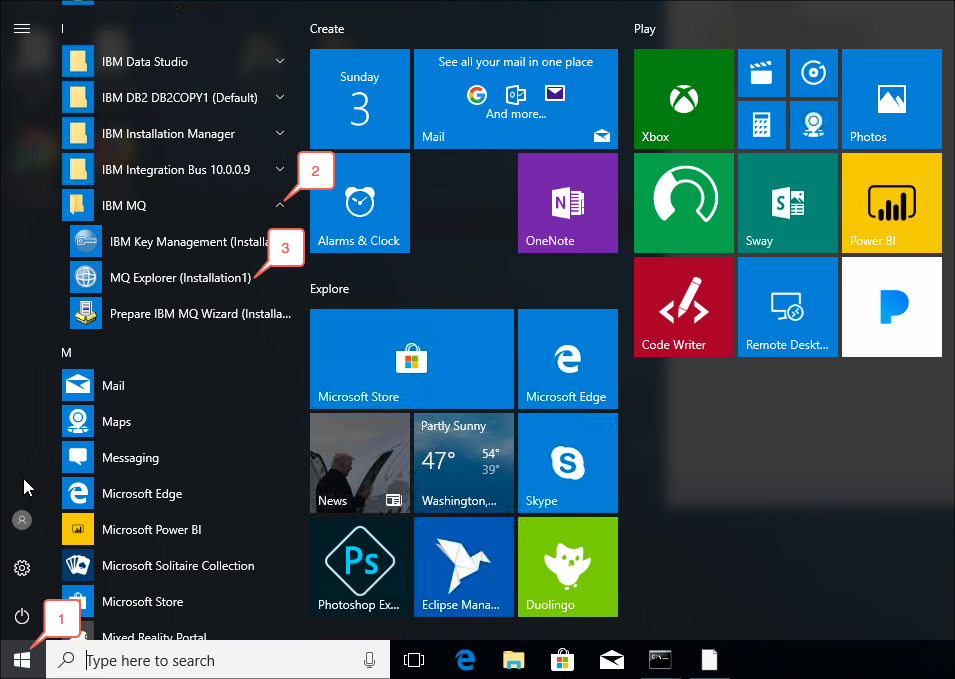
Next you will explore differences in using the IBM MQ Explorer. Launch the Explorer by clicking on the Windows Start Menu, expanding the IBM MQ folder and then clicking on the MQ Explorer (Installation1) menu item.
-
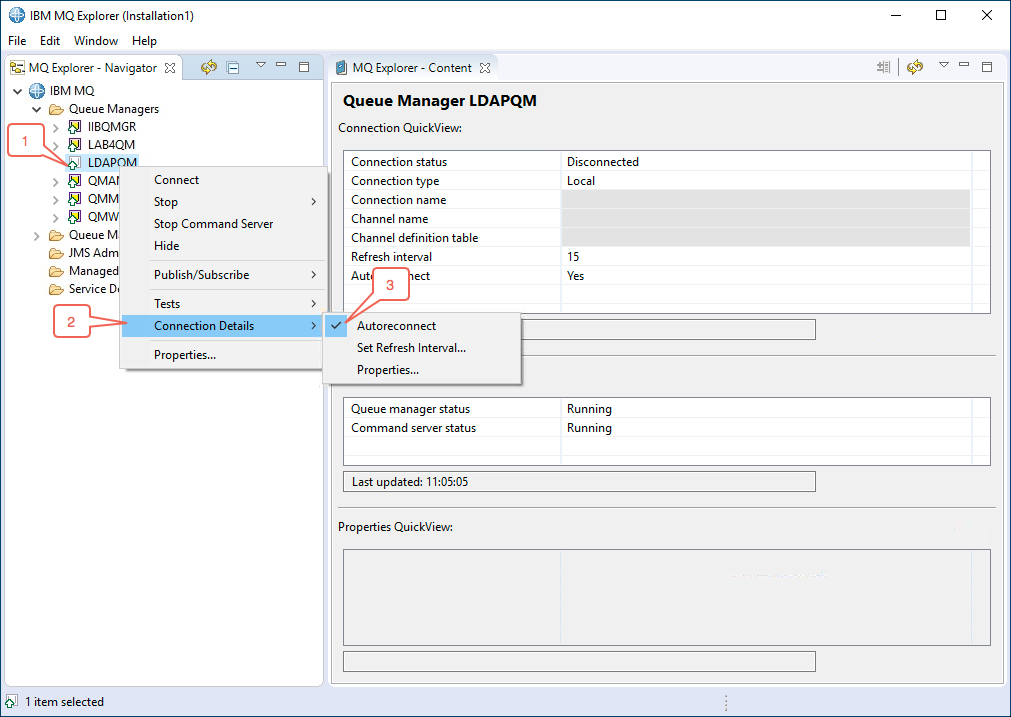
You will need to configure the connection settings for the LDAPQM queue manager in order to allow the Explorer to access the queue manager with appropriate credentials. Right-click on the LDAPQM queue manager, select the Connection Details menu item and then de-select the Autoreconnect menu option.
-
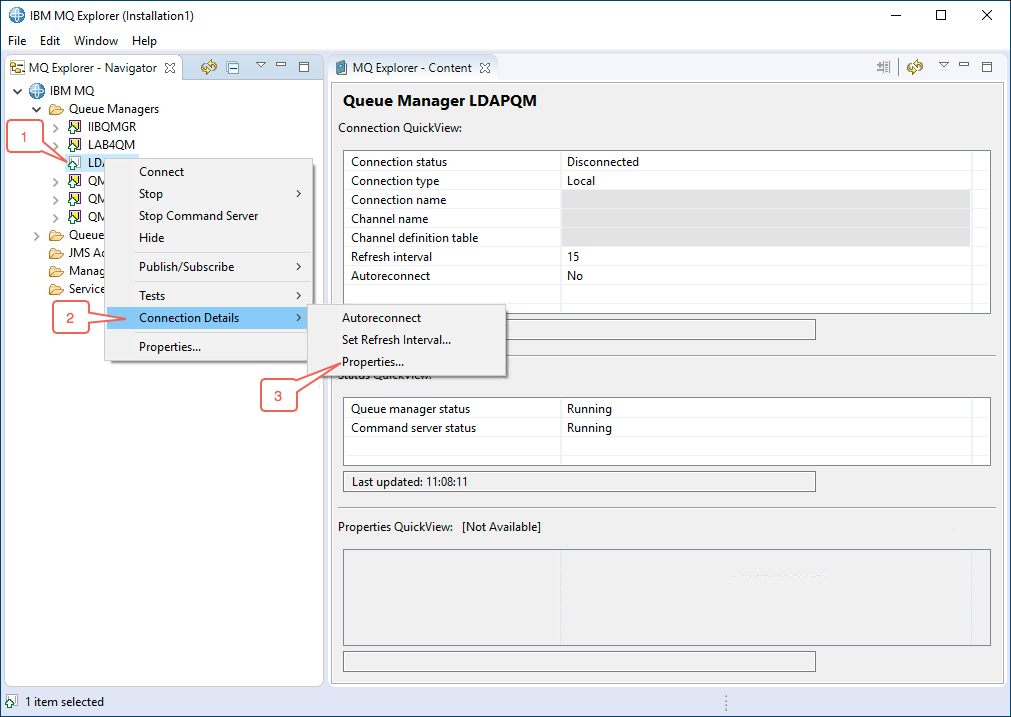
Right-click on the LDAPQM queue manager again. Select the Connection Details menu item and then click on the Properties… menu item.
-
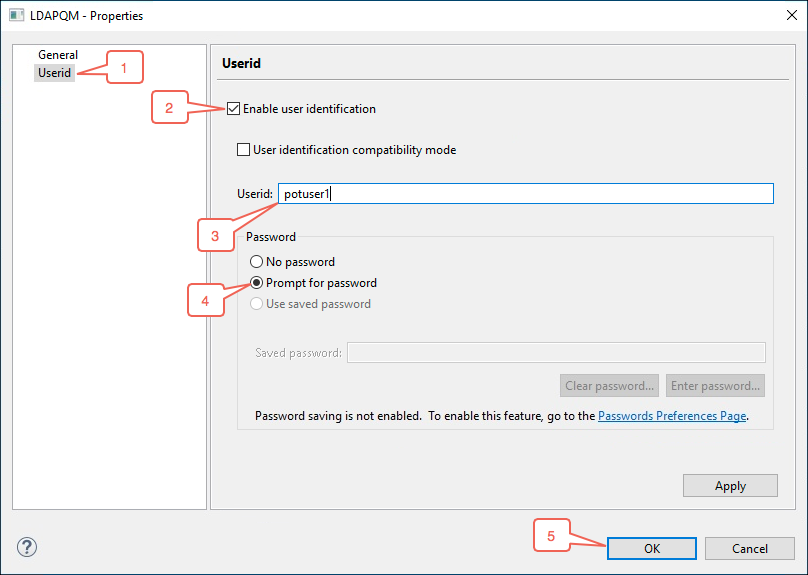
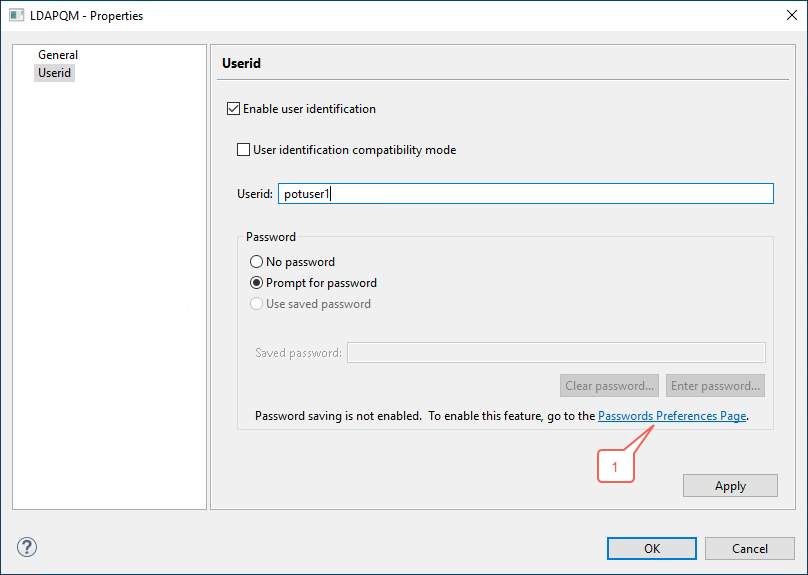
Select the Userid category. Select the Enable user identification checkbox, enter potuser1 in the Userid: field, select the Prompt for password radio button and then click on the OK button to save your entries.
-
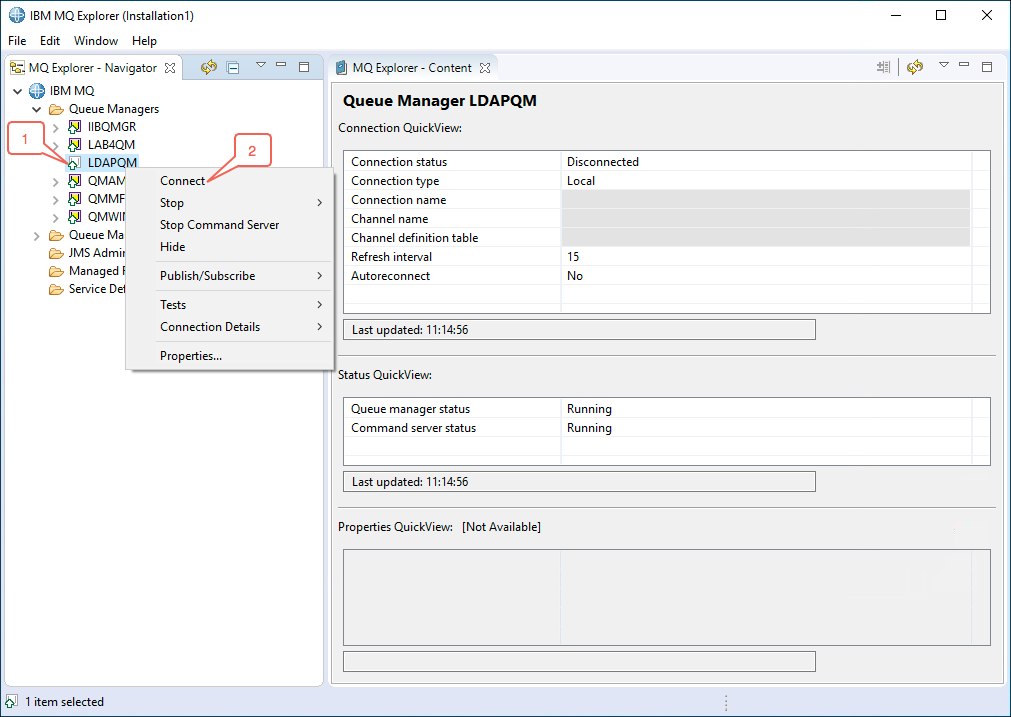
Now you can test your connection properties. Right-click on the LDAPQM queue manager and then click on the Connect menu item.
-
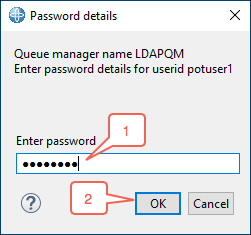
You will be presented with a password prompt. Enter passw0rd (where 0 is numeral zero) and click on the OK button.
You may now use the Explorer as usual.
-
If you would like to avoid having to be prompted for a password every time you access the IBM MQ Explorer you may store your password in a file. To enable this right-click on the LDAPQM queue manager again. Select the Connection Details menu item and then click on the Properties… menu item.
-
Click on the Password Preferences Page link.
-
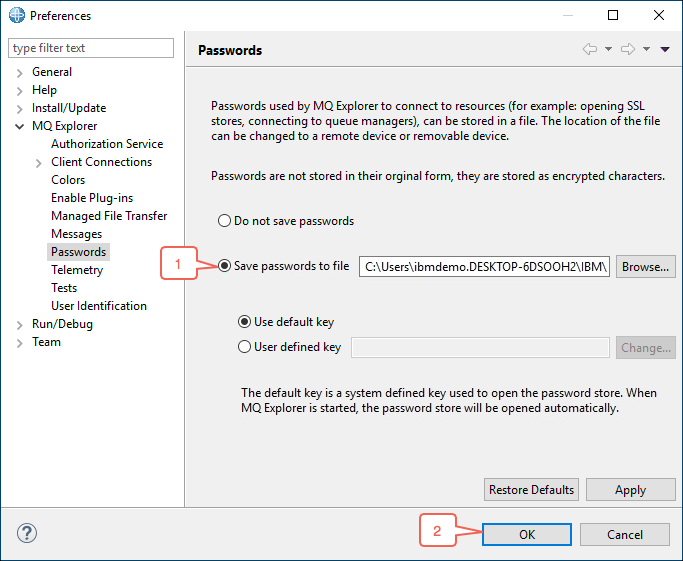
Click on the Save passwords to file radio button and then click on the OK button.
-
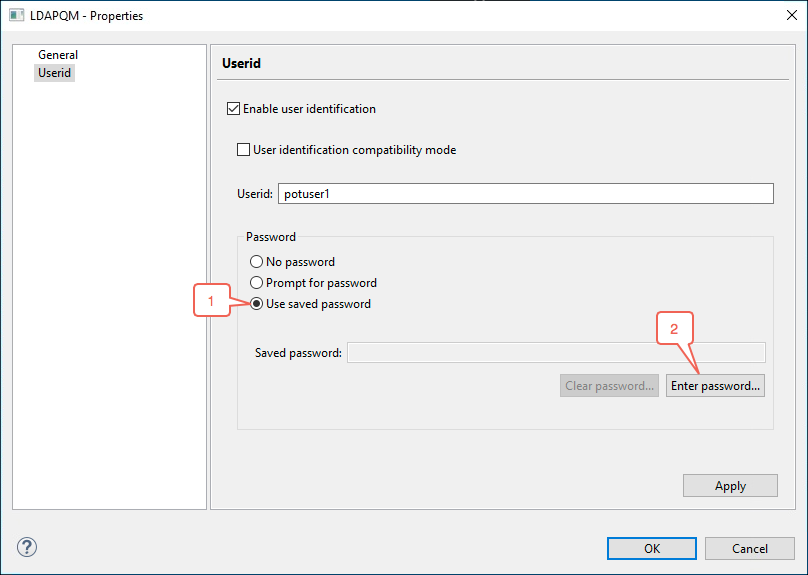
Next click on the Use saved password radio button and then click on the Enter password… button.
-
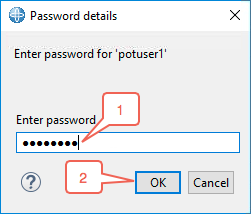
Enter passw0rd in the password field (where 0 is numeral zero) and then click on the OK button.
-
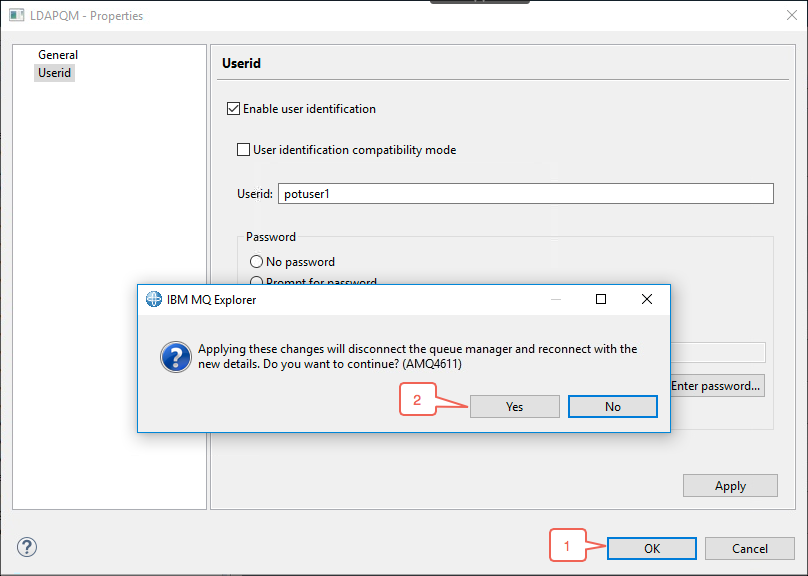
Click on the OK button. A verification prompt will appear asking if you want to disconnect from the LDAPQM queue manager and reconnect with the new userid and password. Click on the Yes button to reconnect.
-
You have now reconfigured the IBM MQ Explorer to automatically connect to the LDAPQM queue manager with the stored credentials.
Summary
Congratulations! You have successfully completed this lab exercise. This is the only lab for the LDAP PoT.