
In order to complete the labs you will need a valid username and password for Salesforce.com. Since integration is provided through the Salesforce.com APIs you will also need to know the Salesforce.com security token associated with the username. Ensure that you have created your Salesforce Developer account before starting the labs.
The following section will take you through Setting up an account, activating the access to your Salesforce account and obtaining the security token. You should do this from within the Proof of Technology virtual machine and not from the native PC.
If you already have a developer account and know this information then you will still need to complete the steps found in the Accessing Salesforce From Your Workstation section to enable access your Salesforce account.
Setting up a Salesforce Developer Account
-
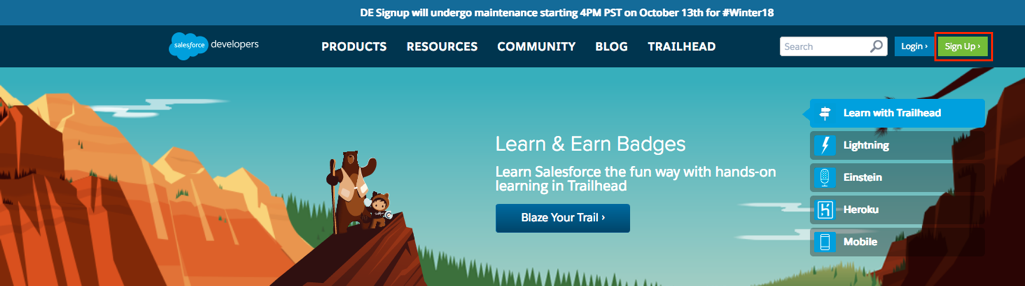
Use a web browser to navigate to the following URL and then click on the Sign up button: https://developer.force.com/
-
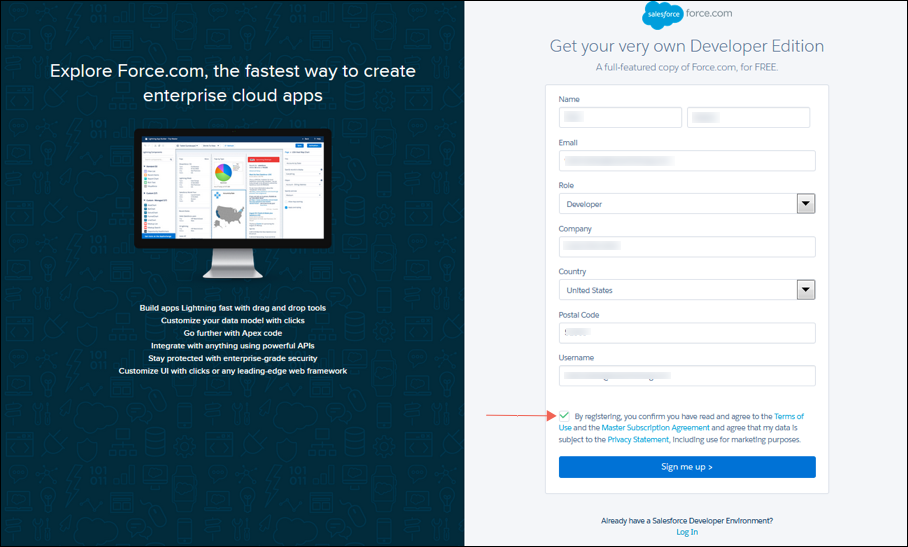
You will need a valid email address that you can access from the lab image in order to complete the application. Complete all of the fields and ensure you select the checkbox to agree to the terms and conditions. Click on the Sign me up button to proceed.
-
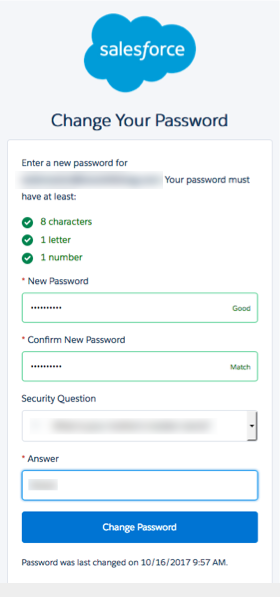
You should receive an email from Salesforce.com. Sign on to your email account in order to review the registration email. The email will contain a subject line similar to the following: Salesforce.com login confirmation. Click on the Verify Account button found in the email and then perform the required steps to complete the account setup.
-
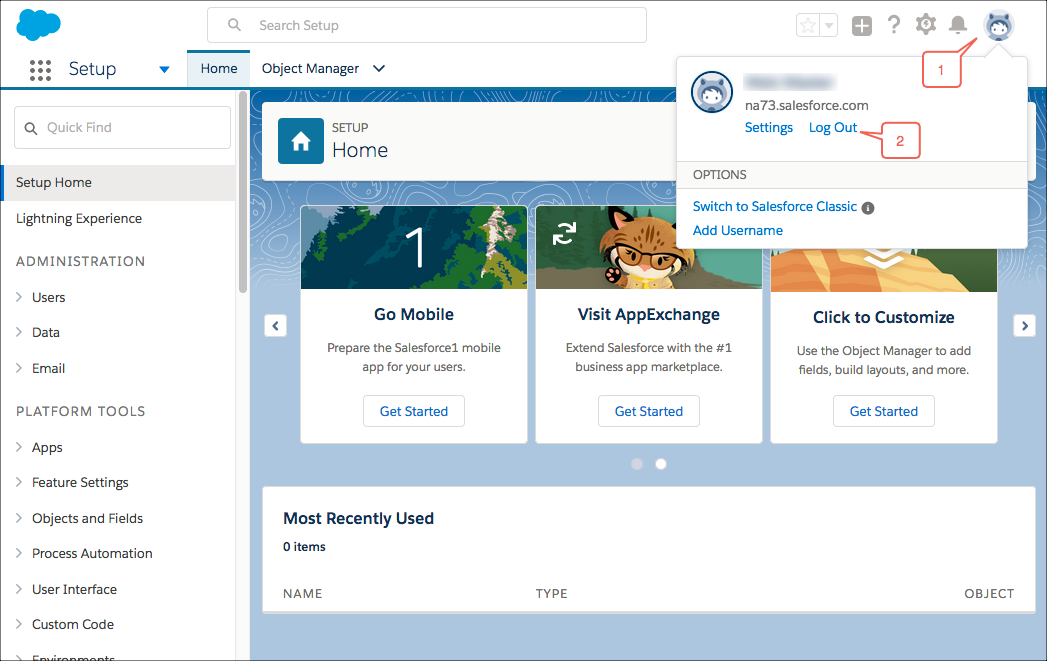
The Salesforce Home screen for developers will appear. Log out of this site by clicking on the avatar in the upper right corner of the page and then clicking on the Log Out link.
-
You now have access to the developer account. Verify access by continuing with the following steps to view a set of sample accounts.
-
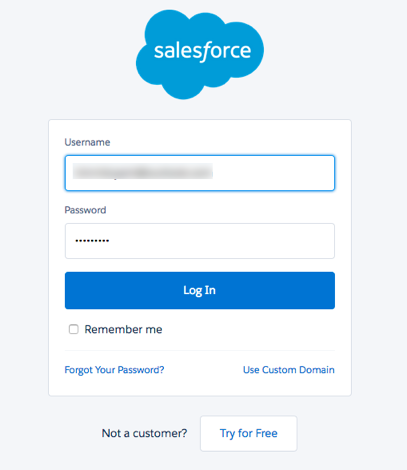
Navigate to the Salesforce.com website. Login using your developer account.
-
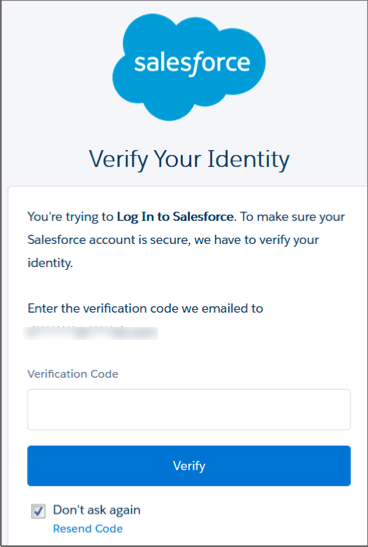
Accessing Salesforce.com from a workstation that you have not used before may cause Salesforce to prompt you to verify your identity as you log on. If prompted, enter the verification code that was sent to your email address.
-
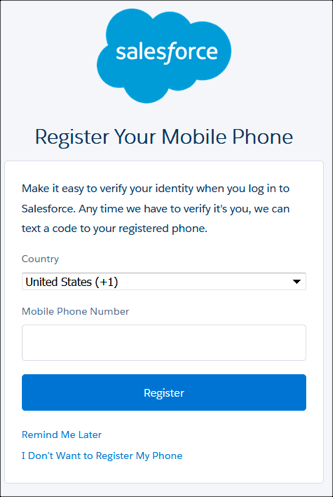
You may also be prompted to register your mobile phone. This step is optional. You may enter your mobile phone and click on the Register button or simply click on the Remind Me Later or I don’t want to Register My Phone links to proceed.
-
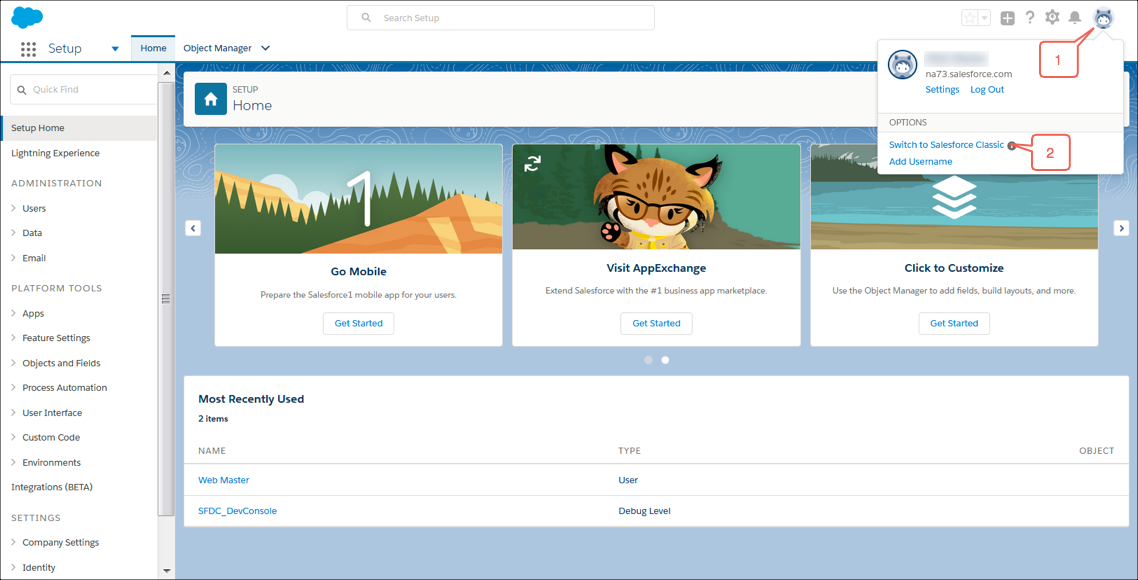
The initial Salesforce Setup page will be displayed. Click on the avatar in the upper right corner of the page and then click on the Switch to Salesforce Classic link to change the format of the pages.
-
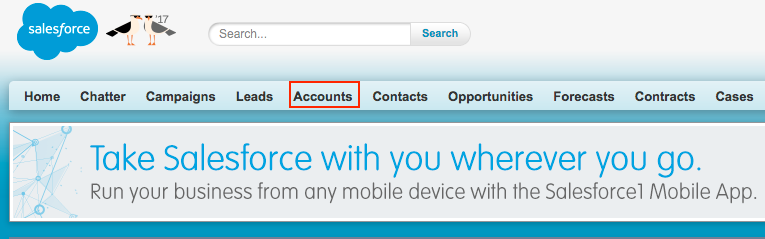
Next click on the Accounts tab.
-
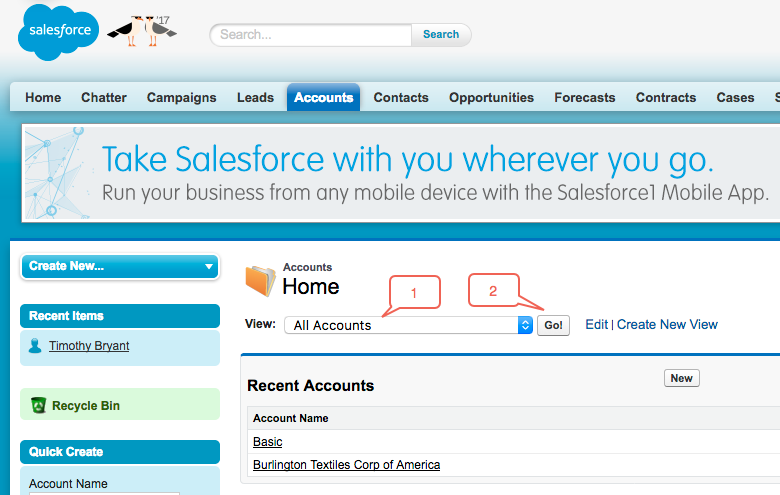
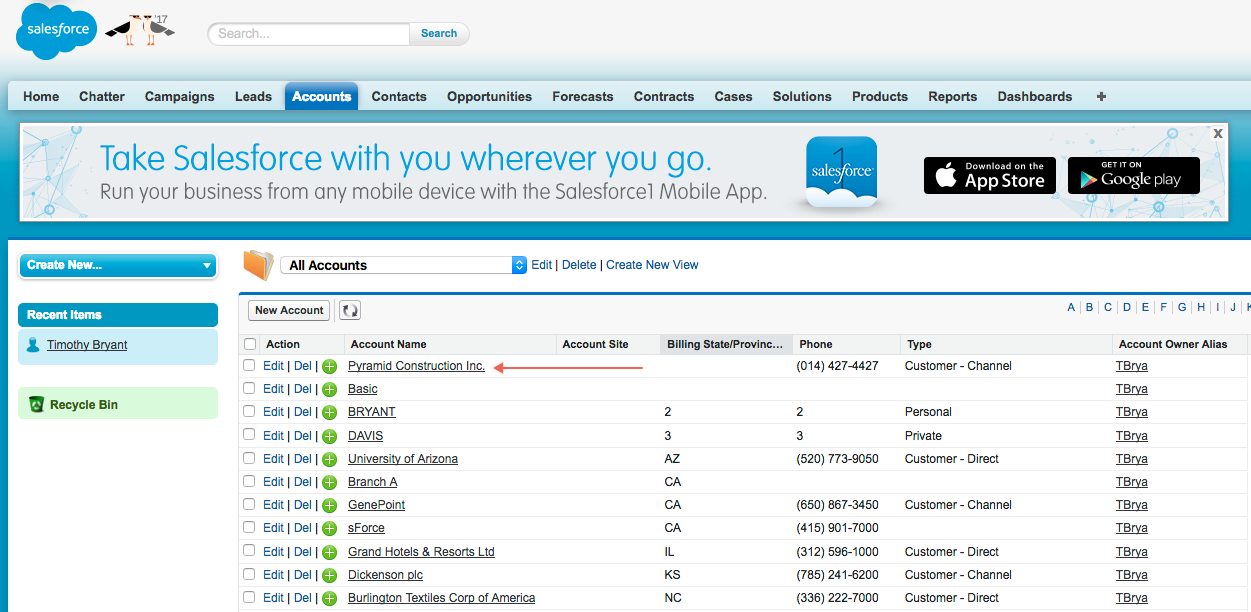
In the View dropdown select All Accounts from the drop down list and then click on the Go! button. A list of sample accounts will be displayed.
-
You can look at the detail for any of the accounts by clicking on an account name.
-
Continue by completing the steps found in the Set and Retrieve the API Security Token section.
Accessing Salesforce From Your Workstation
Accessing Salesforce.com from a workstation that you have not used before may cause Salesforce to prompt you to verify your identity as you log on:
Upon receipt of your email enter the verification code and then click on the Verify button to continue. You will be directed to the main Salesforce page.
Set and Retrieve the API Security Token
In order to access the Salesforce API’s an application must provide a Security Token (or “API Key”) when invoking the API. If you have just created a new Salesforce account, or if you don’t have the Security Token for an existing Salesforce account you may generate a new one by perform the following steps.
Keep in mind that when you change the Security Token for your Salesforce account all other applications that access Salesforce API’s using that account will need to be updated as well.
-
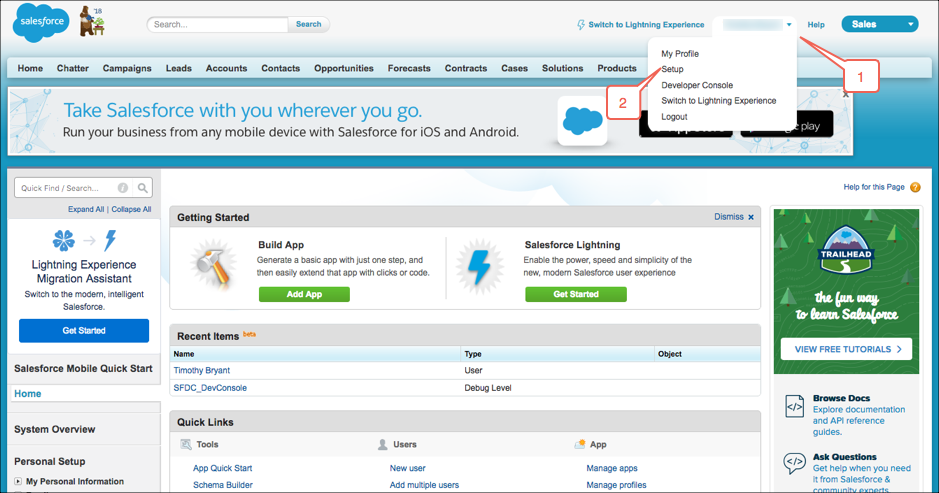
Navigate to the Salesforce.com website and login using your developer account. Once you have logged in open the drop down list next to your username and select the Setup link.
-
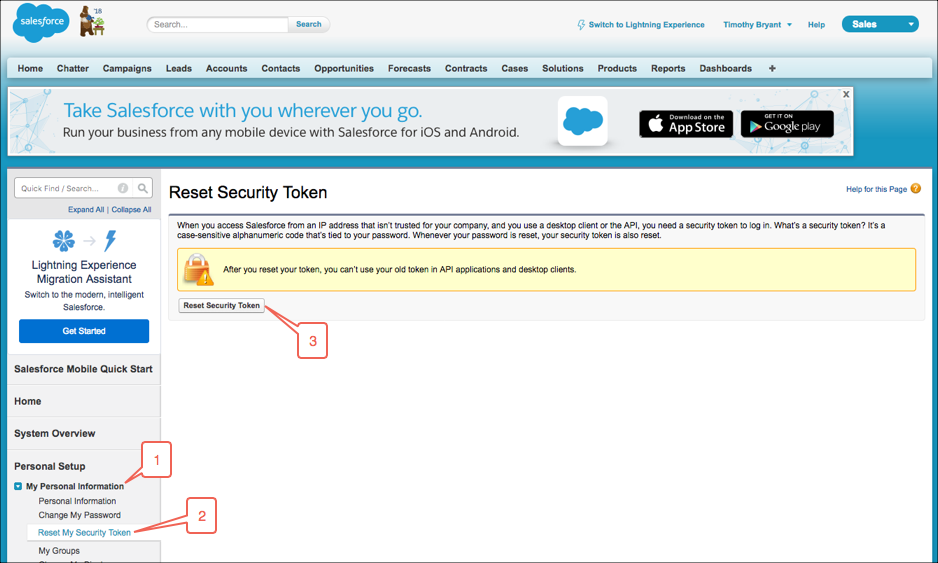
Expand the Personal menu item located on the left of the page, click on the Reset My Security Token menu item and then click on the Reset Security Token button.
-
The new Security Token will be emailed to you. Please access this email and make a note of the security token.
Remember that every time you change your password, the security token will be changed as well. It is important note that when you copy and paste the token into the endpoint configuration that you trim out any leading or trailing spaces as that might cause an authentication error.