Lab 4 - IBM MQ Security Lab
Overview
This lab will demonstrate how to use the Object Authority Manager (OAM) component of IBM MQ to manage access to MQ objects such as queues and pub/sub topics. All of the functions that you will explore in this lab are available via a command line interface as well as the IBM MQ Explorer.
View an introduction to IBM MQ Security
This lab is based on the Windows 10 x64 VM image. Start this image, if necessary, and then access the desktop either via the Web or the RDP interface. Login to Windows with the userid of ibmdemo and a password of passw0rd (where 0 is numeral zero).
Userids Used For This Lab
There are several userids that are pre-defined on your system. You will be using the following userids during this lab exercise:
| Userid | Role |
|---|---|
| ibmdemo | The userid that you used for logging into Windows. This userid is a member of the mqm group. (Which is the equivalent to a superuser in IBM MQ.) |
| potuser | Also a member of the mqm group |
| wmbuser | Not a member of the mqm group. All access to MQ objects must have explicit authority granted to this userid. |
| msgspy | Not a member of the mqm group, however this userid is a member of the local Windows group named mqusers. Access to MQ objects may be granted to either this userid or to the mqusers group. |
Use of RUNAS to Change Runtime Authority
There are several desktop icons depicting specific users. These shortcut icons use the Windows runas command to change the runtime environment to the specified user’s authority. Using these shortcuts will enable you to test various security settings without having to logoff and re-login as a different user.
For example, since you have logged into the desktop as ibmdemo, if you would like to run a command as a different user you can simply double-click the shortcut for that user. To test this, double-click the potuser shortcut.
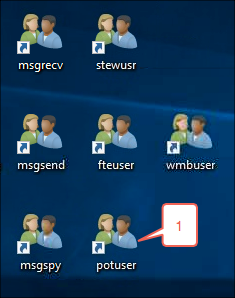
If prompted, type in the password for potuser which is password.
You are now running as user potuser. Use the following command to verify this:
echo %USERNAME%
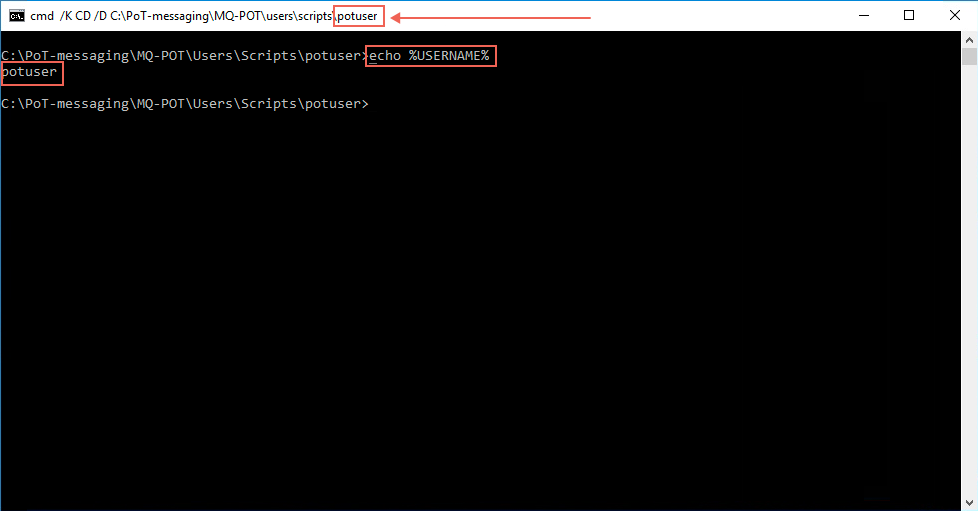
It will be important to ensure you are using the proper command prompt window as you complete this lab. Verify the userid that you are currently running as by checking the title bar of the window.
Minimize the window for now. You will use this window later in this lab.
Object Authority Manager (OAM) Concepts and Terms
The default configuration for a new IBM MQ queue manager is to utilize the server operating system for authentication, and to use the IBM MQ Object Authority Manager (OAM) for enforcing authorization. You may configure a queue manager to use several alternative options such as an LDAP server, however for this lab you will use the Windows local user and group repository.
Configuration of security is specific to a queue manager. It is possible to have different security configurations set up for each queue manager when there are multiple queue managers configured on the same server.
Authentication & Authorization
An IBM MQ queue manager may be configured to limit access to MQ resources by verifying the authenticity of users and, once authenticated, verifying their authorization to access MQ objects. This process is referred to as “Authentication and Authorization”. It is controlled by the properties of the active Authentication Information (AUTHINFO) object for the queue manager.
- Authentication is the ability to prove that a user or application is genuinely who that person or what that application claims to be.
- Authorization is used to limit what particular individuals or applications can do in your IBM MQ environment.
Principals and Groups
Authorization to access MQ objects may be defined at the principal or group level.
The OAM must be able to identify who is requesting access to a particular resource. IBM MQ uses the term principal to refer to this identifier. The principal is established when the application first connects to the queue manager; it is determined by the queue manager from the user ID associated with the connecting application.
One or more principals may be added to a group. Also, a principal may be a member of one or more groups. Determining which mechanism is used to identify which principals are members of which groups is a function of the AUTHINFO object properties. For this lab the queue manager will utilize the Windows local user registry.
Groups of principals can be granted different types of access authority to the same object. For example, for a specific queue, one group might be allowed to perform both put and get operations; another group might be allowed only to browse the queue ( MQGET with browse option). Similarly, some groups might have put and get authority to a queue, but not be allowed to alter attributes of the queue or delete it.
IBM MQ Resources
Authorization checks are performed whenever an application attempts to access an MQ object. The types of objects that may be protected include:
- Queue Managers
- Queues
- Administrative Topics
- Namelists
- Authentication Information Objects
- Channels
- Listeners
- Services
Explore OAM Security Options
In order to better understand how the OAM is used to protect MQ objects you will work with security for two frequently used functions of IBM MQ:
- Point to point messaging with queues
- Publish and Subscribe messaging
Setting Up the Lab
Perform the following steps to create a new queue manager with a default configuration.
-
Open a command prompt and use the following commands to create and start a new queue manager.
 crtmqm -p 1420 -u SYSTEM.DEAD.LETTER.QUEUE LAB4QM
 strmqm LAB4QM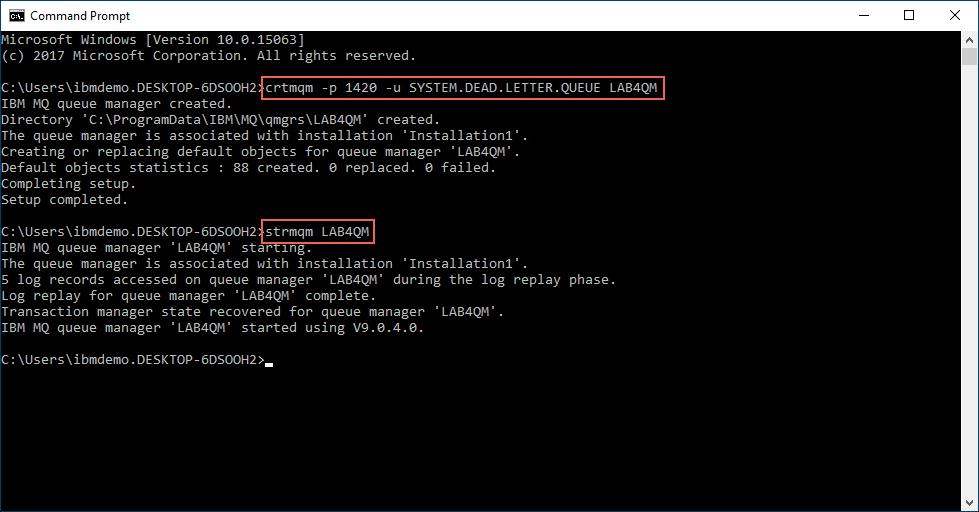
-
Next execute the runmqsc command to open an MQ command prompt.
runmqsc LAB4QM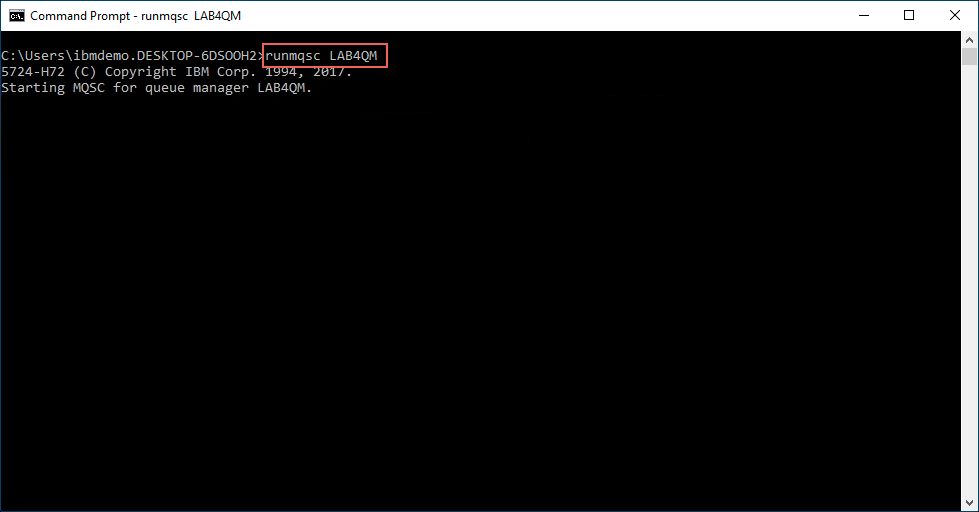
-
Execute the following commands to create local queues.
 DEFINE QLOCAL(Q1) REPLACE
 DEFINE QLOCAL(Q2) REPLACE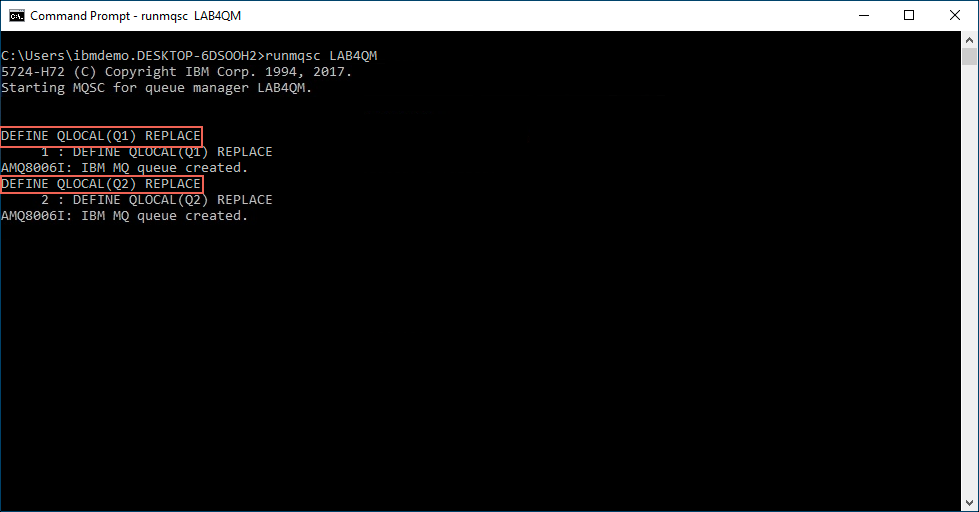
-
Execute the following commands to create Administrative Topics.
 DEFINE TOPIC(SPORT) TOPICSTR('sport') REPLACE
 DEFINE TOPIC(SPORT.FOOTBALL) TOPICSTR('sport/football') REPLACE
 DEFINE TOPIC(SPORT.FOOTBALL.PLAYERS) TOPICSTR('sport/football/players') REPLACE
 DEFINE TOPIC(SPORT.FOOTBALL.PLAYERS.HURSLEY) TOPICSTR('sport/football/players/hursley') REPLACE
 DEFINE TOPIC(SPORT.FOOTBALL.PLAYERS.WINCHESTER) TOPICSTR('sport/football/players/winchester') REPLACE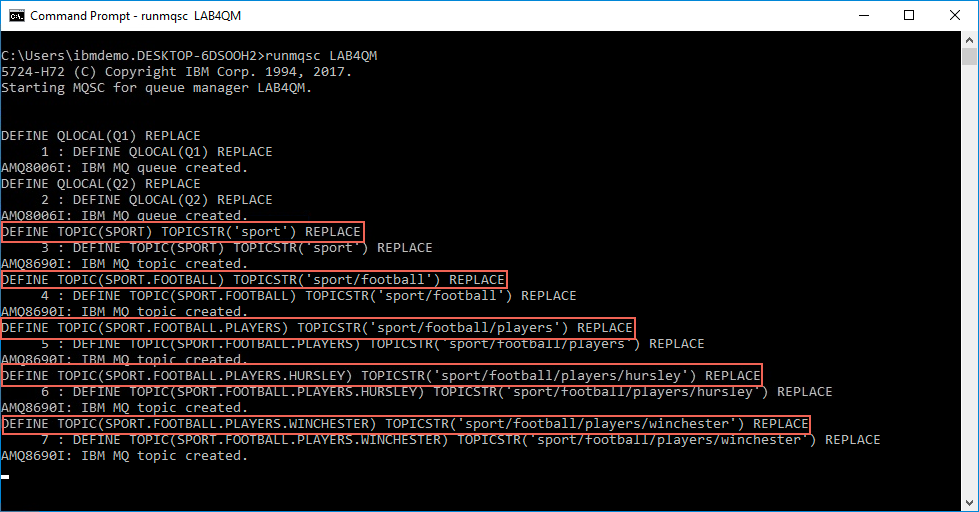
-
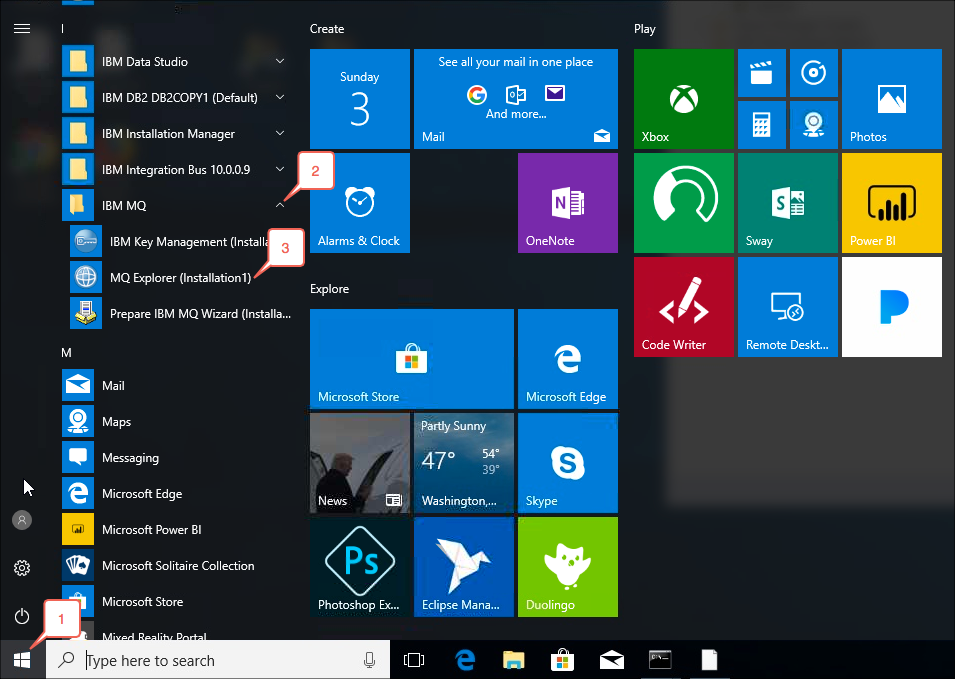
You are now ready to begin exploring OAM capabilities. Use the mqsc END command to exit the runmqsc command shell. Leave the command prompt window open, but minimize it. Finally, launch the IBM MQ Explorer by clicking on the Windows Start Menu, expanding the IBM MQ folder and then clicking on the MQ Explorer (Installation1) menu item. There also is a shortcut on the desktop which you can just double-click.
Queues
-
One of the first features that you will review is how a member of the mqm group has full access to all commands and MQ objects. The potuser userid is a member of the mqm group. Using the command prompt window for the potuser userid, type in the following command: amqsput Q1 LAB4QM Type in some text and then press the Enter twice to send the message and exit the amqsput program. Your message will be stored on the Q1 queue.
amqsput Q1 LAB4QM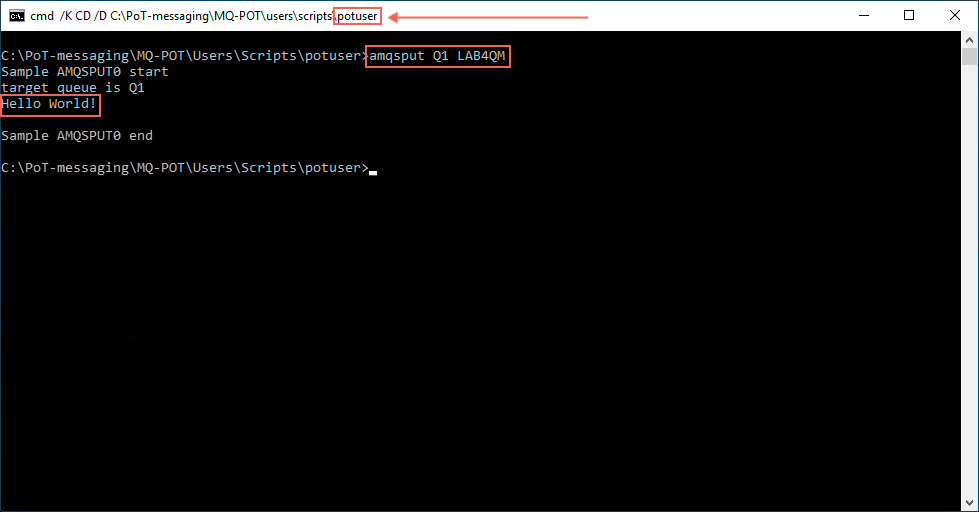
-
Minimize the command prompt window for the potuser userid.
-
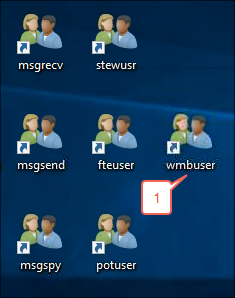
Find the shortcut for the “runas” wmbuser userid and double-click it to open the command prompt window.
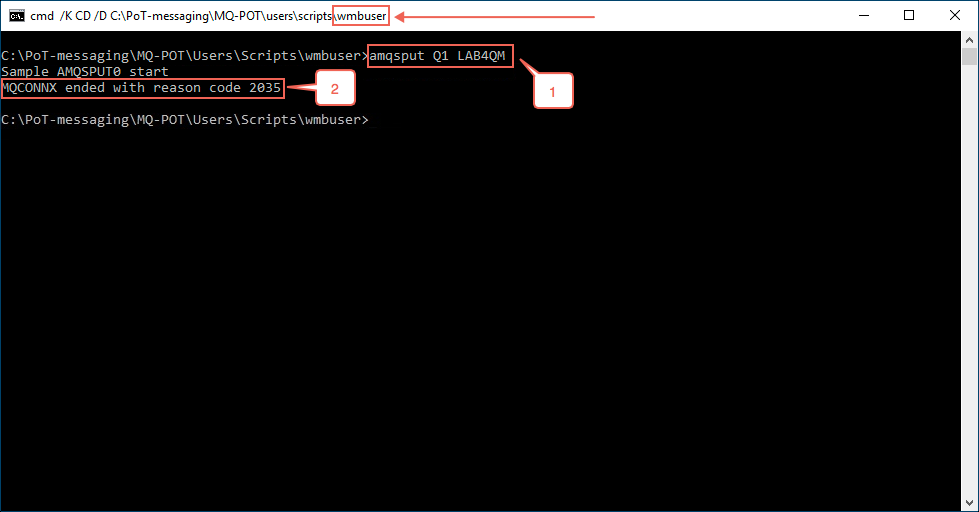
- Run the amqsput Q1 LAB4QM command in this command prompt window. Note that an error is returned. There are several reasons why the wmbuser userid cannot run this program.
- The wmbuser userid is not a member of the mqm group. If it were, then it would have access to all of the queue managers and associated objects on this system.
- The wmbuser, and none of the groups that the wmbuser userid is a member of, have been granted explicit authorization to connect to the LAB4QM queue manager. Authorization to connect to an individual queue manager is required before a userid can attempt to access any of the objects that are managed by the queue manager.
-
Although this error is related to the lack of authority to connect to the LAB4QM queue manager, there is also a need to enable the wmbuser userid, or enable one of the groups that wmbuser is a member of, to write messages to the Q1 queue.
-
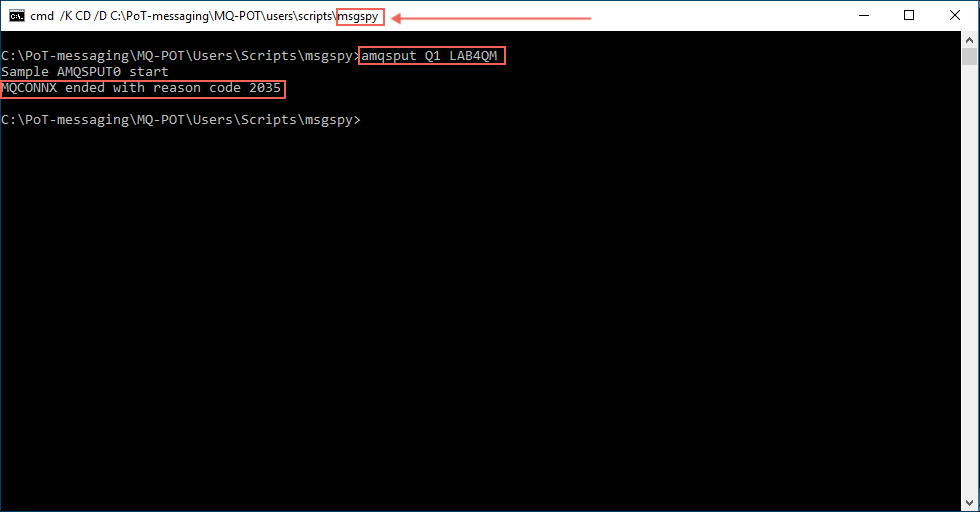
Find the shortcut for the “runas” msgspy userid and double-click it to open the command prompt window. Run the same command and observe the results. The msgspy userid, like the wmbuser userid, does not have authorization to connect to the LAB4QM queue manager nor access to the Q1 queue.
-
You will now grant authorization for the wmbuser and msgspy userids to enable both to connect to the LAB4QM queue manager and grant authorization to enable both userids to access the Q1 queue to allow PUT operations.
Note:
For the purposes of this lab you will not grant authorization to perform GET operations against the Q1 queue.There are several methods of administering OAM permissions; programmatically, from the command line, or using the MQ Explorer. You will use the MQ Explorer for this lab. As you complete the following lab steps you will be able to see the equivalent command line commands.
-
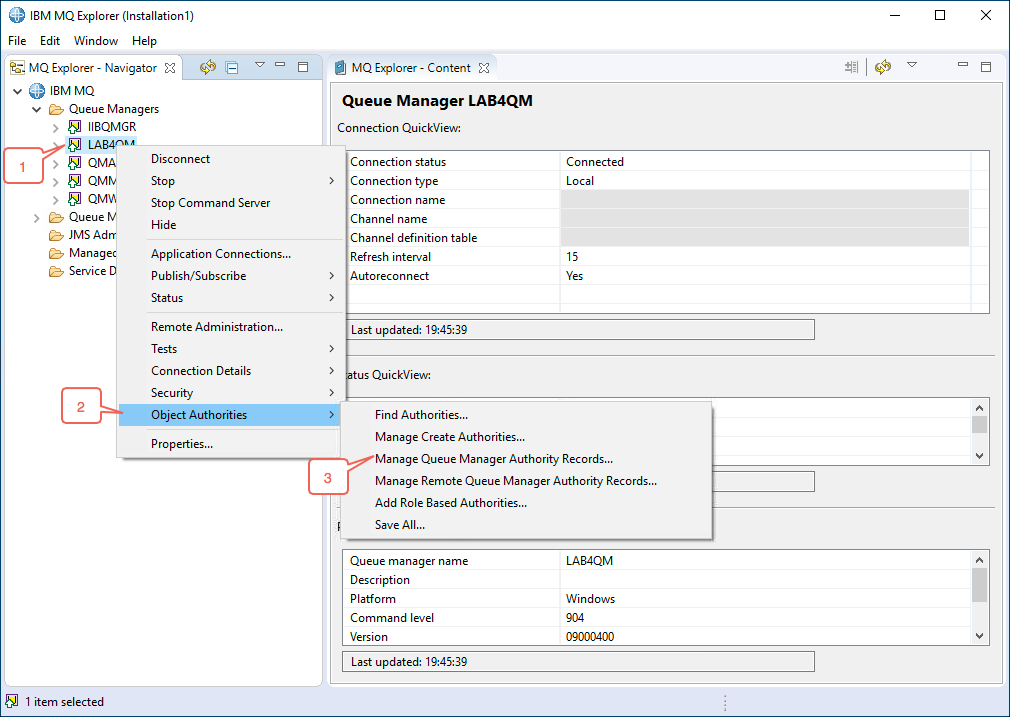
From the MQ Explorer window expand the tree structure to display the LAB4QM queue manager. Right click on the queue manager and then select the Manage Queue Manager Authority Records… menu item.
-
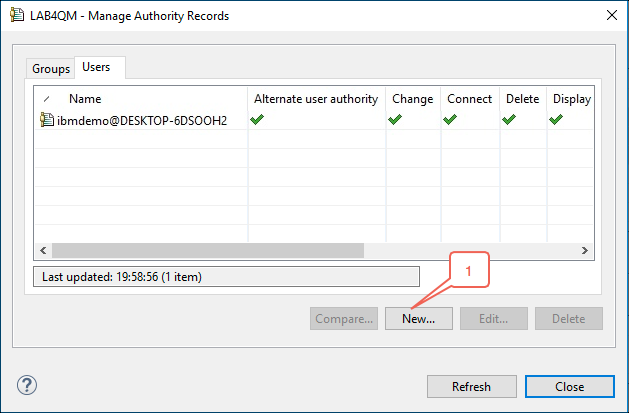
A window with a list of the currently defined userids that have been granted authorizations to the queue manager is displayed. Make sure the Users tab is active. Click on the New… button to open the New Authorities window.
-
Enter wmbuser in the Entity Name: field and then click on the Connect checkbox.
Note:
There are a number of authorization options that can be set using the OAM. Refer to the setmqaut command description in the IBM MQ Knowledge Center for detailed information. Also, observe the Command preview section to see the commands that will be issued. These are the command line equivalent commands that may be used for scripting the configuration of your MQ environment.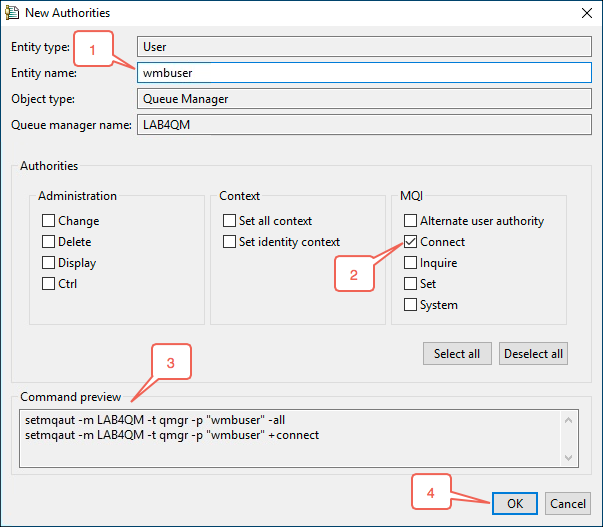
Click on the OK button to continue.
-
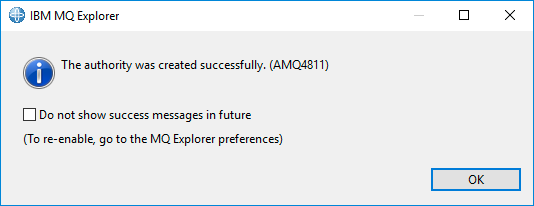
A confirmation window will appear. Click on the OK button to close the confirmation window.
-
Confirm that you have added the proper userid.
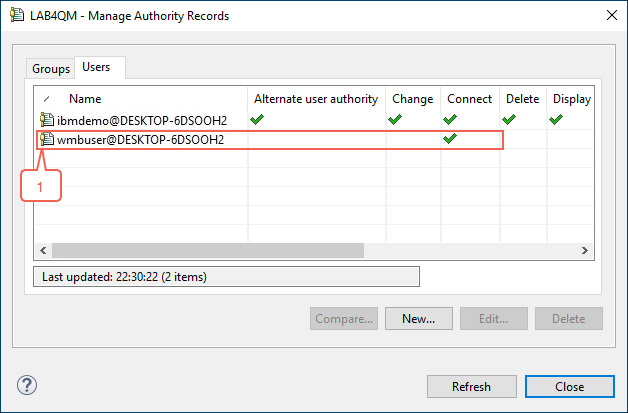
-
For the msgspy userid, you will grant Connect authorization to the LAB4QM queue manager by granting authority to the mqusers group that the msgspy userid is a member of. Repeat the steps to access the Manage Queue Manager Authority Records…. When the Manage Authority Records window appears click on the Groups tab.
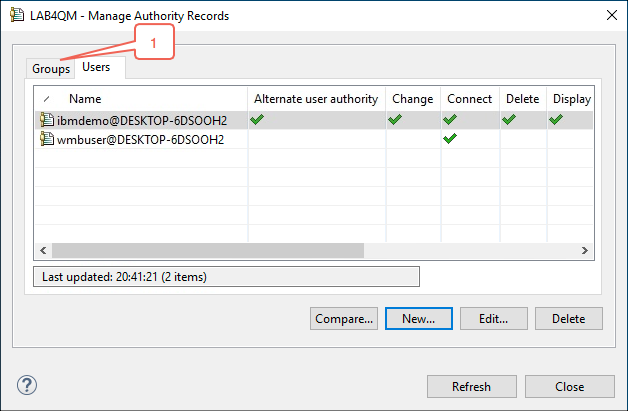
-
Repeat the same steps that you performed to add the wmbuser to the Users tab, only use the mqusers group as the Entity name:
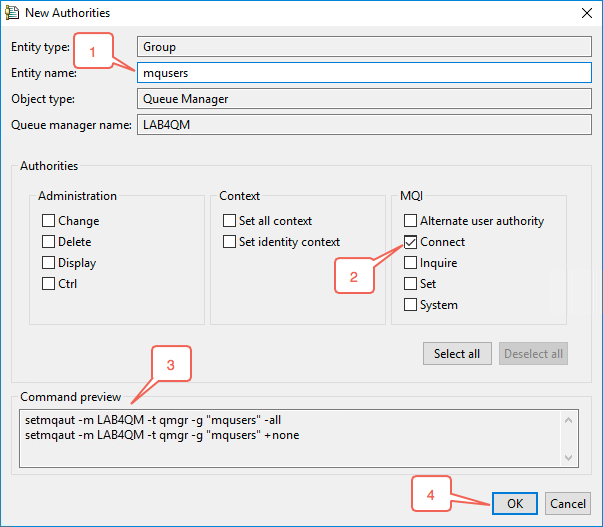
-
Now you need to grant authorization to the Q1 queue. From the MQ Explorer window expand the tree structure to display queues associated with the LAB4QM queue manager. Right click on the Q1 queue and then select the Manage Authority Records….
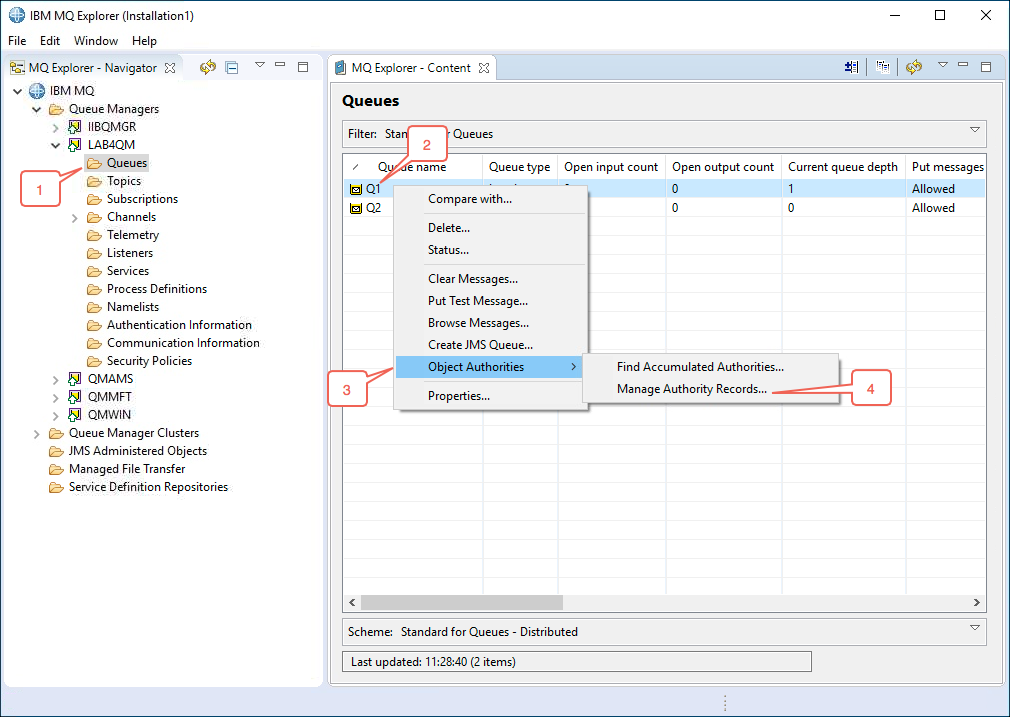
-
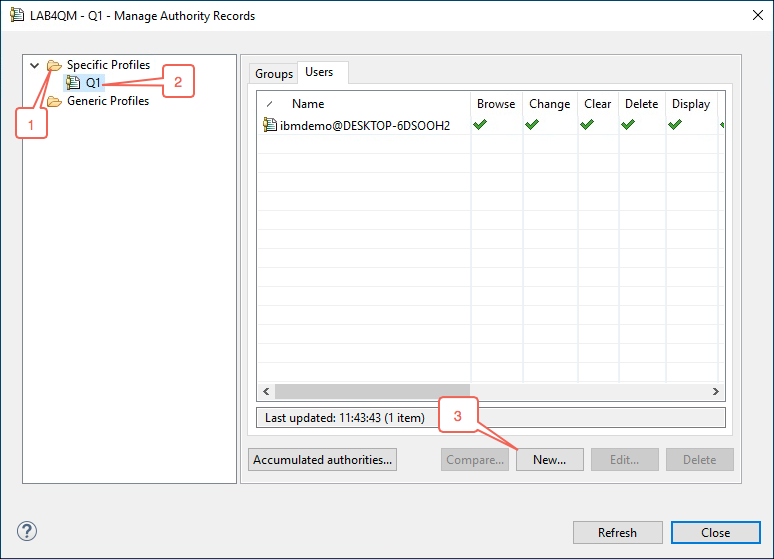
Expand the Specific Profiles folder and then click on the Q1 queue. Select the Users tab and note that the userid that you have currently logged on with, ibmdemo has all authorities to the Q1 queue. Click on the New… button.
-
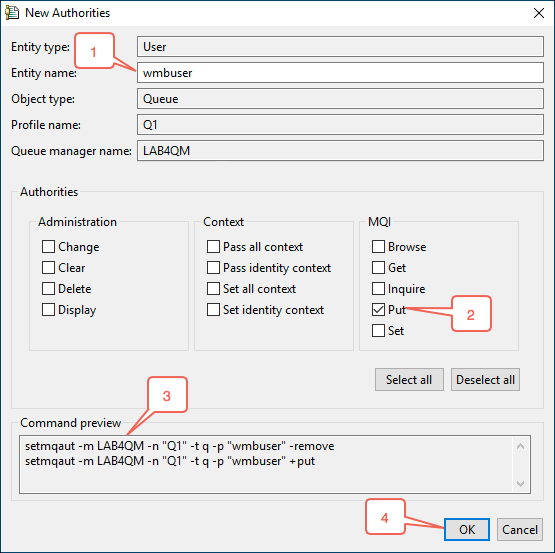
Enter wmbuser as the Entity Name and then click on the Put checkbox to enable the wmbuser userid to perform PUT operations against the queue. Click on the OK to save your changes.
-
Click on the OK button to close the confirmation window.
-
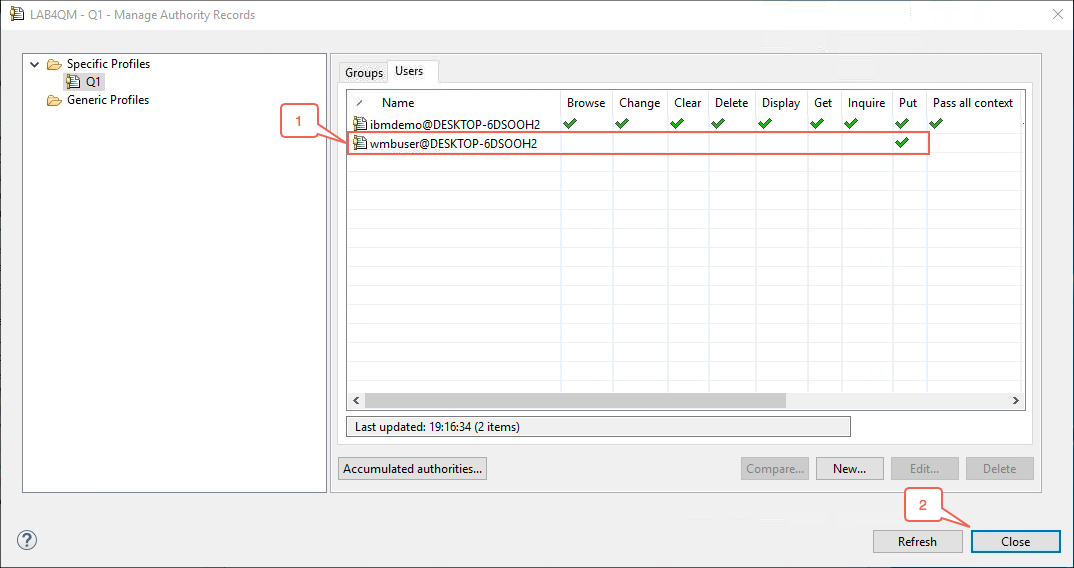
Notice that a user record has been added with Put authority for user wmbuser.
-
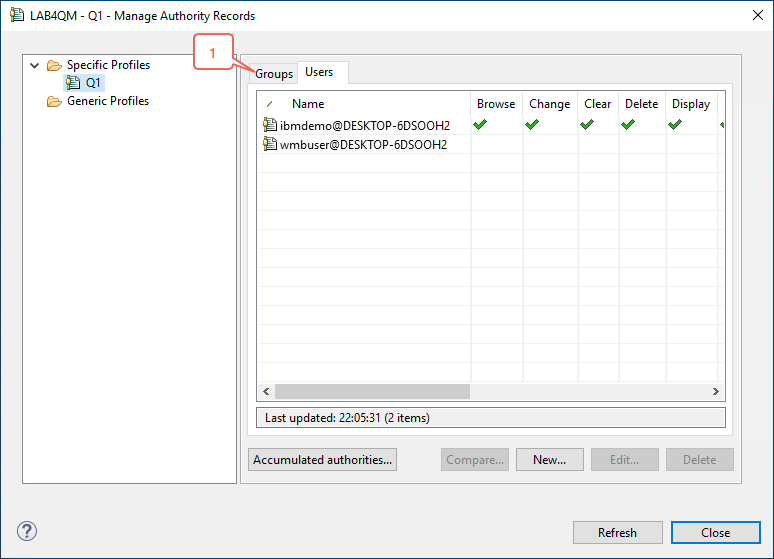
Now click on the Groups tab to enable the mqusers group to PUT messages to the queue.
-
Enter mqusers as the Entity name: and then click on the Put checkbox to enable all members of the mqusers group to perform PUT operations against the queue. Click on the OK button to save your changes.
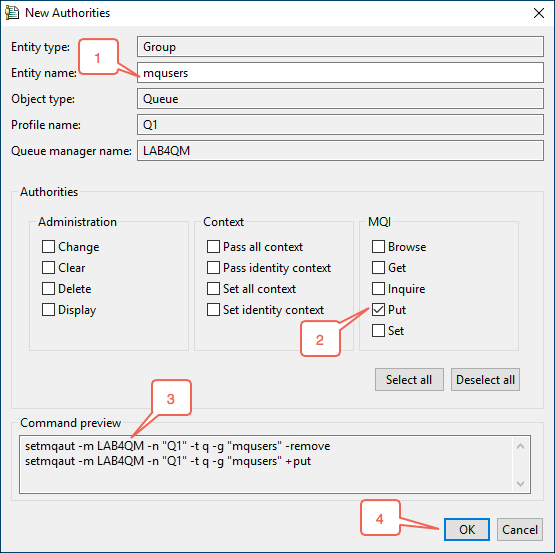
-
Go back to the “runas” command window for the wmbuser userid and retry the amqsput Q1 LAB4QM command. This time it should be successful.
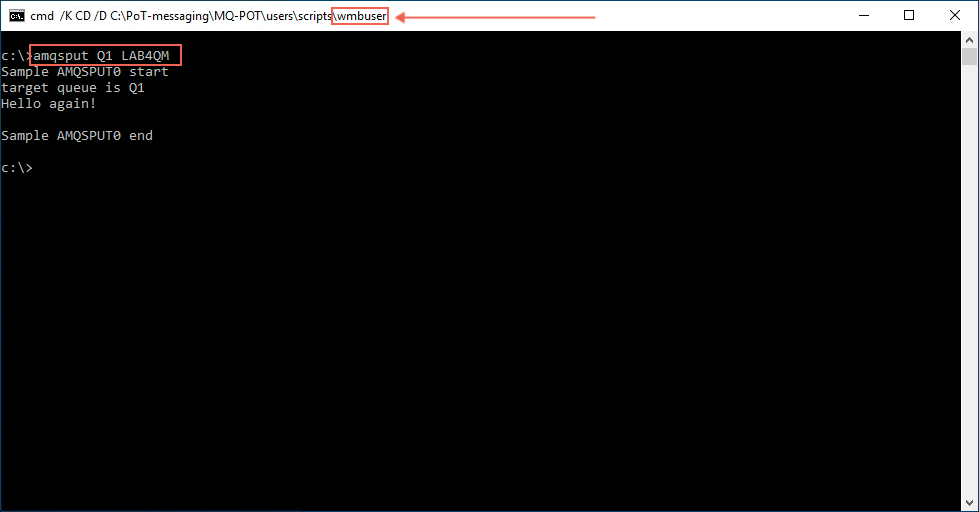
-
You gave the user id wmbuser the ability to put messages to queues, but not to read or browse messages. In the “runas” wmbuser command window enter the following command to attempt to GET messages from the queue:
amqsget Q1 LAB4QMThis will fail with reason code 2035, which is a “not authorized” return code.
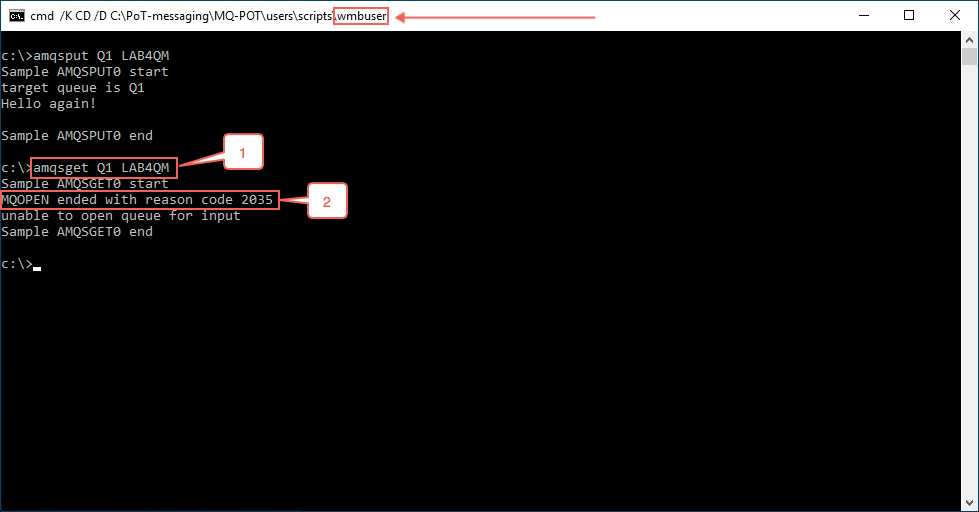
-
Return to the “runas” window for the potuser userid. Try the same command and note that, as a member of the mqm group, the potuser userid is able to successfully retrieve the messages.
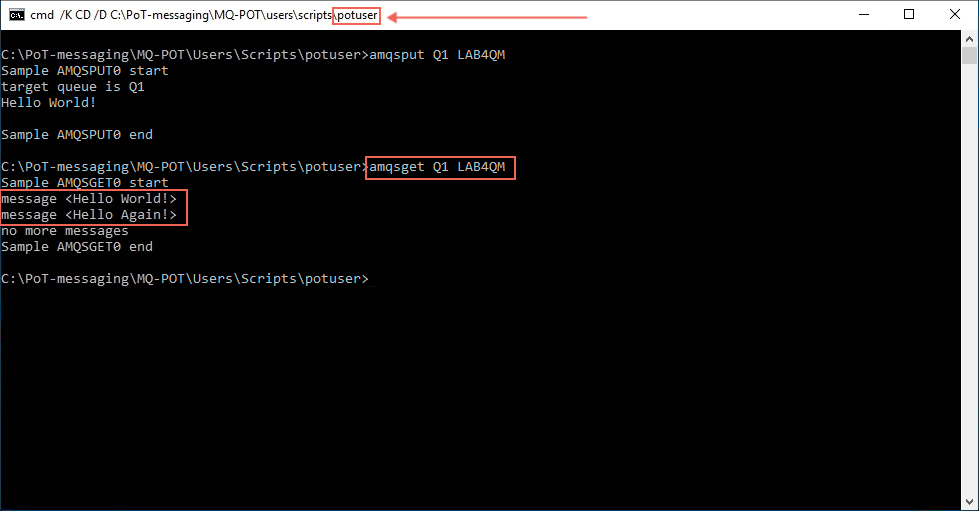
-
Return to the “runas” window for the msgspy userid. Try the amqsput Q1 LAB4QM command again and note that, even though the msgspy userid was not granted access to the queue manager and queue, the userid was able to access these resources due to its membership in the mqusers group.
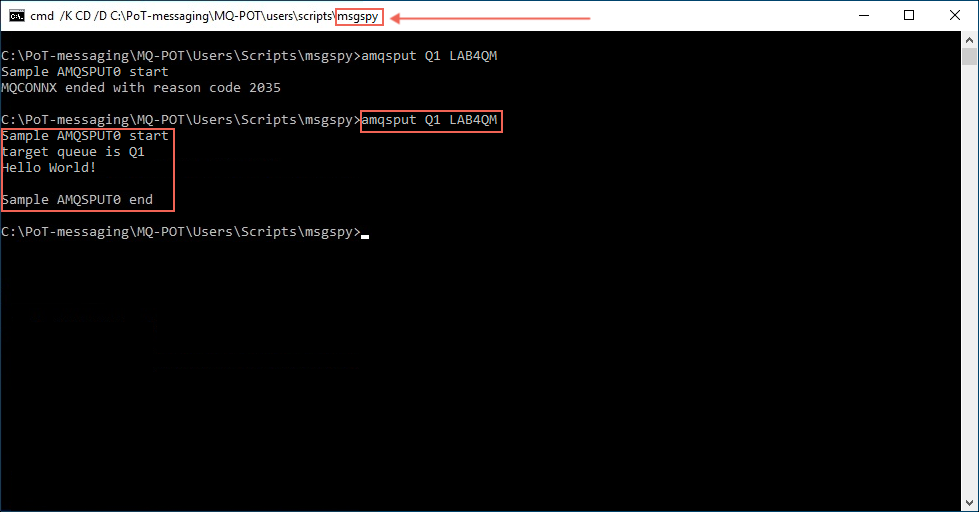
There are a number of additional security features that the OAM can provide for IBM MQ queue manager queues. Take a moment to review the various options that are available in the MQ Explorer. Also, take the time to review the Command preview window to see how the various command line options are formatted.
Publish and Subscribe Security
IBM MQ supports a topic based publish and subscribe messaging system. One or more applications can act as publishers of messages on various topics. Likewise, one or more applications can act as subscribers of messages that have been published to a topic. IBM MQ can support any number of publishers and subscribers on a given topic. IBM MQ enables customers to define their own range of topics that they want to support.
IBM MQ provides the ability to secure how messages are published and subscribed to. Similar to the authorization support provided for queues, IBM MQ uses the OAM to authorize specific userids and/or groups to access a topic. This is enabled by creating Administrative Topic objects in the queue manager.
This portion of the lab will explore how to use Administrative Topic objects to manage authorization to publishing and/or subscribing to MQ topics.
Administrative Topics can be used to control a number of additional features of publishing and subscribing to messages. For this lab you will focus only on security. Refer to the Publish/subscribe messaging topic in the IBM MQ Knowledge Center for additional information. Detailed information on security for IBM MQ publish and subscribe may also be found in the Publish/subscribe security section of the IBM MQ Knowledge Center.
-
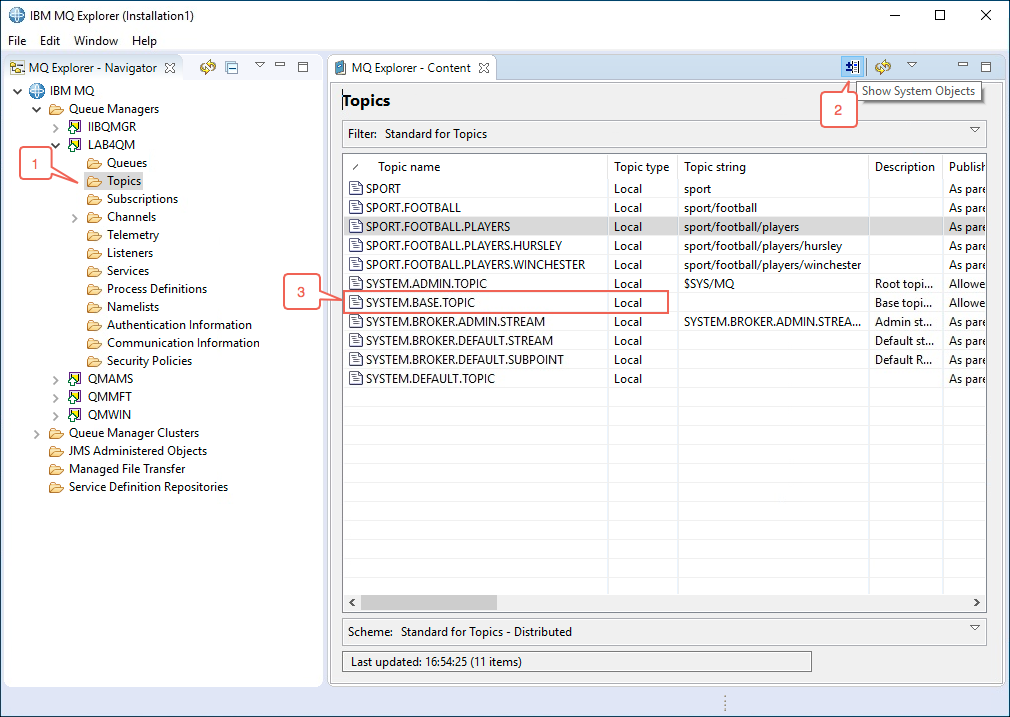
Start your review of publish/subscribe security by clicking on the Topics folder of the LAB4QM queue manager and then clicking on the Show System Objects button. You will see a list of the topics that were created at the start of this lab as well as several SYSTEM provided topics. The SYSTEM.BASE.TOPIC topic is the root level Administrative Topic for all user defined topics in the queue manager. If an application publishes a message that is not matched by an Administrative Topic then the default attributes, including authorization, will be applied from this object.
-
Now, create an administered Subscription to capture the messages that you will be publishing. Right click on the Subscriptions folder of the LAB4QM queue manager and select the New and Subscription… menu items.
Note:
IBM MQ supports Administered, Managed and Unmanaged subscriptions. Refer to the “Writing subscriber applications” topic in the IBM MQ Knowledge Center for a description of each type of subscription. From an OAM security perspective, authorization requirements for Managed subscriptions are different than Administered and Unmanaged subscriptions. You will investigate this later in this lab exercise.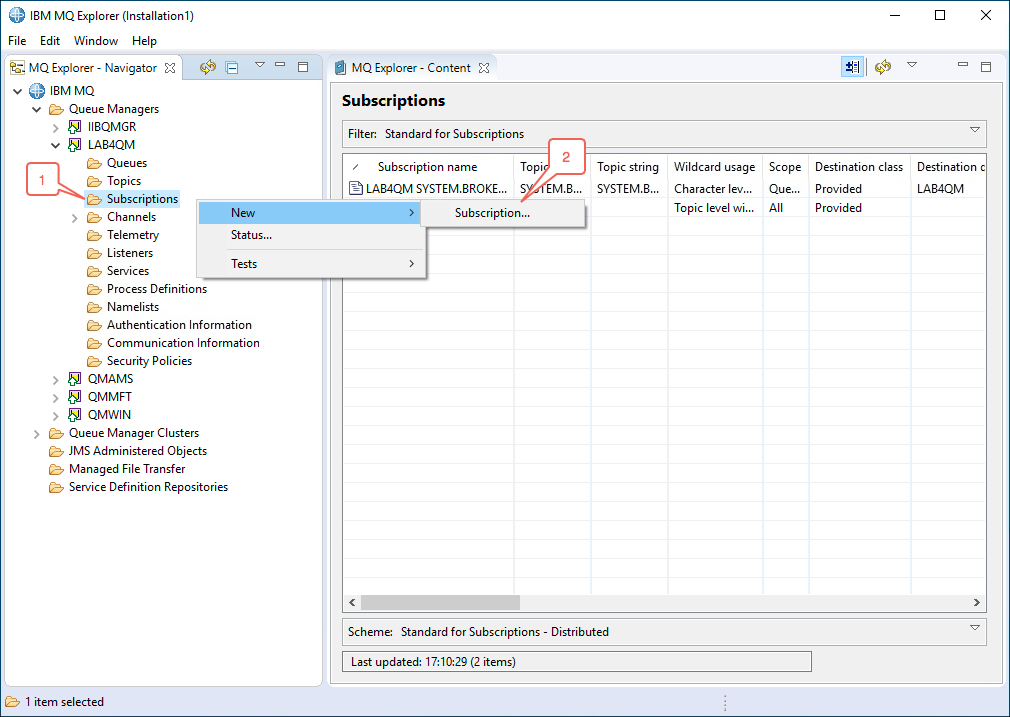
-
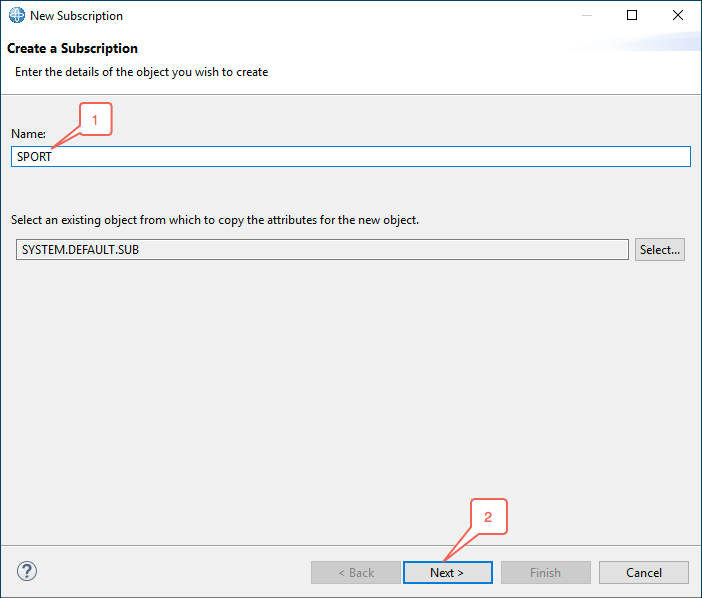
Enter SPORT in the Name: field and then click on the Next > button.
-
You will want to capture all messages published under the sport topic hierarchy. Enter sport/# in the Topic string: field, enter Q2 in the Destination name: field and then click the Finish button. Any messages that are successfully published to a topic that includes sport at the top level of the topic hierarchy will be sent to the Q2 queue.
Important:
Stop for a moment to consider what you have learned in the Queues portion of this lab. You have configured a static subscription to put messages to the Q2 queue.
Will this work?
In this case the answer is yes, because the ibmdemo userid that you used to login to Windows is a member of the mqm group, and you created the static subscription under that userid. Later on you will see that subscribers to a topic (that are not members of the mqm group) will need to have proper authority to access the queue that their unmanaged subscription routes messages to.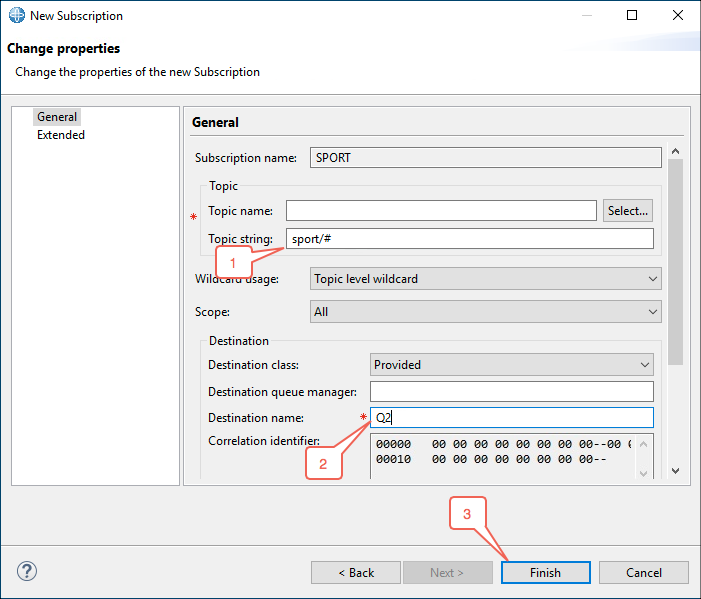
-
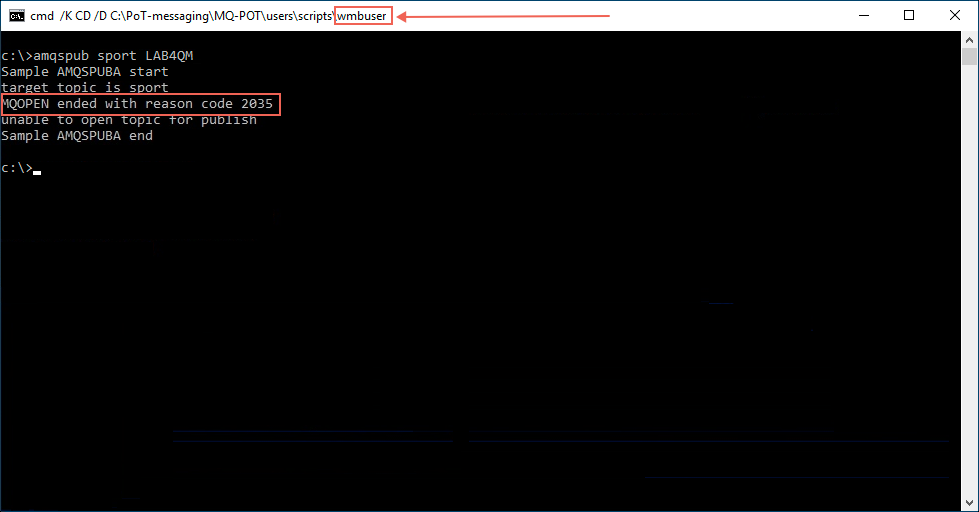
Now try publishing messages from the command prompt windows for the potuser, msgspy and wmbuser userids. (Recall that potuser is a member of the mqm group, msgspy is a member of the mqusers group and wmbuser is not in either group). The command to use is:
amqspub sport LAB4QMThe wmbuser and msgspy users received an mqrc 2035 error, which is related to not having authorization. The potuser, on the other hand, was able to successfully publish a message.
 Important:
Again, stop to consider what you had learned in the Queues portion of this lab. Is the error due to the lack of authorization to the LAB4QM queue manager, or is it due to a lack of authorization to the sport topic?
In this case, the userids had previously been granted access to the LAB4QM queue manager. When the amqspub application first attempted to open the topic to PUBLISH a message the OAM checked the topic hierarchy for authorization. Since you haven’t granted any authorization against the SPORT Administrative Topic, the queue manager checked the next level in the hierarchy, which was the SYSTEM.BASE.TOPIC. Since there are no authorizations granted at that level, only userids that are members of the mqm group are allowed to publish to the topic. -
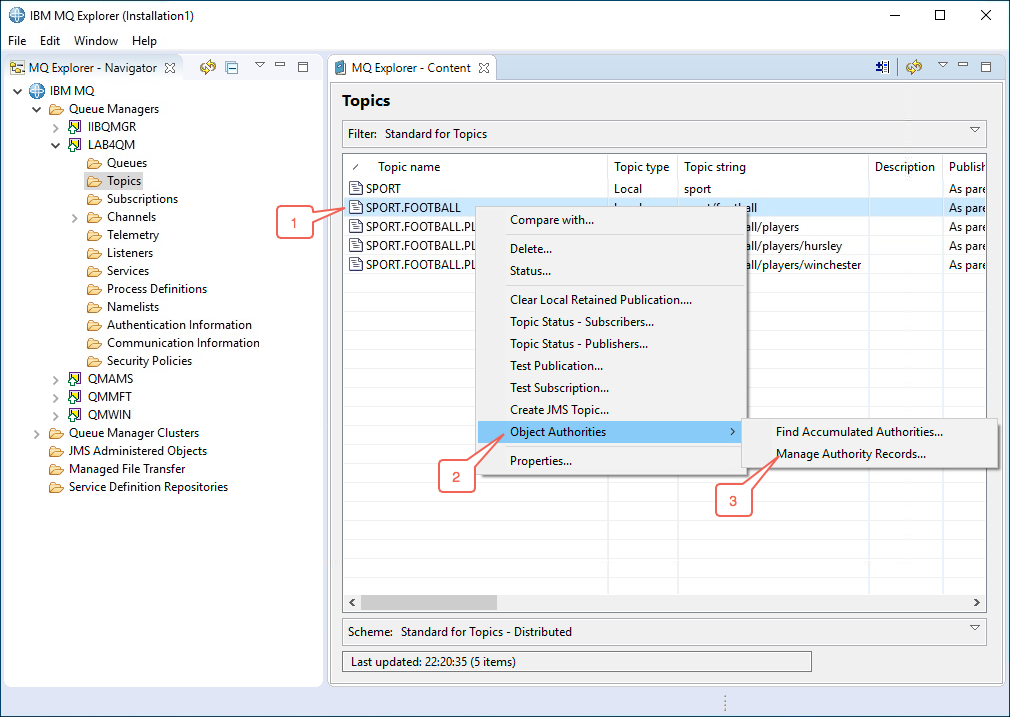
Grant authorization to the SPORT.FOOTBALL Administrative Topic for the mqusers group. Start by right clicking on the topic and then selecting the Object Authorities and Manage Authority Records… menu items.
-
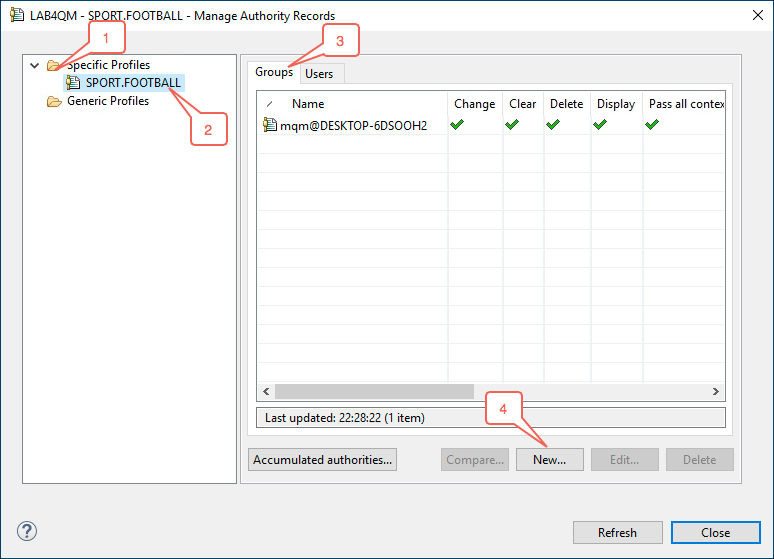
Expand the Specific Profiles folder, click on the SPORT.FOOTBALL Administrative Topic and then select the Groups tab. Click on the New… button to add the mqusers group.
-
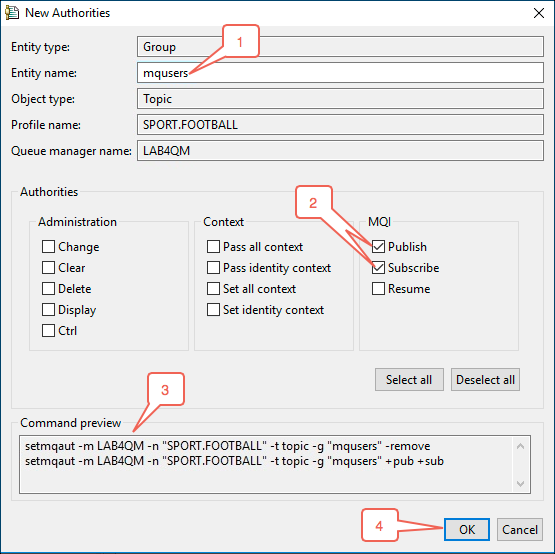
Enter mqusers in the Entity name: field and then click on the Publish and Subscribe checkboxes. Observe the Command preview to see the commands that will be execute and then click on the OK button.
-
Clear the confirmation window and close the Manage Authority Records window. Retry the command to publish a message to the sport topic for each of the userids. Notice that they behave as before. This isn’t surprising, since you granted authorities at a lower level in the hierarchy.
amqspub sport LAB4QM -
Retry publishing messages for each userid at the level of the hierarchy where you granted authorization to publish to the members of the mqusers group. Use the following command:
amqsput sport/football LAB4QM -
This time the msgspy and potuser userids were able to publish a message. The msgspy userid had authorization due to it being a member of the mqusers group and the potuser userid had authorization due to it being a member of the mqm group.
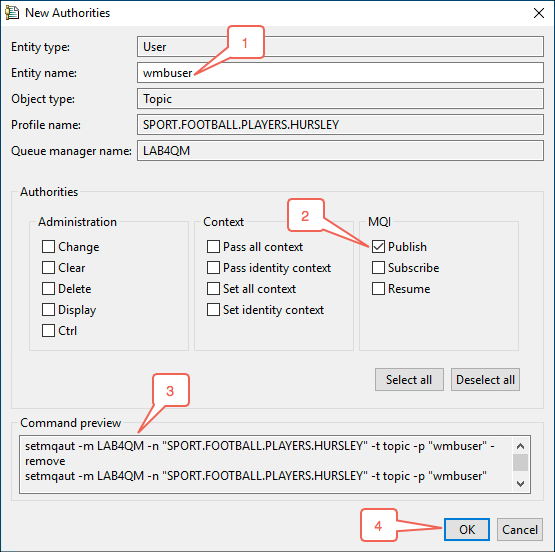
Now, try adding an authorization at a lower level in the hierarchy for the wmbuser userid. Follow the same steps as before to add a user authorization to publish messages on the SPORT.FOOTBALL.PLAYERS.HURSLEY Administrative Topic for the wmbuser userid.
-
Retry publishing messages for each userid on the sport/football/players/hursley topic using the following command:
amqsput sport/football/players/hursley LAB4QM -
Are you surprised at the results? All three userids are able to publish messages on the sport/football/players/hursley topic. The reason is:
Userid Reason Why It Can or Can’t Publish potuser Authorization was granted since the potuser userid is a member of the mqm group. wmbuser Authorization was granted via the SPORT.FOOTBALL.PLAYERS.HURSLEY Administrative Topic you had just defined. msgspy The queue manager will check for a matching Administrative Topic at the current topic level to see if authorization is granted. It will then check each successive parent Administrative Topic object until an authorization is found. If no authorization is found then authorization will be based on the SYSTEM.BASE.TOPIC Administrative Topic object. In this case, since the msgspy userid is a member of the mqusers group, and the mqusers group has Publish authority on the SPORT.FOOTBALL Administrative Topic, authorization to publish was granted. -
Now try publishing a message on the sport/football/players/winchester topic. Use the following command for each userid:
amqspub sport/football/players/winchester LAB4QM -
It should come as no surprise that the msgspy and potuser userids were able to publish, but the wmbuser userid was not able to.
-
Now, try to guess what will happen if you attempt to publish a message when there isn’t an Administrative Topic defined for the topic you are publishing to. Try publishing the following message using each of the userids:
amqspub sport/football/players/liverpool LAB4QM -
Were you able to predict the behavior? Only the msgspy and potuser userids were able to publish messages on the sport/football/players/liverpool topic. The reason is:
Userid Reason Why It Can or Can’t Publish potuser Authorization was granted since the potuser userid is a member of the mqm group. wmbuser Authorization was not granted. You haven’t defined an Administrative Topic for the sport/football/players/liverpool topic hierarchy. When the queue manager completed its checks of each parent Administrative Topic in the hierarchy it was not able to find any authorization for wmbuser, or any of the groups it is a member of. msgspy You haven’t defined an Administrative Topic for the sport/football/players/liverpool topic, however the queue manager was able to traverse the topic hierarchy and it located the SPORT.FOOTBALL Administrative Topic where members of the mqusers group have Publish authorization defined. Thus, the msgspy userid was able to publish the message. -
Up to this point in the lab you have been working with Administrative Topics to manage the authorization of applications to publish messages. Managing authorizations to subscribe to topics follows the same principals for Managed subscriptions. You may verify this by using a sample application to subscribe to a topic from one of the command prompt windows while using a different command prompt window to publish messages. The sample subscriber application is amqssub. The syntax is the same as the amqspub application. Try using the following test combinations to see how OAM security works for the subscribing application.
(P1) Command
amqspub sport/football LAB4QM(P2) Command
amqspub sport/football/players/hursley LAB4QM(P3) Command
amqspub sport/football/players/liverpool LAB4QM(S1) Command
amqssub sport/football LAB4QM(S2) Command
amqssub sport/football/players/hursley LAB4QM(S3) Command
amqssub sport/football/players/liverpool LAB4QMTests
Test potuser Window msgspy Window wmbuser Window Result 1 (P1) (S1) (S1) msgspy successfully subscribed. wmbuser is not authorized. 2 (P2) (S2) (S2) msgspy successfully subscribed. wmbuser is not authorized. 3 (P3) (S3) (S3) msgspy successfully subscribed. wmbuser is not authorized. Important:
Are you puzzled by the results? You were able to use the wmbuser userid to access the sport/football/players/hursley topic before.
If you recall, when you added the authorization for the wmbuser userid to access the sport/football/players/hursley topic you only added Publish authorization. You need to also include Subscribe authorization for the second test to have enabled the wmbuser userid to successfully subscribe. The msgspy userid is able to subscribe since the mqusers group that was added to the SPORT.FOOTBALL Administrative Topic was given both Publish and Subscribe authorization when you added authorization to it. -
There is one final point to consider when you are evaluating OAM security for publish and subscribe authorization. The tests you did in the previous lab step were all using Managed Subscriptions. That is, you allowed the queue manager to dynamically manage the storage of the messages as they went from the publishing application to the subscribing application.
Administered and Unmanaged subscriptions are different in that the MQ administrator or the application developer specify where the messages will be stored when they are delivered. At the start of this section of the lab you specified that all messages that matched the sport/# topic would be stored in the Q2 queue. Any application that wants to consume the messages from that queue will need to have OAM authorization to GET messages from that queue. If you write an application that creates an Unmanaged Subscription, then the userid that the application is running under would need authorization to both the topic and the queue that messages will be delivered to.
This concludes the IBM MQ security lab 4.