Lab Environment
If you are running this lab as part of a PoT event, the instructor will provide a URL for you to access a Skytap environment. Open a browser and navigate to the URL which will open the Skytap environment.
If you are running this lab independent of an event, click this link to reserve a demo which will provision a Skytap environment. Reserve your demo environment
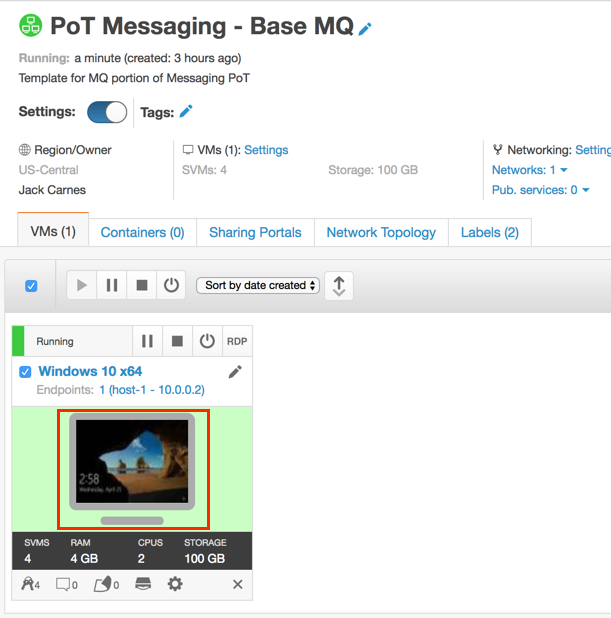
The Skytap lab environment for the labs is shown below. You will use a Windows 10 VMware image to complete the Base MQ labs.
-
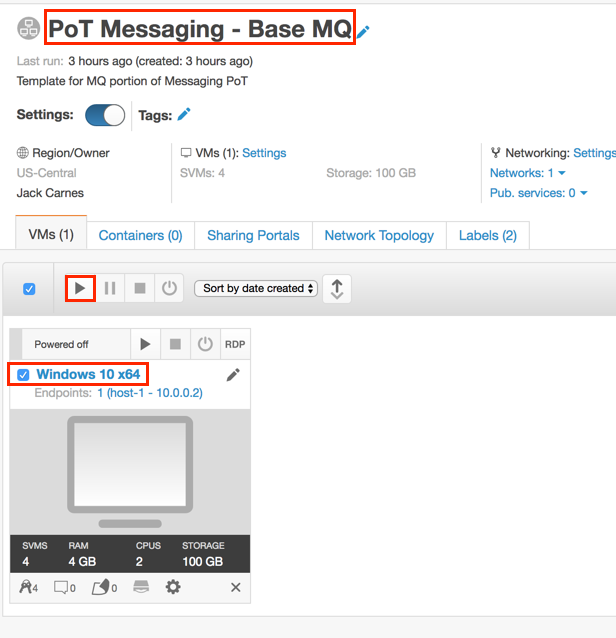
Click the run button as shown below to start the environment.
-
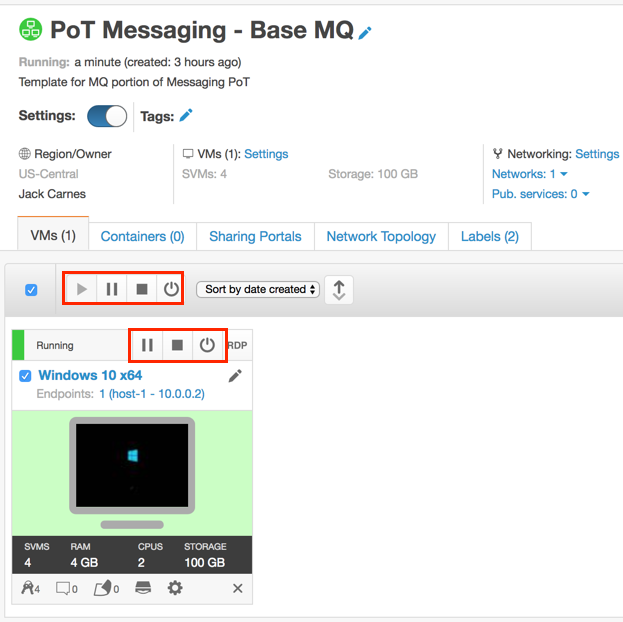
The control buttons are highlighted for each VM as well as the overall environment. You should have already started the environment by clicking the run button. You can pause each VM or the environment at any time. The stop button will shutdown the VM(s). You should not need to stop the VMs while doing this lab.
-
Once the VMs are powered up and ready, the icons turn green and show Running. To open a console for either VM, click the monitor icon and a new browser window will open with the Windows desktop or the MQ Appliance command line.