MQ-Appliance-PoT-9.4
Lab 5 - Monitoring and Troubleshooting
Monitoring and troubleshooting
VMs required:
- Windows
- MQAppl4
- Workstation
Monitoring and reporting
For this lab, you will use one virtual appliance, MQAppl4, and the Windows and RHEL Workstation environment to perform console operations. There are other virtual appliances will not be used in this lab.
You will be exploring some of the options available for monitoring the MQ Appliance using a combination of command line and reporting in the MQ Console. You will also look at how you can observe usage of the MQ Appliance. Finally, you will configure log forwarding using syslog.
Monitoring system resource usage
-
On the Windows machine open a MQAppl4 PuTTY window, if you don’t already have one. The login details are (admin / Passw0rd!) if needed.
Before you investigate the MQ-specific resource monitoring, you will start by monitoring the operation of the appliance itself. You can use the show command to monitor different aspects of the appliance.
You can use the show command to view information about how an aspect of the appliance is configured or to monitor aspects of the appliance operation. The status_provider argument specifies which information you view. The show command is available at login, and in most configuration modes.
There is a large list of status_provider values available for the show command. The complete list can be found in the IBM Documentation for the MQ Appliance.
You will investigate a few of these.
-
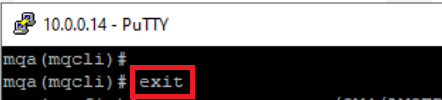
If you are at the mqcli command prompt, exit from it.

-
First, enter the show command. This will give a list of all of the available status_provider values.
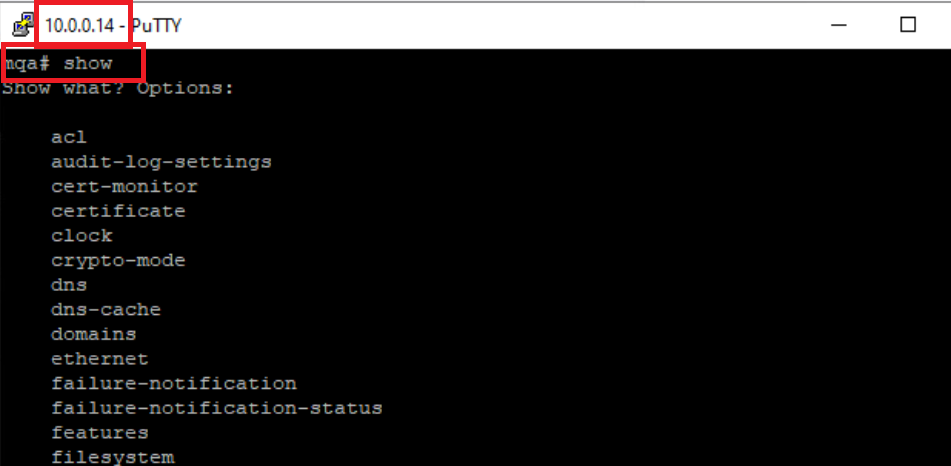
-
Now enter show version. This will show the firmware and library version, similar to what is shown below.
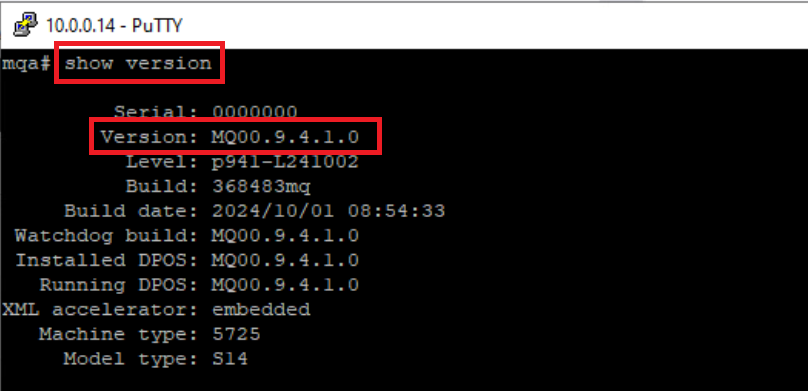
One of the other things that you can find out from the show command is which users have been defined for the appliance.
-
Enter show usernames
-
You should see two users: the admin user, which was pre-configured, and the user set up to reset passwords.
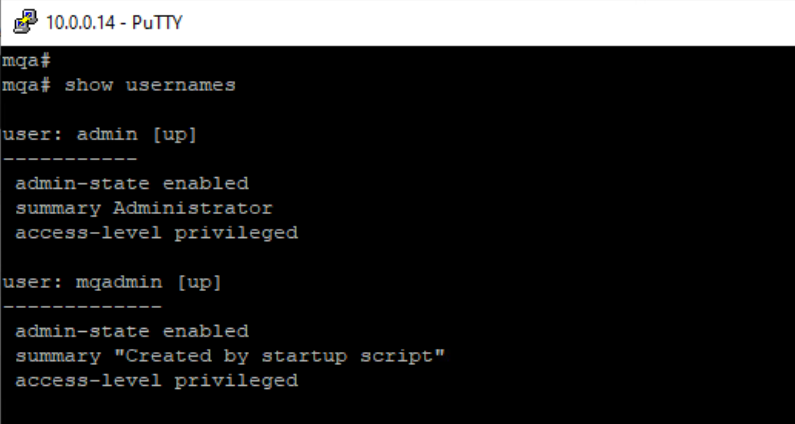
-
You can also use the show command to give a list of logged-on users. Enter show users.
You can see below that the admin user is logged on via the serial port, another via secure shell from the windows machine (which is you entering commands in to the console) and also a login via the MQ Console (if you are not logged on, log on to the MQ Console [web admin] and rerun the command).
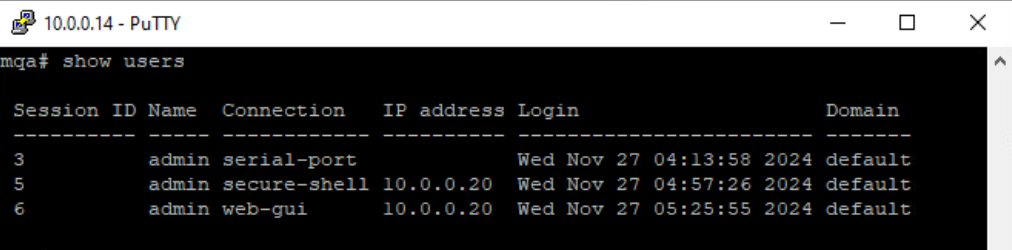
-
Next, get monitoring information about the MQ environment on the appliance.
Go to the MQ command line interface.
mqcliYou will now use the status command to view information about resource allocation.
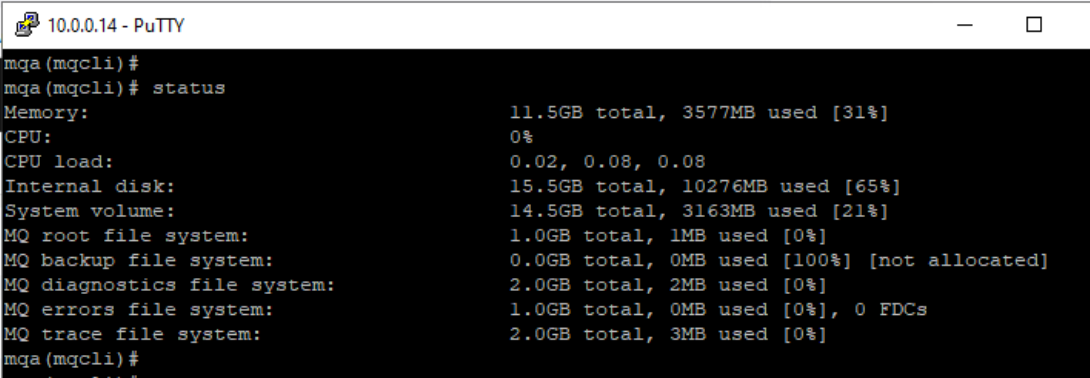
You can use the status command to view the following information about the system resources on the appliance:
- the size and usage of the system memory of the system
- the CPU usage of the system, the size and usage of the internal disk
- the size and usage of the system volume
- the number of FDCs and the disk space used
- the disk space used by trace
-
Enter the command: status
You will see a response similar to the following:
More about the status command:
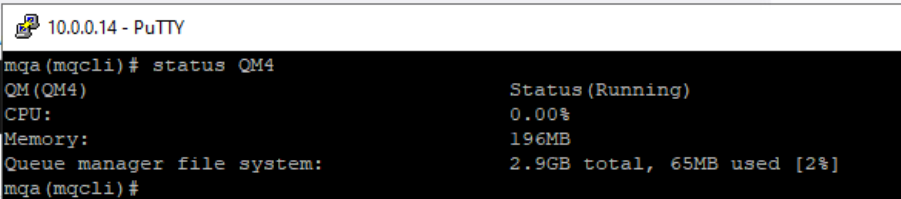
You can also use the status command to view the following information about the system resources that are used by a queue manager:
- the queue manager name
- the queue manager status
- an estimate of the CPU usage of the queue manager
- an estimate of the memory usage of the queue manager
- the amount of the queue manager file system used by the queue manager
For a high availability queue manager, additional information can be viewed:
- the file system size for the queue manager
- the replication status of the queue managers
- the preferred appliance for the queue manager
- whether a partitioned situation has been detected
- if detected, the amount of ‘out-of-sync’ data held
- Let’s create a new queue manager for us to explore. Run the following to create and start a new queue manager:
   crtmqm -p 1714 QM4
   strmqm QM4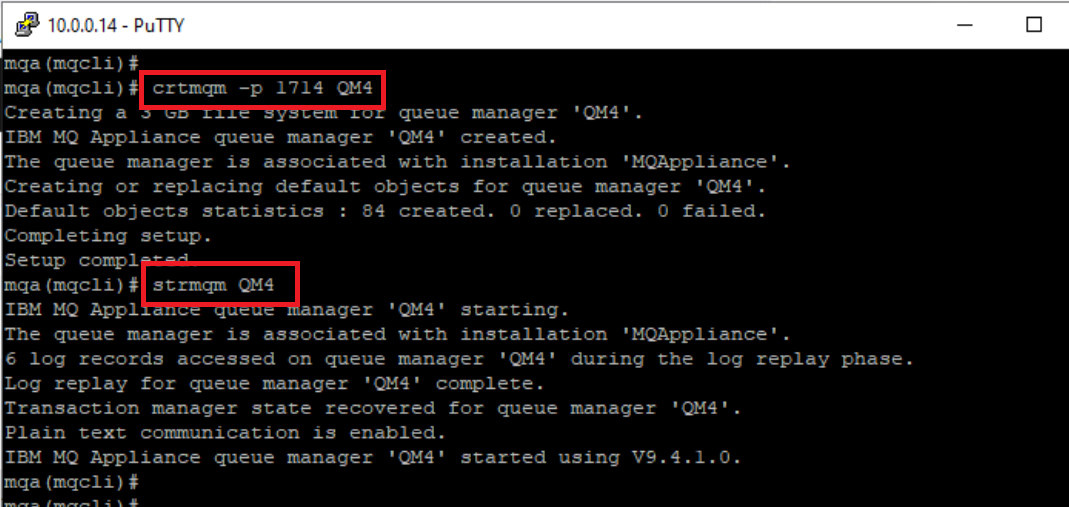
-
Enter the status command for QM4:
status QM4 -
You should see a response similar to the following:
You can use the amqsrua command to query metadata that is related to the system resource usage of a queue manager.
About amqsrua:
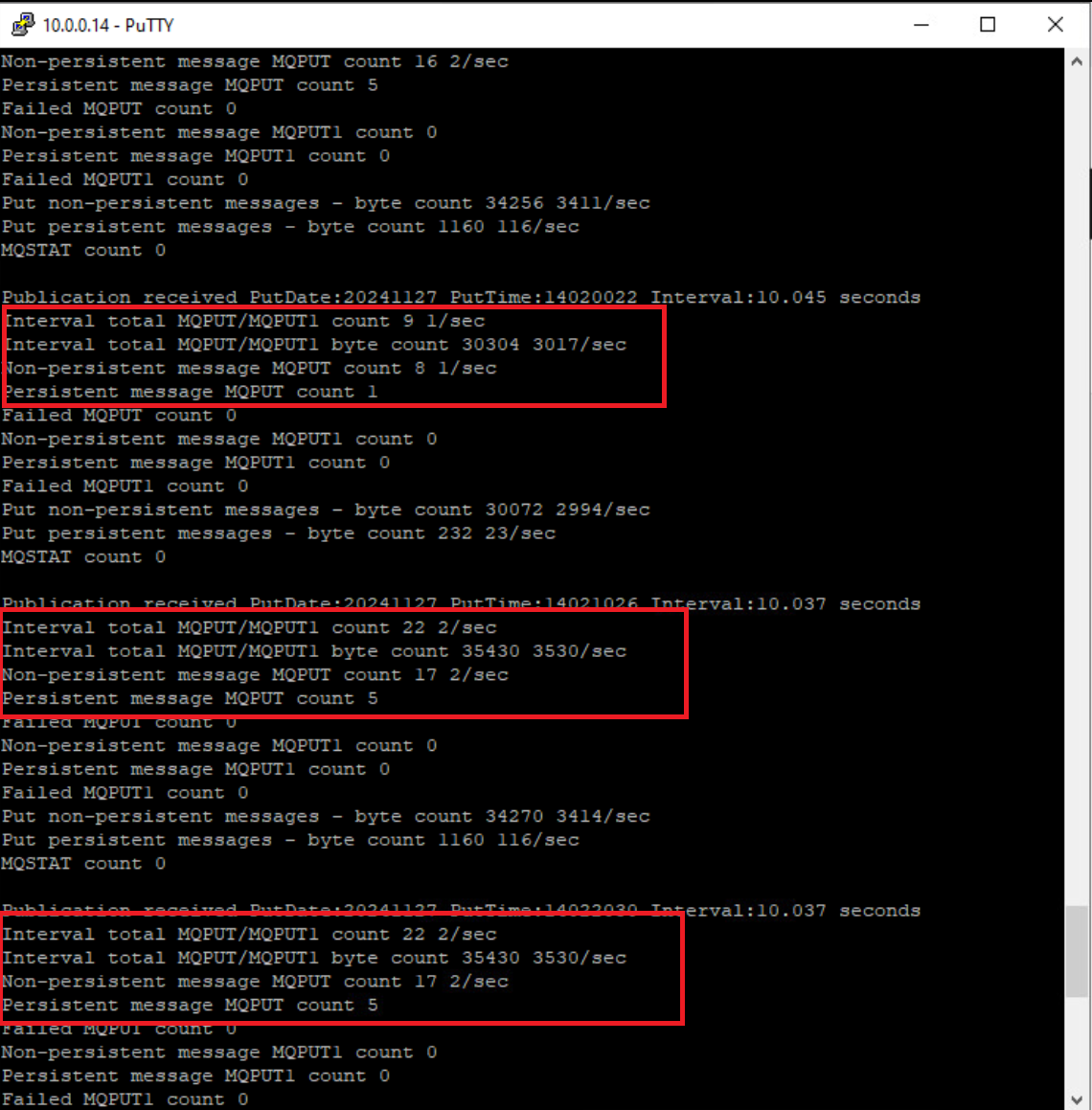
The amqsrua command reports metadata that is published by queue managers. This data can include information about the CPU, memory, and disk usage. You can also see data equivalent to the STATMQI PCF statistics data. The data is published every 10 seconds and is reported while the command runs.
- -n MaxPubs – Specifies how many reports are returned before the command ends. The command publishes data every ten seconds, so if you enter a value of 50, the command returns 50 reports over 500 seconds.
If you do not specify this parameter, the command runs until either an error occurs, or the queue manager shuts down.
- -m QMgrName – Specifies the name of the queue manager that you want to query. The queue manager must be running. If you do not specify a queue manager name, the default queue manager is used.
-
You are going to report the metadata for 5 minutes, while putting some messages onto a queue and see the results. As this is a new Queue Manager we will first create a queue.
-
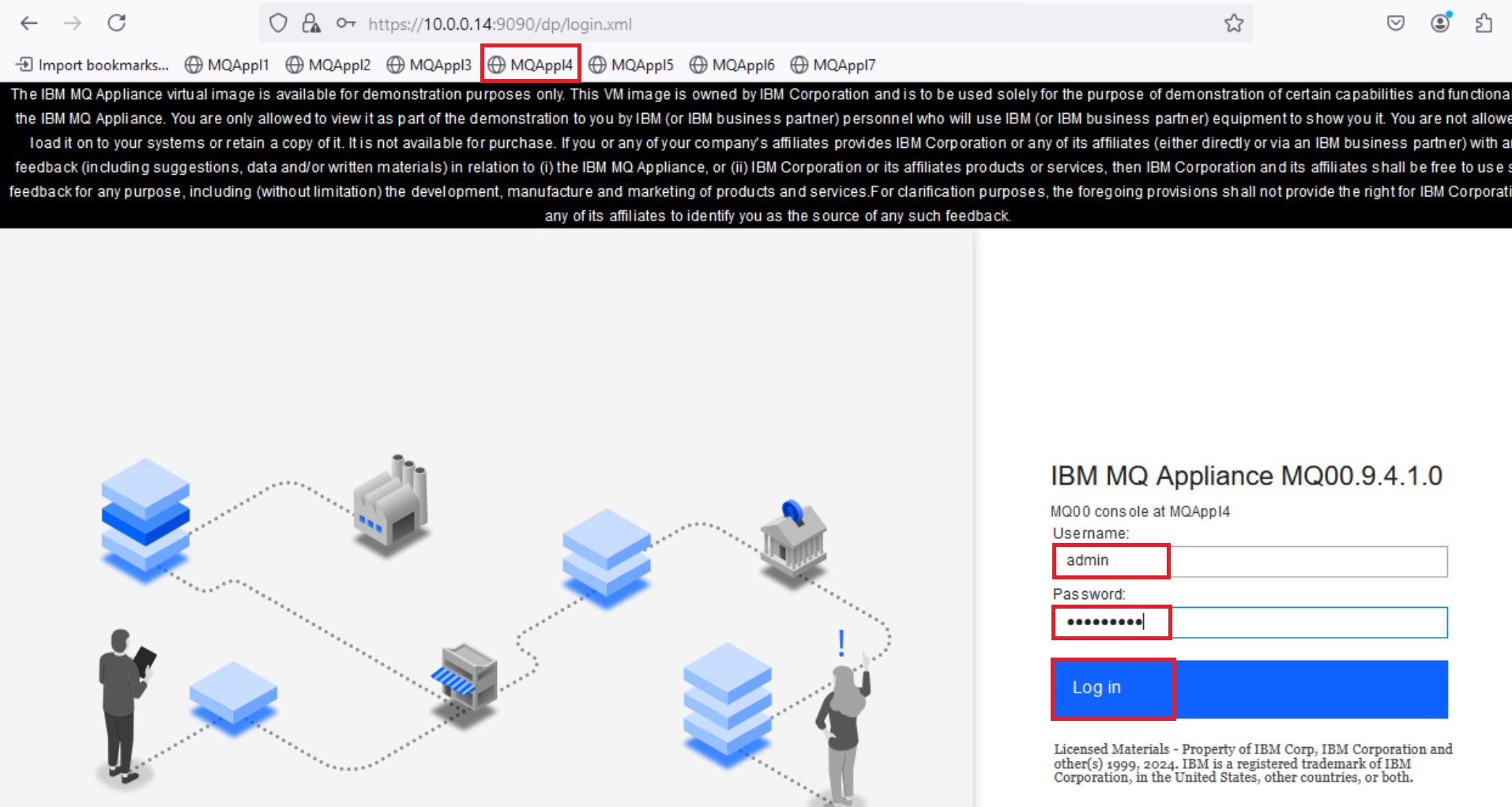
Open the MQ Console for MQAppl4 and login using Admin/Passw0rd!.
-
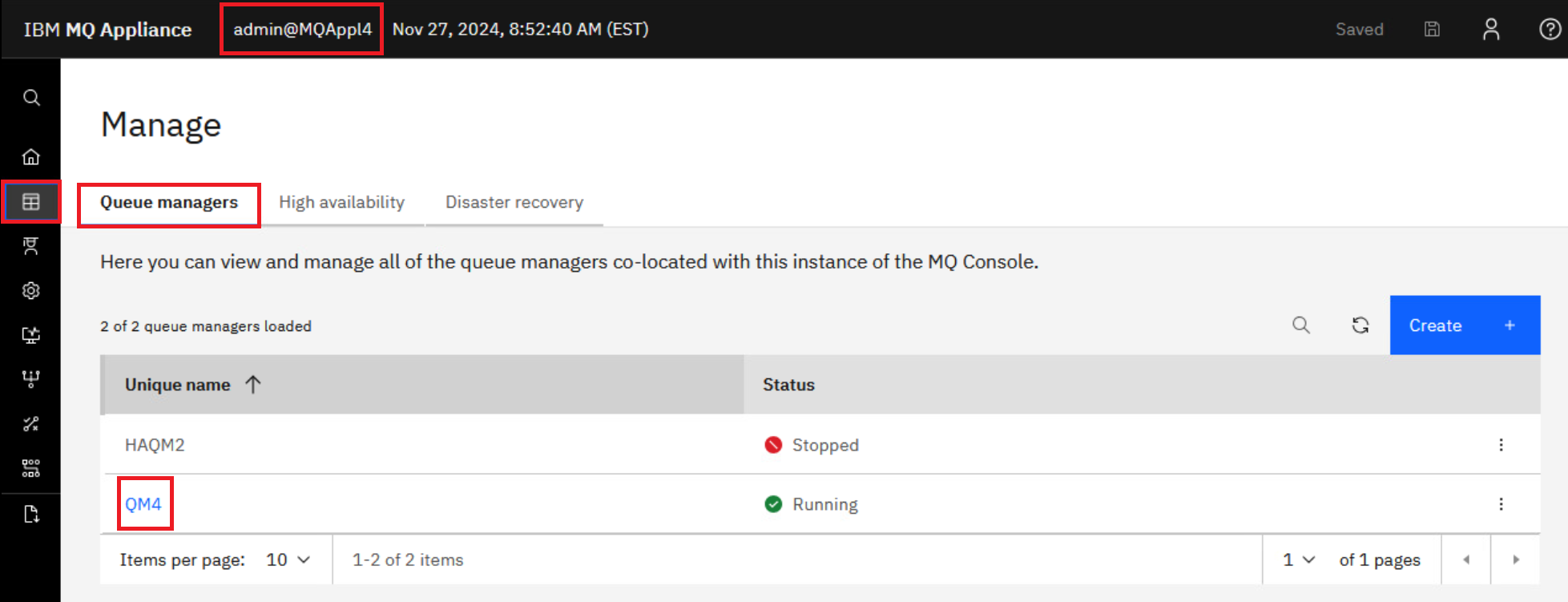
Navigate to Manage > Queue Managers and click on the hyperlink for QM4.
-
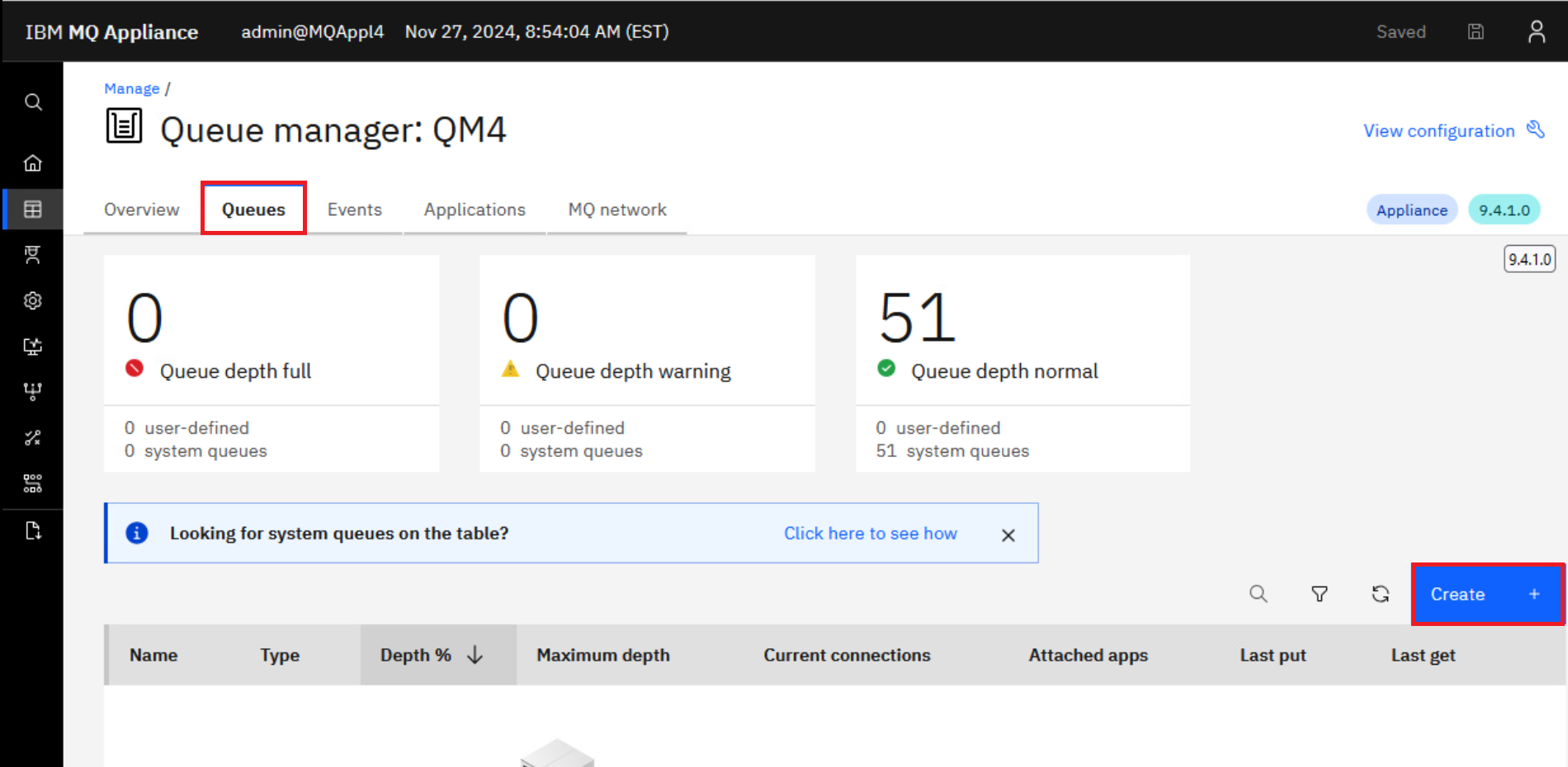
You are taken to the Overview tab for the queue manager. Select the Queues tab and create a new queue by clicking on Create.
-
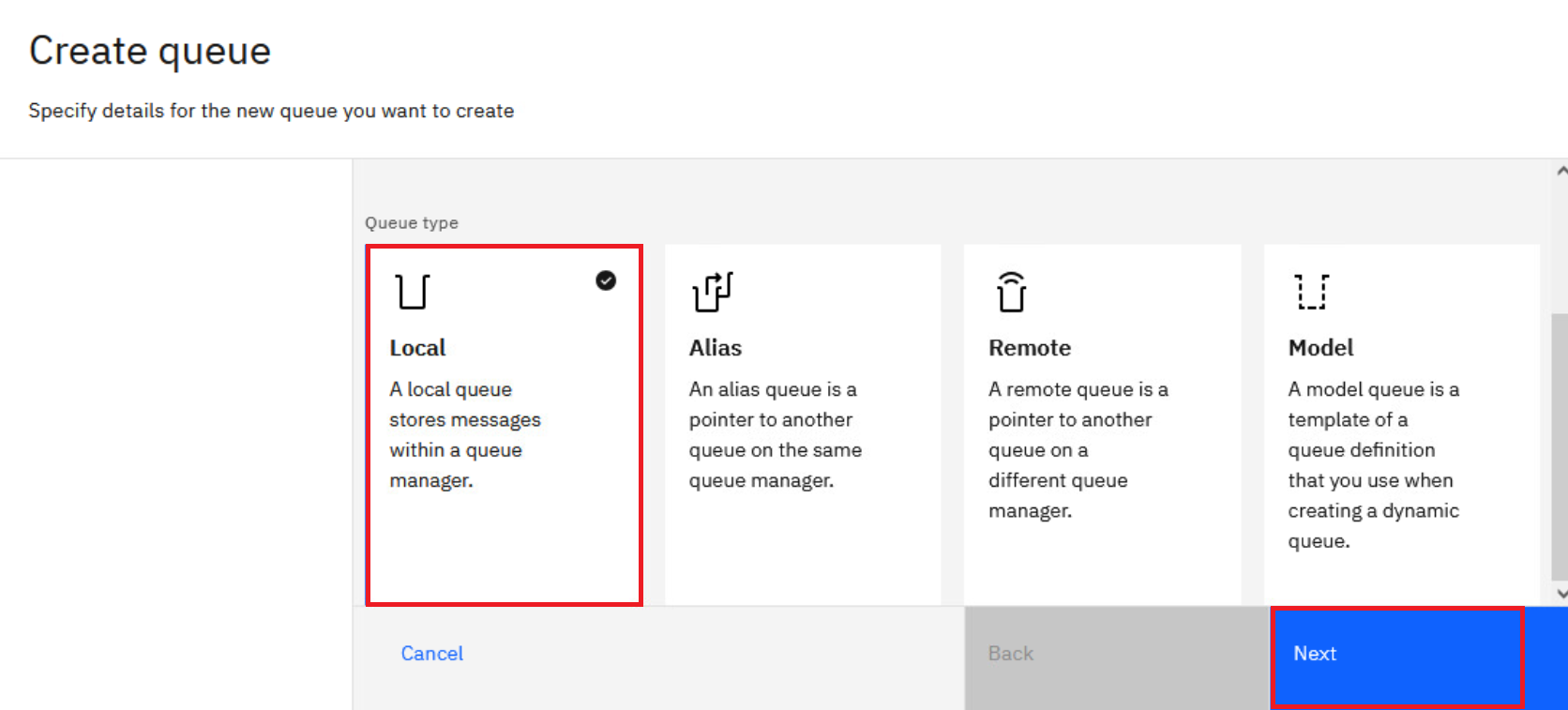
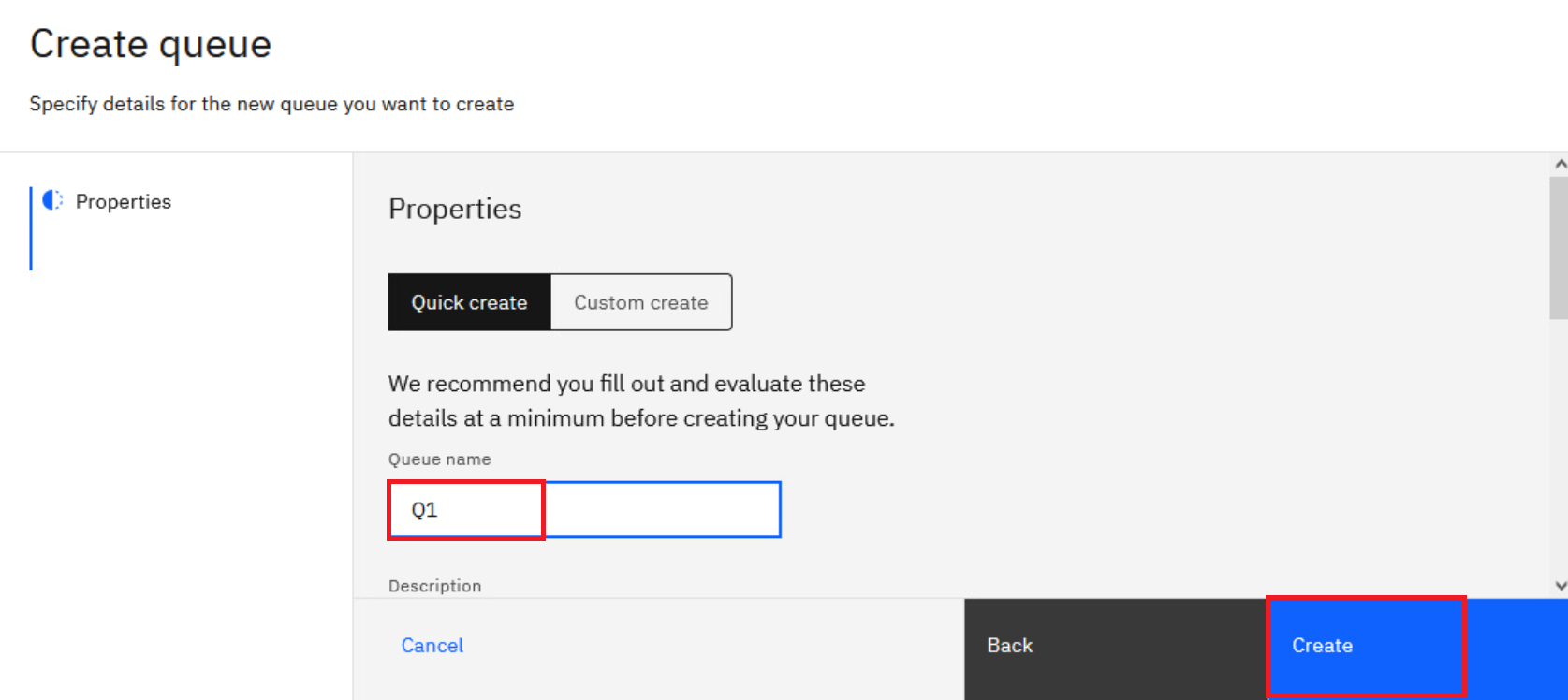
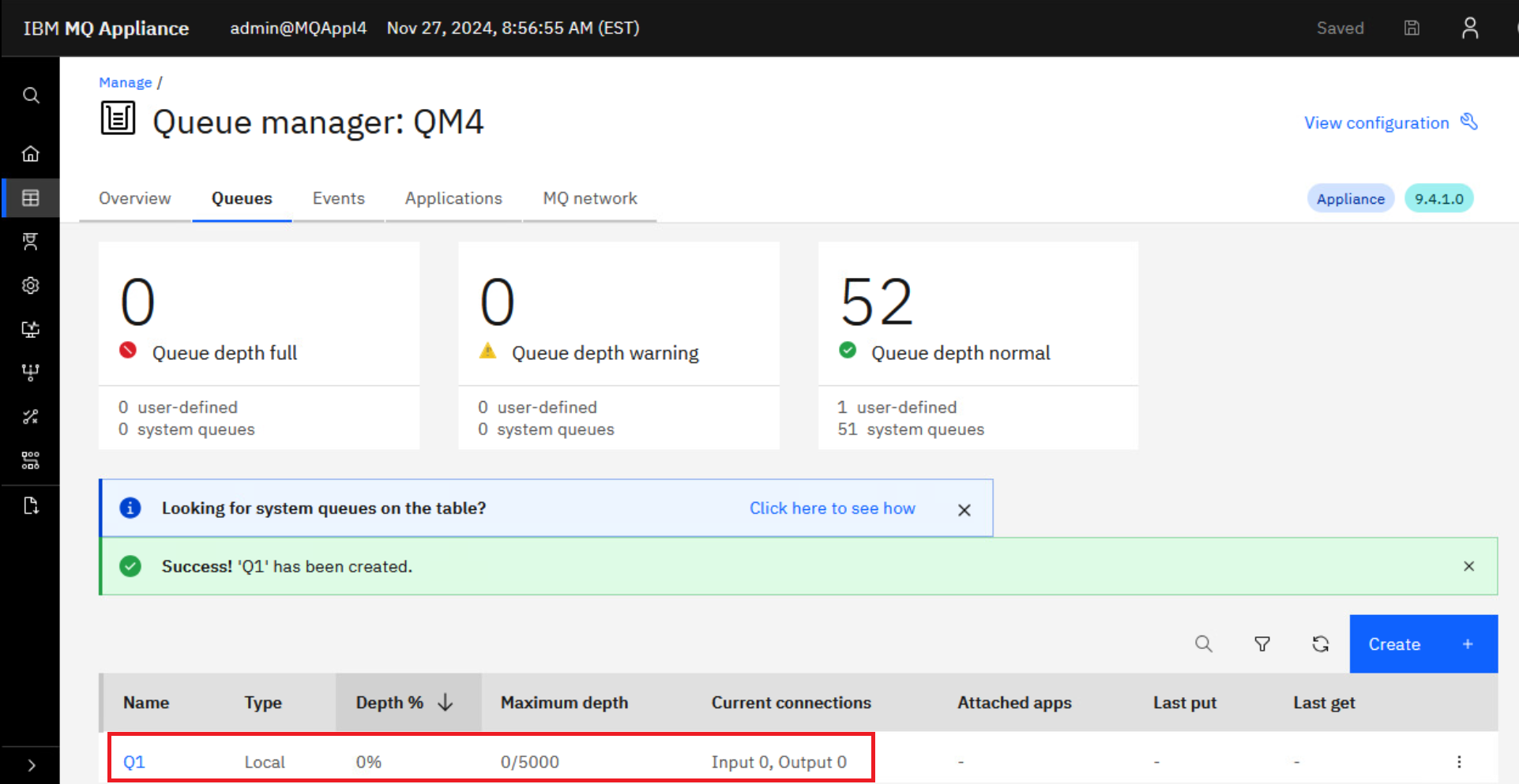
Click the Local tile and Next. Name the queue Q1 and leave the default object type set to local. Click Create.
-
You are returned to the list of queues and Q1 is now in the list.
-
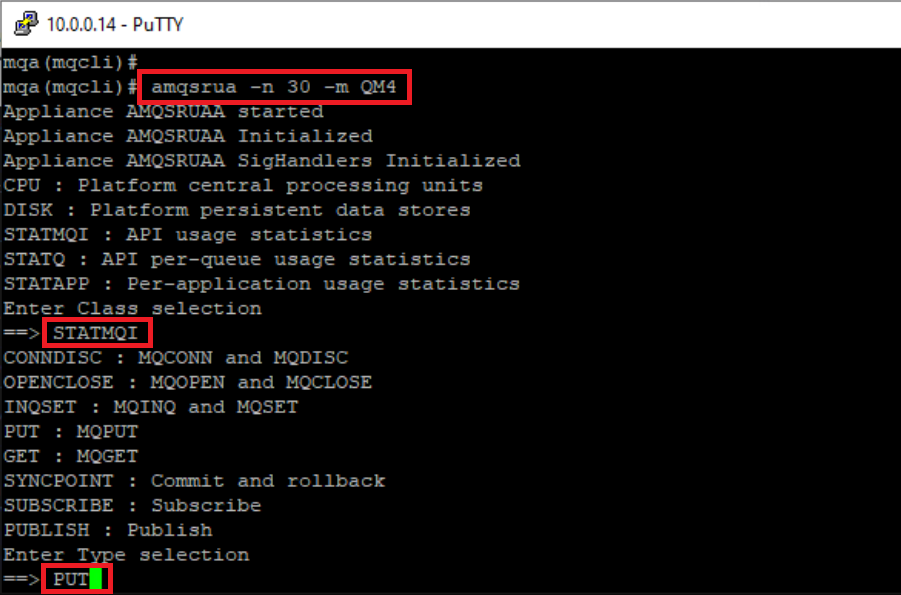
Enter the command as follows:
amqsrua -n 30 -m QM4with the following responses:
STATMQI for the Class selection and PUT for the Type selection.
-
Go to the MQ Console and put some messages on the Q1 queue.
-
Depending on how many messages you put on the queue, you will see results similar to the following:
-
Enter CTRL-C to end the amqsrua command.
-
Now you will move on to the MQ Console and see some of the reports that you can generate.
-
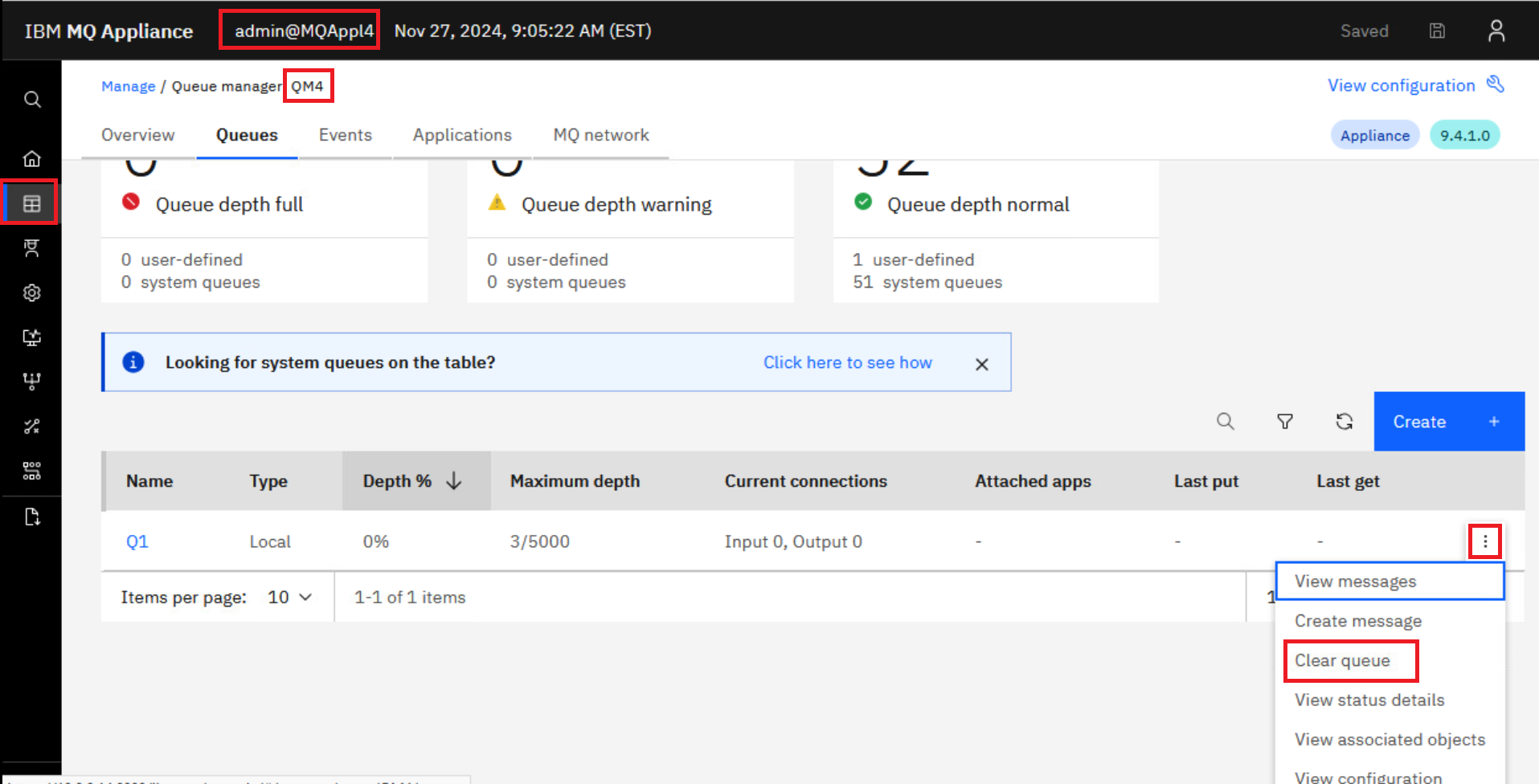
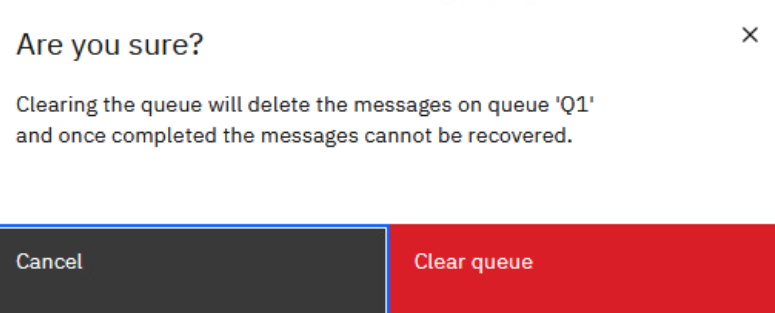
Return to the MQ Console > Manage > QM1. Click the elipsis on far right for the Q1 queue and select Clear queue.
-
Click Clear queue to confirm deletion of the messages.
Troubleshooting
In this section of the lab you will review the logs that are available for troubleshooting. The MQ Appliance has a set of logs similar to traditional MQ. In this section, you will understand where they are stored on the MQ Appliance and how to access them.
First, look at where the MQ error logs are stored.
-
On the MQAppl4 appliance command line, exit from any command if necessary and then exit from mqcli. This will take you back to the mqa# prompt.
-
Enter the config command to take you into configuration mode.
config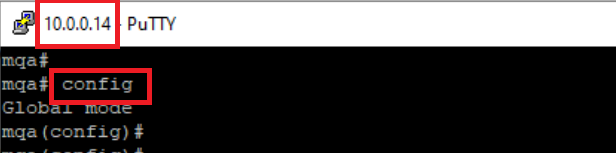
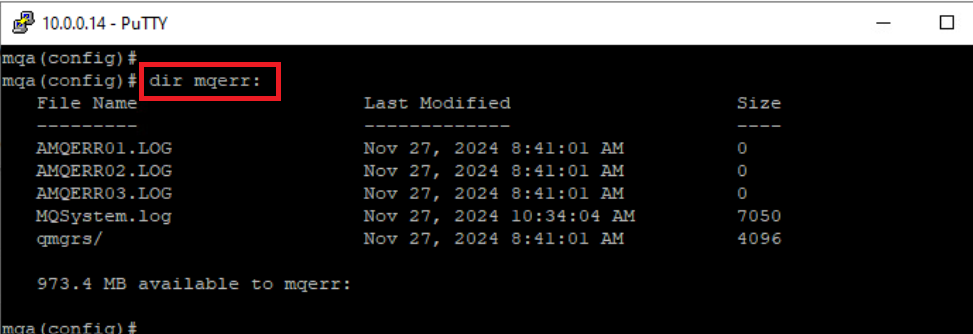
Directory structures on the appliance are accessible in the form of URIs. There is a dedicated URI, mqerr, for accessing IBM MQ logs.
-
Enter the following command (make sure you put the colon at the end).
dir mqerr: -
You will see the structure of the log directories.
-
Enter the following command to see the QM1 queue manager logs. These will be familiar to anyone familiar with MQ:
dir mqerr:qmgrs/QM4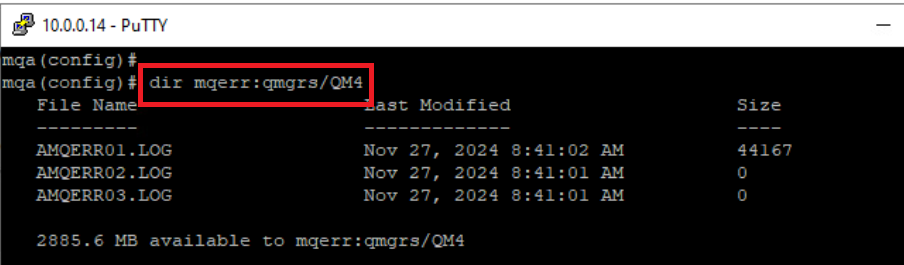
-
Enter exit to exit configuration mode.
-
Go to the MQ command line interface – enter mqcli.
You can list or view the system error logs, queue manager error logs, and first failure data captures (FDCs) by using the dspmqerr command.
-
Enter:
help dspmqerr -
This will list the options available for viewing the logs.
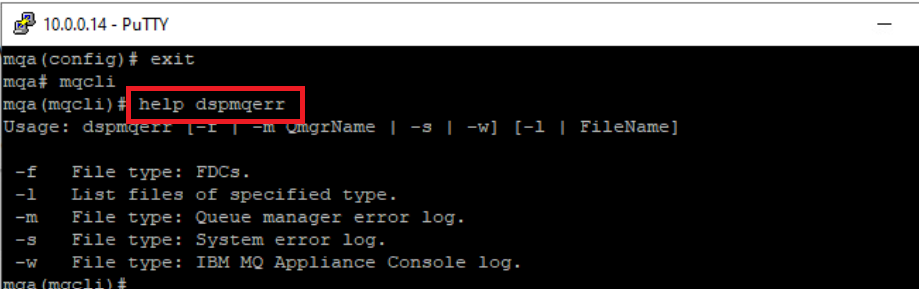
About dspmqerr:
The command is based on the UNIX less command. The less command provides controls for navigating the contents of a file, and you can use these controls when you view system error logs.:
Try the following tips:
- Use the arrow keys to scroll up and down the logs
- Use the page, space, or return keys for simple scrolling
- Enter q to exit at any time
- Enter h to display full help while you view a log. The help lists further commands, for example, for searching for strings or jumping a set number of lines.
-
Look at the AMQERR01.LOG for QM1. Enter:
dspmqerr -m QM4 AMQERR01.LOG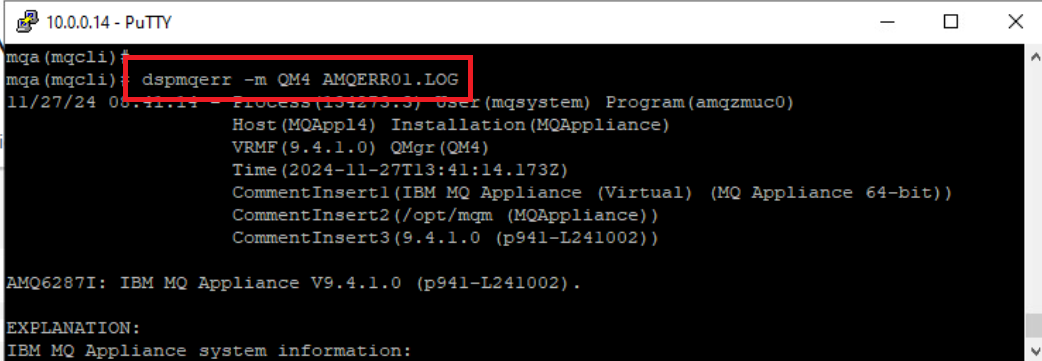
-
Review the log entries. Hold the space bar down to scroll to the end. When you ran the test you received an error for filling the MONITOR queue. You should see FDCs created at the end of the log. Notice that they were due to the write command.
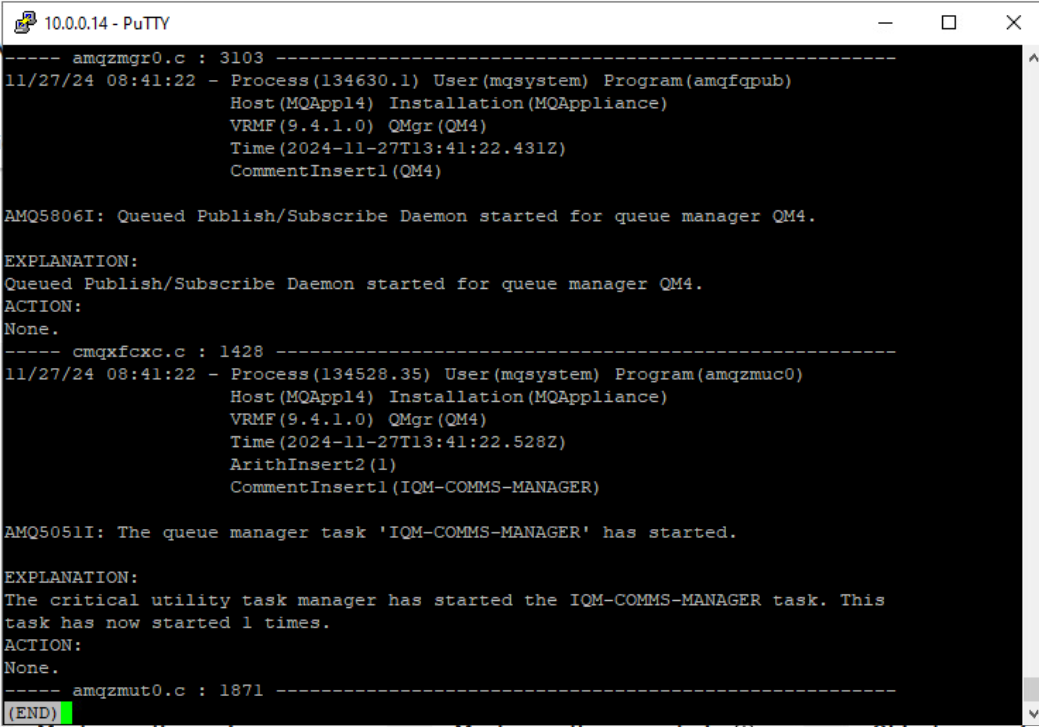
-
When done reviewing the log, enter q.
-
Enter this command to see the system log.
dspmqerr -s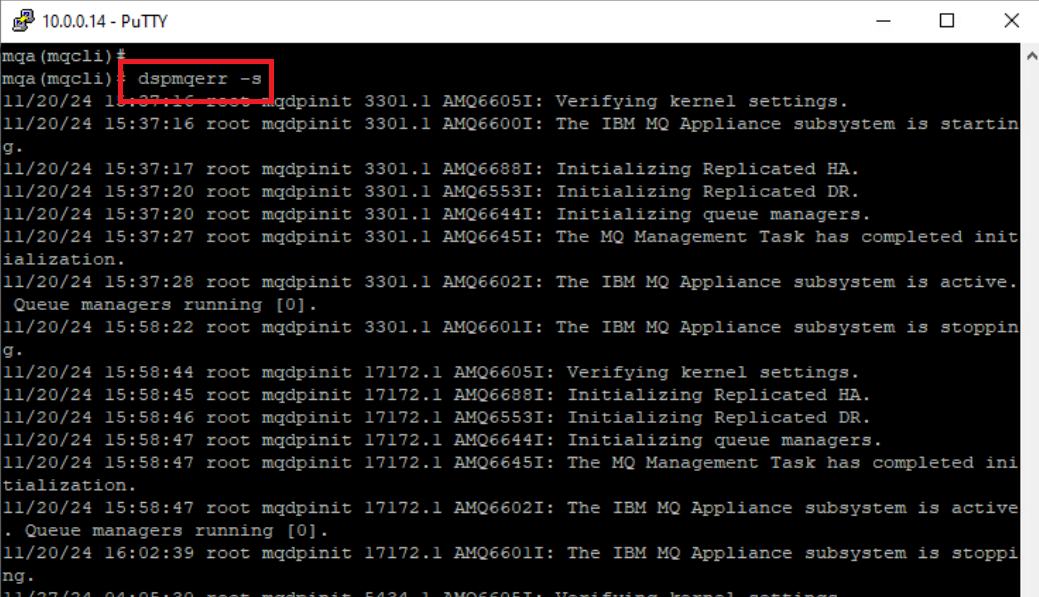
-
When done reviewing the log, enter q.
-
It is possible to copy the error logs from the MQ Appliance. This is done from the configuration mode (the config prompt) using the copy command or from the MQ Console (using the File Management option).
Lets see this in action now. Exit out of the mqcli returning to the config prompt.
- We will copy the MQERR01.LOG file to the RHEL workstation. This is already configured to receive SCP communication. Run the following command:
copy mqerr:qmgrs/QM4/AMQERR01.LOG scp://admin@10.0.0.30/AMQERR01.LOGYou will be prompted for a password. It is IBMDem0s.

-
In the Environment tab click on the workstation tile. This will open a new tab for the machine.
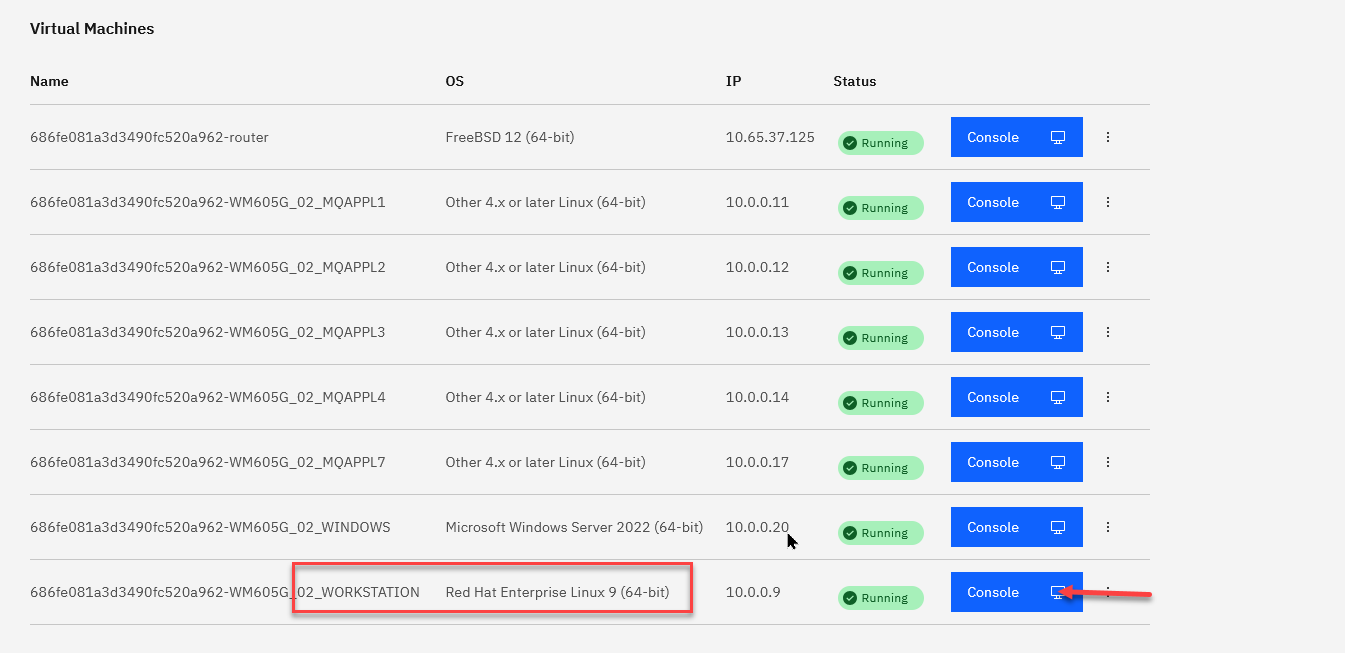
-
In the new tab, click the clock for the password box to appear, enter IBMDem0s and press enter.
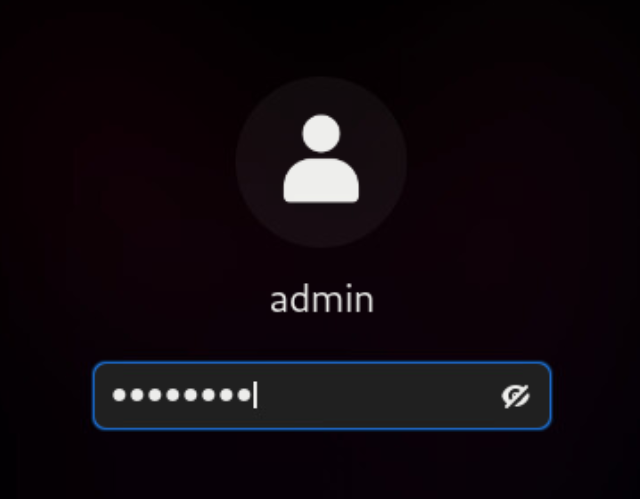
-
Open a terminal window by clicking on Activities in the top left and selecting the terminal at the bottom of the screen.

- In the terminal lets view the MQ error log. Run the following command:
cat ~/AMQERR01.LOG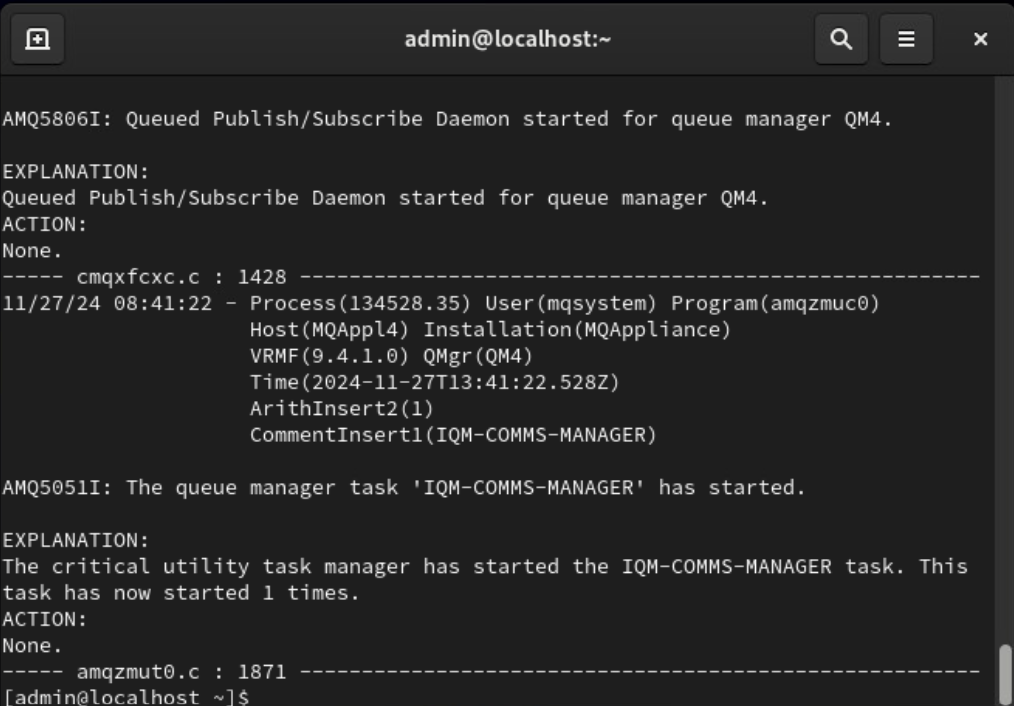
Configuration of log forwarding
In this part of the lab, we will explore how to forward logs from the MQ Appliance to a central location, a feature often requested by customers. Many organizations utilize a central syslog server to collect and manage logs from various systems. Centralized logging simplifies the process of reviewing logs, monitoring system health, and generating alerts for critical events.
In this part of the lab, you will configure log forwarding on the MQ Appliance, directing its logs to a RHEL workstation that is hosting a syslog server. This setup demonstrates how to integrate the MQ Appliance into an existing centralized logging infrastructure, enhancing operational oversight and proactive management capabilities.
-
In the RHEL workstation open Firefox by clicking on Activities in the top left and selecting the Firefox icon at the bottom of the screen.

-
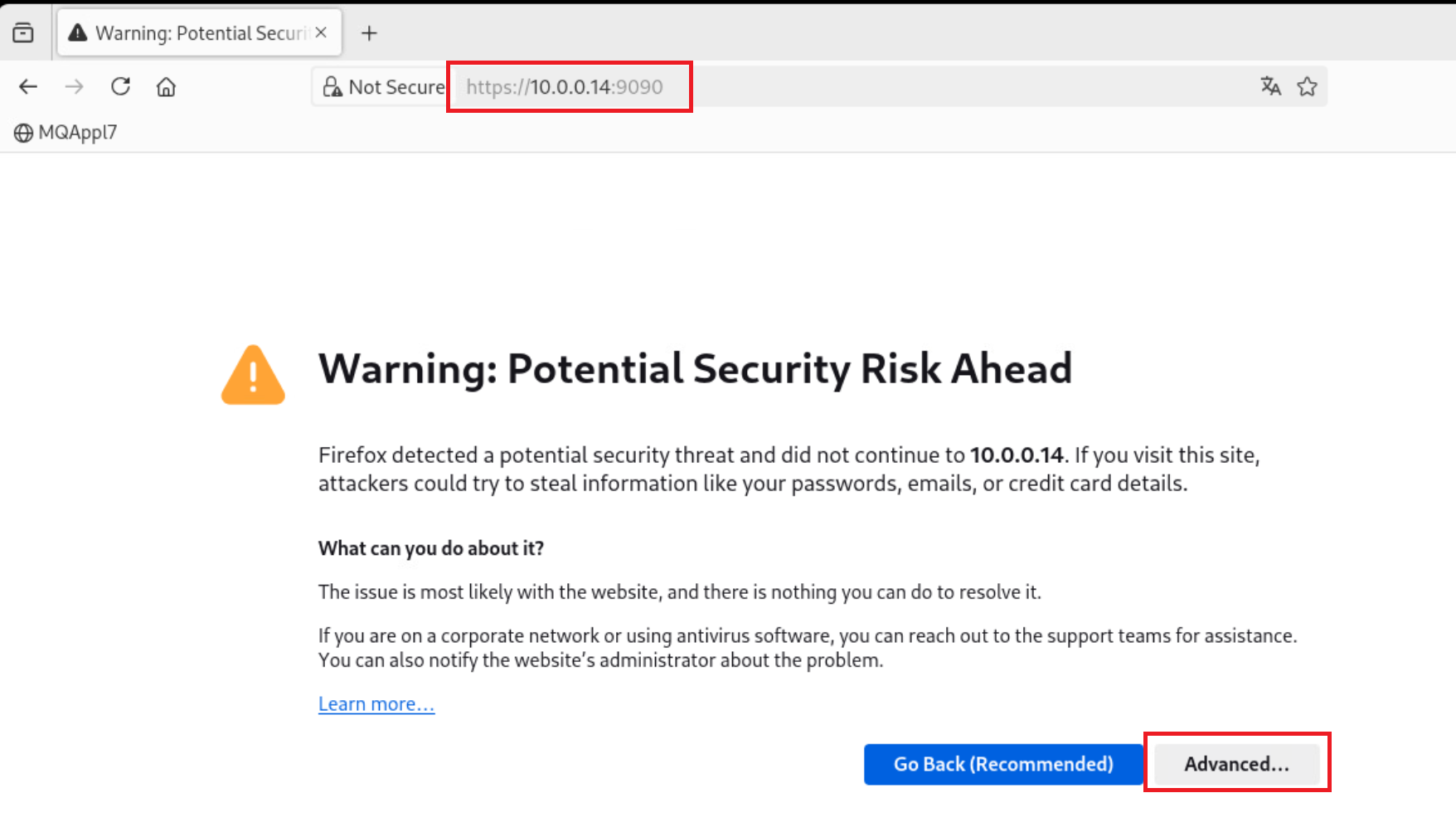
Navigate to https://10.0.0.14:9090, accepting any certificates required.
-
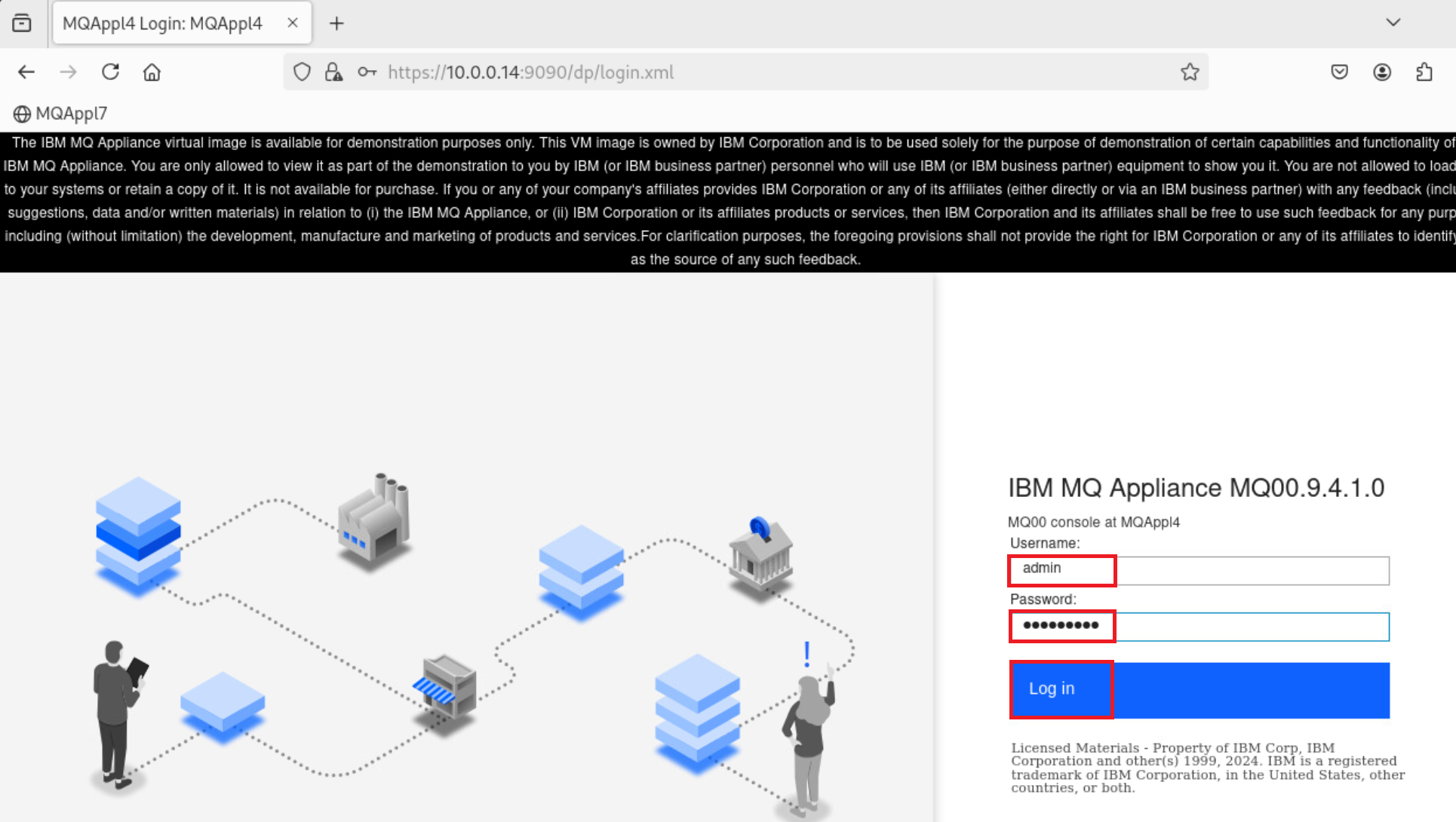
Enter admin / Passw0rd! as the username and password, and click Log in.
-
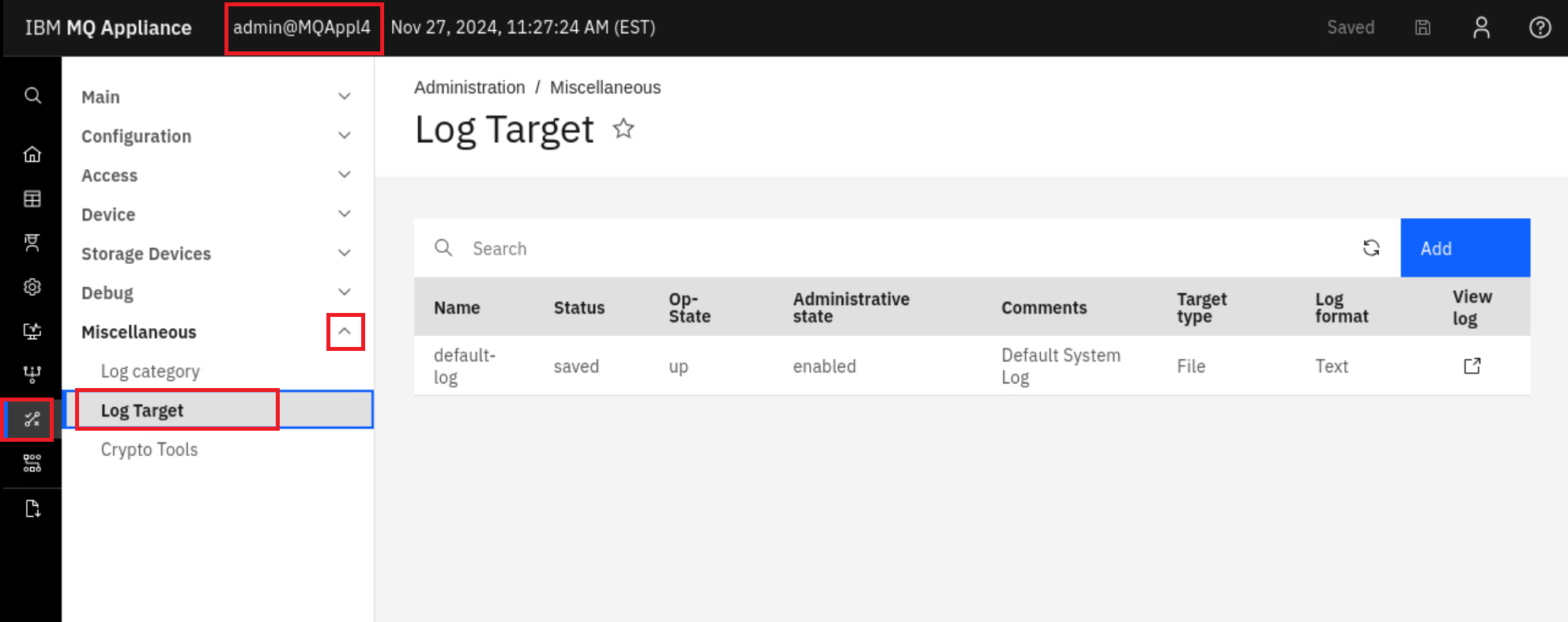
Select Administration > Miscellaneous > Log Target.
-
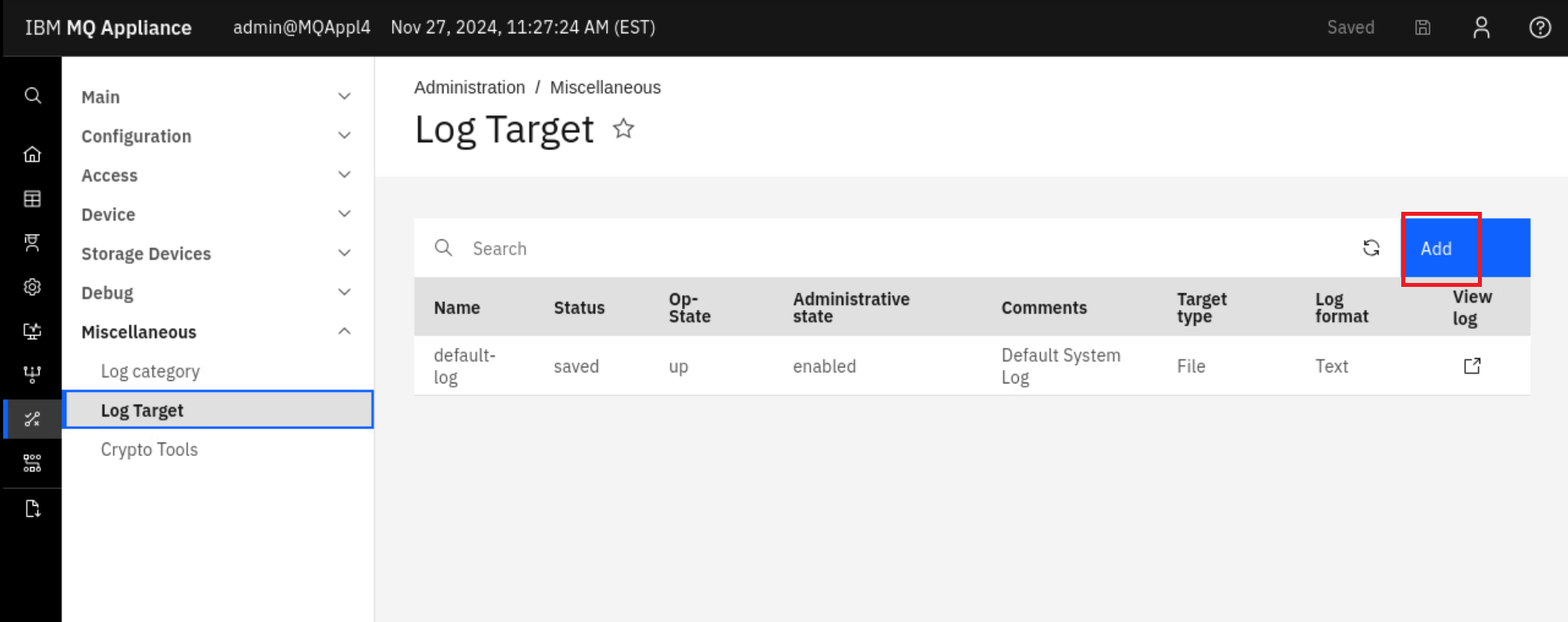
Click Add
-
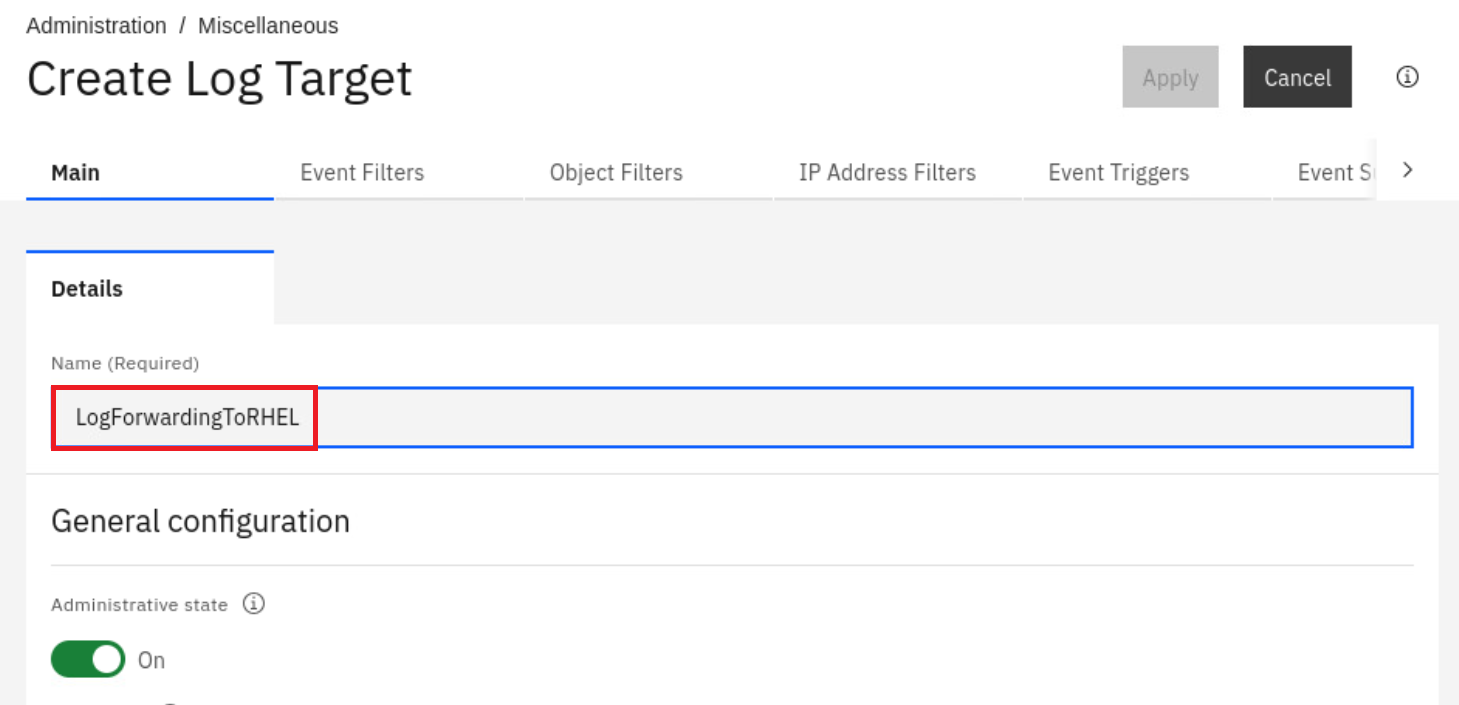
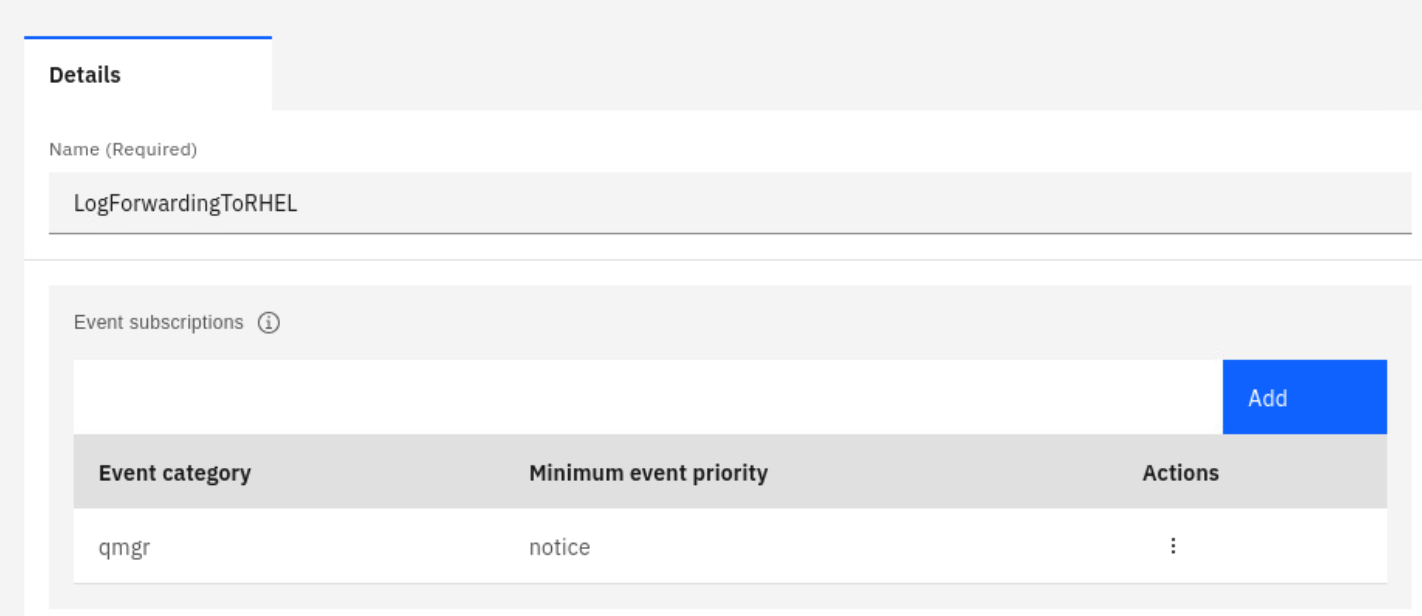
Enter LogForwardingToRHEL for the name of the log forwarding configuration.
-
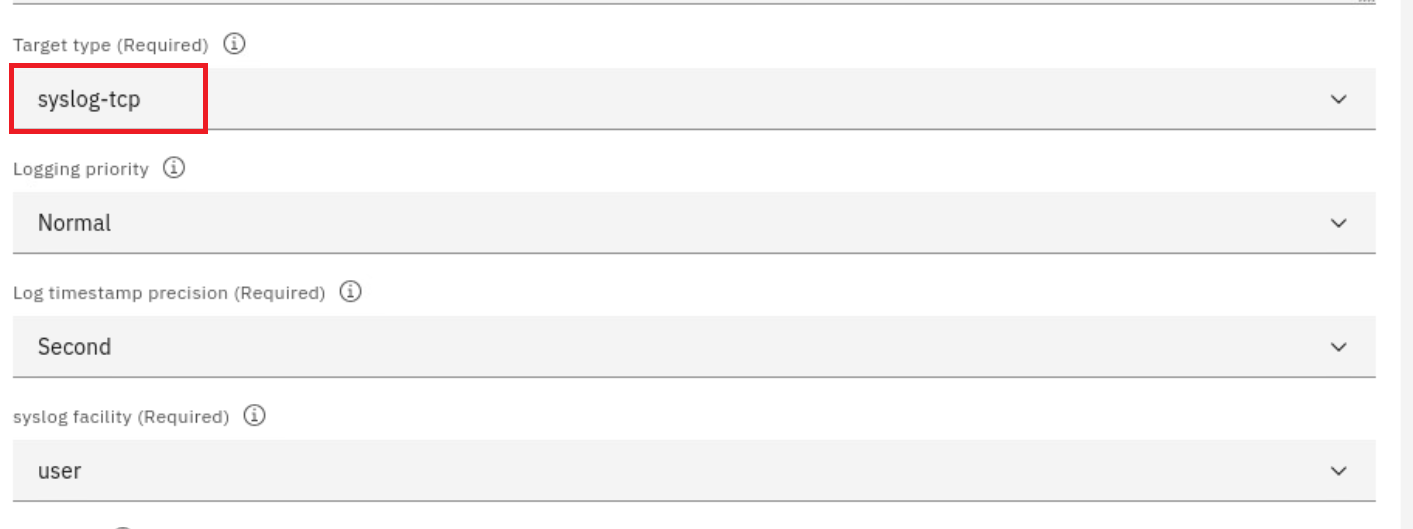
Scroll down to the Target type option and select syslog-tcp.
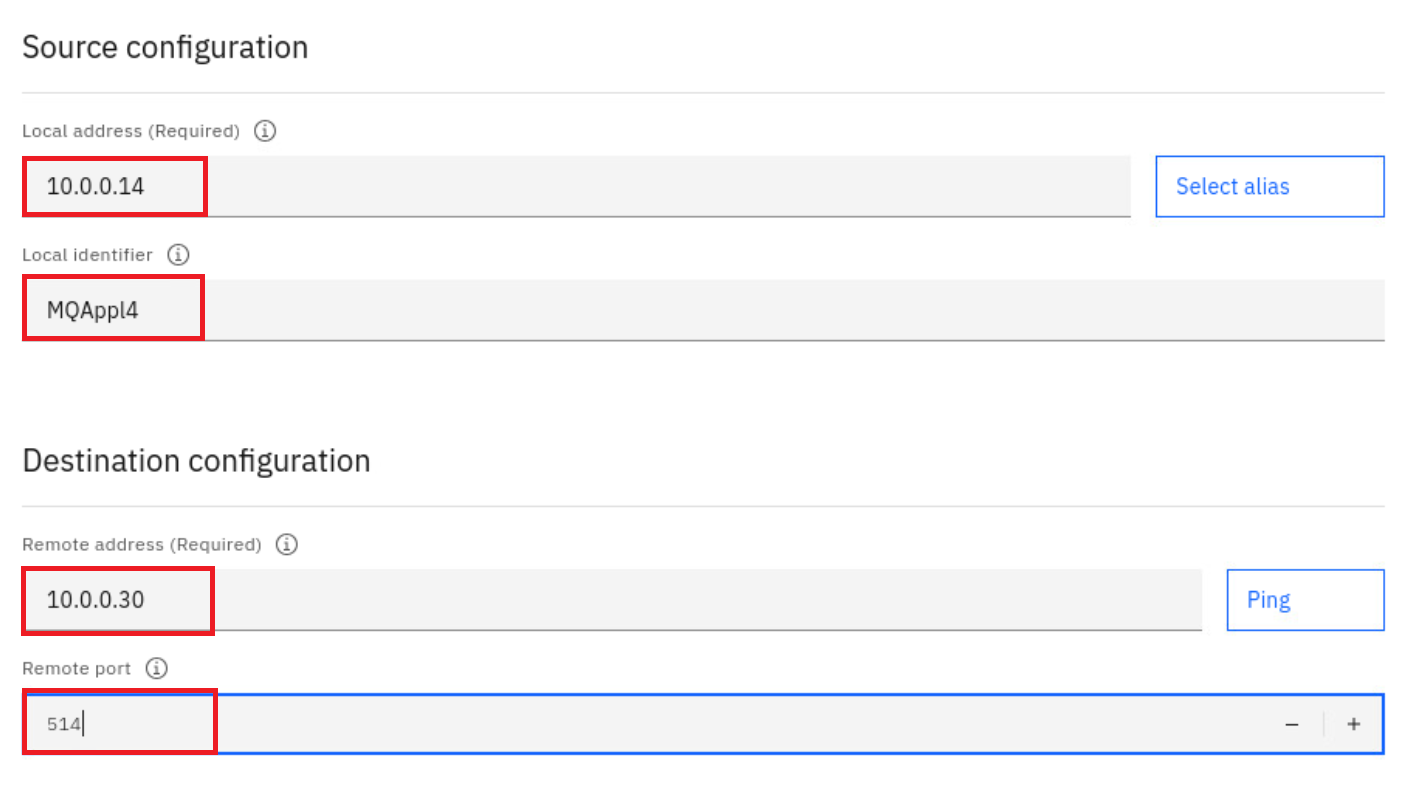
- For the source and destination conifguration fill in the following details:
- Source configuration
- Local address: 10.0.0.14
- Local identifier: MQAppl4
- Destination configuration
- Remote address: 10.0.0.30
- Remote port: 514
- Source configuration
-
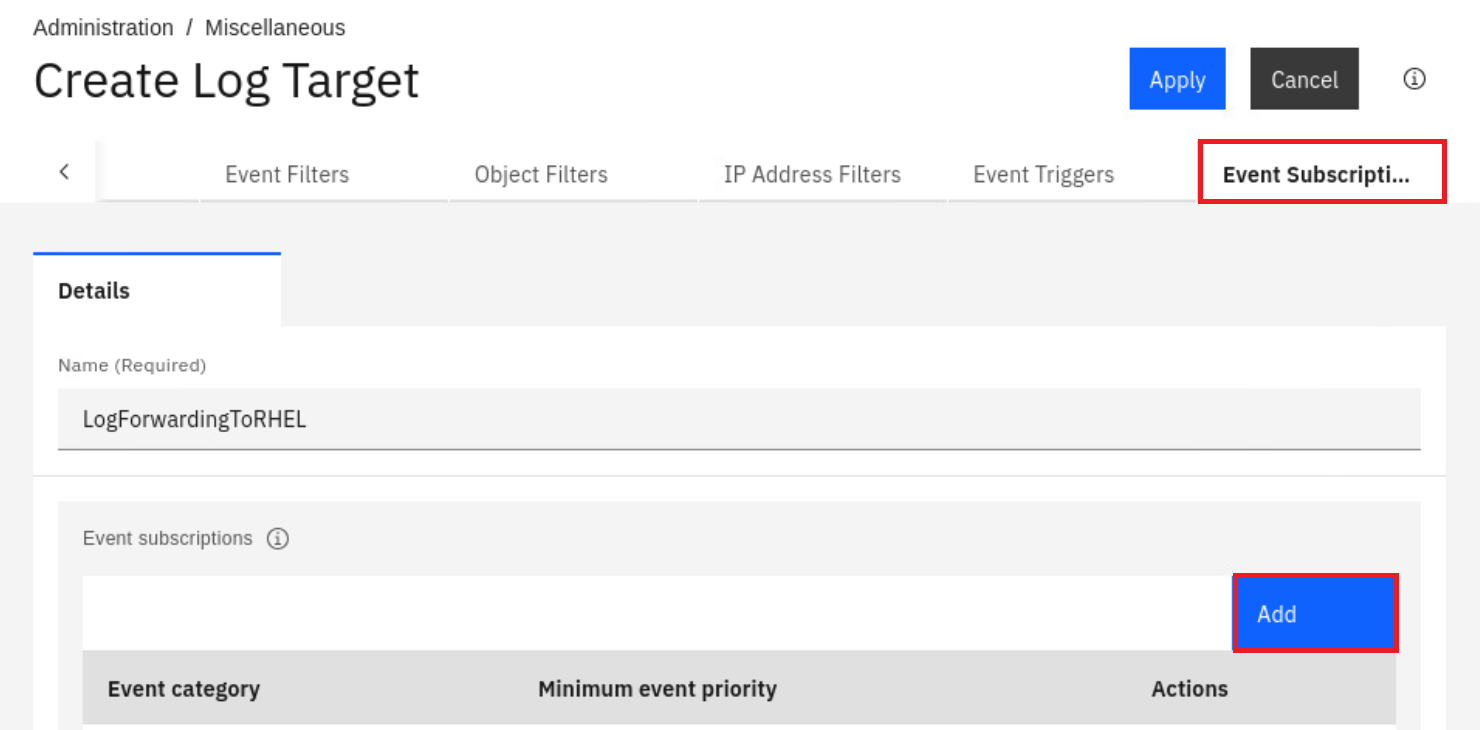
Scroll to the top of the page and change to the Event Subscription tab. Click Add.
-
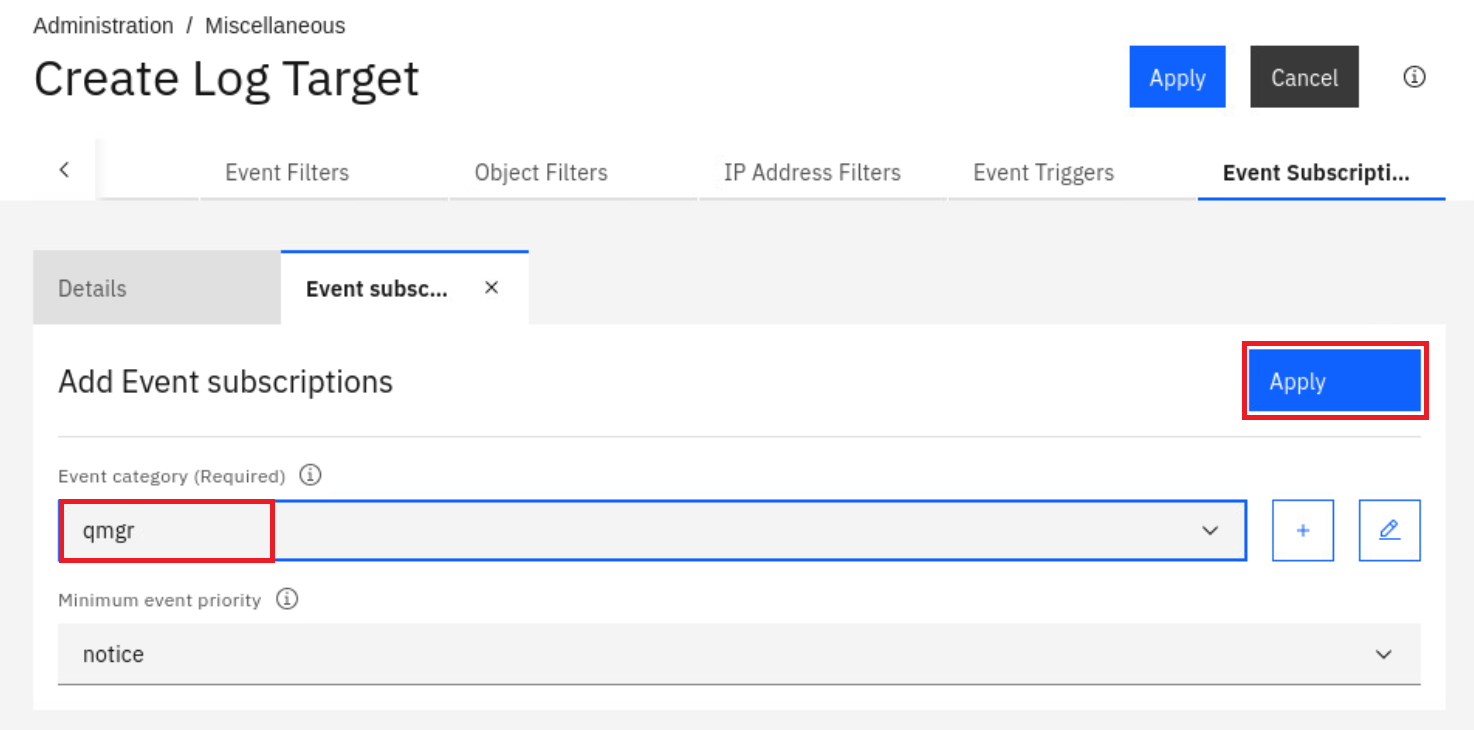
Select qmgr for the Event category and click Apply.
-
Click Apply at the top of the screen.

-
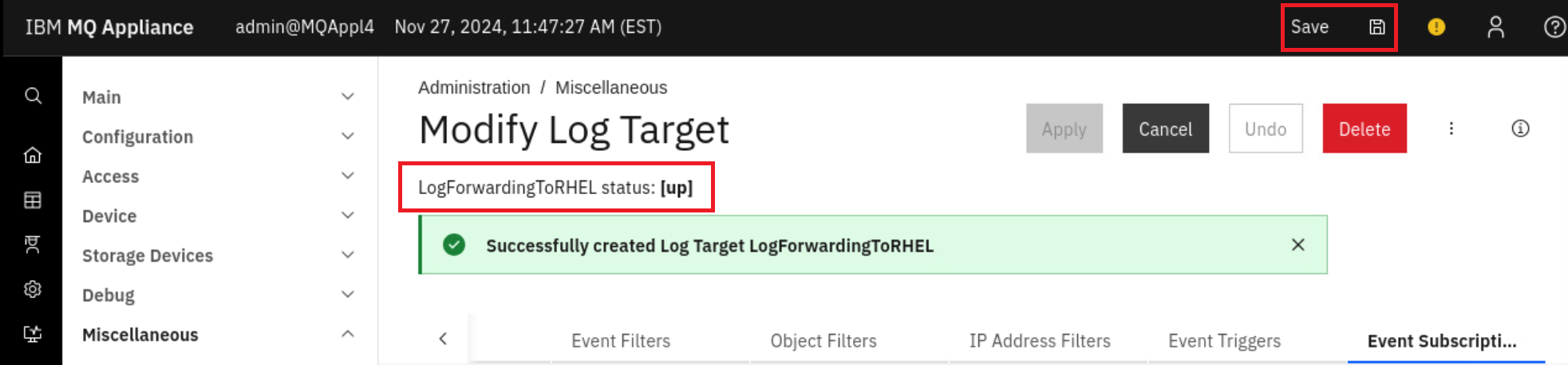
Click on the save icon at the top right to persist the changes. You should see that the status is [up]. This is showing that the log forwarding is working.
-
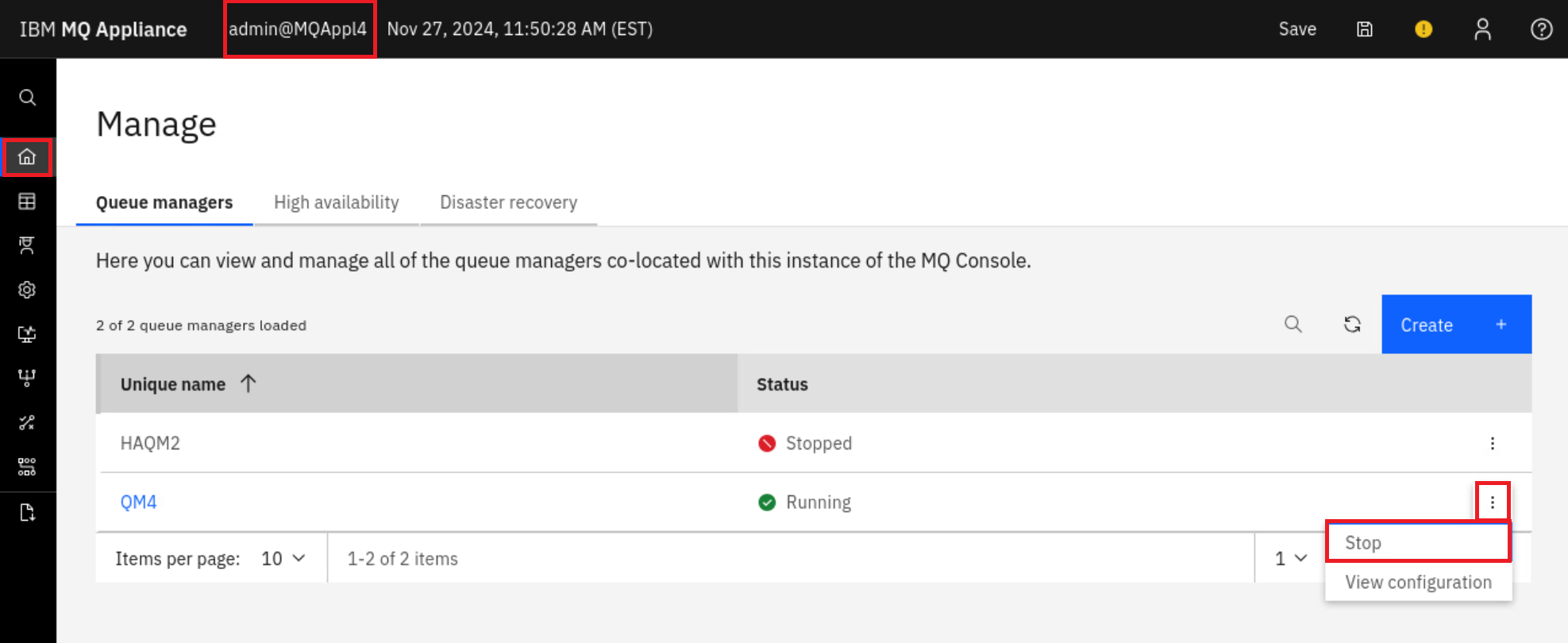
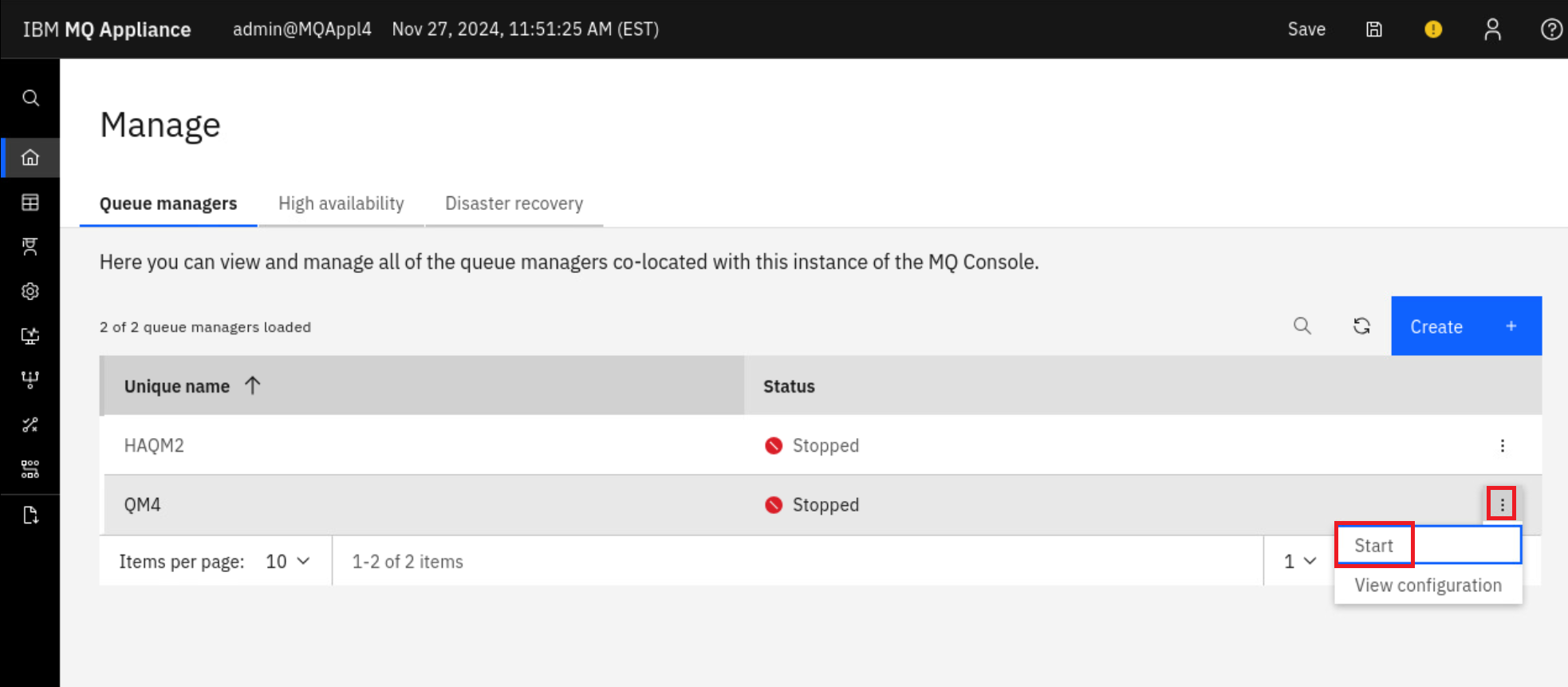
Lets stop and start the queue manager so there is something to forward. Navigate to manage > Queue Managers, click the elipsis associated with QM1, and select Stop.
-
Again click the elipsis associated with QM1, and select Start.
-
Open a terminal window by clicking on Activities in the top left and selecting the terminal at the bottom of the screen.
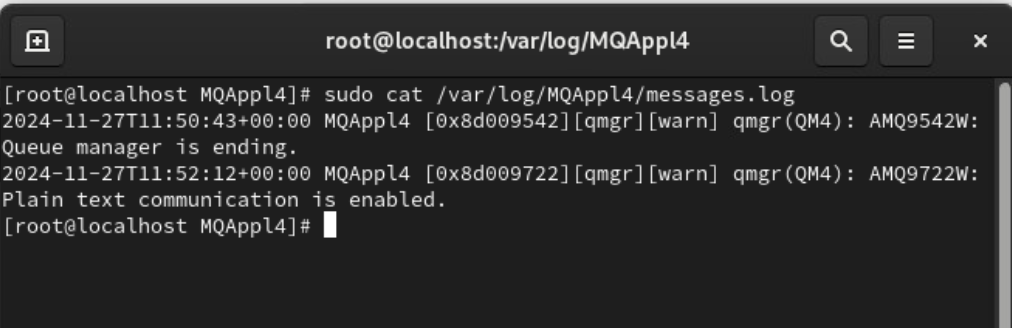
- The directory where the log messages are stored is only available to root. In a real world setup this wouldn’t be the case. To show the log run the following command:
sudo cat /var/log/MQAppl4/messages.log
-
You will observe two lines of output, representing log messages generated at the configured level for the queue manager (qmgr) object. In a real-world scenario, this approach can be adapted to configure different objects and specify varying log forwarding levels as required.
Congratulations
This concludes the Monitoring and troubleshooting lab.