MQ-Advanced-pot
Lab 2 - Streaming Queues for MQ on CP4I
Notes
To add to lab
disabled the CHLAUTH
alter qmgr connauth(‘ ‘)
refresh security (*)
you need to enter some message manually (edited) its different from amqsphac and ghac
Introduction
This lab demonstrates the Streaming Queue feature added to MQ in the 9.2.3.0 CD release. Streaming Queues allow you to configure any local or model queue with the name of second named queue. This second queue is referred to as a Stream Queue.
When messages are put to the original queue, a duplicate copy of each message is also placed on the stream queue. The Streaming Queue feature allows you to create a duplicate stream of messages which can be used for later analysis, logging, or storage without affecting the business applications using the original queue.
Lab Objectives
In this lab, you will:
- Create two queues. An application queue that messages are put to by a sending application, and a stream queue for duplicate messages to be streamed to
- Configure the application queue to stream messages to the stream queue
- Send messages to the application queue and observe them being duplicated to the stream queue
- Modify the stream queue and the streaming quality of service to demonstrate the behaviour when duplicate messages cannot be streamed
- Inspect some of the messages to see that they are identical
We will not demonstrate messages being consumed from either of the queues. Stream queues are regular MQ local queues and getting messages from them is done in the same way as any other MQ queue.
We will not demonstrate using a queue alias to topic as the stream queue, although this is supported. More information on using a queue alias as the streamqueue is available in the IBM Documentation.
Acknowledgements
This lab was written by Matthew Whitehead (mwhitehead@uk.ibm.com).
Streaming Queues in IBM Knowledge Center
Background
Topology overview for stream queues
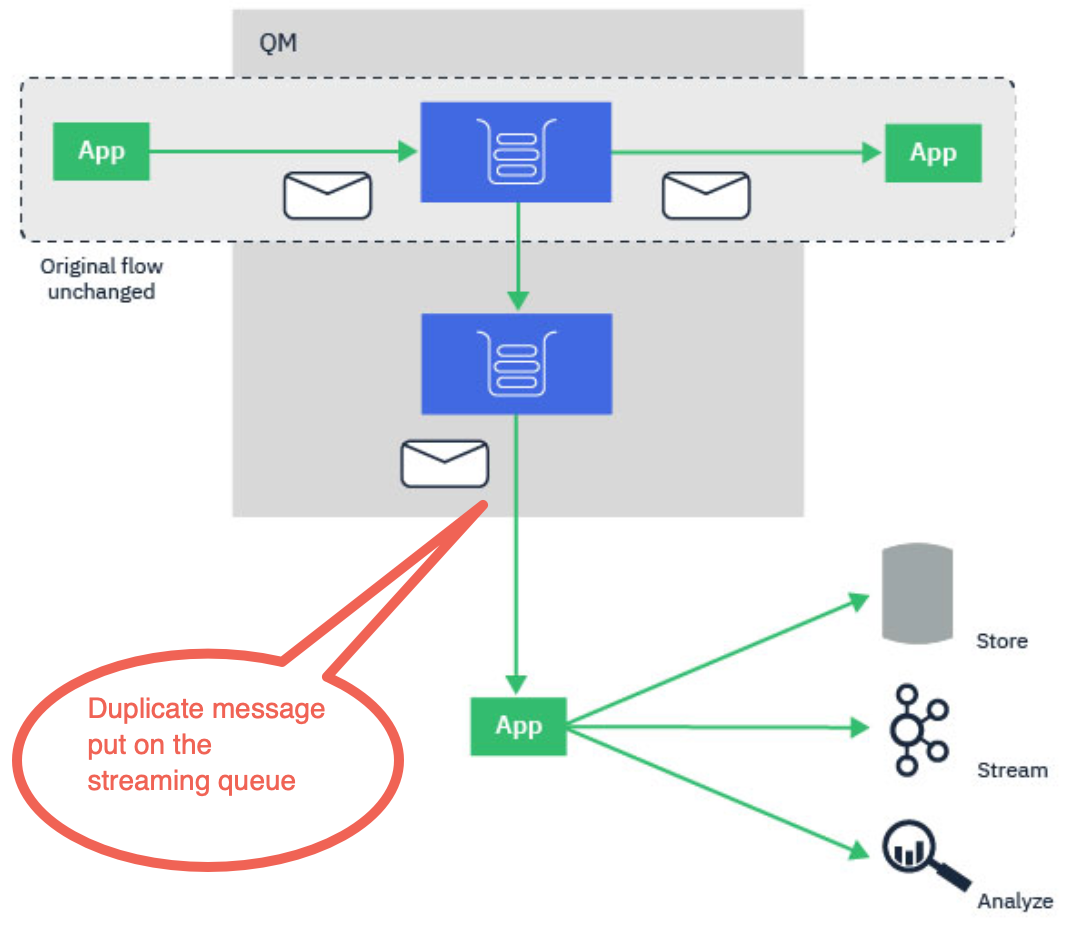
The topology diagram shows the basic capability of stream queues. A regular local queue that is currently being used by MQ applications can be configured to stream a duplicate of every message put to that queue, to a second destination called a stream queue.
The streaming queues feature of IBM® MQ is configured by the administrator on individual queues, and the messages are streamed by the queue manager, not by the application itself.
This means that in almost all cases the application putting messages to the original queue is completely unaware that streaming is taking place. Similarly, the application consuming messages from the original queue is unaware that message streaming has taken place.
The version of the IBM MQ client library does not need upgrading to make use of streaming queues, and the original messages are completely unchanged by the streaming process.
You can configure streaming queues in one of two modes:
-
Best effort
In this mode, the queue manager considers it more important that delivery of the original message is not affected by delivery of the streamed message. If the original message can be delivered, but the streamed message cannot, the original message is still delivered to its queue. This mode is best suited to those applications, where it is important for the original business application to remain unaffected by the streaming process.
-
Must duplicate
In this mode, the queue manager ensures that both the original message and the streamed message are successfully delivered to their queues. If, for some reason, the streamed message cannot be delivered to its queue, for example, because the second queue is full, then the original message is not delivered to its queue either. The putting application receives an error reason code and must try to put the message again.
Streamed messages
In most cases, the copy of the message delivered to the second queue is a duplicate of the original message. This includes all of the message descriptor fields, including the message ID and correlation ID. The streamed messages are intended to be very close copies of the original messages, so that they are easier to find and, if necessary, replay them back into another IBM MQ system.
There are some message descriptor fields that are not retained on the streamed message. The following changes are made to the streamed message before it is placed on the second queue:
-
The expiry of the streamed message is set to MQEI_UNLIMITED, regardless of the expiry of the original message. If CAPEXPRY has been configured on the secondary queue this value is applied to the streamed message.
-
If any of the following report options are set on the original message, they are not enabled on the streamed message. This is to ensure that no unexpected report messages are delivered to applications that are not designed to receive them:
- Activity reports
- Expiration reports
- Exception reports
Due to the near-identical nature of the streamed messages, most of the attributes of the secondary queue have no affect on the message descriptor fields of the streamed message. For example, the DEFPSIST and DEFPRTY attributes of the secondary queue have no affect on the streamed message.
The following exceptions apply to the streamed message:
-
CAPEXPRY set on the CUSTOM attribute
If the secondary queue has been configured with a CAPEXPRY value in the CUSTOM attribute, this expiry cap is applied to the expiry of the streamed message.
-
DEFBIND for cluster queues
If the secondary queue is a cluster queue, the streamed message is put using the bind option set in the DEFBIND attribute of the secondary queue.
Streaming queue restrictions
Certain configurations are not supported when using streaming queues in IBM® MQ, and these are documented here.
The following list specifies the configurations that are not supported:
- Defining a chain of queues streaming to each other, for example, Q1->Q2, Q2->Q3, Q3->Q4
- Defining a loop of streaming queues, for example, Q1->Q2, Q2->Q1
- Defining a subscription with a provided destination, where that destination has a STREAMQ defined
- Defining STREAMQ on a queue configured with USAGE(XMITQ)
- Modifying the STREAMQ attribute of a dynamic queue
- Setting STREAMQ to any value that begins SYSTEM.*, except for SYSTEM.DEFAULT.LOCAL.QUEUE
-
Defining STREAMQ on any queue named SYSTEM.*, with the following exceptions:
- SYSTEM.DEFAULT.LOCAL.QUEUE
- SYSTEM.ADMIN.ACCOUNTING.QUEUE
- SYSTEM.ADMIN.ACTIVITY.QUEUE
- SYSTEM.ADMIN.CHANNEL.EVENT
- SYSTEM.ADMIN.COMMAND.EVENT
- SYSTEM.ADMIN.CONFIG.EVENT
- SYSTEM.ADMIN.LOGGER.EVENT
- SYSTEM.ADMIN.PERFM.EVENT
- *SYSTEM.ADMIN.PUBSUB.EVENT
- SYSTEM.ADMIN.QMGR.EVENT
- SYSTEM.ADMIN.STATISTICS.QUEUE
- SYSTEM.DEFAULT.MODEL.QUEUE
- SYSTEM.JMS.TEMP.QUEUE
- Setting STREAMQ to the name of a model queue
Stream queues and transactions
The streaming queues feature allows a message put to one queue, to be duplicated to a second queue. In most cases the two messages are put to their respective queues under a unit of work.
If the original message was put using MQPMO_SYNCPOINT, the duplicate message is put to the stream queue under the same unit of work that was started for the original put.
If the original was put with MQPMO_NO_SYNCPOINT, a unit of work will be started even though the original put did not request one. This is done for two reasons:
-
It ensures the duplicate message is not delivered if the original message could not be. The streaming queues feature only delivers messages to stream queues if the original message was also delivered.
-
There can be a performance improvement by doing both puts inside a unit of work
The only time the messages are not delivered inside a unit of work is when the original MQPUT is non-persistent with MQPMO_NO_SYNCPOINT, and the STRMQOS attribute of the queue is set to BESTEF (best effort).
The additional put to the stream queue does not count towards the MAXUMSGS limit. In the case of a queue configured with STRMQOS(BESTEF), failure to deliver the duplicate message does not cause the unit of work to be rolled back.
Streaming to and from cluster queues
It is possible to stream messages from a local queue to a cluster queue and to stream messages from cluster queue instances to a local queue.
Streaming to a cluster queue
This can be useful if you have a local queue where original messages are delivered, and would like to stream a copy of every message to one or more instances of a cluster queue. This could be to workload balance the processing of the duplicate messages, or simply to have duplicate messages streamed to another queue elsewhere in the cluster.
When streaming messages to a cluster queue, messages are distributed using the cluster workload balancing algorithm. A cluster queue instance is chosen based on the DEFBIND attribute of the cluster queue.
For example, if the cluster queue is configured with DEFBIND(OPEN), an instance of the cluster queue is chosen when the original queue is opened. All duplicate messages go to the same cluster queue instance, until the original queue is reopened by the application.
If the cluster queue is configured with DEFBIND(NOTFIXED), an instance of the cluster queue will be chosen for every MQPUT operation.
You should configure all cluster queue instances with the same value for the DEFBIND attribute.
Streaming from a cluster queue
This can be useful if you already send messages to several instances of a cluster queue, and would like a copy of each message to be delivered to a streaming queue, on the same queue manager, as the cluster queue instance.
When the original message is delivered to one of the cluster queue instances, a duplicate message is delivered to the stream queue by the cluster-receiver channel.
Run the lab
Lab configuration
This lab was designed to be run on the RDQM Linux images as part of the MQ Advanced POT.
- The lab assumes MQ 9.2.3.0 installed to /opt/mqm and that the sample programs are available in /opt/mqm/samp/bin
Entering commands for this lab - In this lab, you will come across some quite long commands to enter. You will be using Linux Shell like bash. To avoid a lot of typing, you may copy the commands from this document and execute on the Shell.
Define the StreamQ and add that to the SOURCE queue.
-
In this lab you will use the existing Queue Manager you created in lab 1 for RDQM lab. We will run the following commands against the QMHA Queue Manager from lab 1.
runmqsc QMHAdefine ql(STREAMQ)alter QL(SOURCE) streamq(STREAMQ)Now every message put to the SOURCE queue will have the same message put to the STREAMQ that we configured.
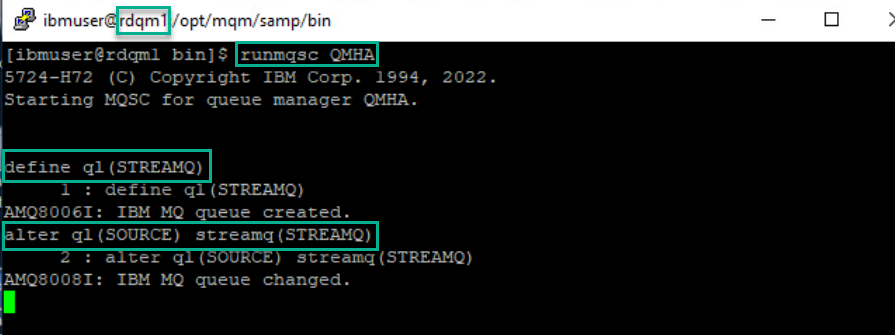
Note: that the Streaming queue Quality of Service (QOS) is set to Best effort. The BESTEF quality of service is the default value and indicates that MQ should attempt to stream the duplicate messages to the stream queue but that it should deliver the original message to SOURCE even if there is a problem delivering the duplicate.
This quality-of-service is best suited to applications where you want to make sure that the original behavior of the application is not affected by the stream queue feature. In this mode a putting application will never receive an error from the MQPUT API call due to an error with the streaming feature.
Testing the SteamQ using HA sample programs
We will use the same sample programs that are provided with MQ, which we used in lab 1.
- amqsphac - puts a sequence of messages to a queue with a two second delay between each message and displays events sent to its event handler. This will run on rdqm3.
- amqsmhac - copies messages from one queue to another with a default wait interval of 15 minutes after the last message that is received before the program finishes. This will run on rdqm2.
- amqsghac - gets messages from a queue and displays events sent to its event handler. This will run on rdqm1.
Start the HA sample programs
The easiest way to configure access to the queue manager from the sample programs is to use the MQSERVER environment variable. Again, as there are 3 possible nodes where our queue manager could run, each needs to be specified, along with the listener port for the queue manager.
NOTE: If you are copying the command snippets from this lab guide and pasting them in the terminal windows: Beware that if the command does not work it may be that the copy assumes a long or double hyphen instead of a single hyphen. Just try overtyping the hyphen with the regular hyphen.
-
On rdqm1, in the user ibmuser terminal window, enter:
export MQSERVER='CHANNEL1/TCP/10.0.1.1(1500),10.0.1.2(1500),10.0.1.3(1500)' -
Change to the /opt/mqm/samp/bin directory, and run the command: amqsghac TARGET QMHA
 cd /opt/mqm/samp/bin
 ./amqsghac TARGET QMHA
Later, this will display the messages generated by amqsphac on rdqm3.
Leave this command to run!
-
Now switch to rdqm2. In the user ibmuser terminal window, enter:
export MQSERVER='CHANNEL1/TCP/10.0.1.1(1500),10.0.1.2(1500),10.0.1.3(1500)' -
Change directory to /opt/mqm/samp/bin and run the command: amqsmhac -s SOURCE -t TARGET -m QMHA
 cd /opt/mqm/samp/bin
 ./amqsmhac -s SOURCE -t TARGET -m QMHA
This will process messages put to SOURCE queue and put to TARGET queue.
Leave this command to run!
-
Now switch to rdqm3. As before open a new terminal window. As the user ibmuser enter:
export MQSERVER='CHANNEL1/TCP/10.0.1.1(1500),10.0.1.2(1500),10.0.1.3(1500)' -
Change directory to /opt/mqm/samp/bin and run the command: amqsphac SOURCE QMHA
cd /opt/mqm/samp/bin
./amqsphac SOURCE QMHA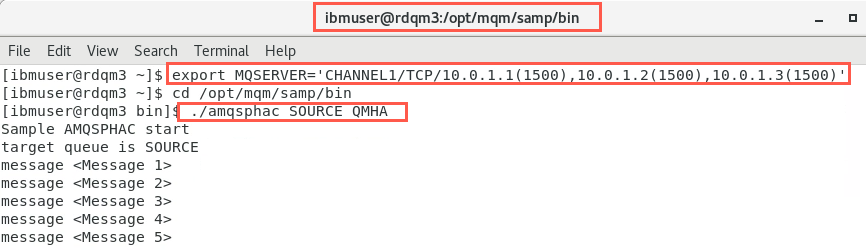
Let this run and produce some messages (around 10) and then do Ctrl-C to exit program.
- Confirm that these messages are also being displayed on rdqm1.
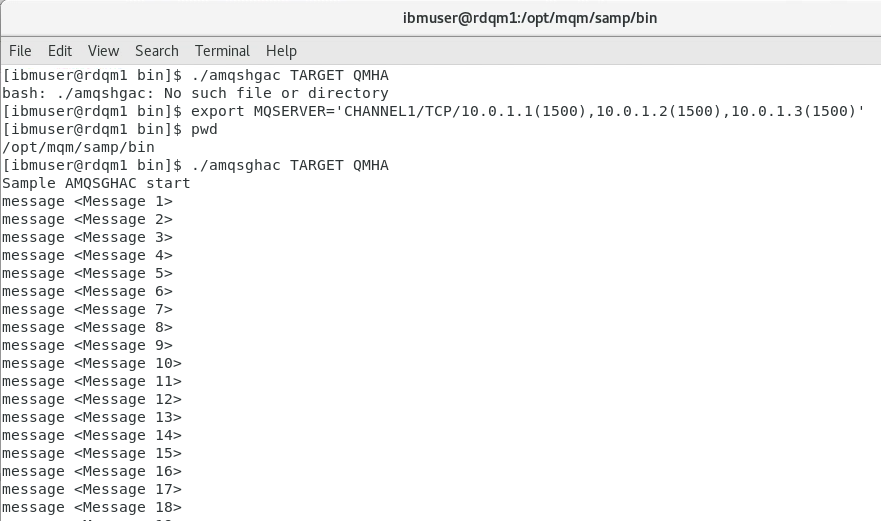
- Now run the following command for the SOURCE queue and you should not see any messages since we process them already.
./amqsbcg SOURCE QMHA | grep "message number"
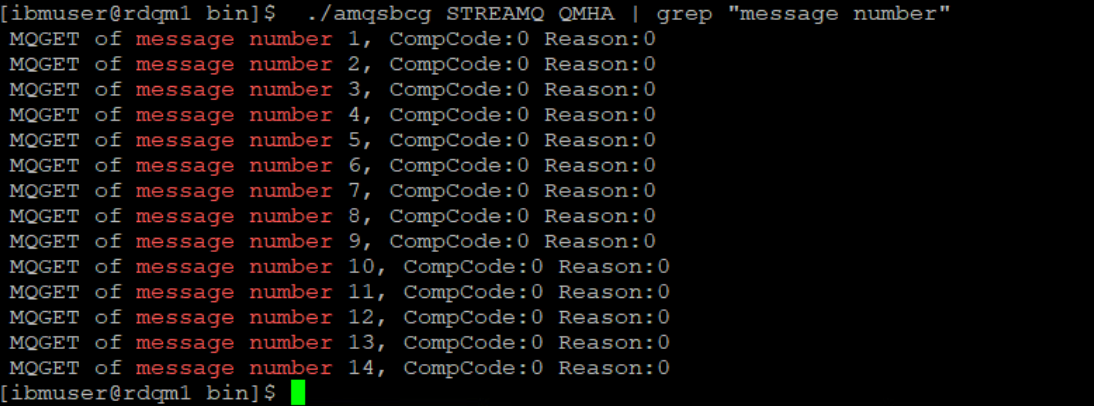
9.Now run the following command for the STREAMQ queue and you should see all the messages that were copy from the SOURCE queue.
./amqsbcg STREAMQ QMHA | grep "message number"
- Now you can clear the STREAMQ queue by running the following command.
./amqsghac STREAMQ QMHA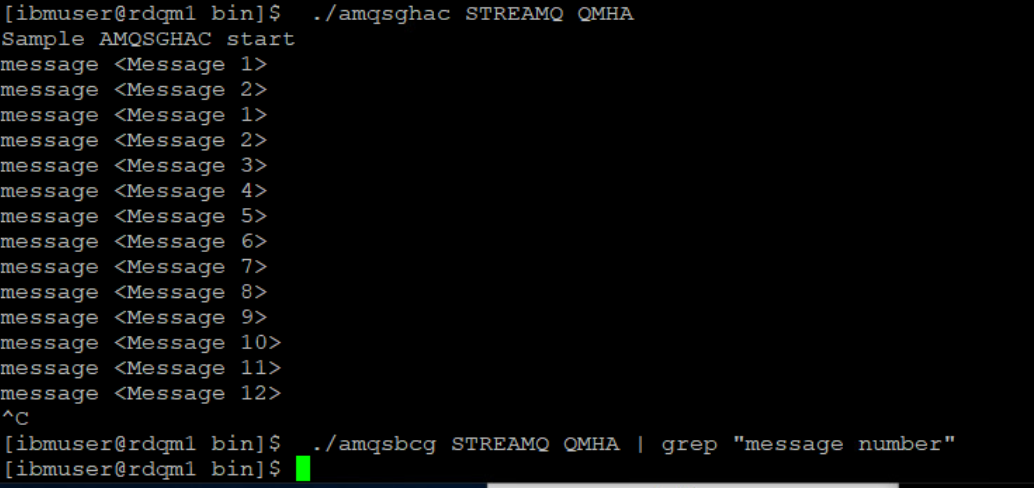
Note that even though we didn’t put any messages to STREAMQ it has the same number of messages that we processed. The stream queue feature has taken a copy of each message we put to SOURCE and streamed it to STREAMQ.
Cleanup environment
Stop and remove RDQMs
-
Stop the sample program on each node by entering ctrl-c in the terminal window.

-
On rdqm3, open a terminal window and stop running queue managers. Issue the following commands. Your displays and queue managers may not match the screenshots. Substitute your queue managers.
dspmq -o allendmqm QMHA
-
Delete the queue manager QMHA on the primary node rdqm3.
sudo dltmqm QMHA
-
Delete the secondary queue managers on rdqm2 and rdqm1 per instructions in the output messages from previous commands.
On rdqm2 and rdqm1, delete the secondary queue manager QMHA with the following command:
sudo dltmqm QMHA

Delete HA Cluster
-
Still on rdqm1 unconfigure (delete) the Pacemaker HA cluster.
sudo rdqmadm -u
-
Delete the pacemaker HA cluster on the secondary nodes rdqm2 and rdqm3 per instructions in the output messages from previous commands.
On rdqm2 and rdqm3, unconfigure the HA cluster.
sudo rdqmadm -u

Congratulations
You have completed this lab Streaming Queue for MQ.