IWHI-PoT
IBM webMethods Managed File Transfer and IBM webMethods Integration with FileNet
Introduction
IBM webMethods Hybrid Integration allows the usage of many IBM integration capabilities within one SaaS system. This allows both tighter integration between the separate capabilities, and also a common way to administer and monitor the system.
Two key capabilities available within IBM webMethods Hybrid Integration are;
IBM webMethods Managed File Transfer (MFT)
IBM webMethods Integration
In this lab, we will leverage the above two key capabilities to integrate and transfer files to:
IBM FileNet Content Management Platform
Table of Contents
1. Introduction
In this laboratory, you will investigate the capabilities of IBM webMethods Managed File Transfer (MFT) and webMethods Integration, as well as integrate with IBM FileNet Content Navigator to facilitate the transfer and storage of files within FileNet.
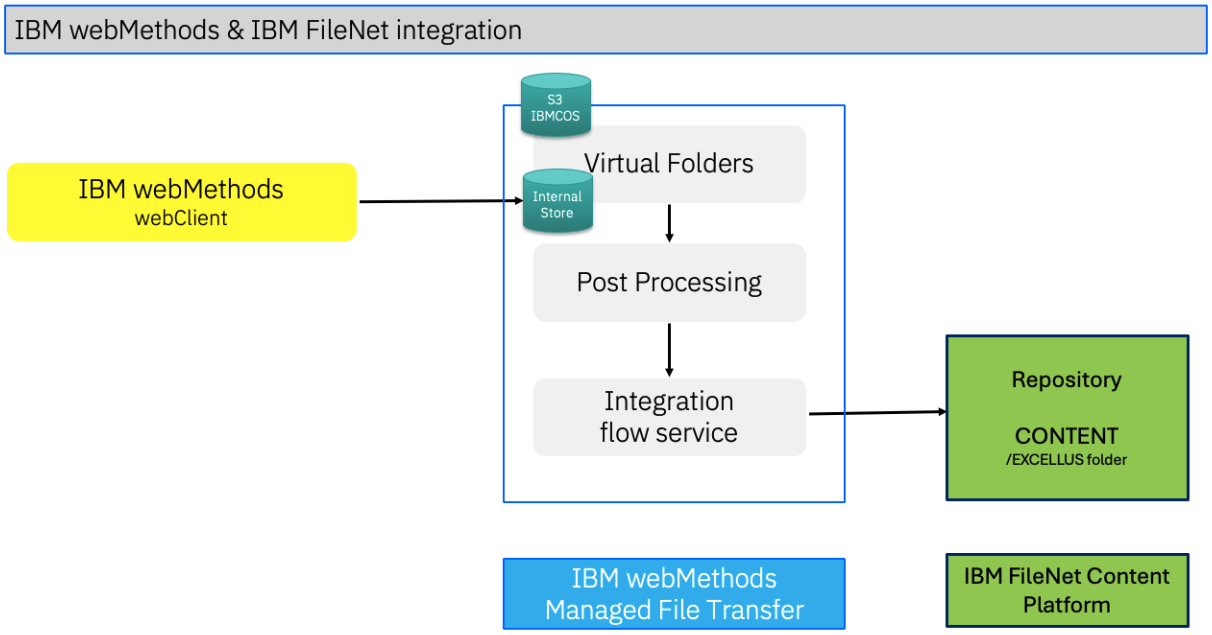
webMethods MFT Virtual Folders
The webMethods Managed File Transfer (MFT) Virtual File System (VFS) serves as an abstract/logical directory, integrating various local, remote, and cloud file locations into a consolidated and secure folder structure for users.
This system enhances accessibility by enabling users to browse and transfer files across different storage systems as though they were part of a singular, unified file system.
webMethods MFT Post Processing
webMethods MFT (Managed File Transfer) post-processing pertains to automated actions—such as renaming files, encrypting them, deleting them, or invoking services/APIs—that are triggered automatically following the upload, download, or deletion of a file. These actions guarantee secure, automated workflows and facilitate event-driven automation for file management.
webMethods Integration Flow Service
A webMethods Flow service is a visual programming language service based on flow, utilized within webMethods Integration Server to orchestrate, transform, and route data among various systems. It allows developers to arrange steps (INVOKE, MAP, BRANCH) to encapsulate business logic without the need for low-level coding, thereby simplifying complex integration tasks.
FileNet
IBM FileNet is a platform for enterprise content management (ECM). It allows organizations to create applications and workflows for various document types.
2. Scenario
In this lab, you will create,
a) IBM webMethods MFT Virtual Folder
b) Post Processing action
c) Integration Flow Service
d) Upload file(s) from webMethods webClient
e) Verify the file(s) in FileNet
f) Finally, verify the file transfer through webMethods End-2-End Monitoring
3. IBM webMethods MFT & Integration FlowService Implementation
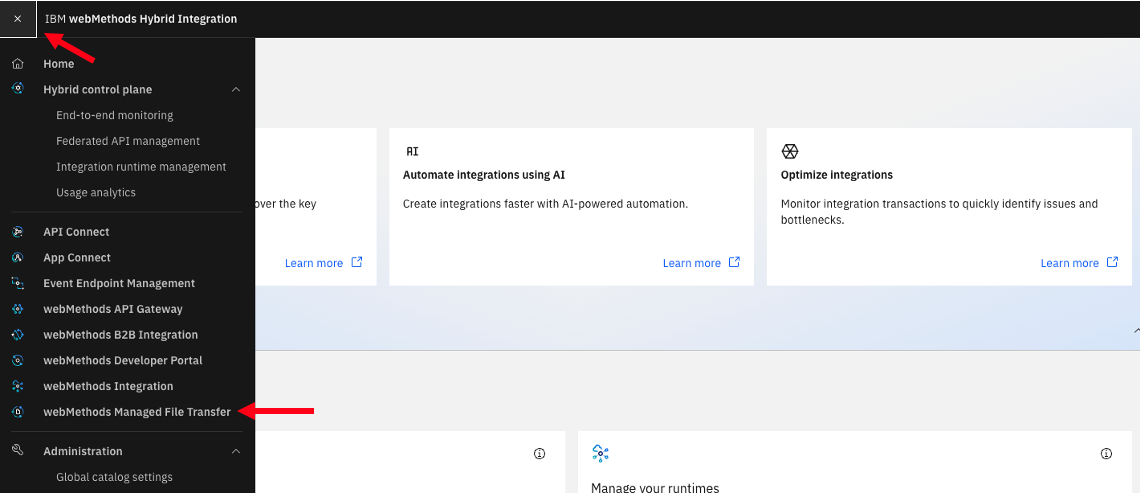
Logon to IBM webMethods iPaaS platform with the credentials provided by your instructor. From the welcome page, navigate to IBM webMethod Managed File Transfer capability as below.
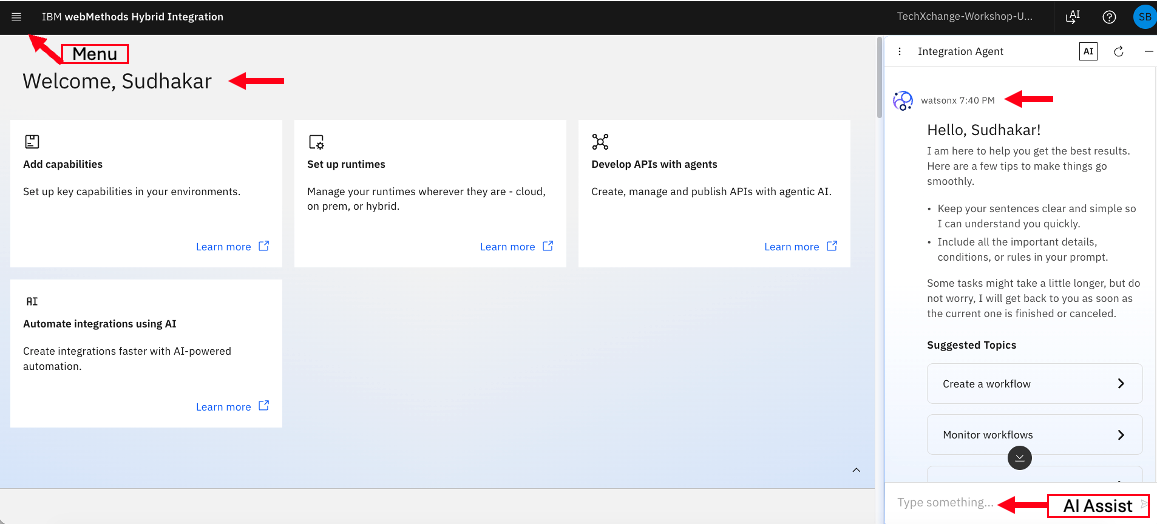
Click on the Menu to see all the webMethods capabilities, then click on webMethods Managed File Transfer.
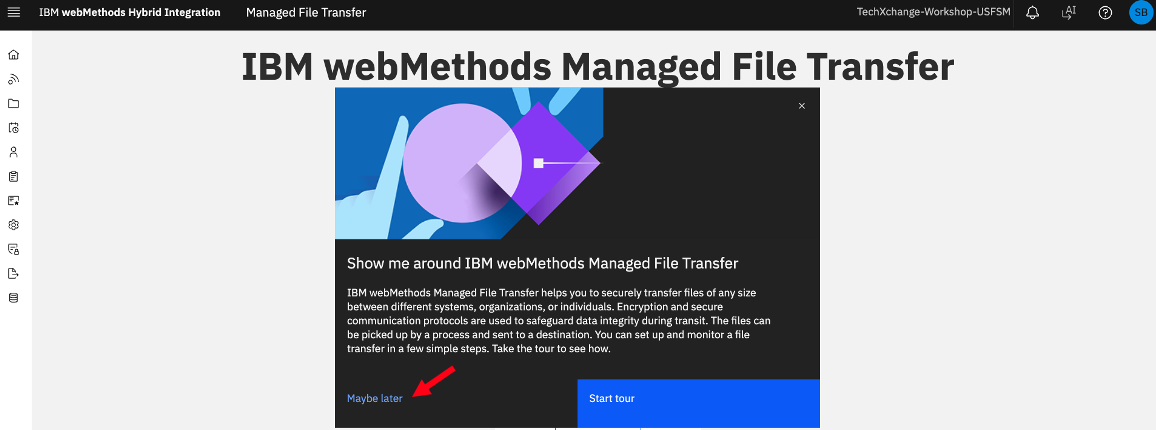
Skip the tour.
3a. webMethods Managed File Transfer Virtual Folder
Let’s create an virtual folder based on your student id.
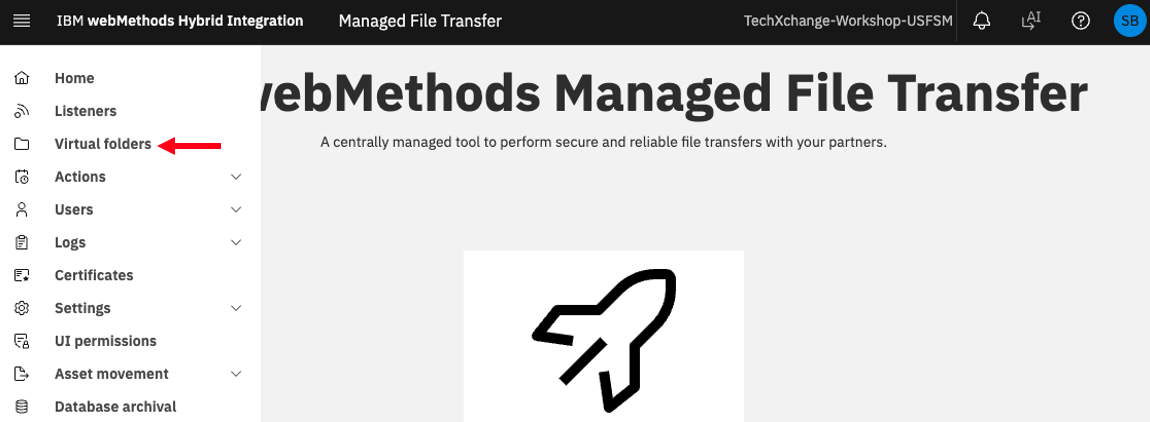
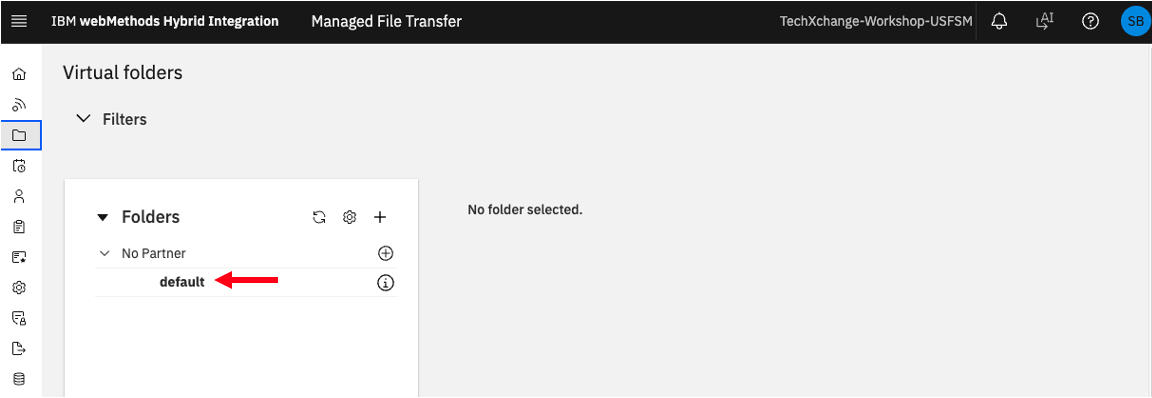
Click on default under “No Partner” section.
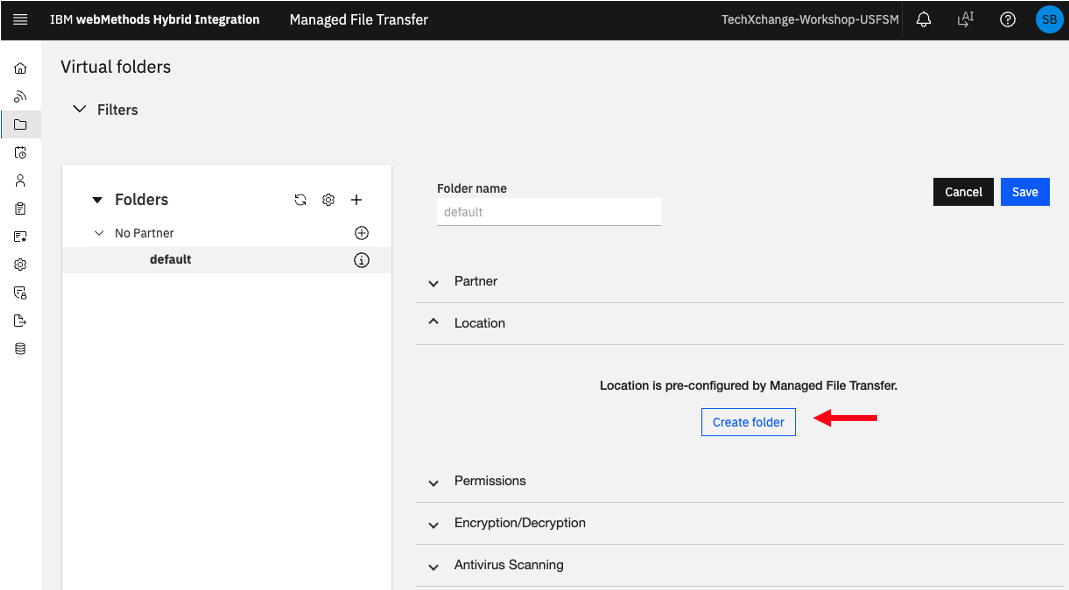
Click
Click (+) sign.
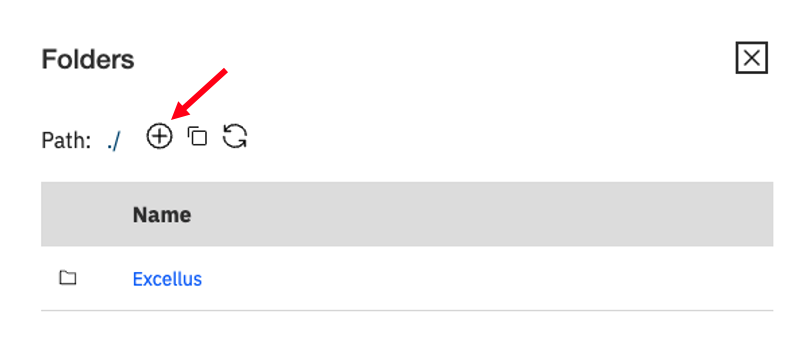
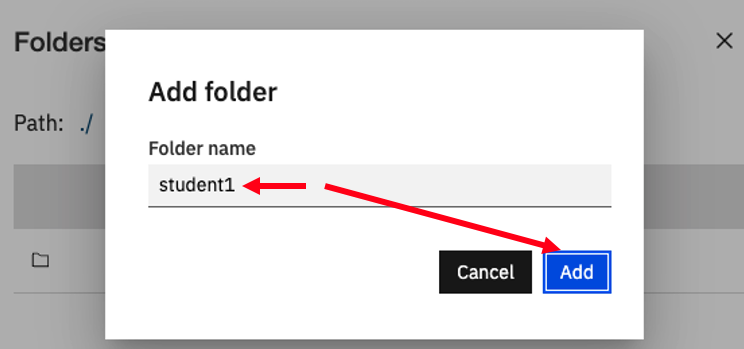
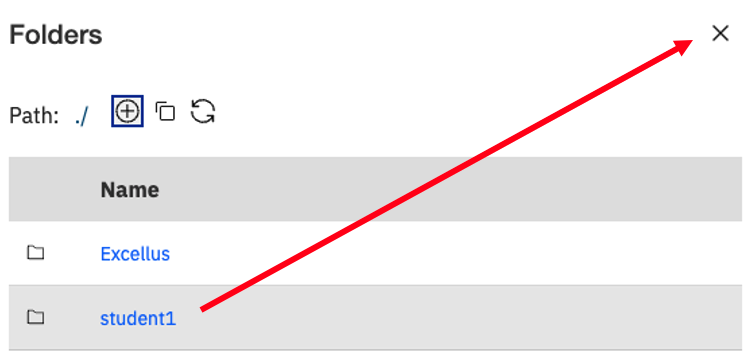
Enter “Folder name” as “student(n)” for example student1.
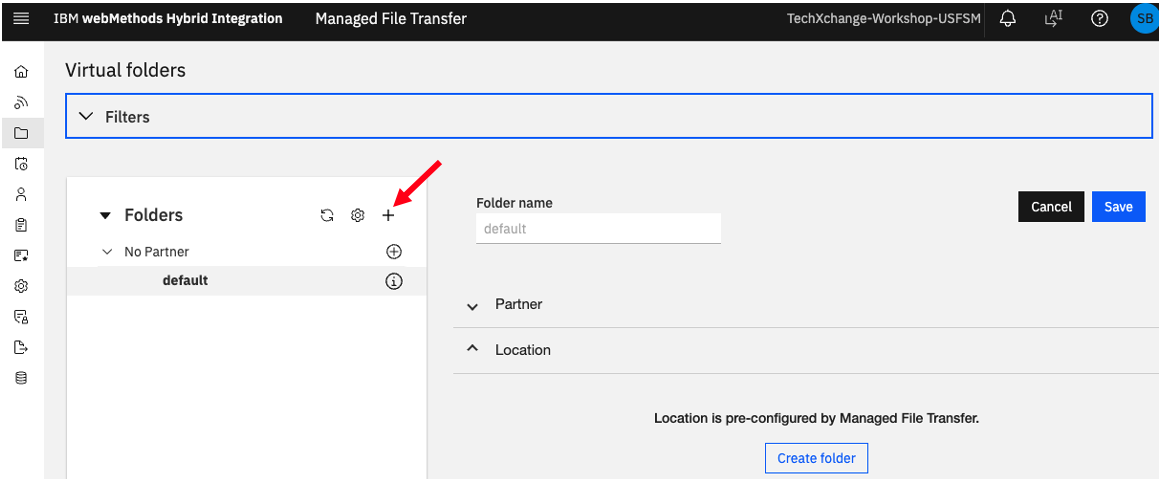
Now, let’s clikc + sign to create Virtual Folder.
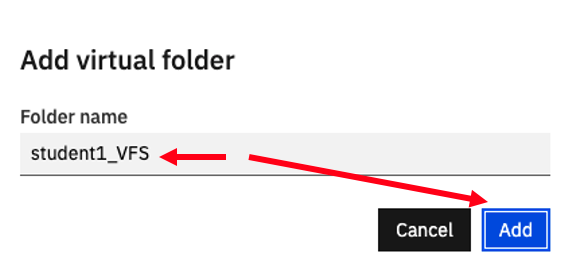
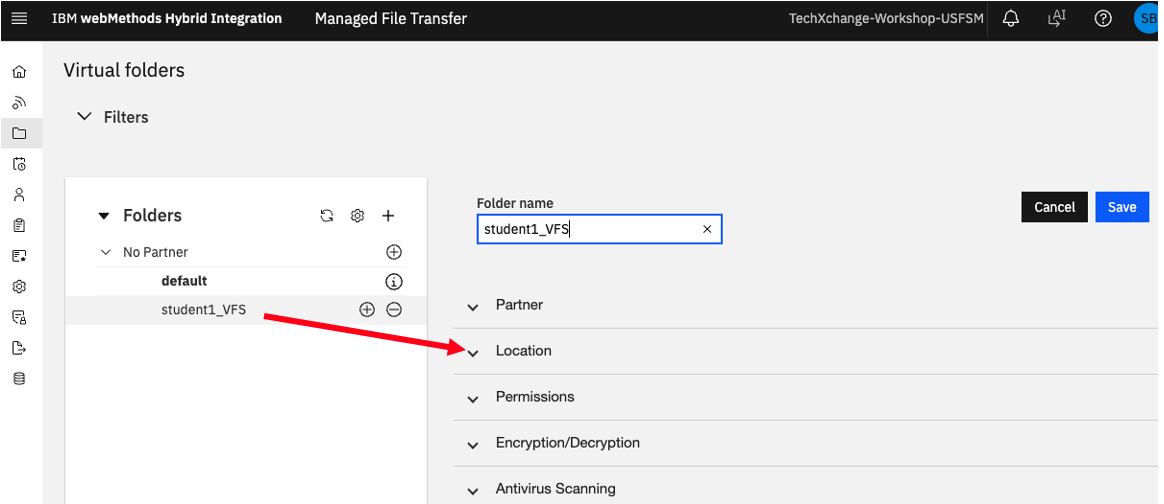
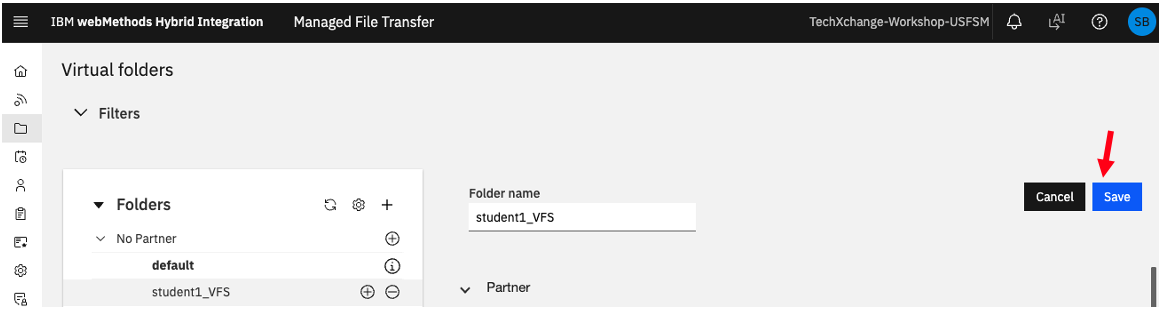
Name if “student(n)_VFS”, for example student1_VFS.
Click on “Location”.
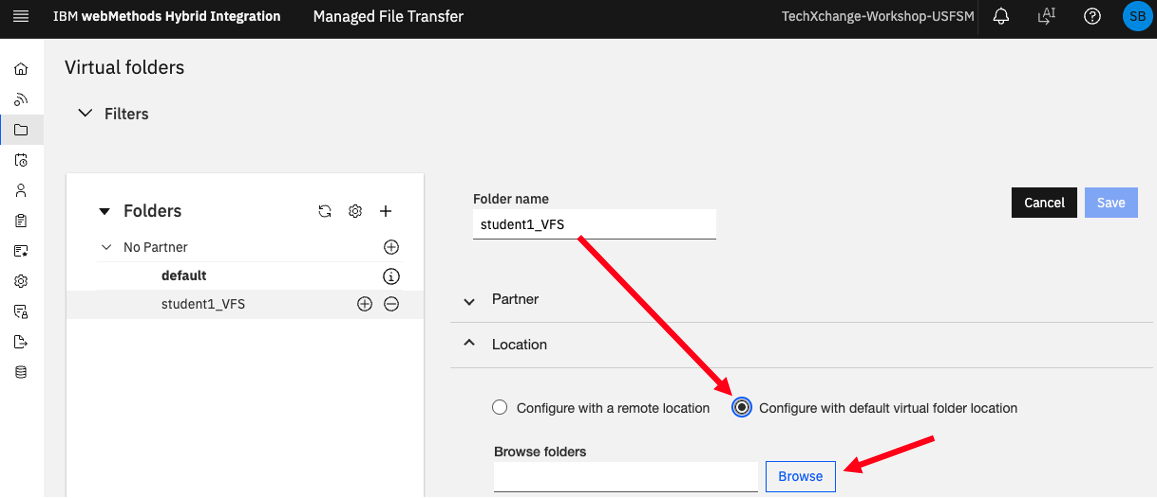
Click “Configure with default virtual folder location”, then click
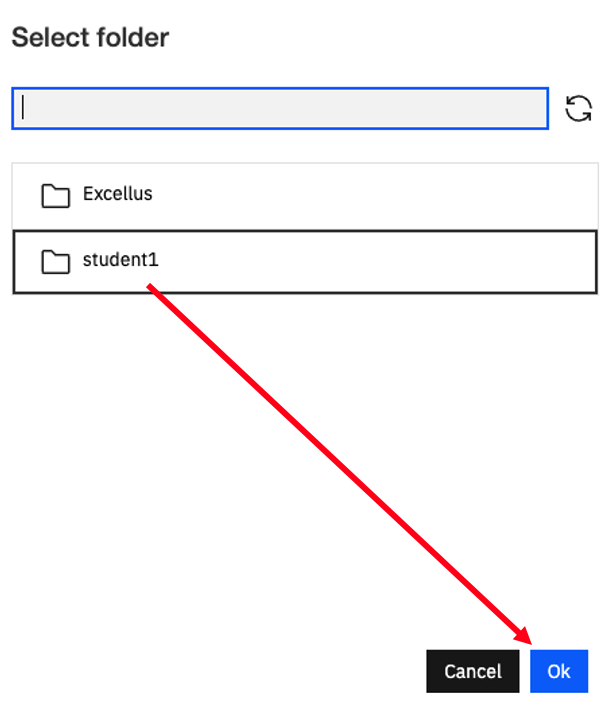
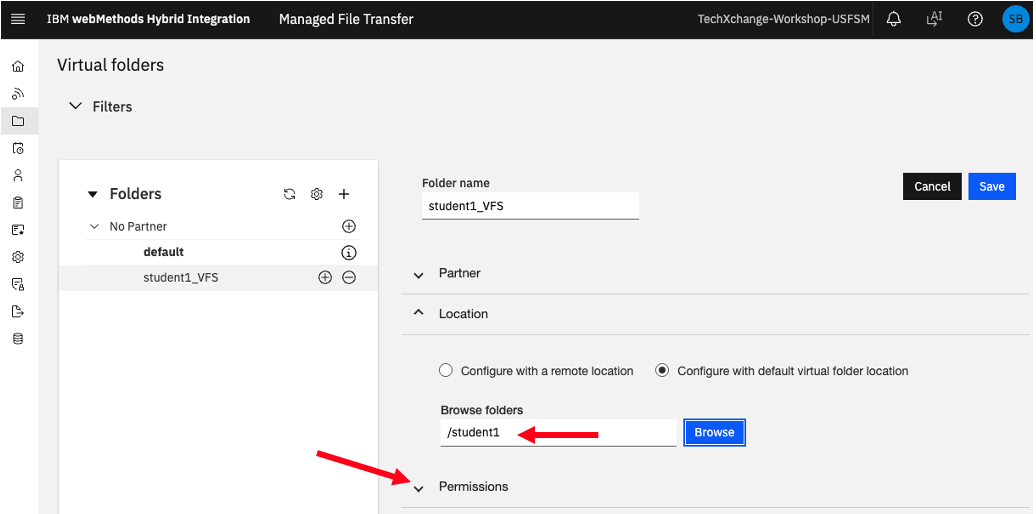
Select “student(n)” folder, for example student1.
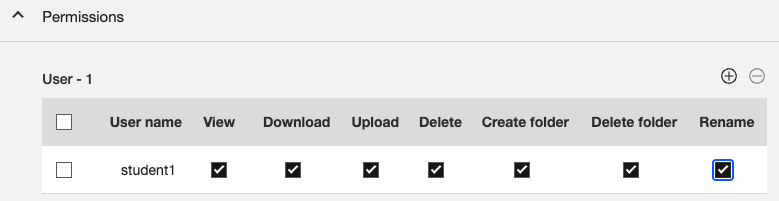
Click on “Permissions”.
Click on (+) sign, and
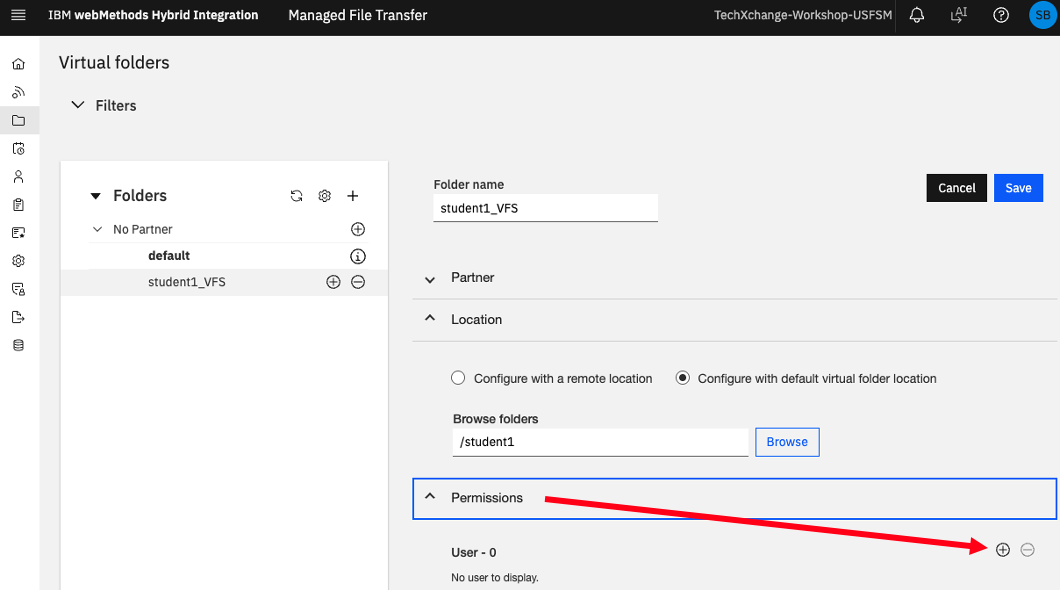
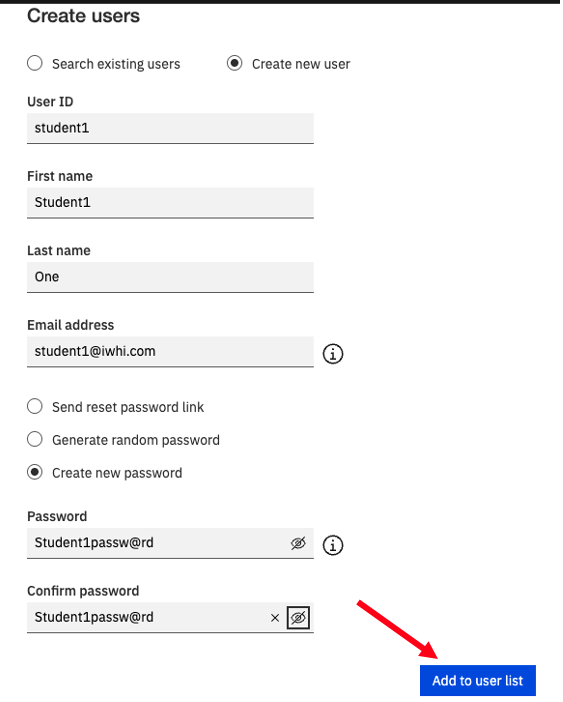
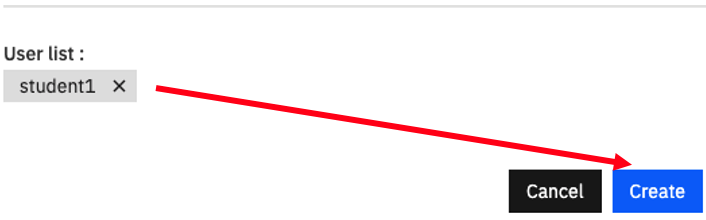
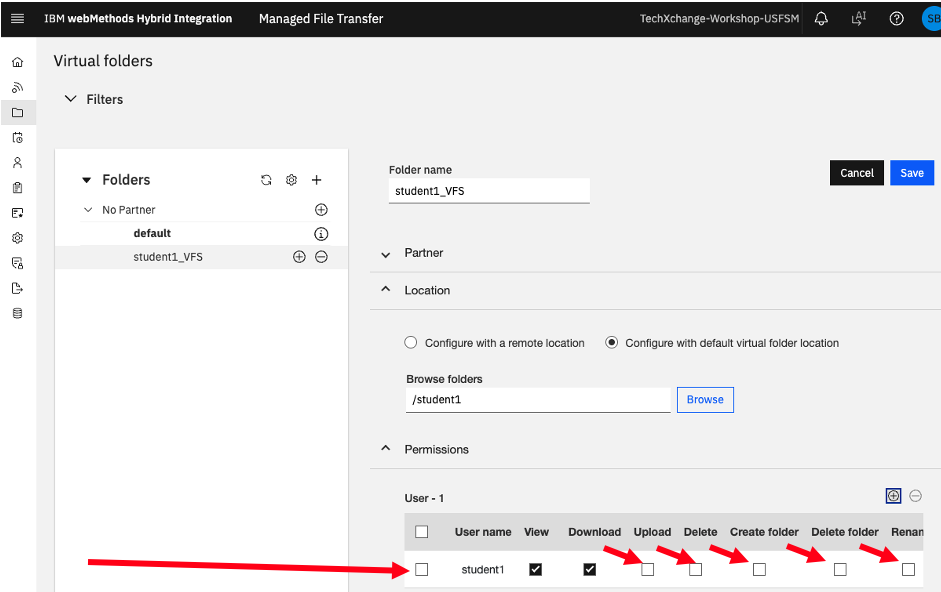
Grant yourself full access.
3b. webMethods Managed File Transfer Post Processing
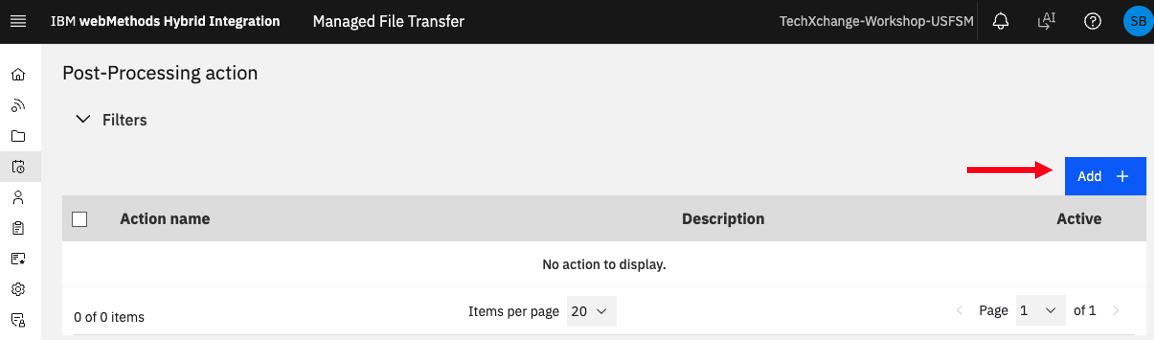
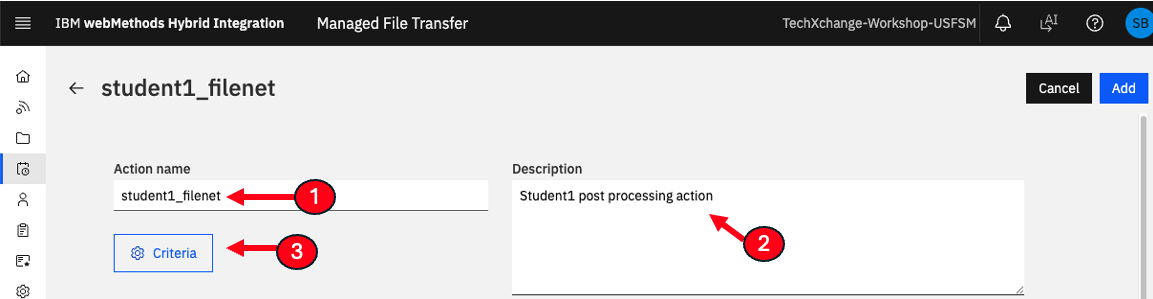
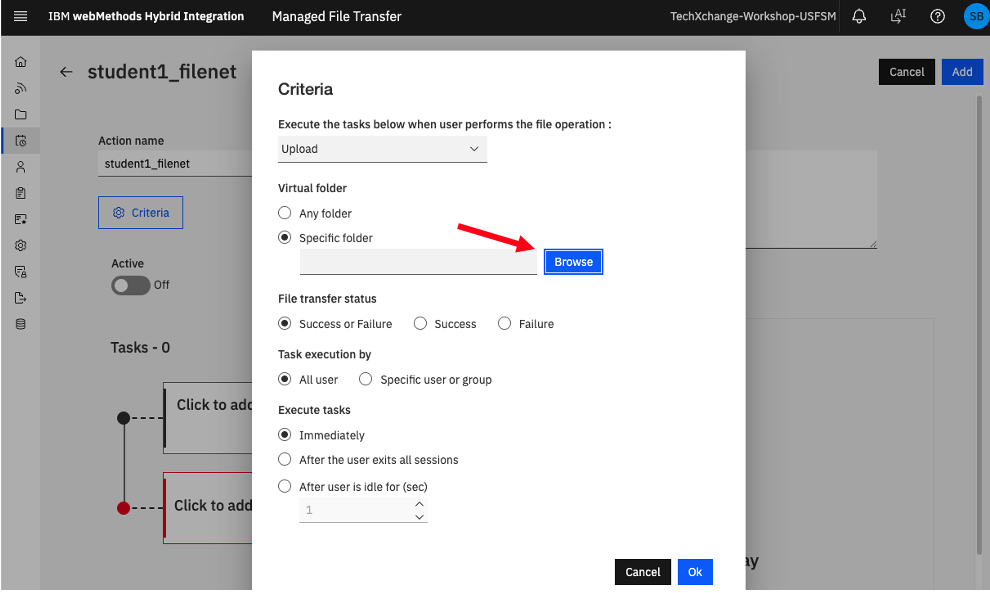
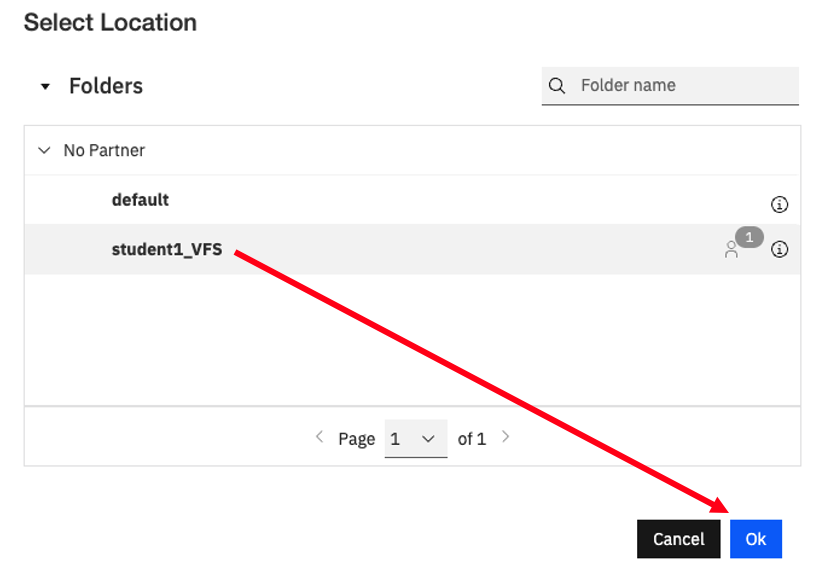
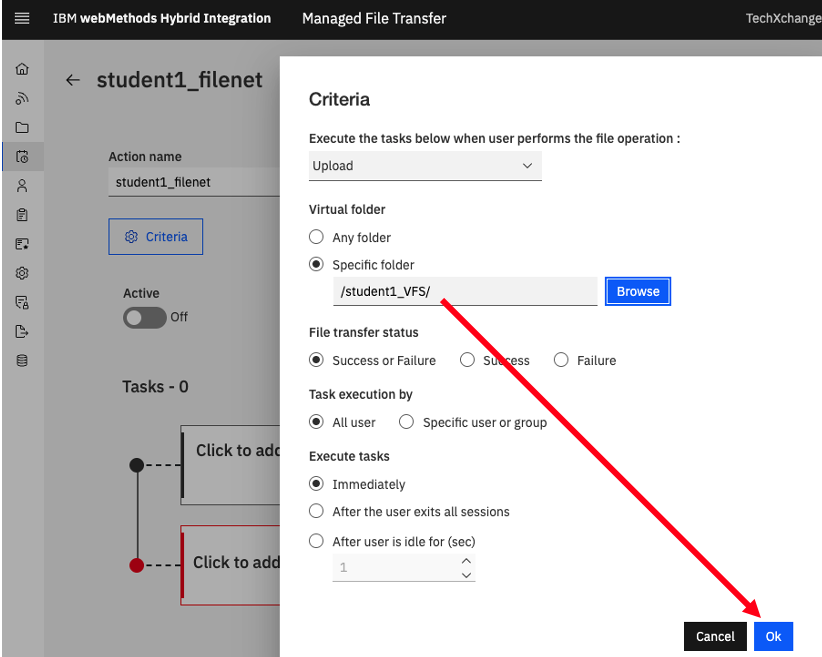
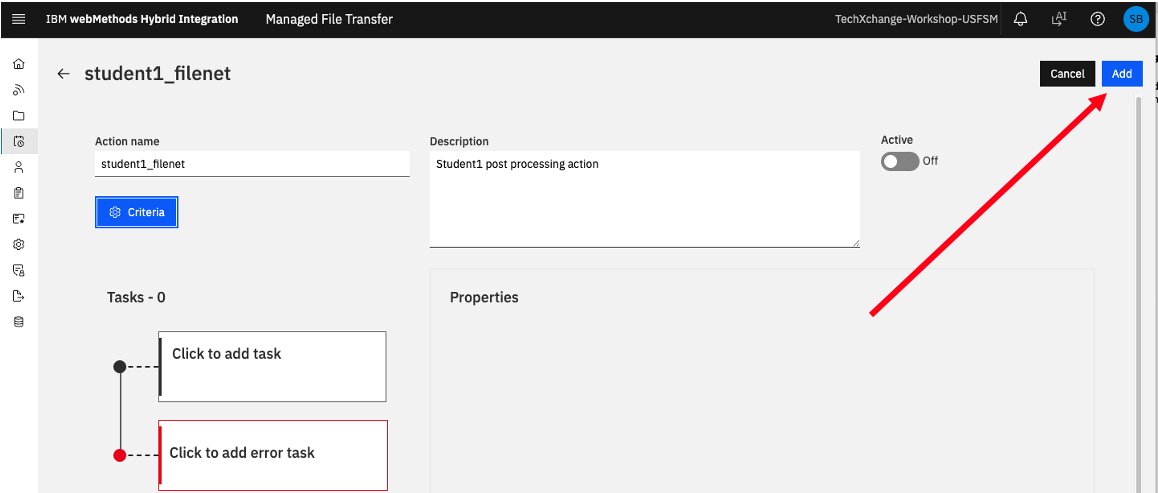
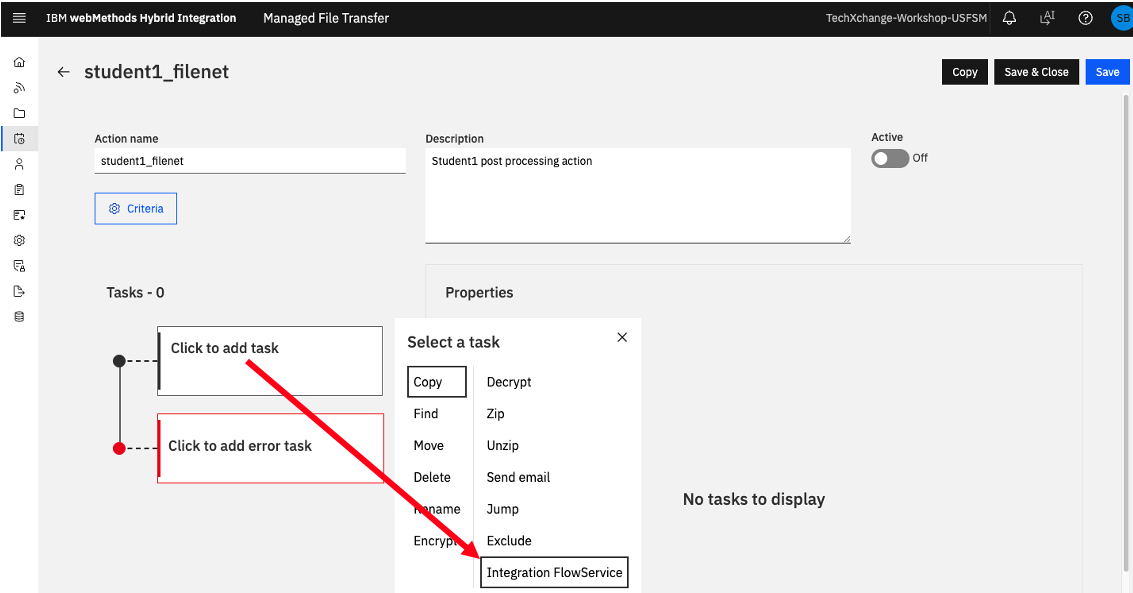
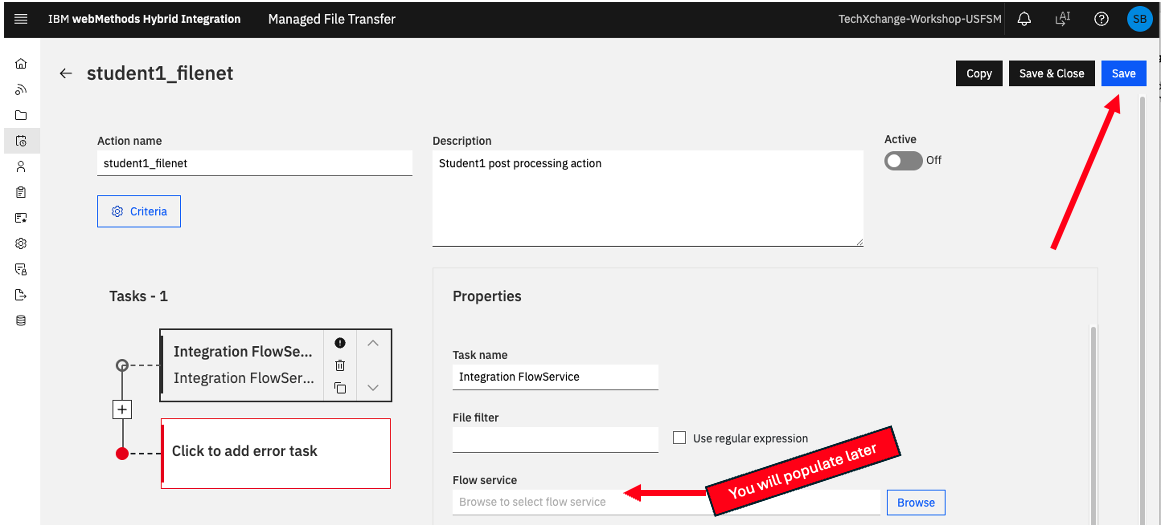
Let’s create Post Processing action. Expand Actions > Post-Processing.
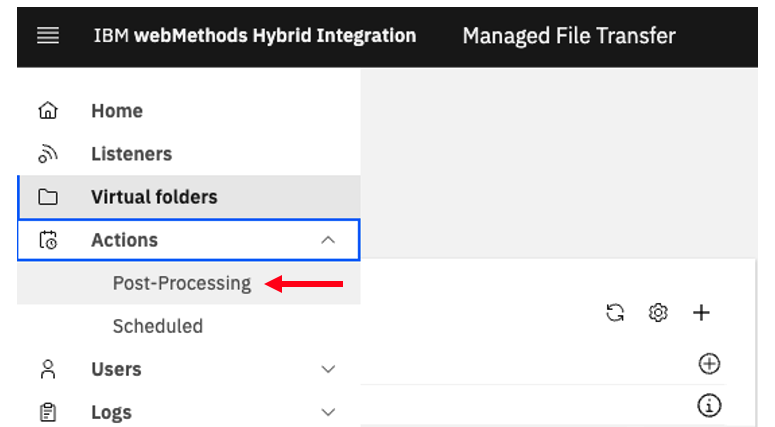
Click on
3c. webMethods Integration Flow Service
Let’s now create an webMethods Integration Flow Service.
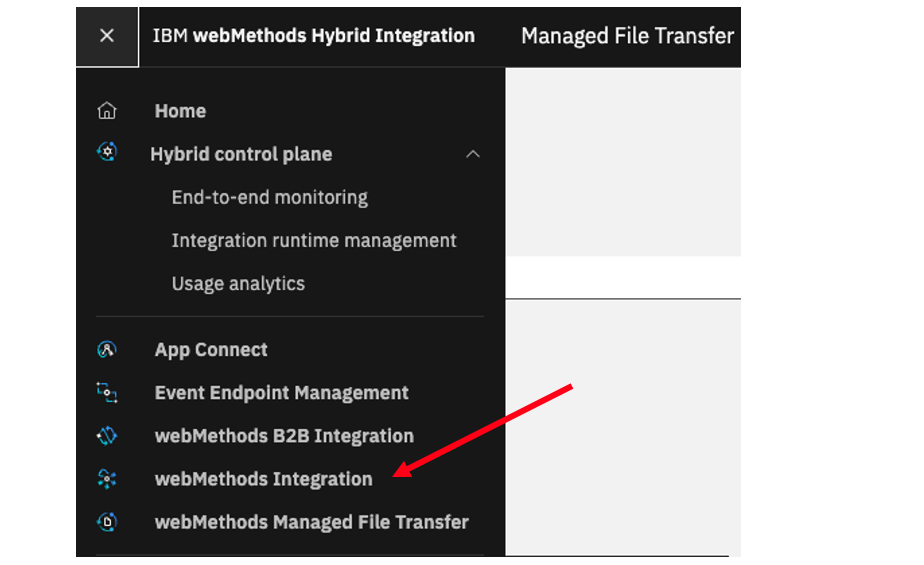
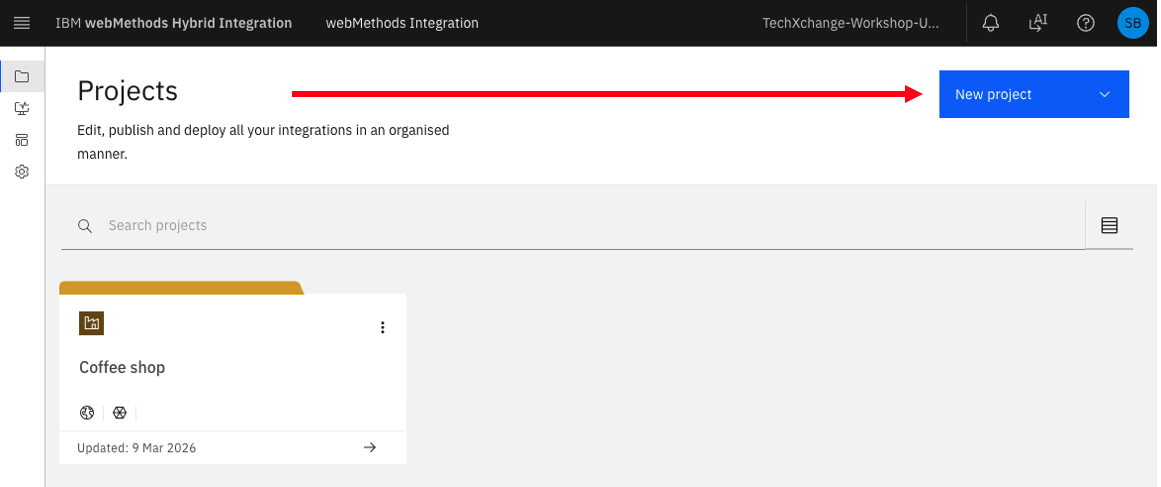
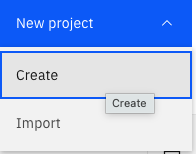
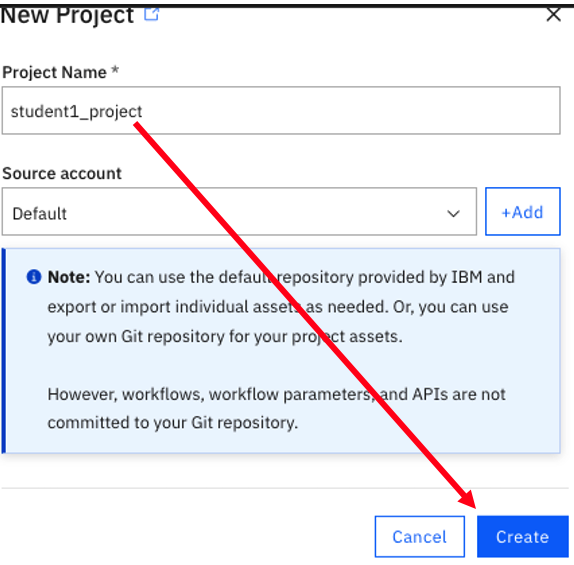


Let’s download MFT_to_FileNet.zip pre-built FlowService from here.
After downloading Import the FlowService.
Click on MFT_to_FileNet to open the FlowService.
Configure SFTP, and HTTP Connectors
SFTP Connector
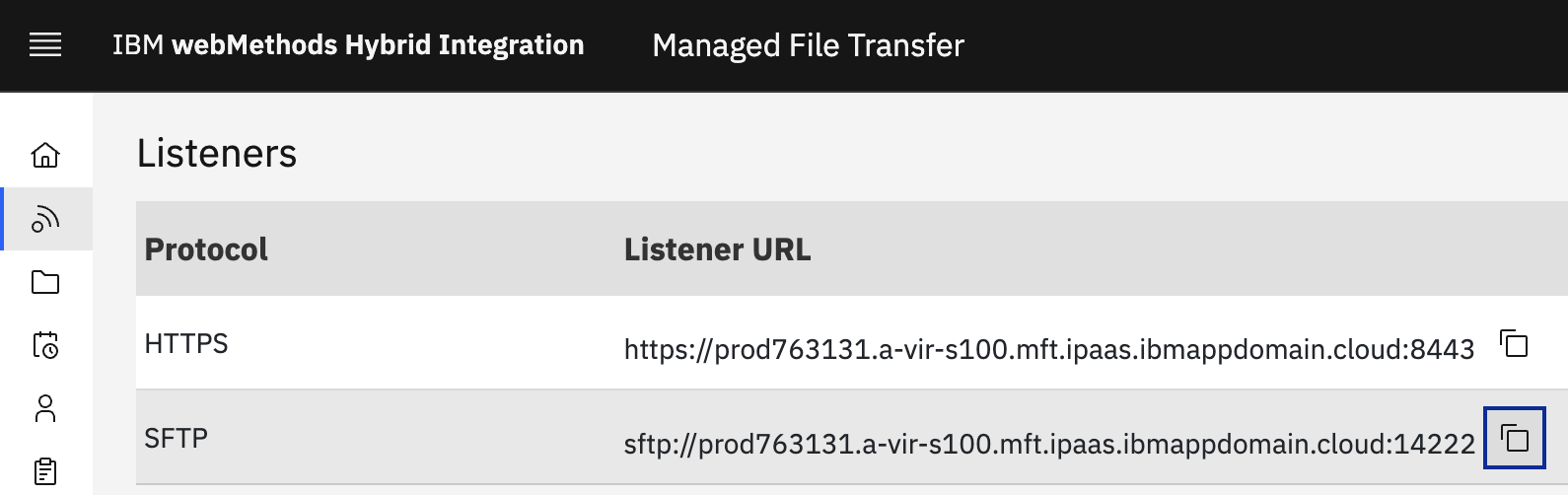
Capture SFTP URL and Port number. Navigate to the menu on the left to Listeners section. Click on Listeners, and copy SFTP URL.
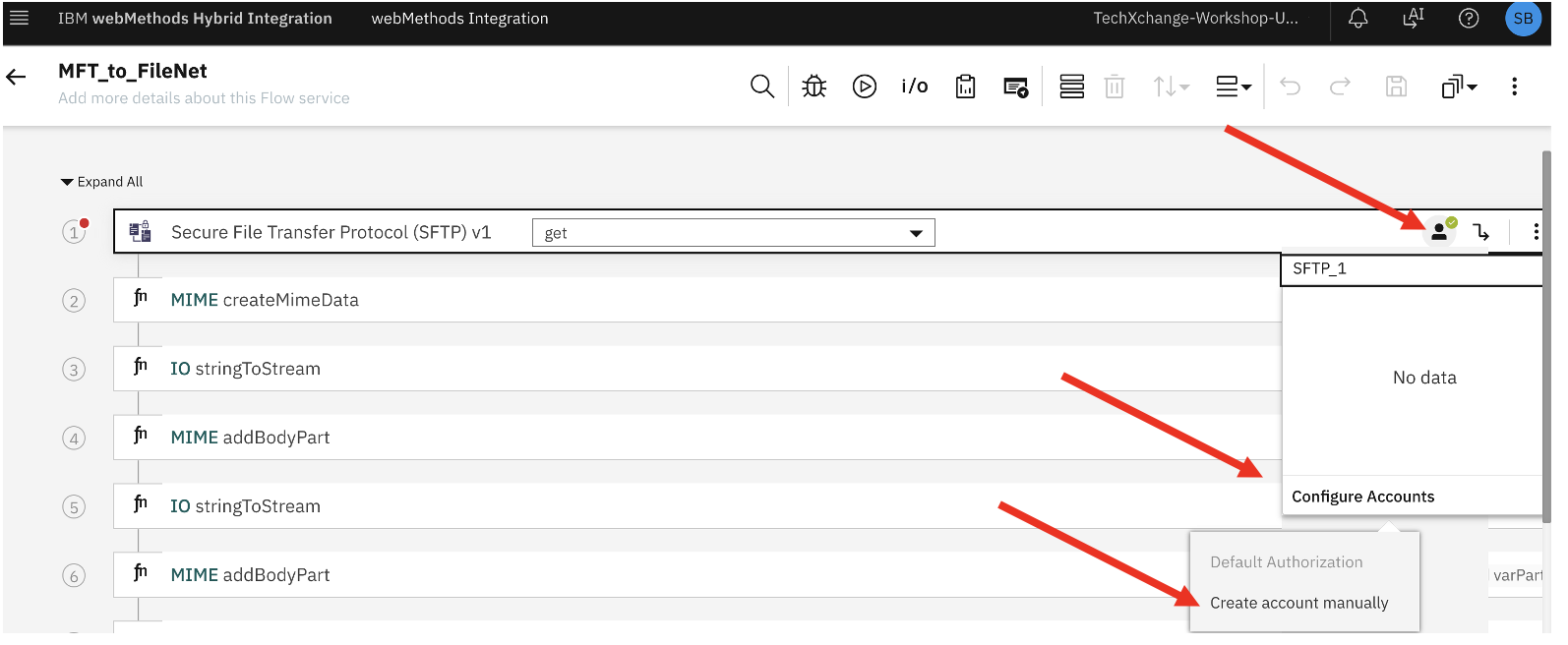
Configure SFTP Connector as below.
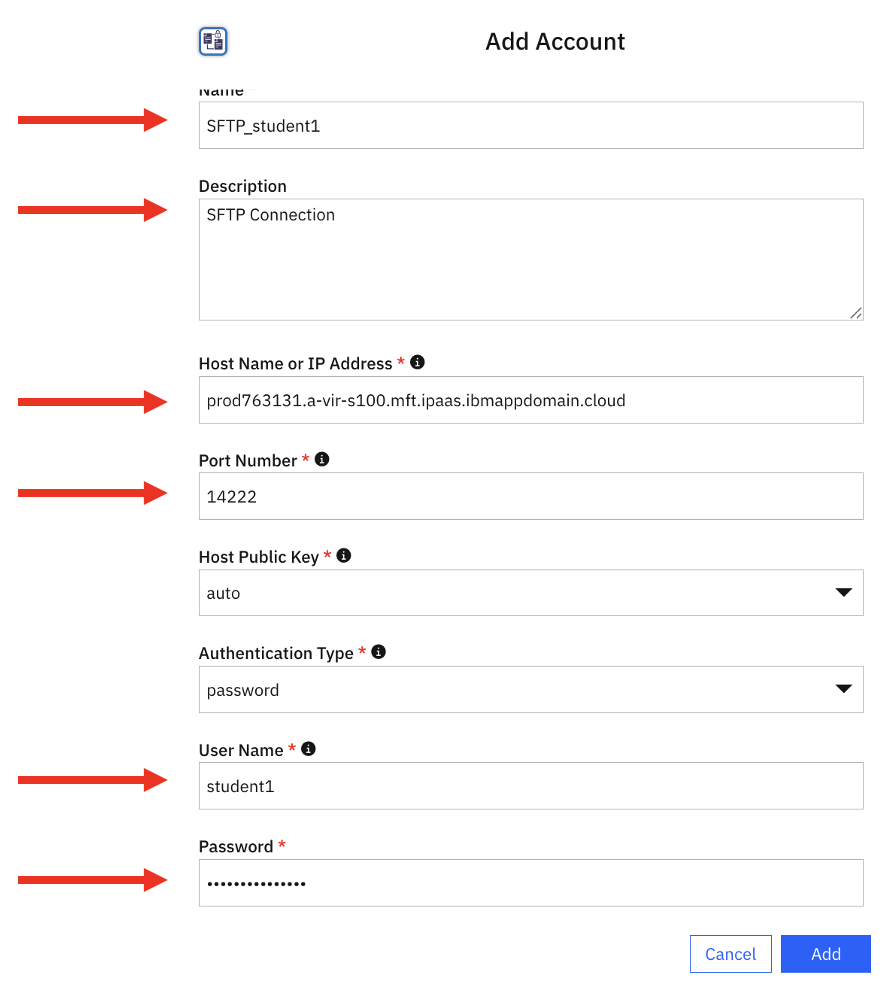
Use the student user, and password you created above (Permissions section).
Click Save button.

HTTP Connector
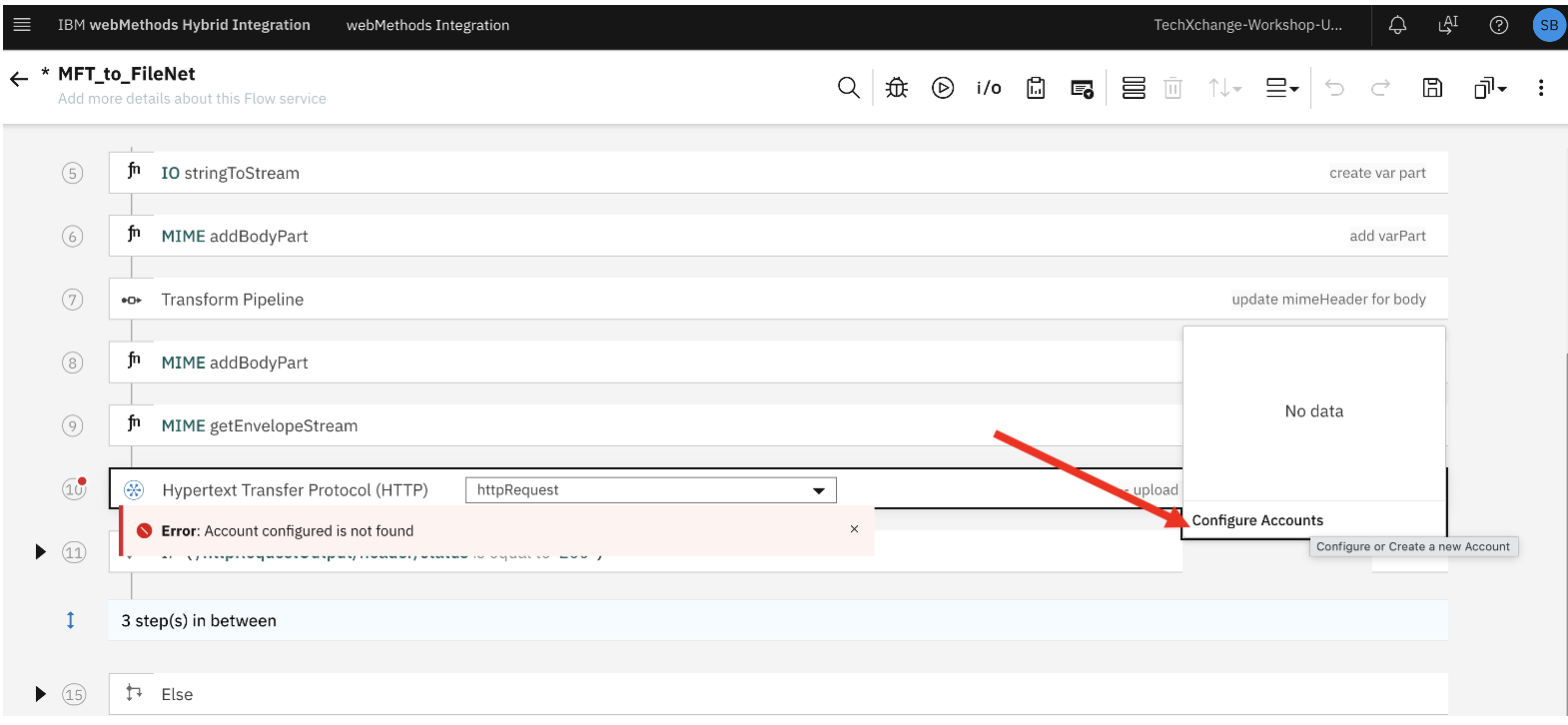
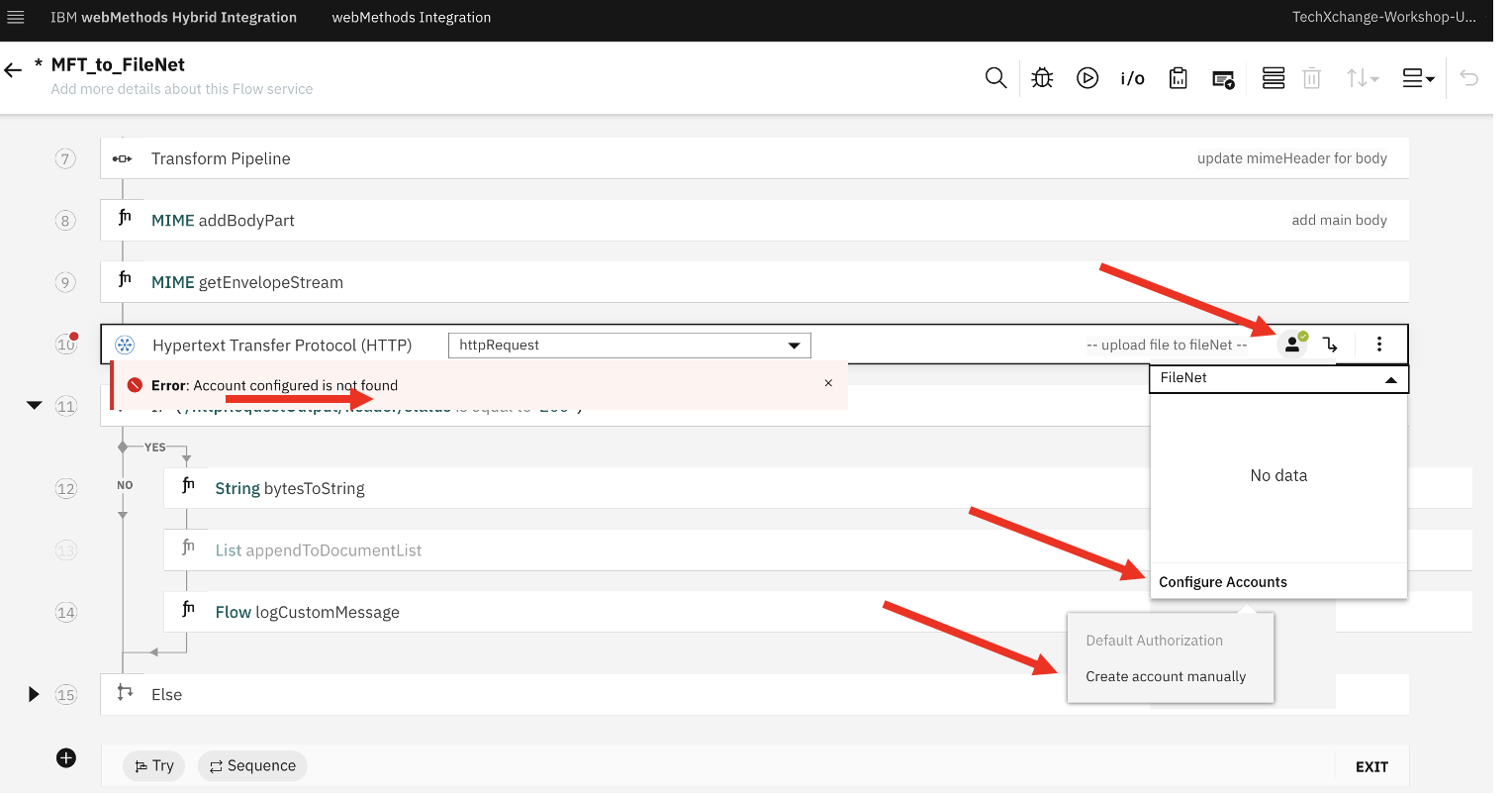
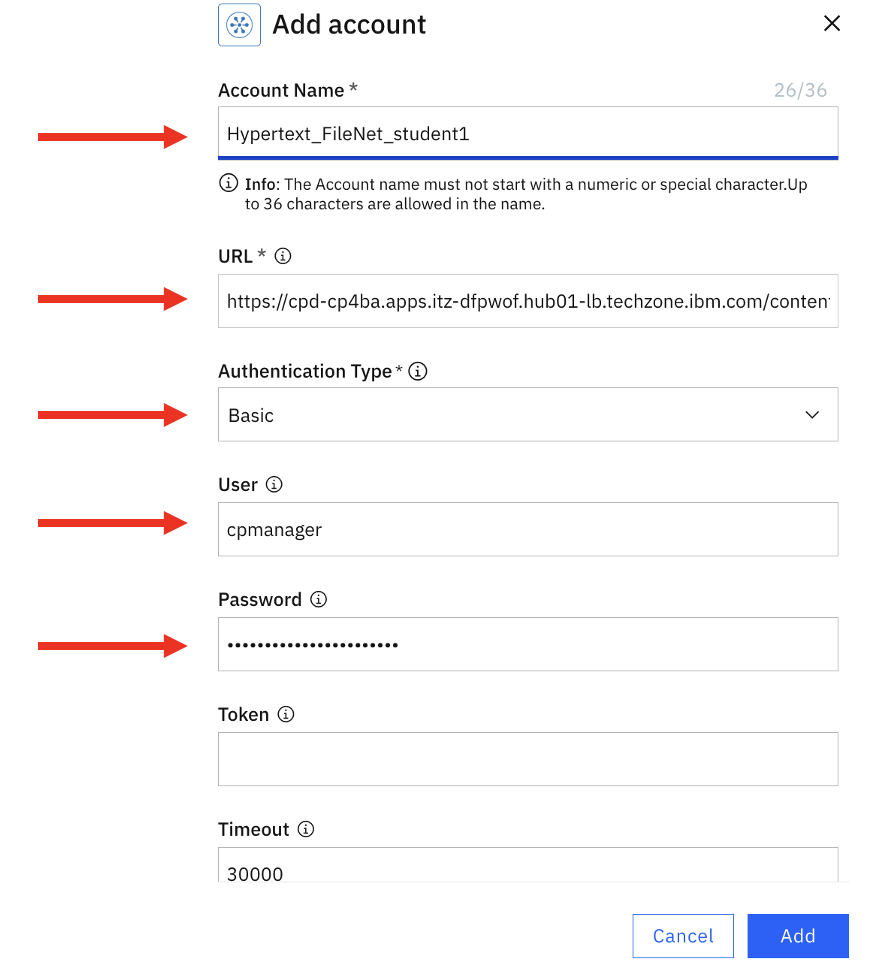
FileNet Credentials:
Account Name: Hypertext_FileNet_student1
URL: https://cpd-cp4ba.apps.itz-dfpwof.hub01-lb.techzone.ibm.com/content-services-graphql/graphql
Authentication Type: Basic
User: cpmanager
Password: xxxxxxxxxxxxxxx
Click <Add>.
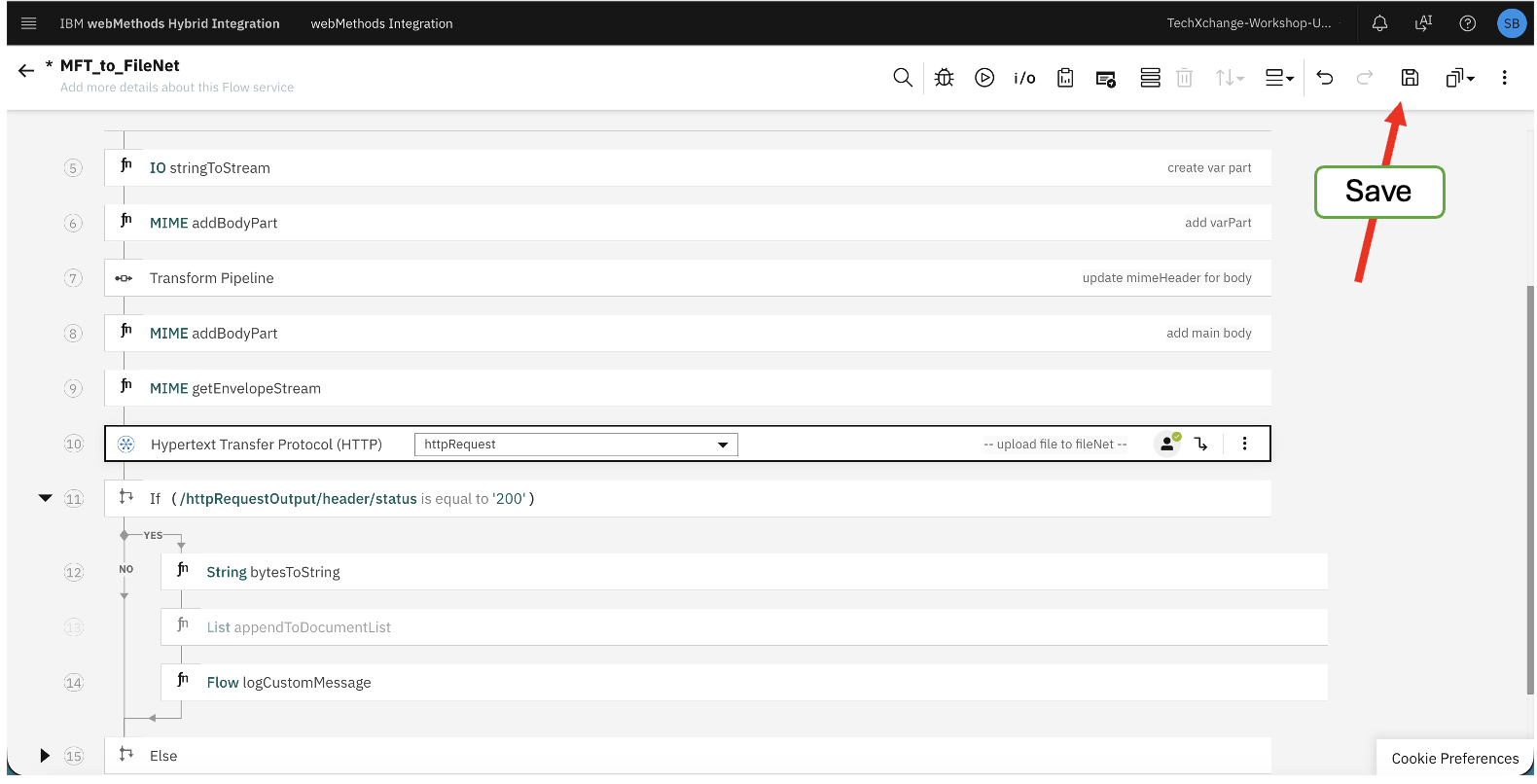
HTTP Connector to FileNet GraphQL API will be configured.
Now, click <Save> button.
3d. webMethods Managed File Transfer Post Processing Update
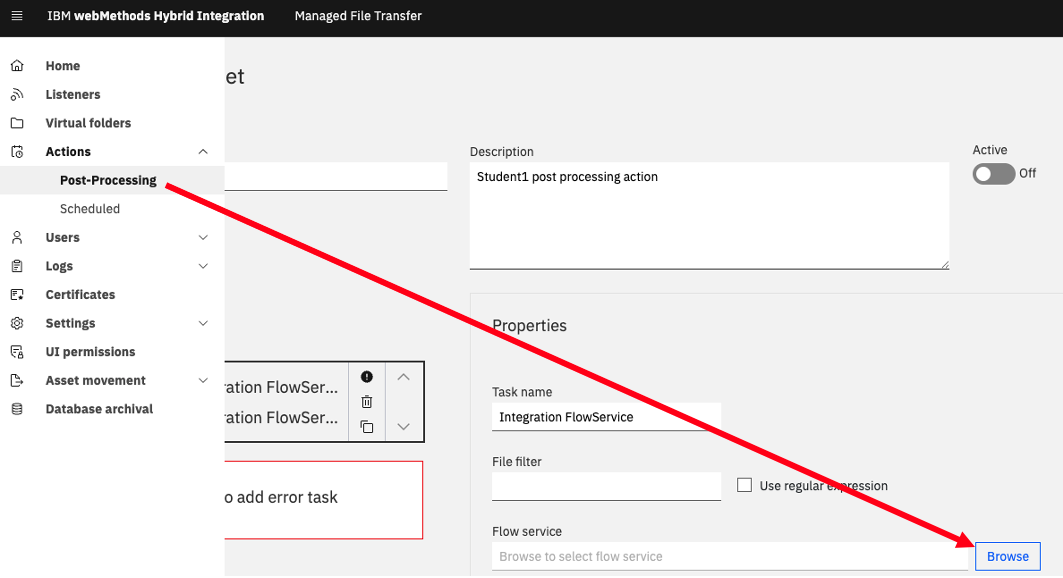
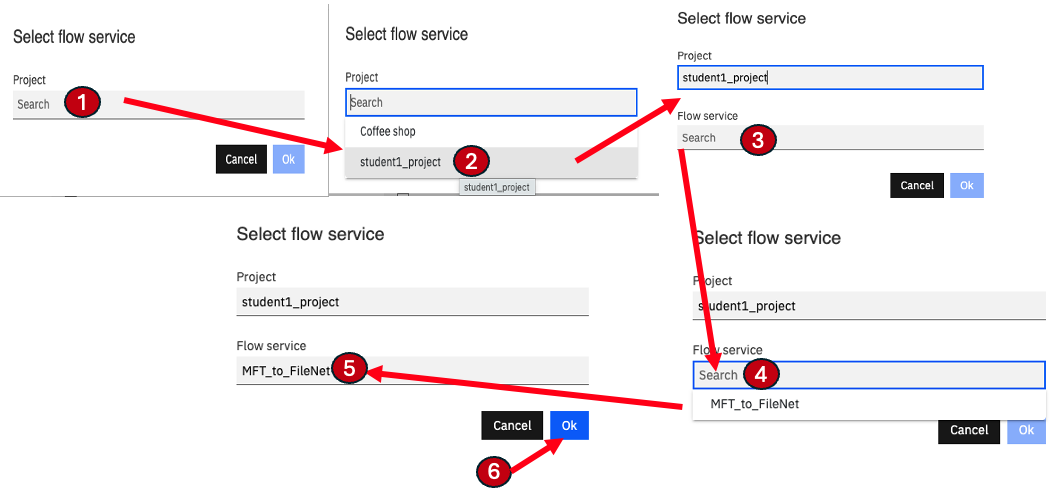
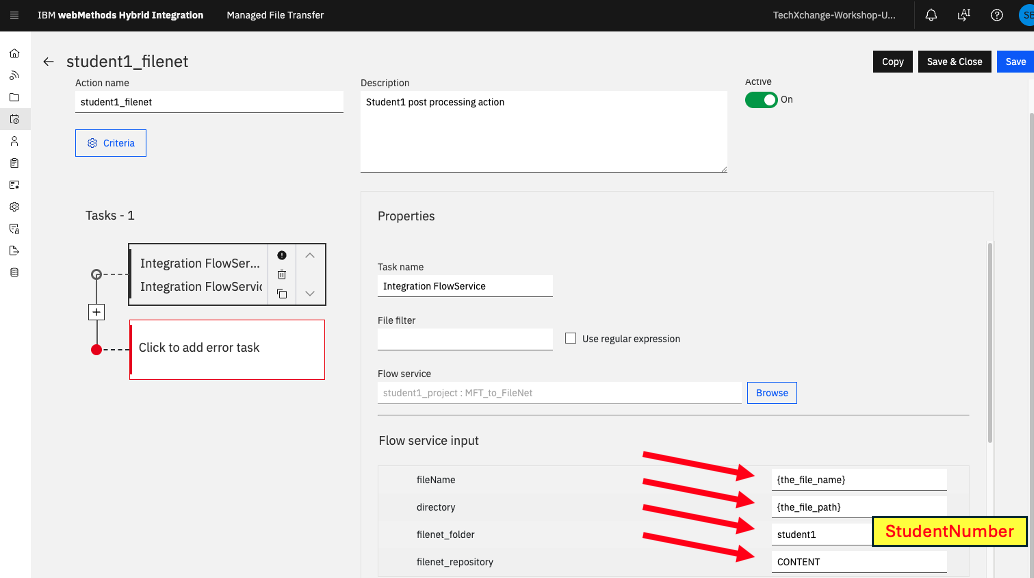
Provide “Flow service input” values fileName, directory as below.
filename: {the_file_name}
directory: {the_file_path}
filenet_folder: student(n) (for example student1)
filenet_repository: CONTENT
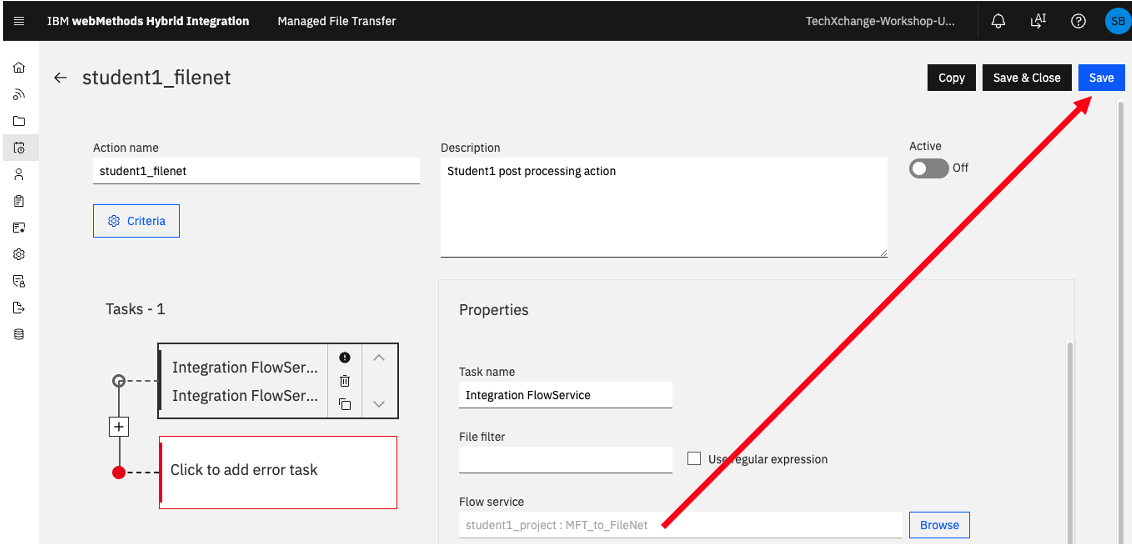
Save the Post Processing action.
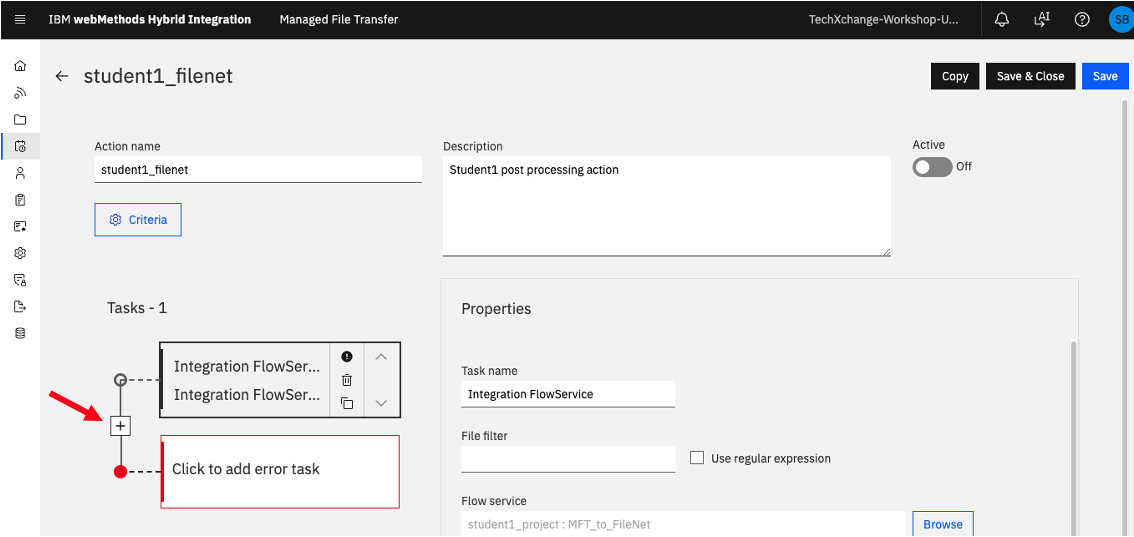
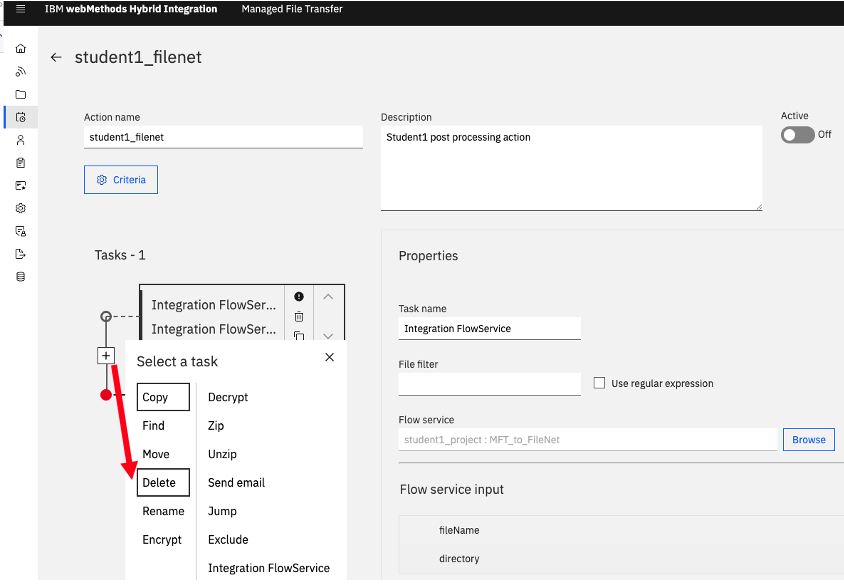
Click on the [+] sign to add a Delete action, so that the file will be deleted from the Virtual Folder upon successfully transmitted to FileNet.
Select Delete” action, and then click
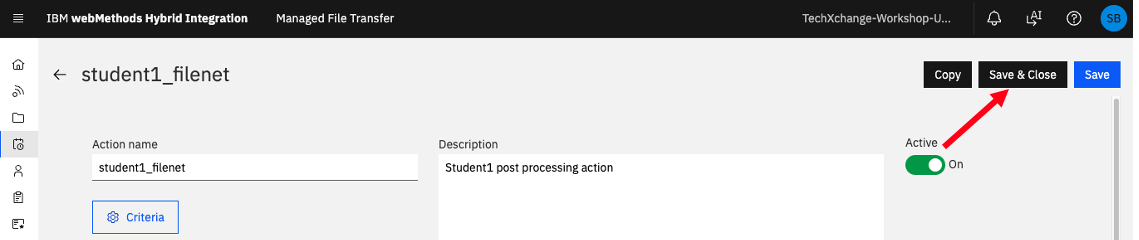
Activate Post Processing, then click on <Save & Close>.
4. FileNet Access & Configuration
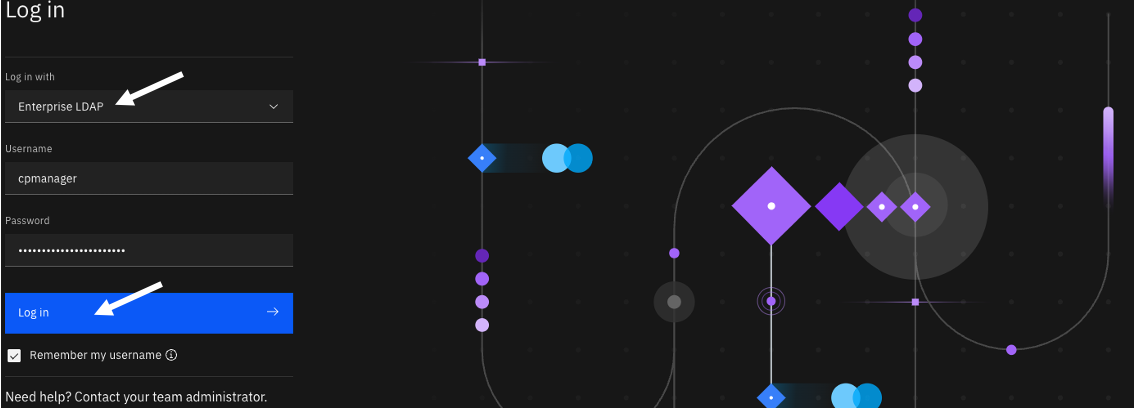
Logon to FileNet using the below URL.
https://cpd-cp4ba.apps.itz-dfpwof.hub01-lb.techzone.ibm.com/icn/navigator/?desktop=CONTENT
user: cpmanager
password: yyyyyy
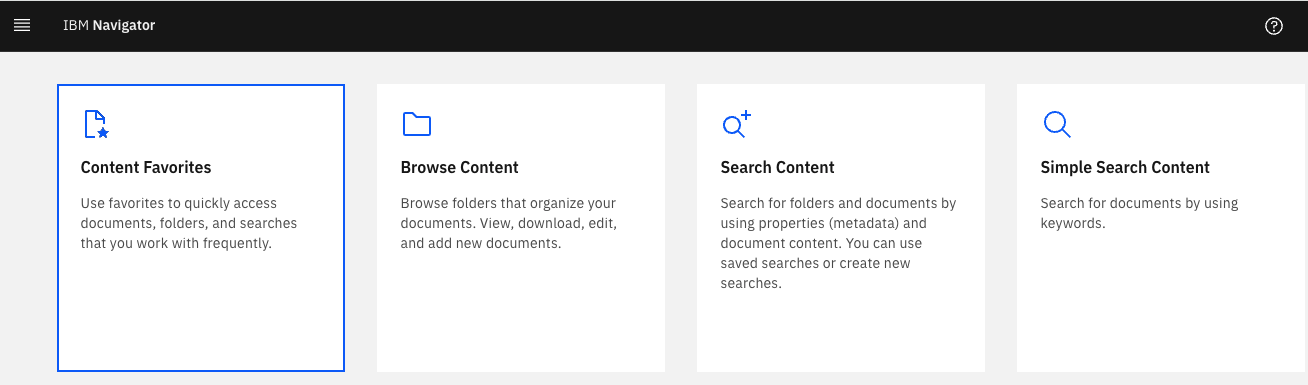
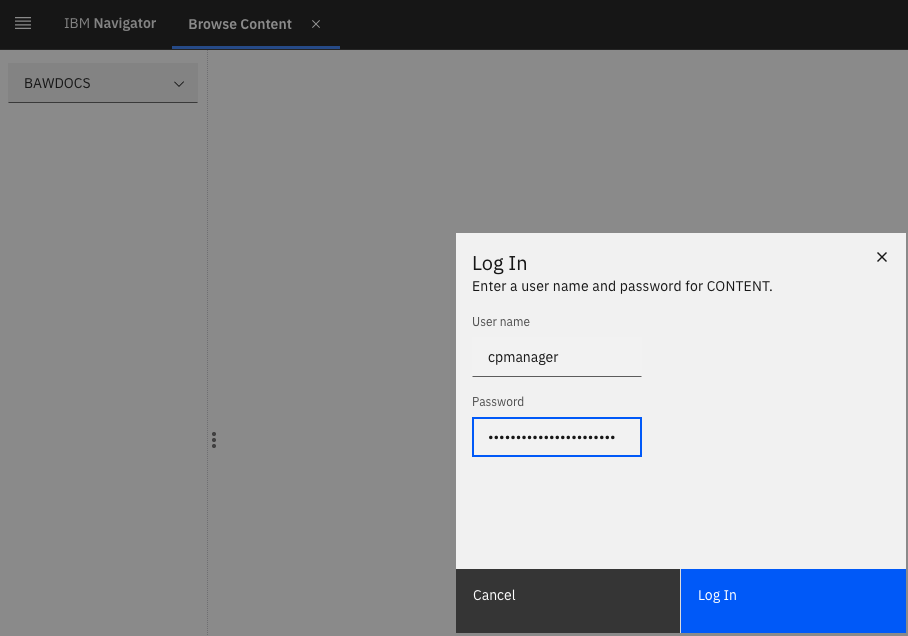
Click on “Browse Content” tile.
Enter user, password again.
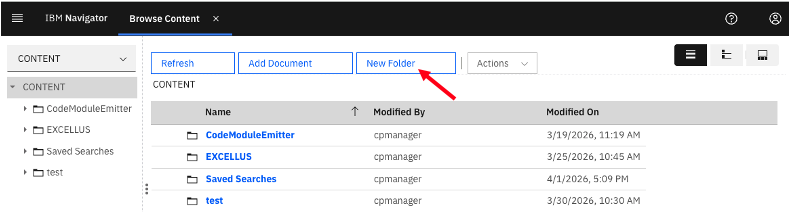
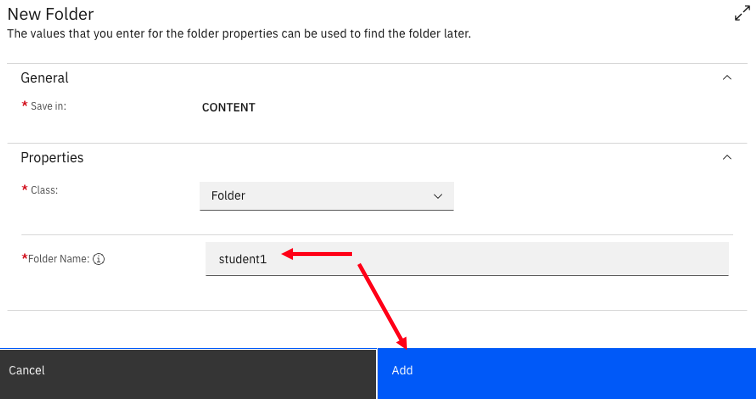
Create “New Folder”.
5. IBM webMethods webClient
Let’s capture webClient’s URL. From the IBM webMethods MFT page, click on Listeners and copy HTTPS URL.
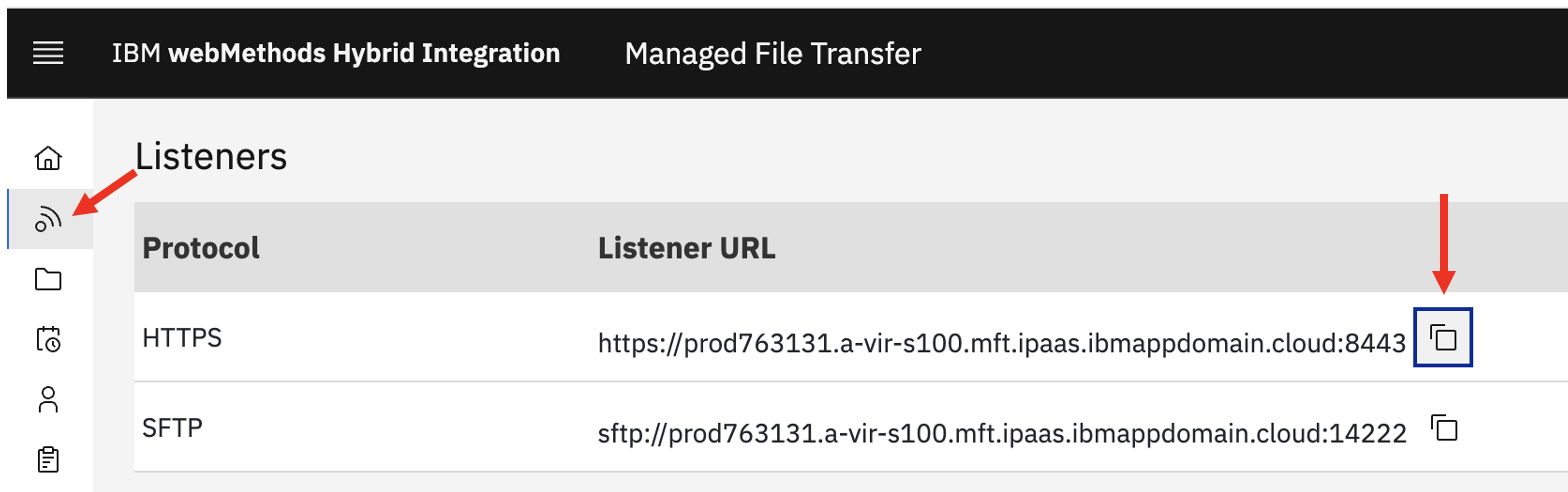
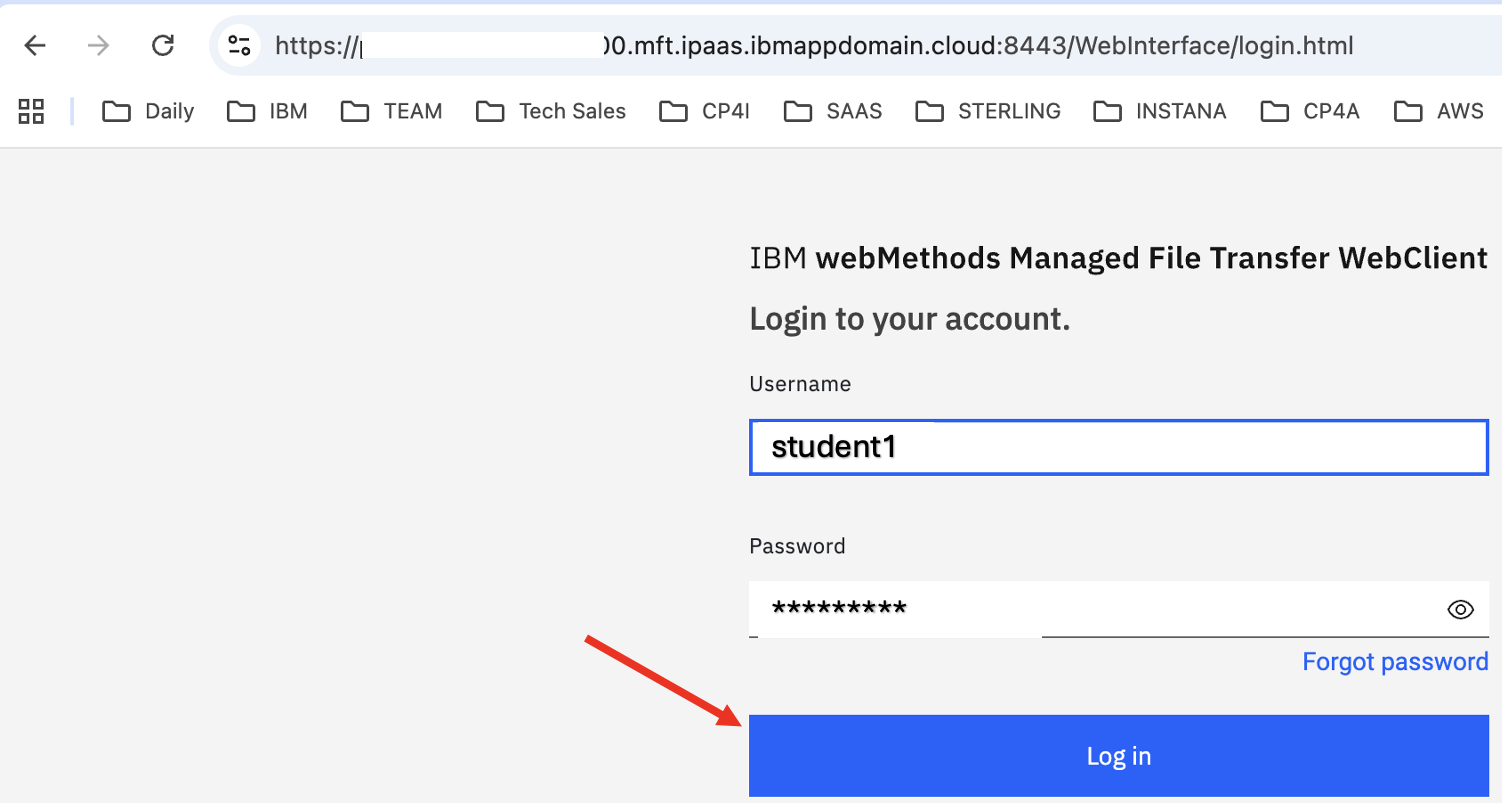
Open a new browser tab, then paste the copied link. Enter user, and password that you created during Virtual Folder creation.
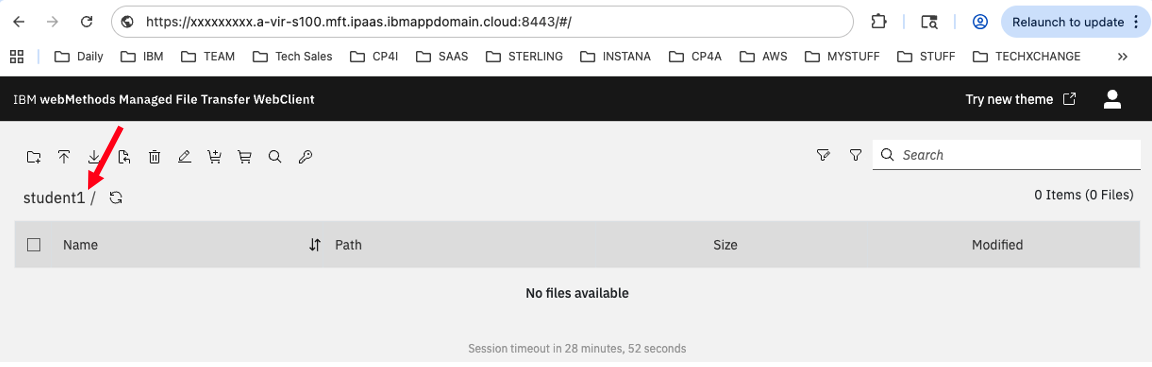
Upload a file.
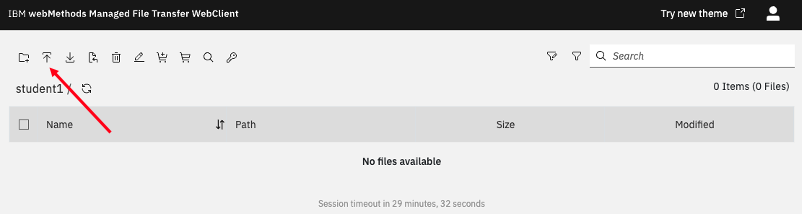
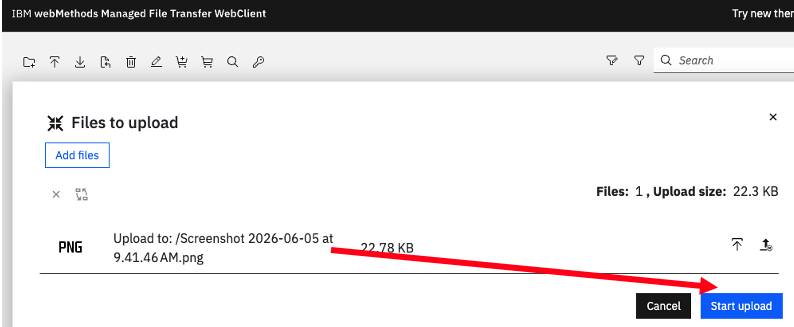
Pick a file.

Click <Start upload>.
Click x to close window.
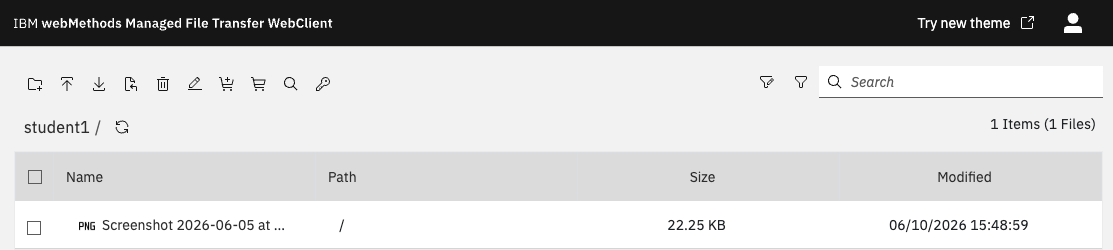
Now, let’s switch to the FileNet and check if the file is transmitted.
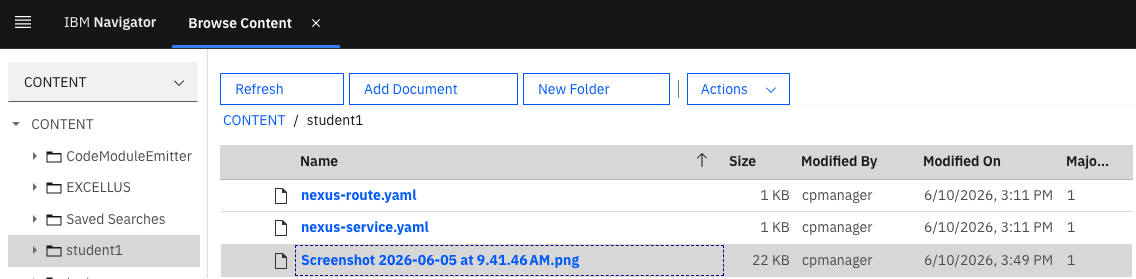
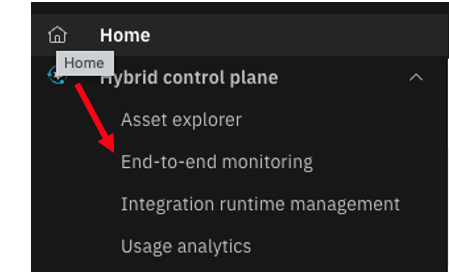
6. End-to-End Monitoring
Click End-to-end monitoring.
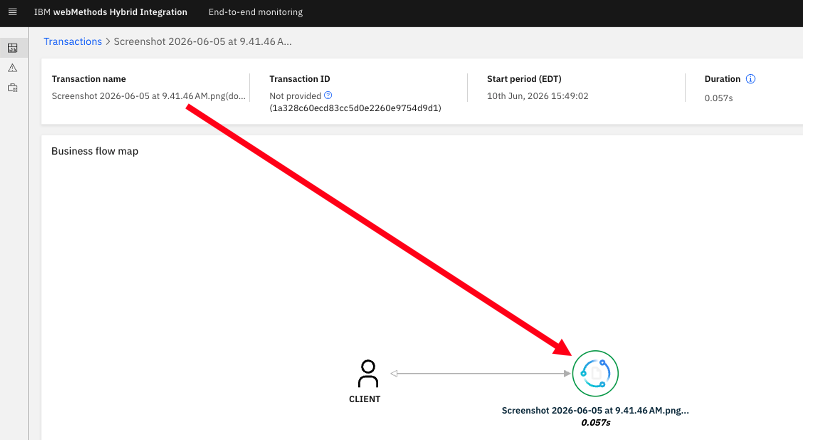
Look for your file, then click on that file for more details.
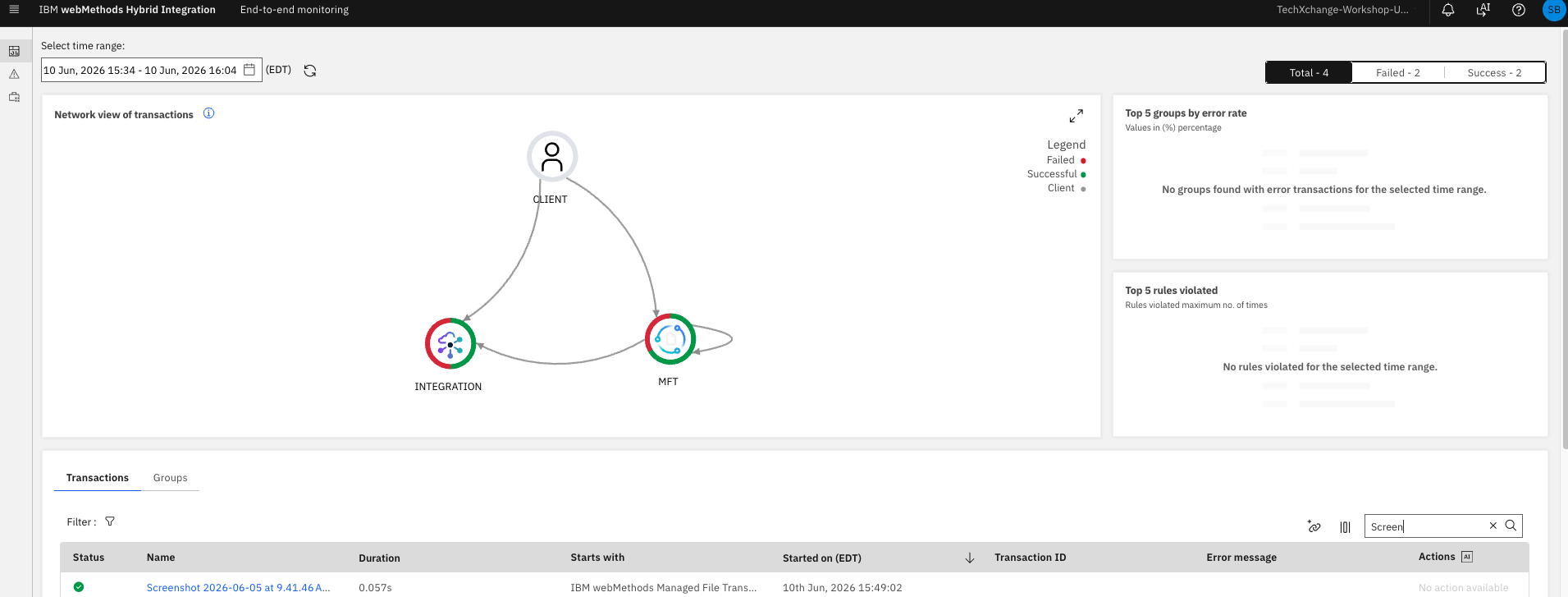
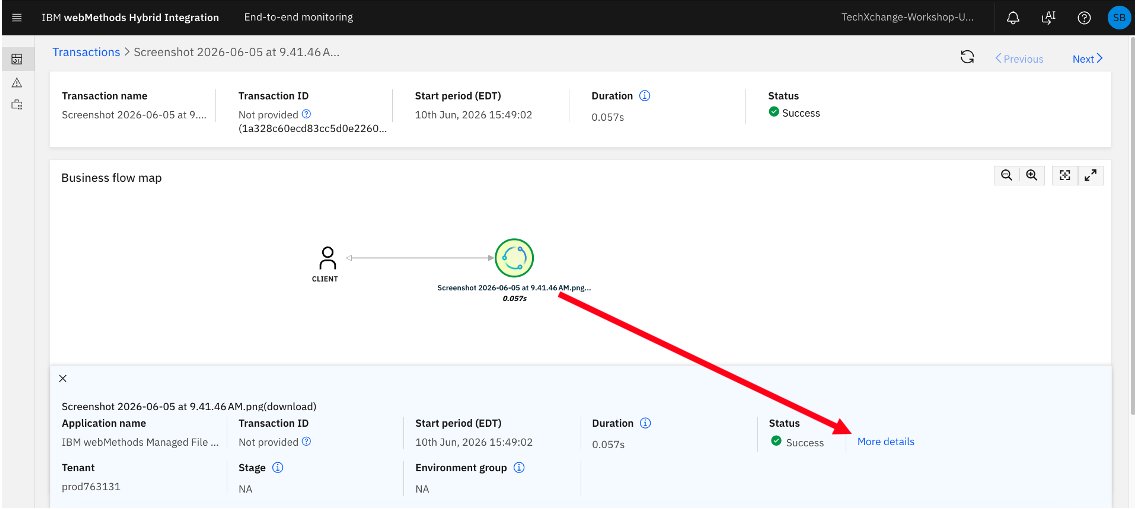
Click the file circle for more details.
Click on “More details”.
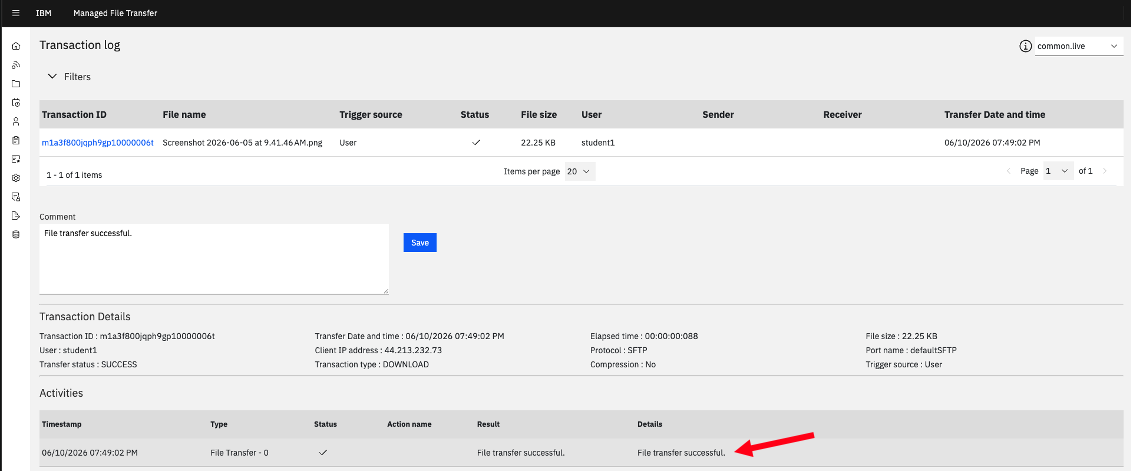
Additional details.
7. Summary
Congratulations! You have successfully created an end-2-end integration using IBM webMethods Managed File Transfer, IBM webMethods Integration with IBM FileNet to move files into FileNet Content Navigator repository.