IBM Integration PoT Labs Home page
IBM API Connect - Creating REST Proxy based upon a WSDL
Table of Contents
- 1. Introduction
- 2. IBM App Connect - Deploy Temperature Converter WebService
- 3. IBM API Connect - Create REST Proxy from the WSDL
- 4. Testing REST Proxy Service
- 5. Summary
1. Introduction
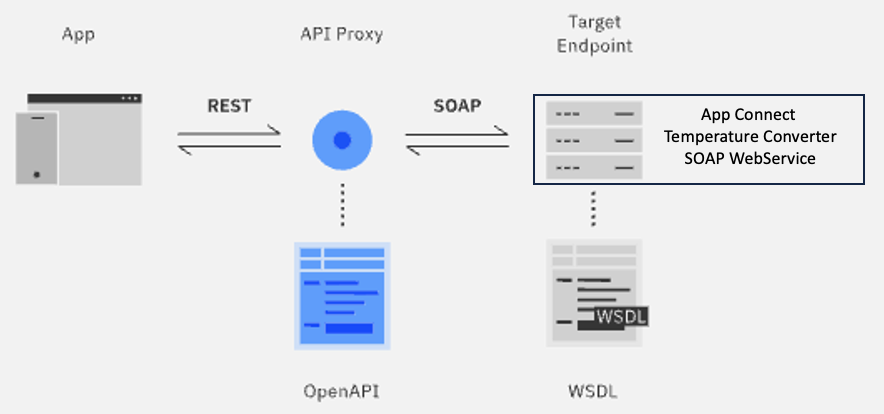
In this lab, you will configure a SOAP WebService that is deployed to IBM App Connect to function as a REST Proxy within IBM API Connect. You will be deploying a very simple Temperature Converter WebService into IBM App Connect then expose it to IBM API Connect as a REST API.
Design diagram
2. IBM App Connect - Deploy Temperature Converter WebService
Download the bar file from here.
Deploy the bar file.
Logon to Cloud Pak for Integration Platform Navigator, open App Connect Dashboard > Click on “Deploy Integrations” tile.
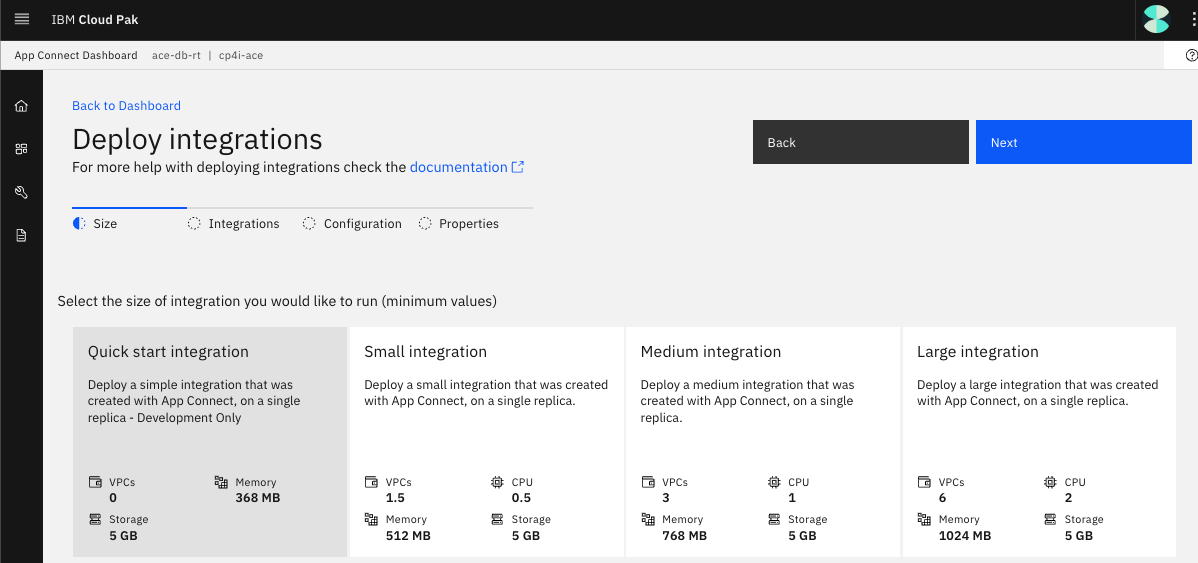
Select “Quick Start Integration”, and Click <Next>.
Drag & drop the bar file downloaded above as below.
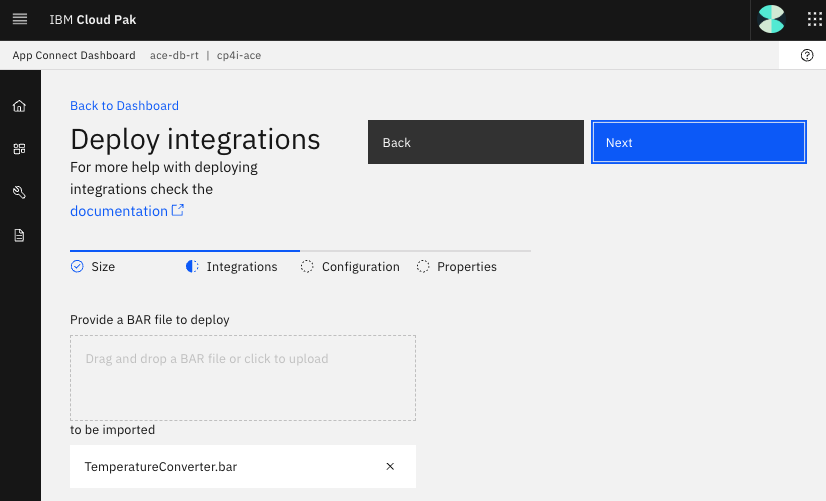
Click <Next> two times.
Name your Integration Runtime as "ace-tk-temperature-converter".
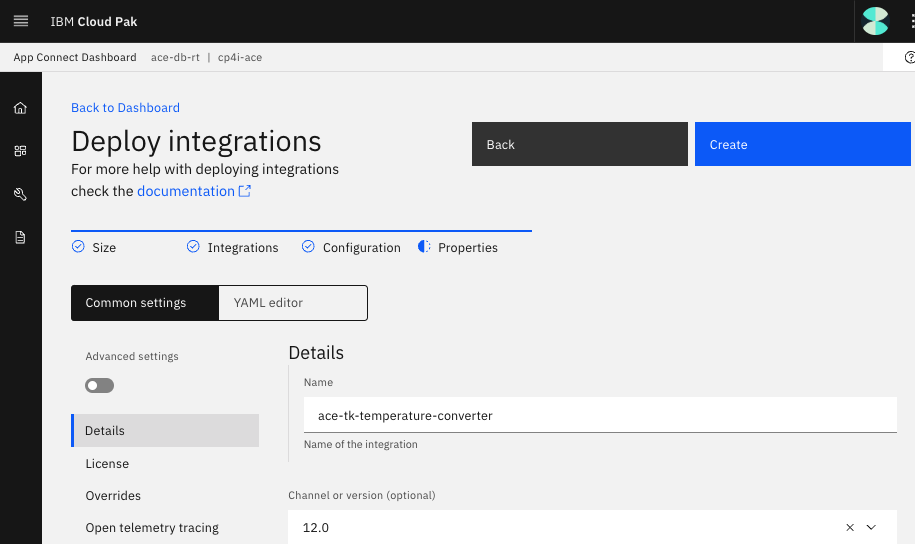
Click <Create>.
Wait for 30seconds and refresh the page.
Make sure the Integration Runtime "ace-tk-temperature-converter" is Ready.
Click on the Integration Runtime "ace-tk-temperature-converter" tile.
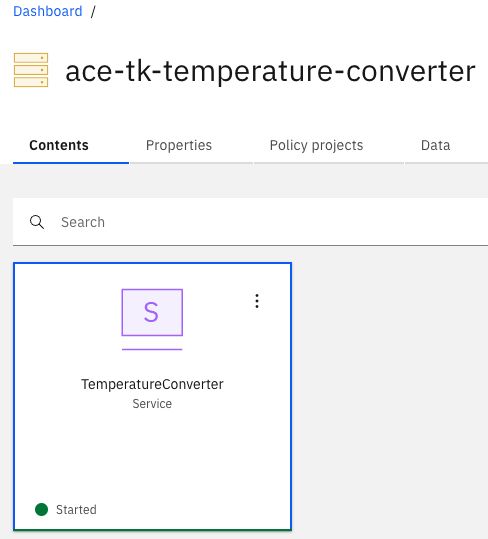
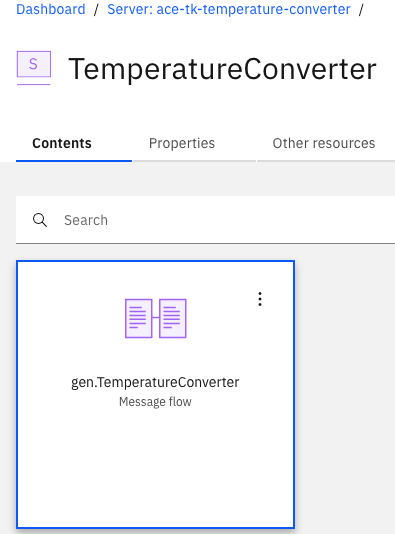
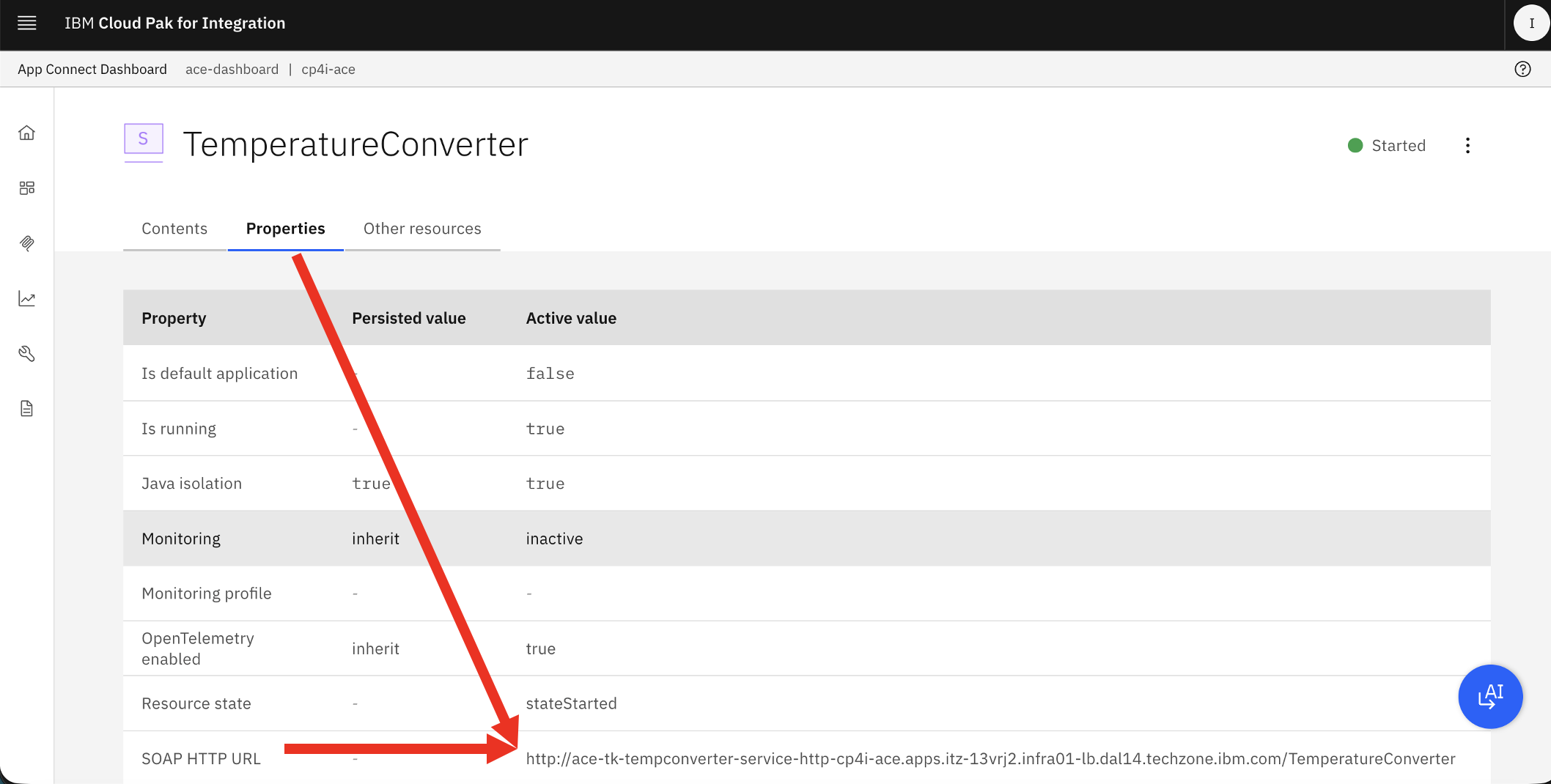
Click on the Properties tab, and copy “SOAP HTTP URL”. This will be configured in the next section (API Creation).
3. IBM API Connect - Create REST Proxy from the WSDL
Download the zip file that contains Temperature Converter WSDL, and XSD’s from here.
Logon to Cloud Pak for Integration, and open API Management (apim-demo).
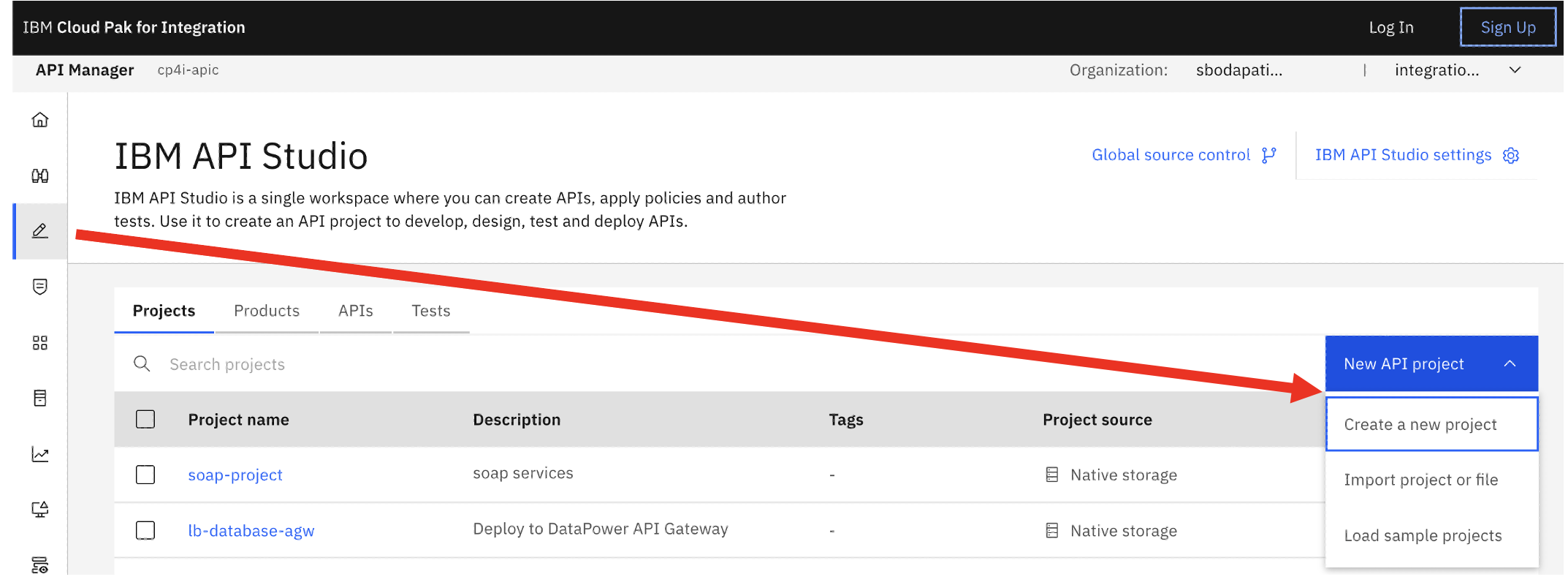
Click on “API Studio” icon.
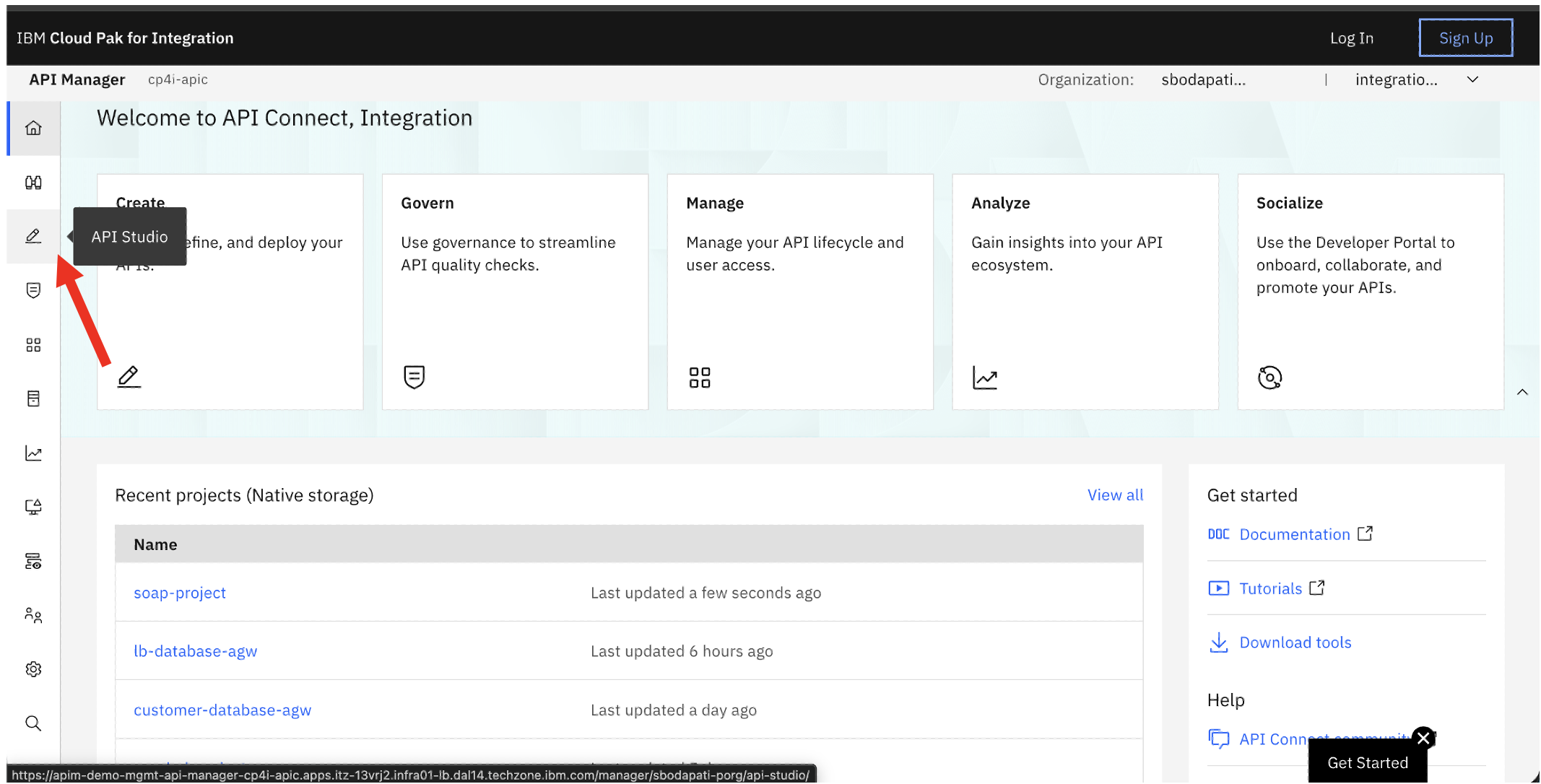
Click on “New API Project > Create a new project”.
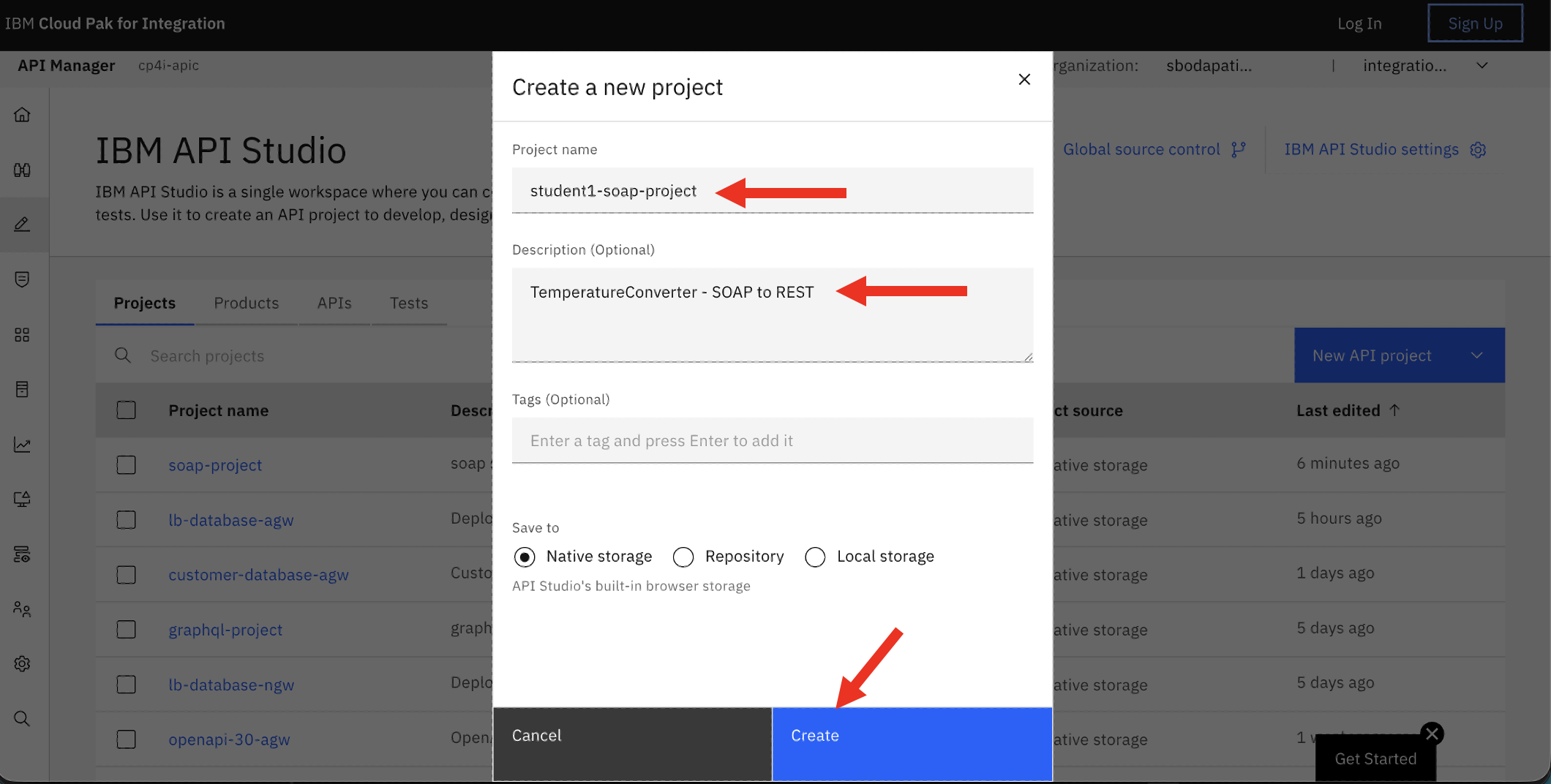
Enter “Project name” as “student(n)-soap-project”, and “Description” as “TemperatureConverter - SOAP to REST”.
3a. Add API
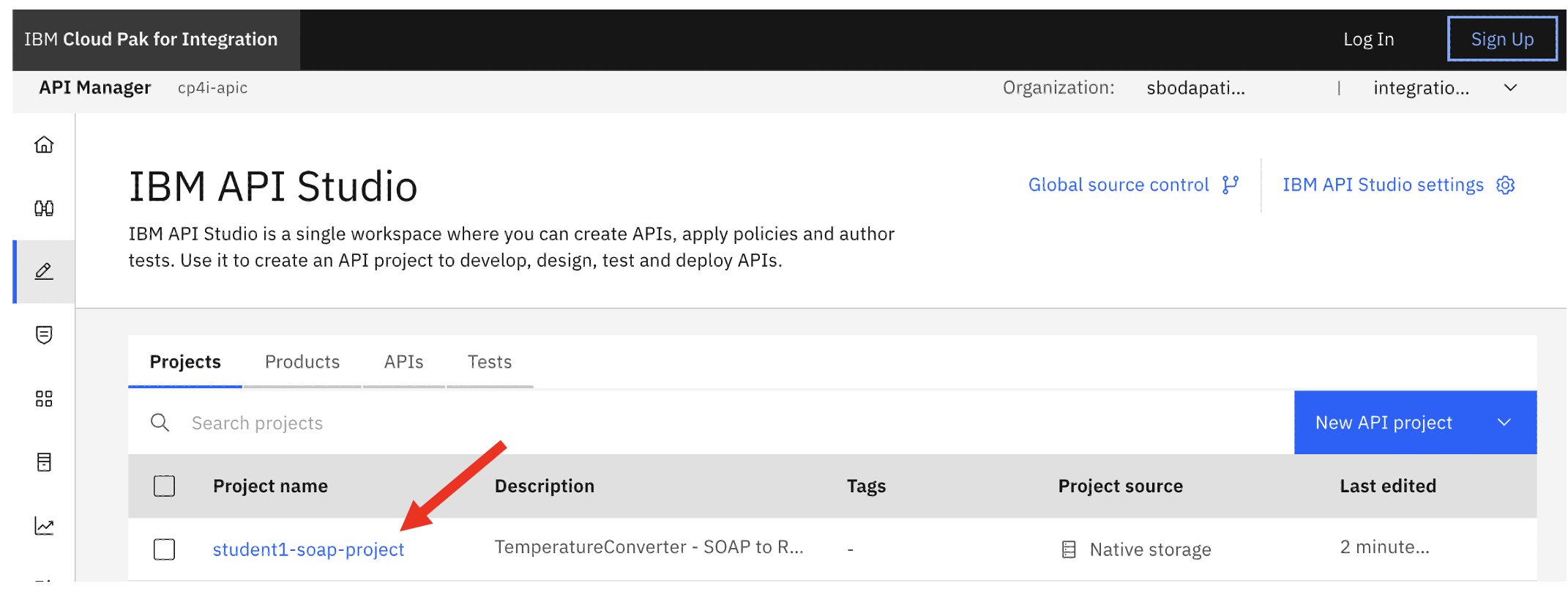
Click on the project you just created.
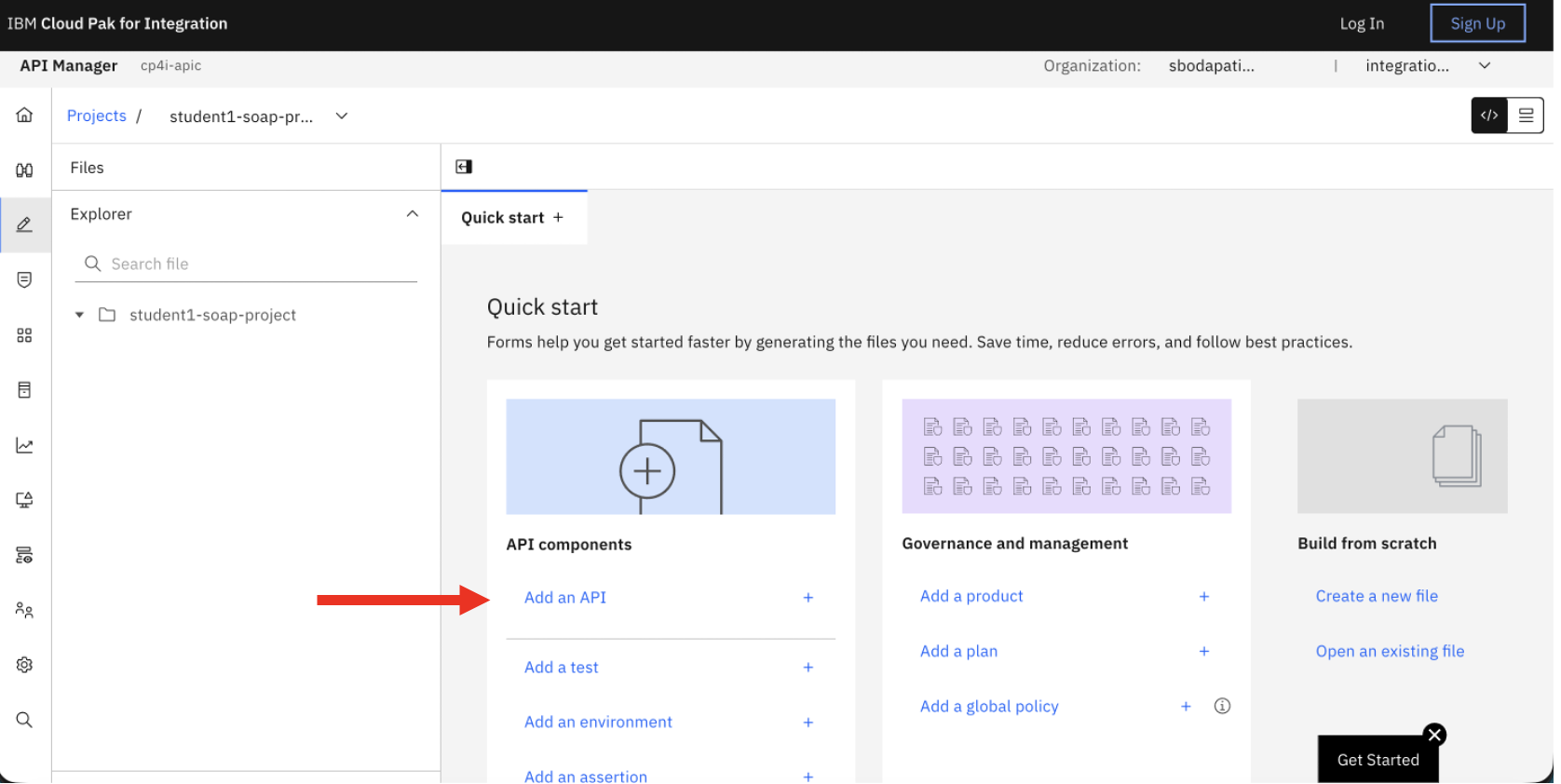
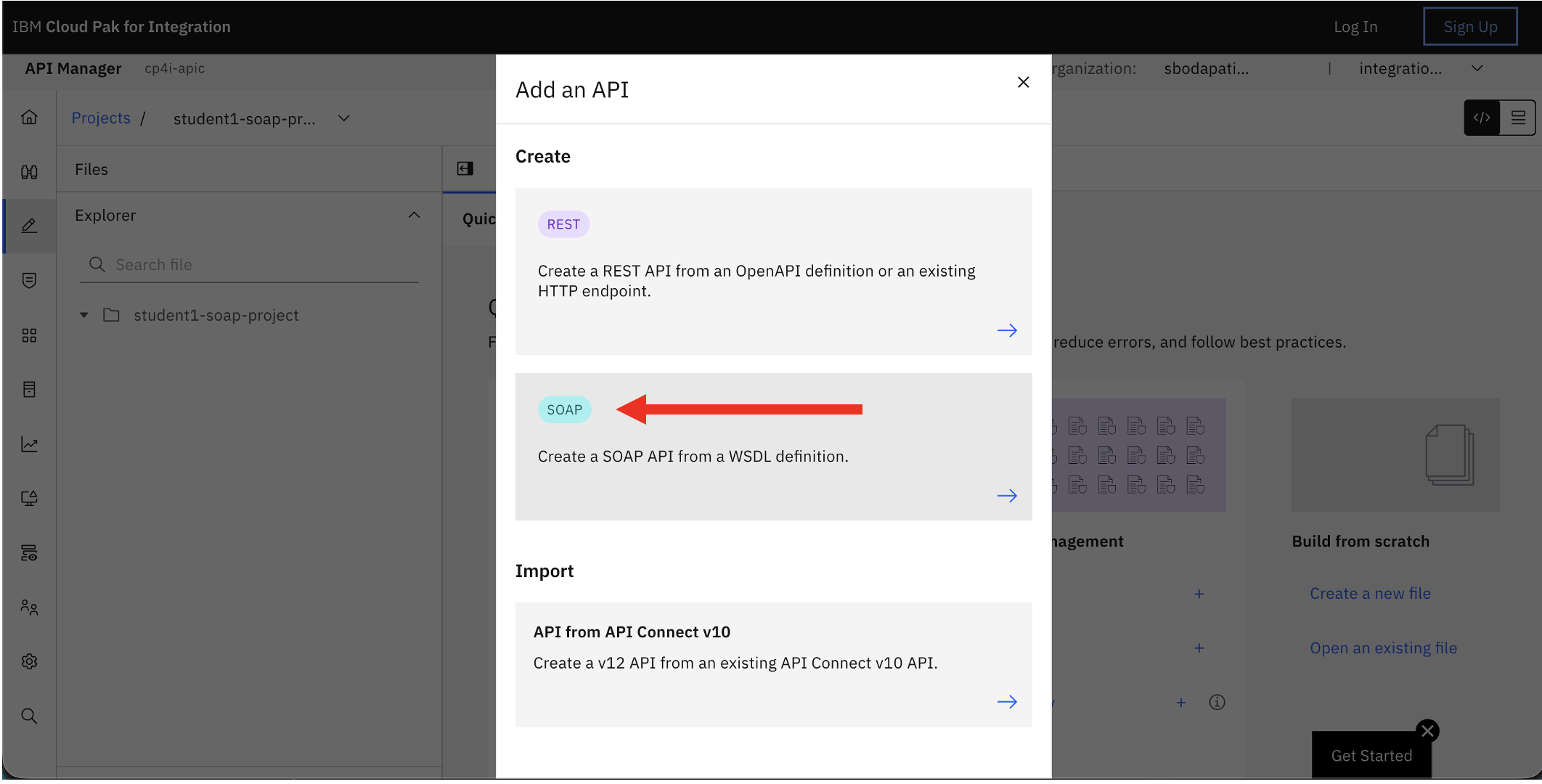
Click on “Add API”.
Select SOAP.
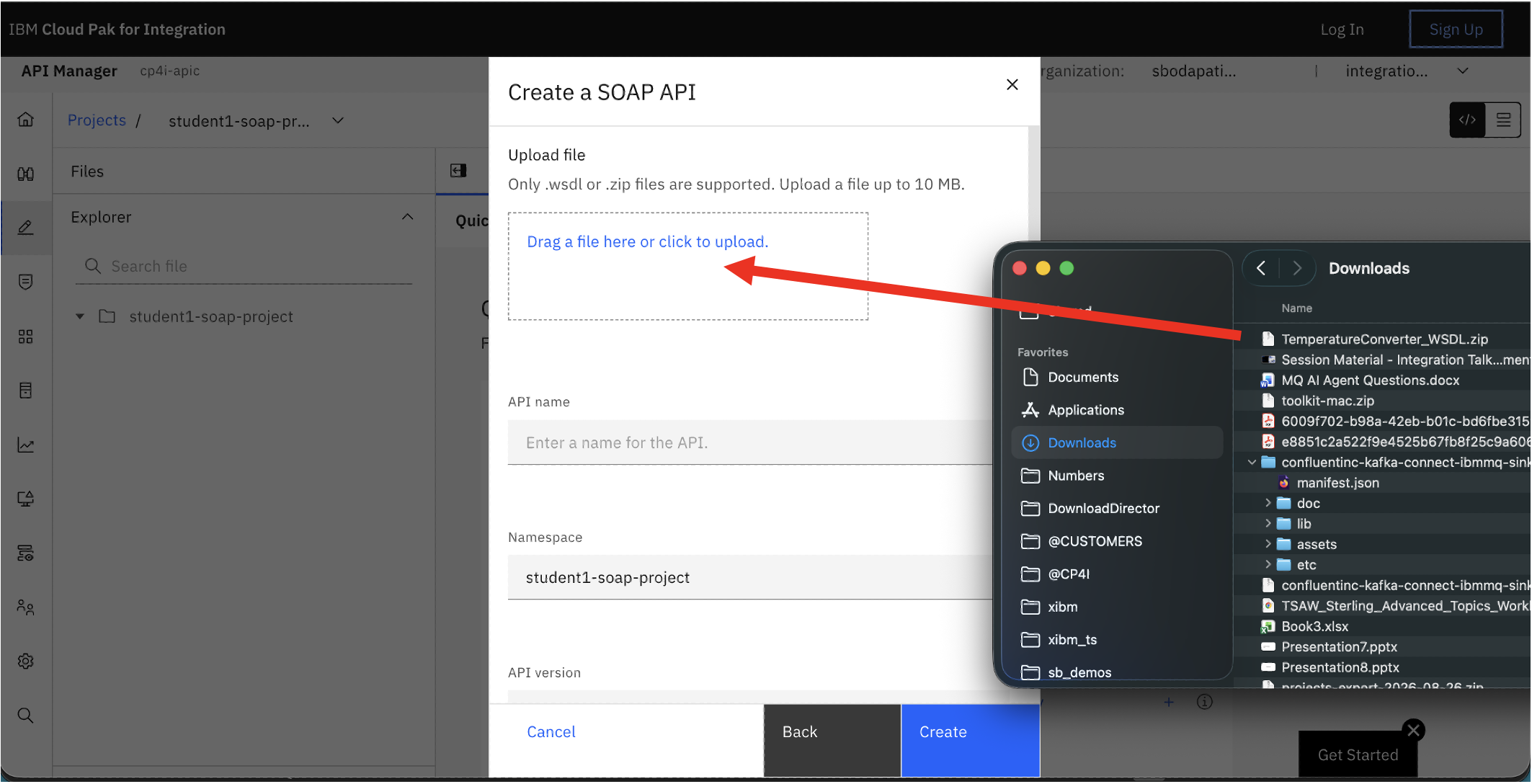
Drag and drop the zip file that you downloaded above.
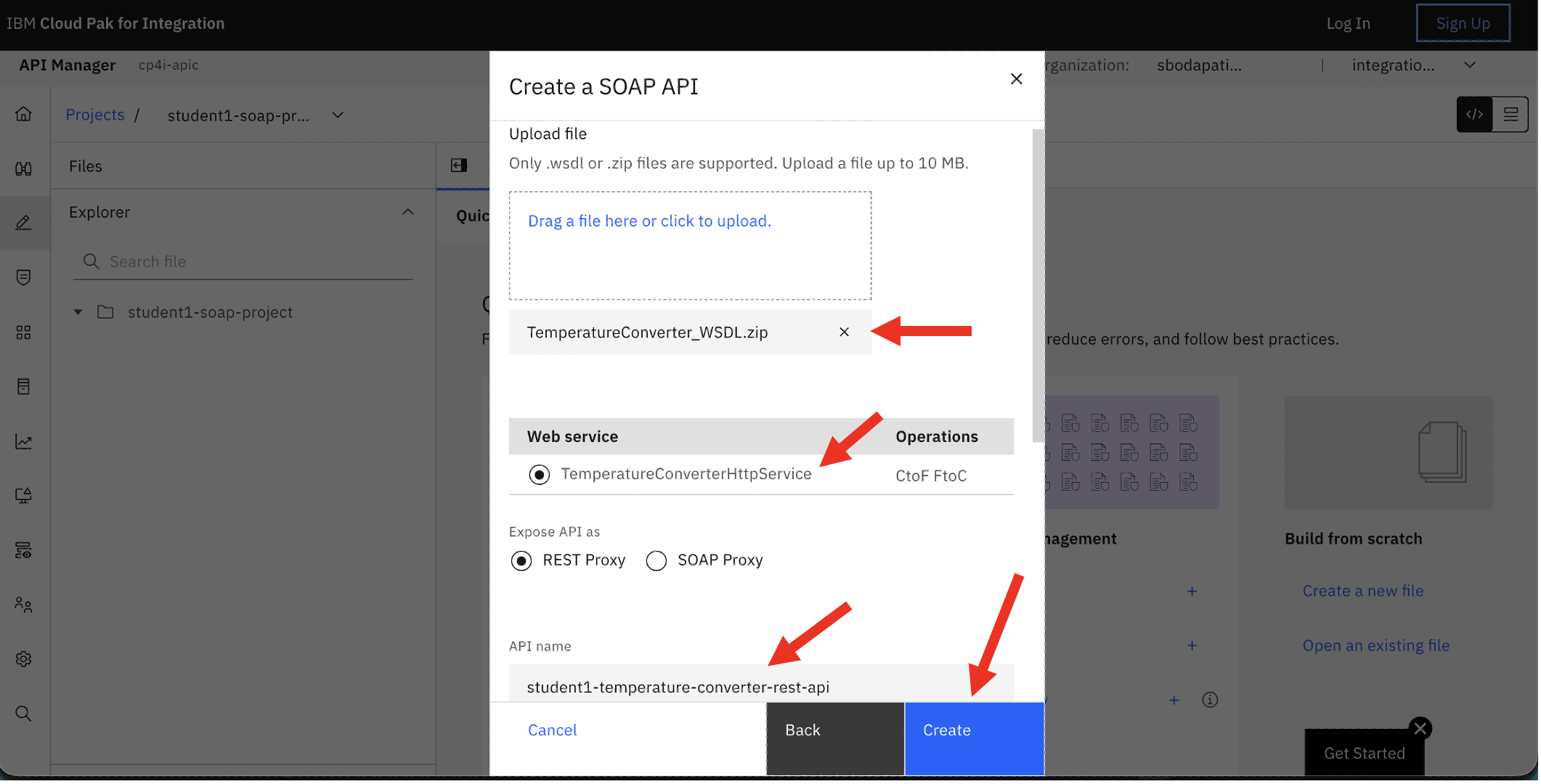
Enter API Name as student1-temperature-converter-rest-api, then click <Create>.
Copy the highlighted path value (Control+c). We need update this value in the two yml files highlighed below.
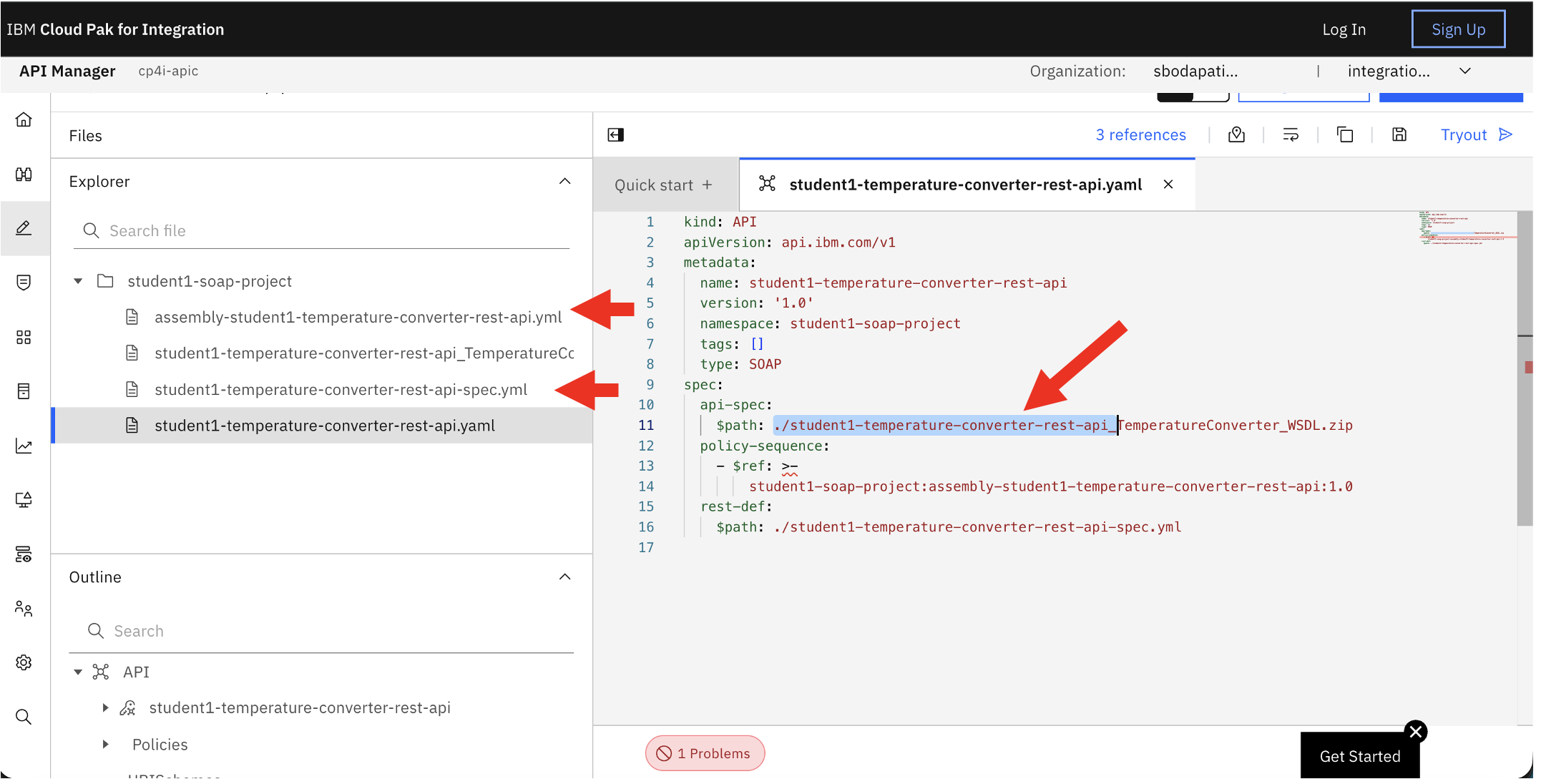
Notice that it’s missing part of the zip file. its a bug, will be fixed
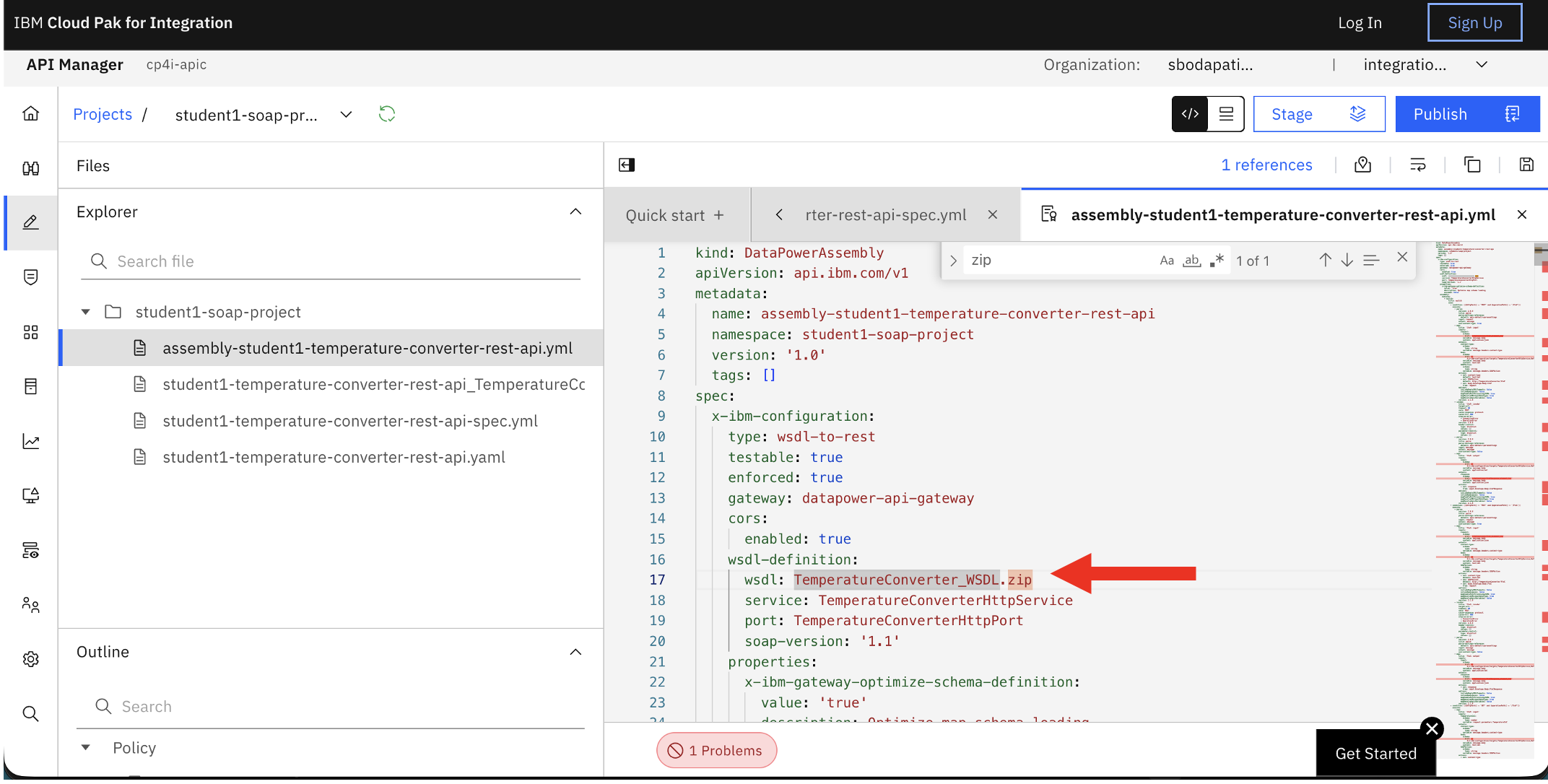
Paste here.
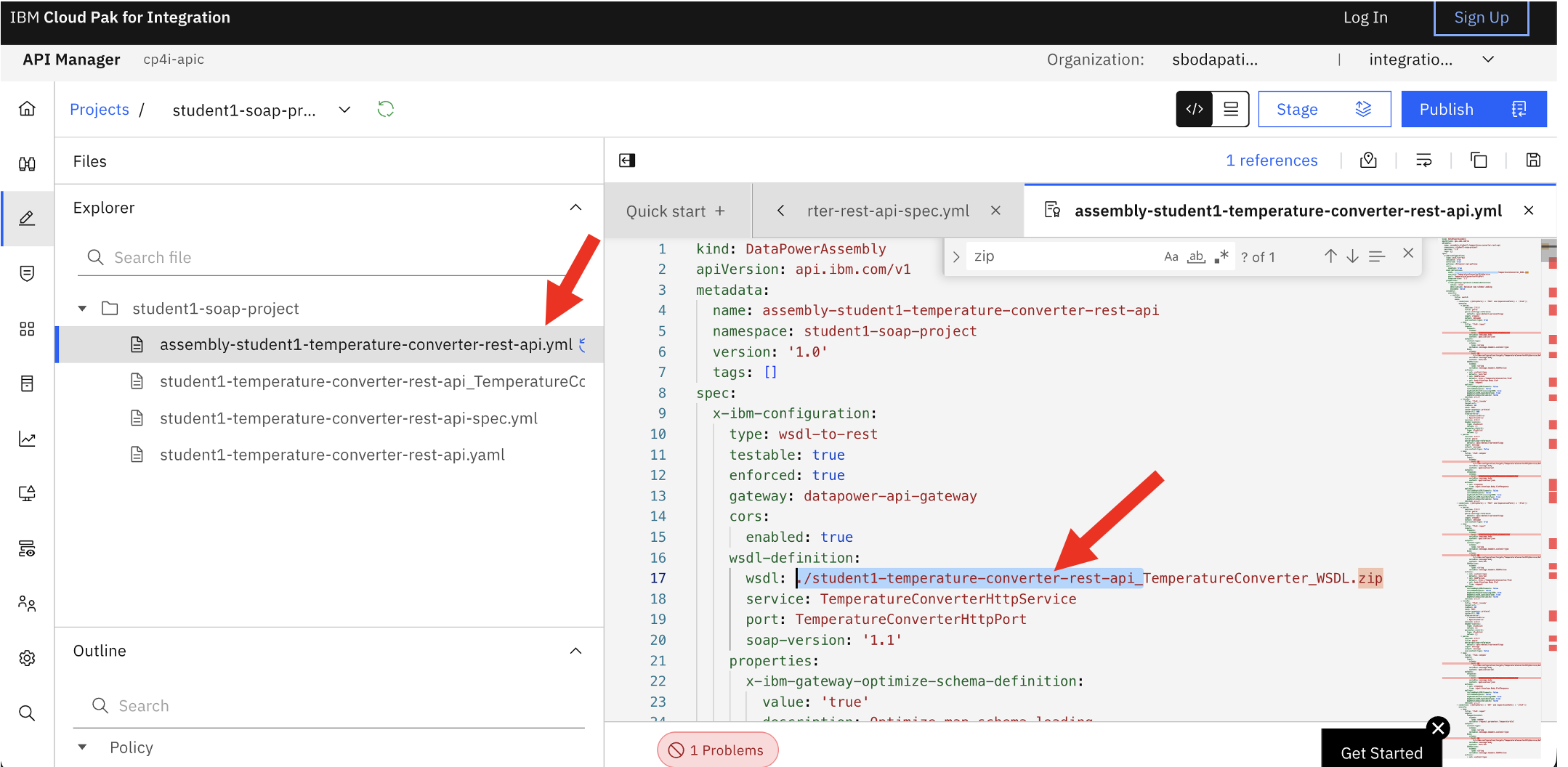
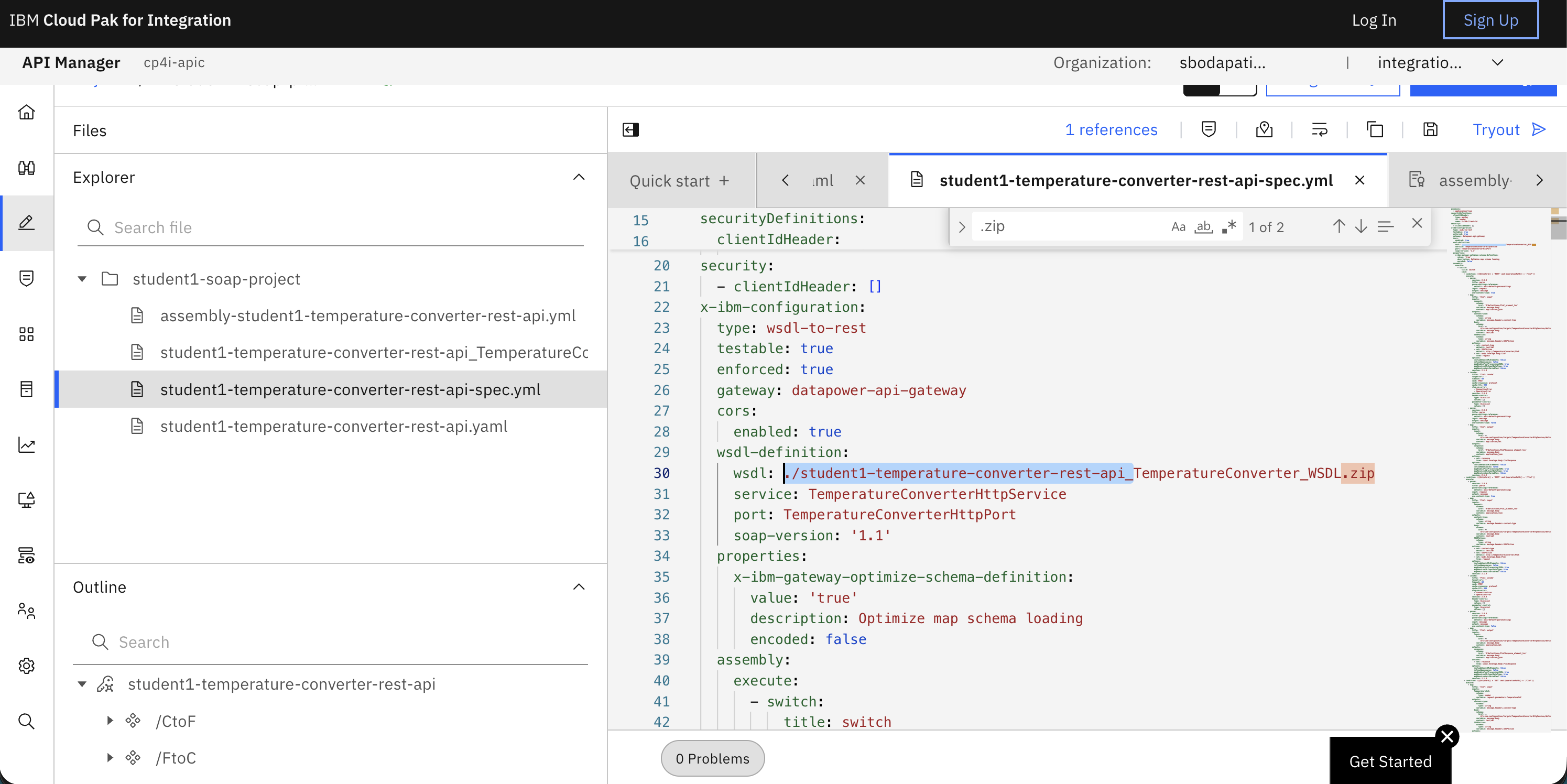
Similarly, update next yml file as below.
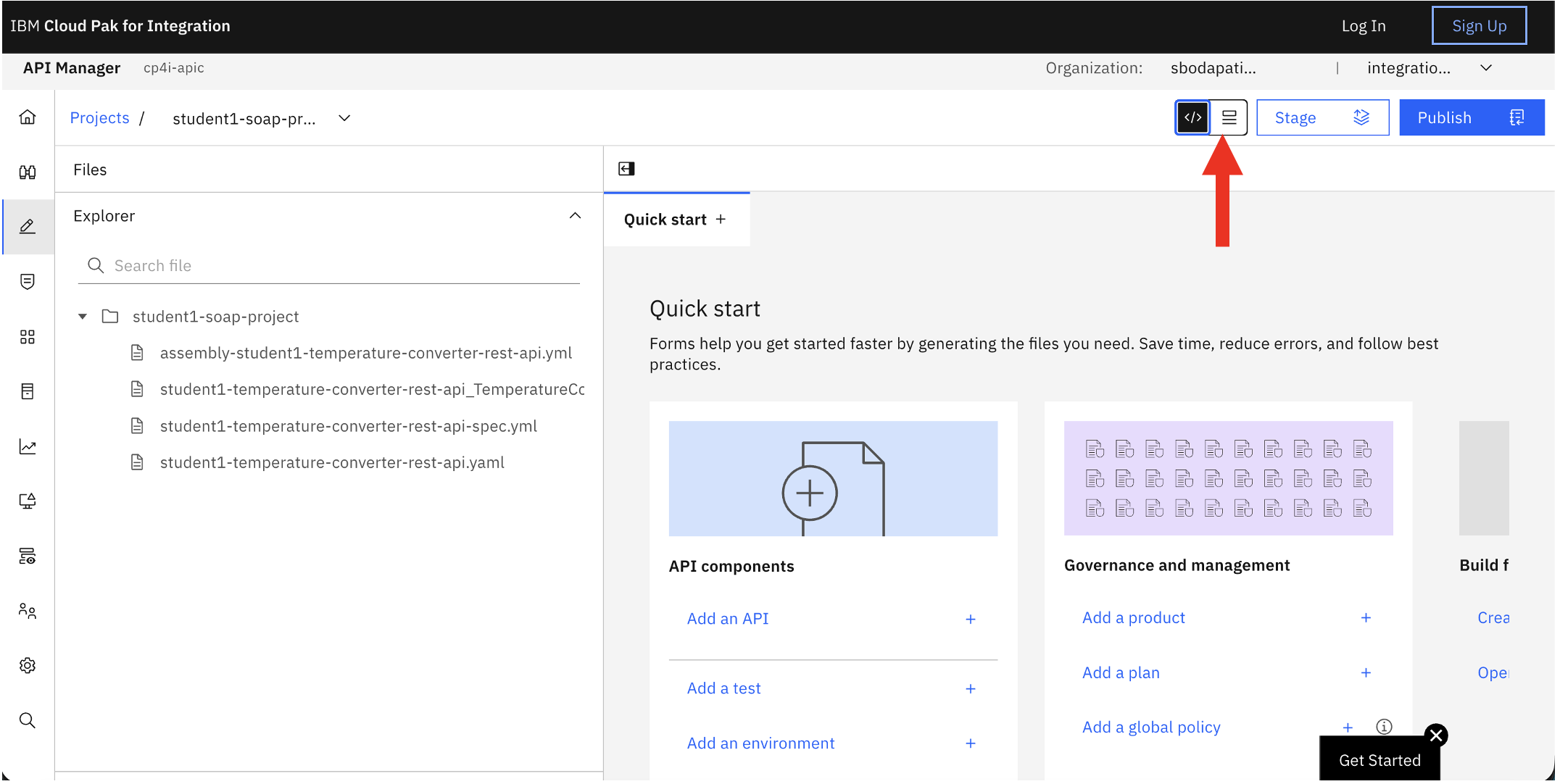
Click on the Design view.
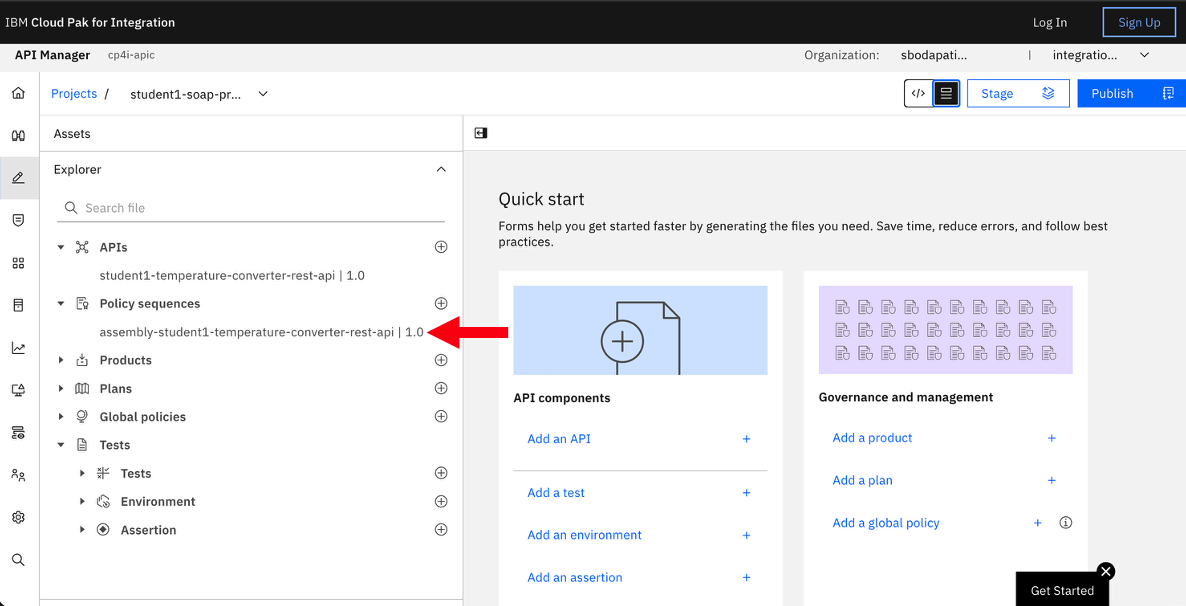
Click Policy Sequence, and then click assembly.
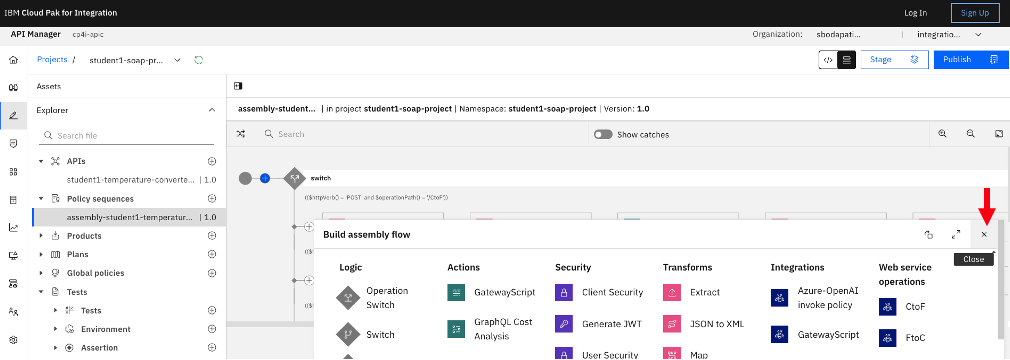
Close the Policies view.
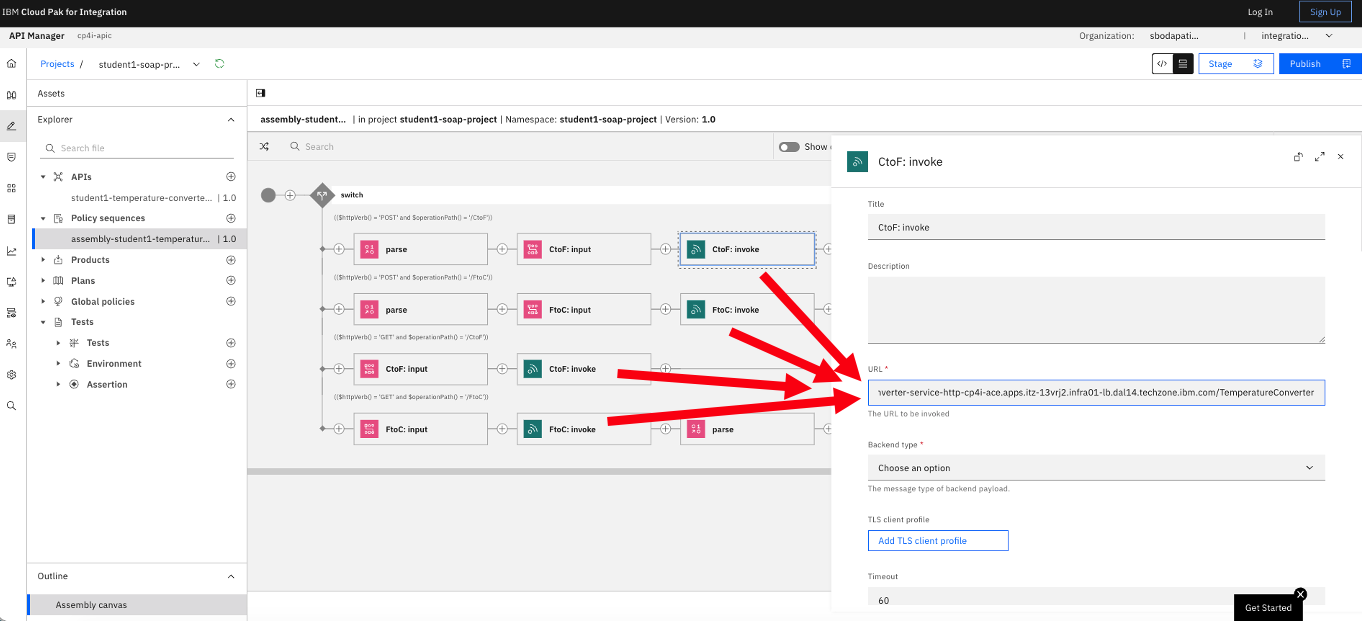
Click on the “Invoke” policies and set the URL that you captured in the IBM App Connect section.
3b. Publish API
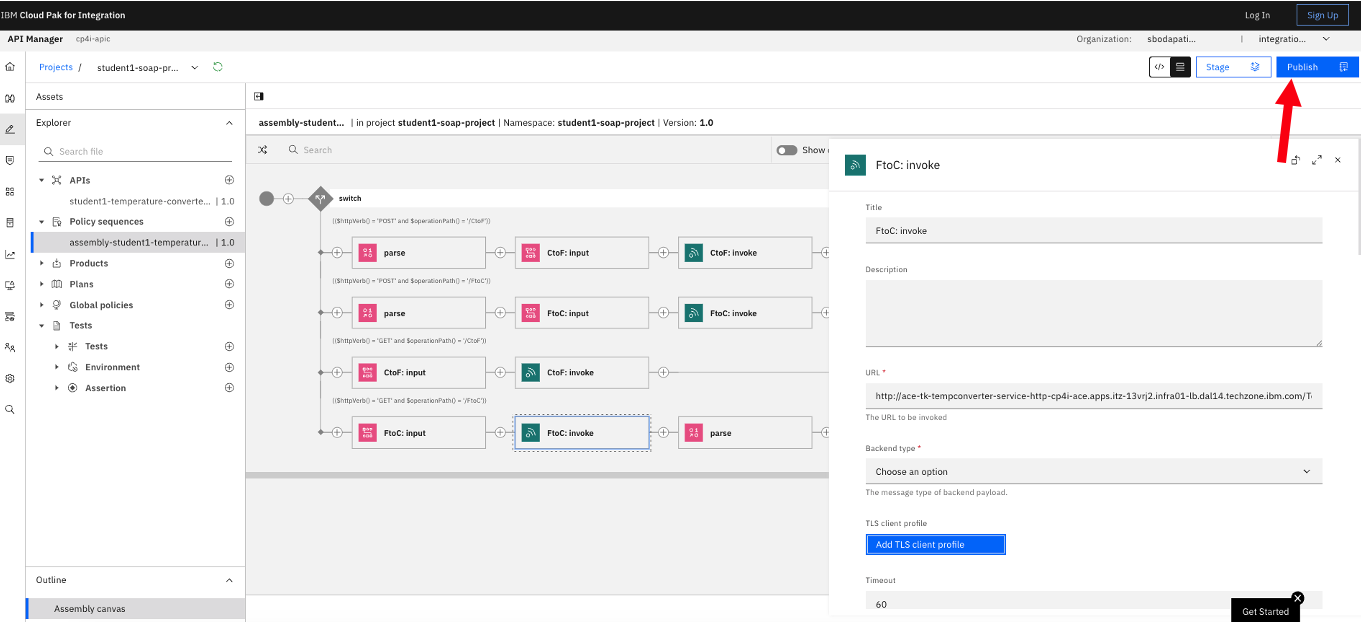
Click Publish.
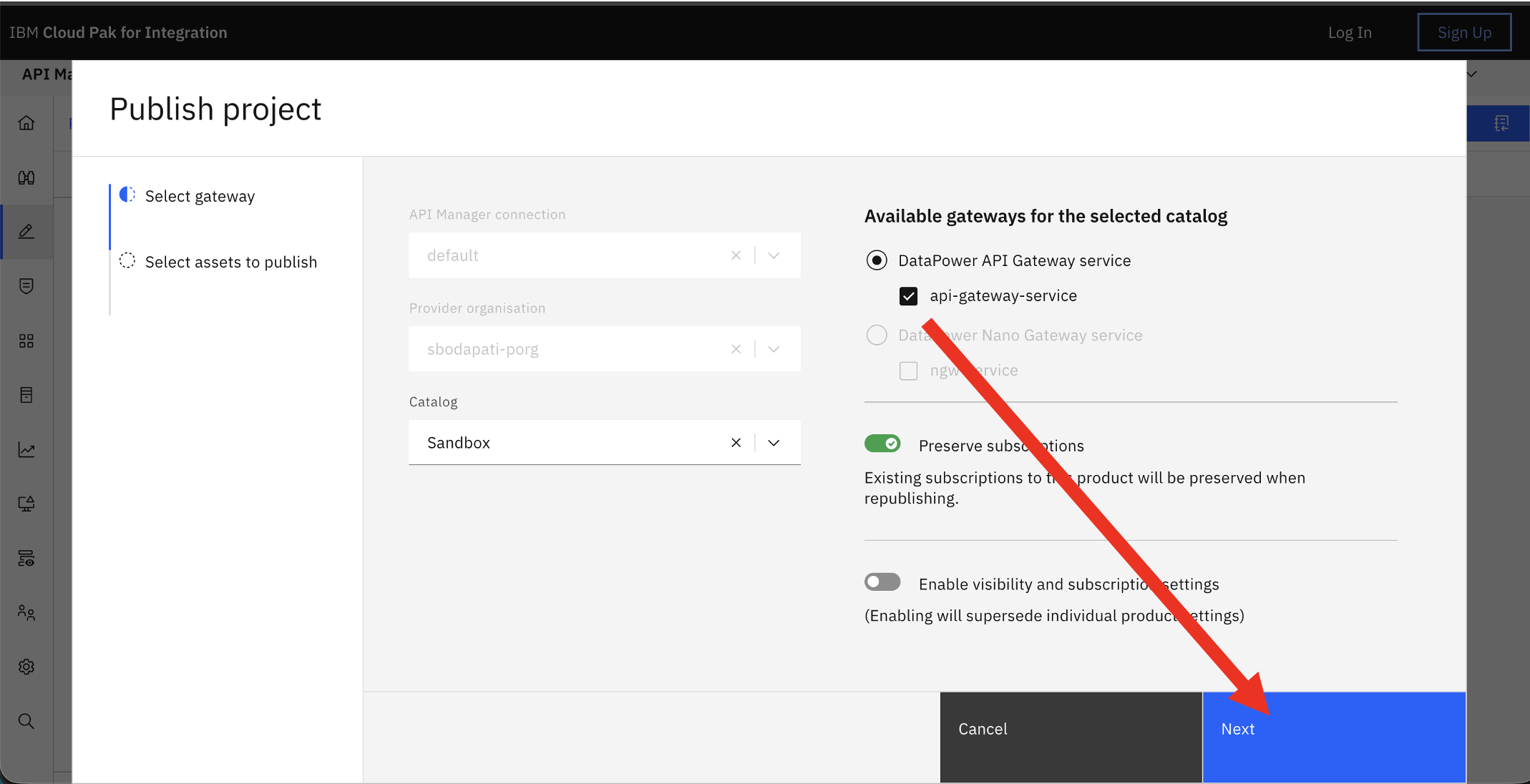
Click <Next> in the bottom right of of the screen.
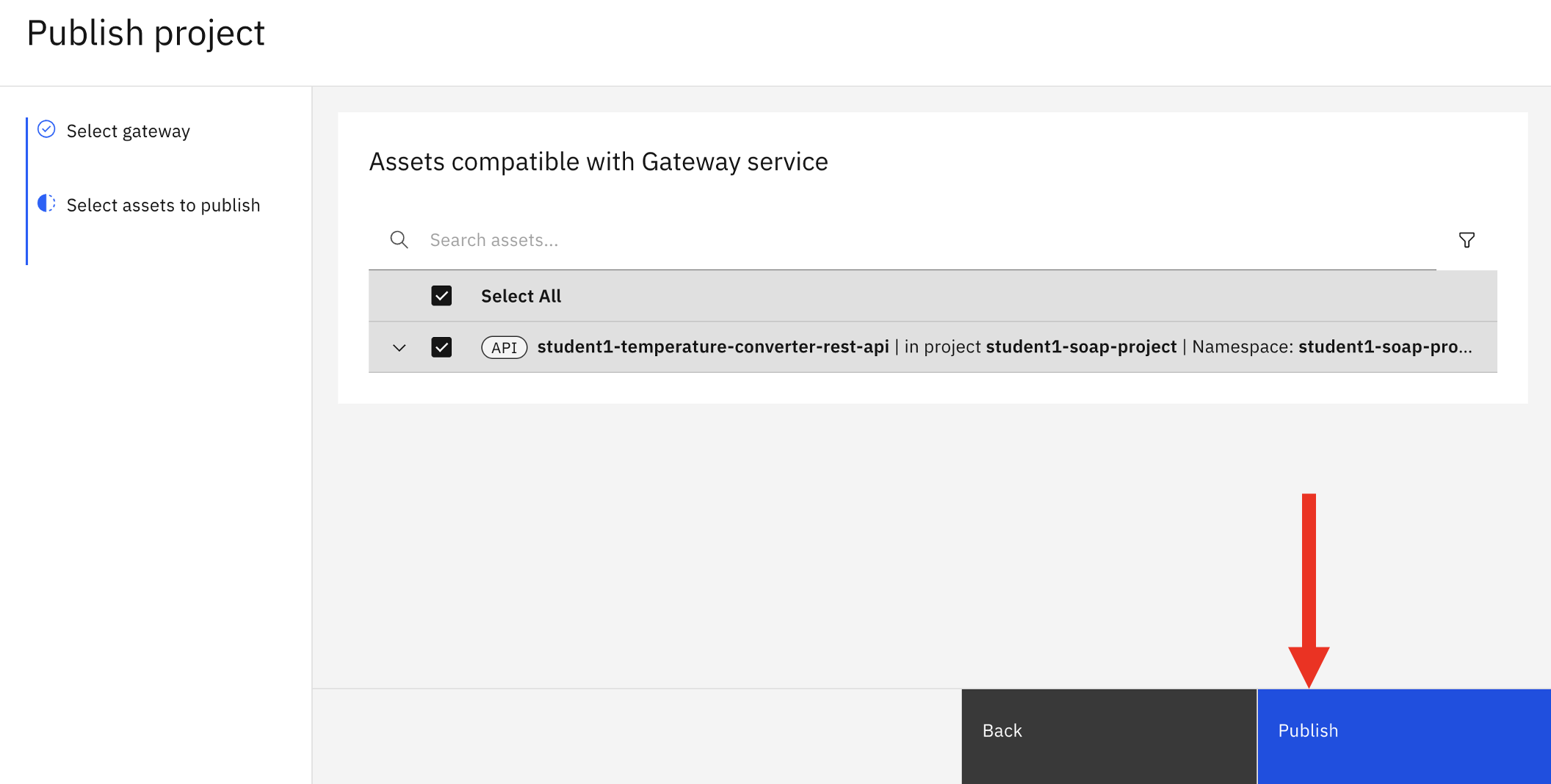
Click <Publish> in the bottom right of of the screen.
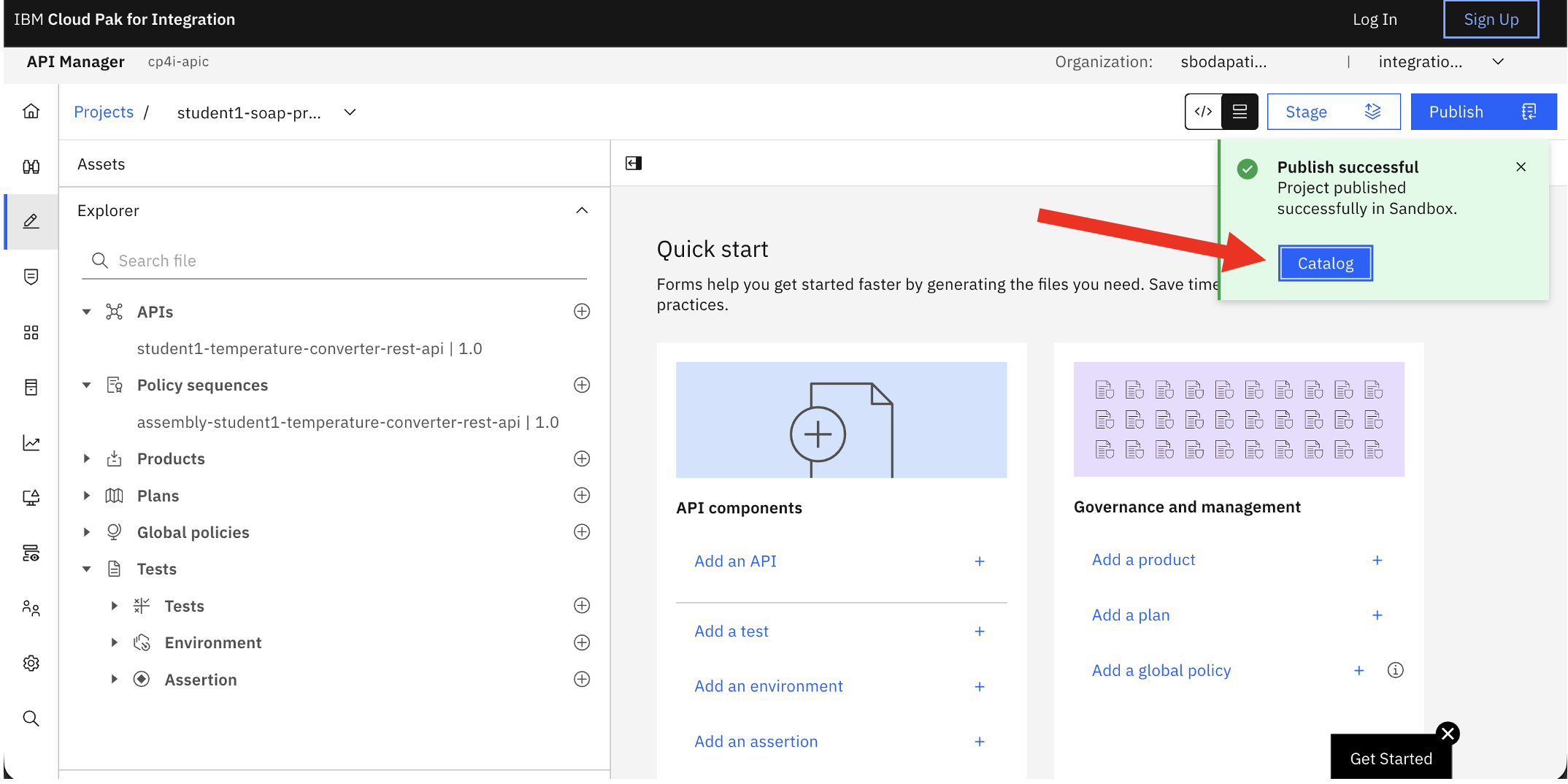
If Publish is successful, then click on Catalog.
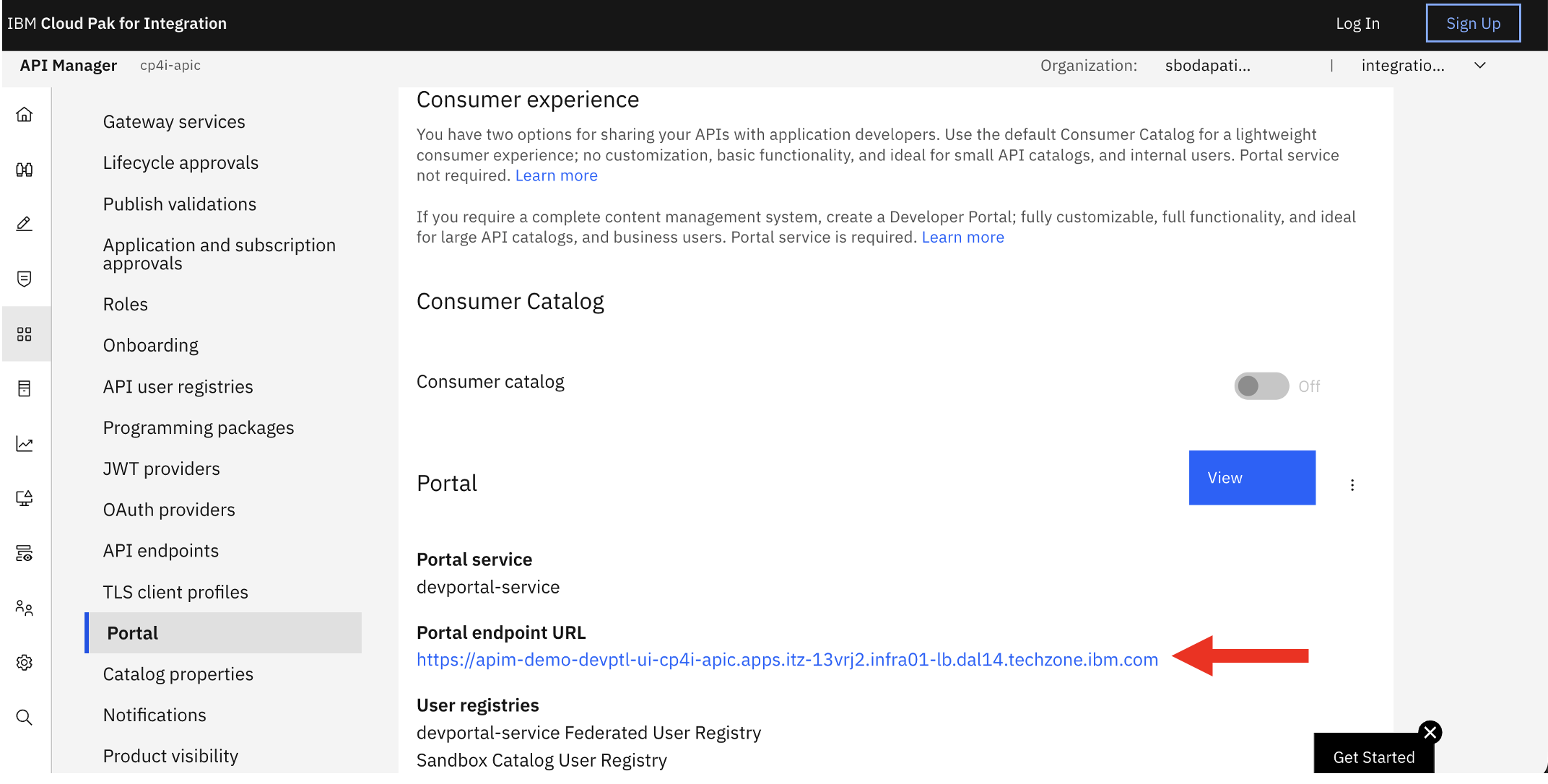
Click <Catalog settings> tab, then click on Portal.
4. Testing REST Proxy Service
Click on the “API Products” tab.
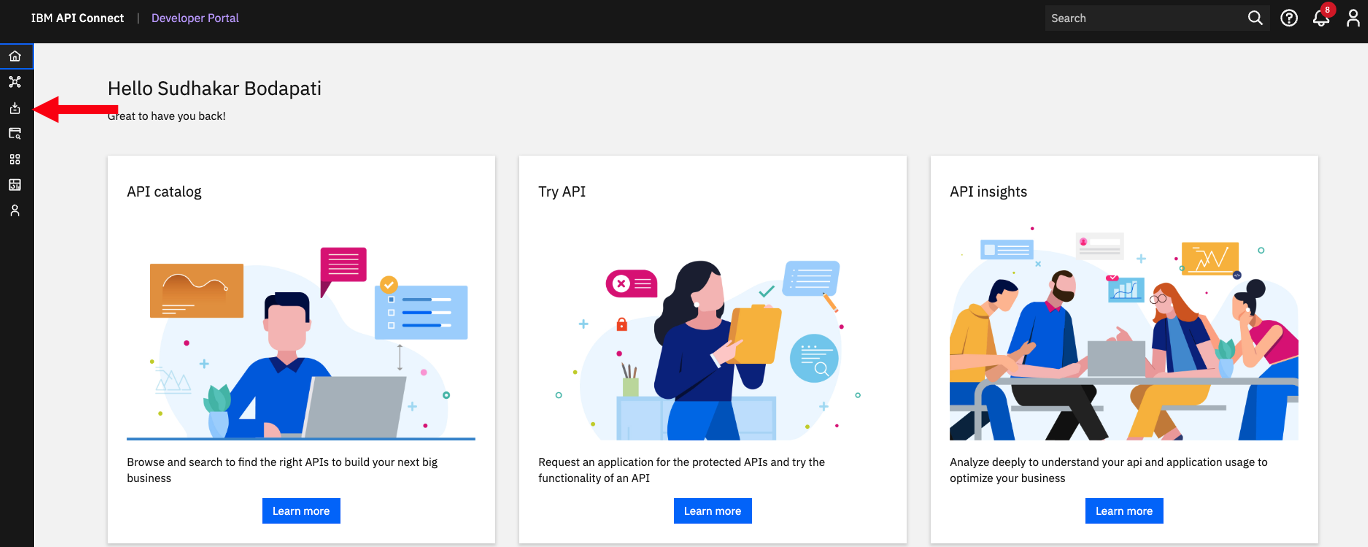
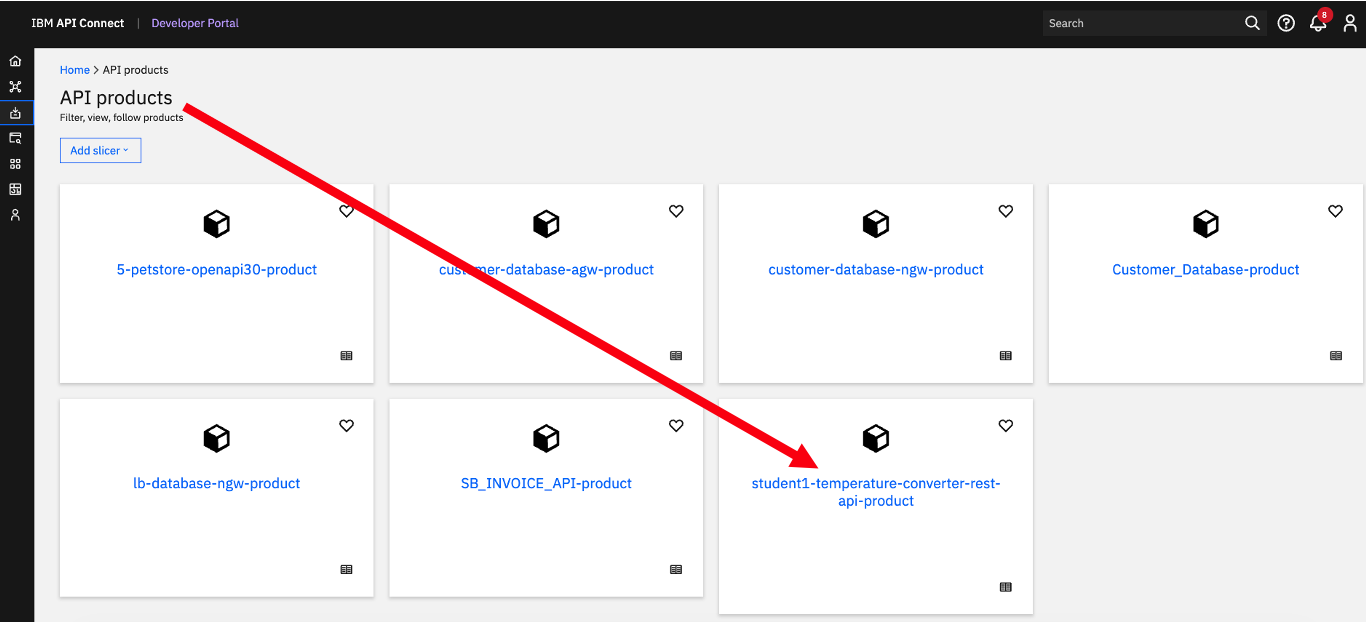
Click on student(n)-temperature-converter-rest-api-product.
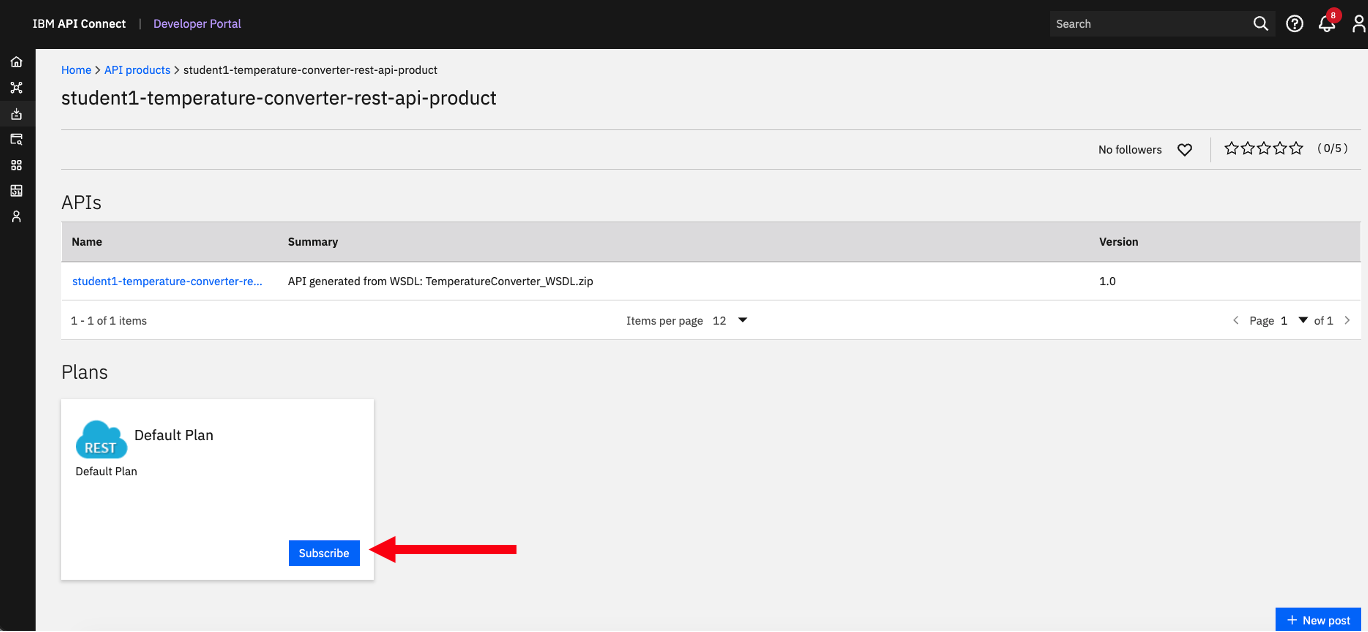
Click <Subscribe>.
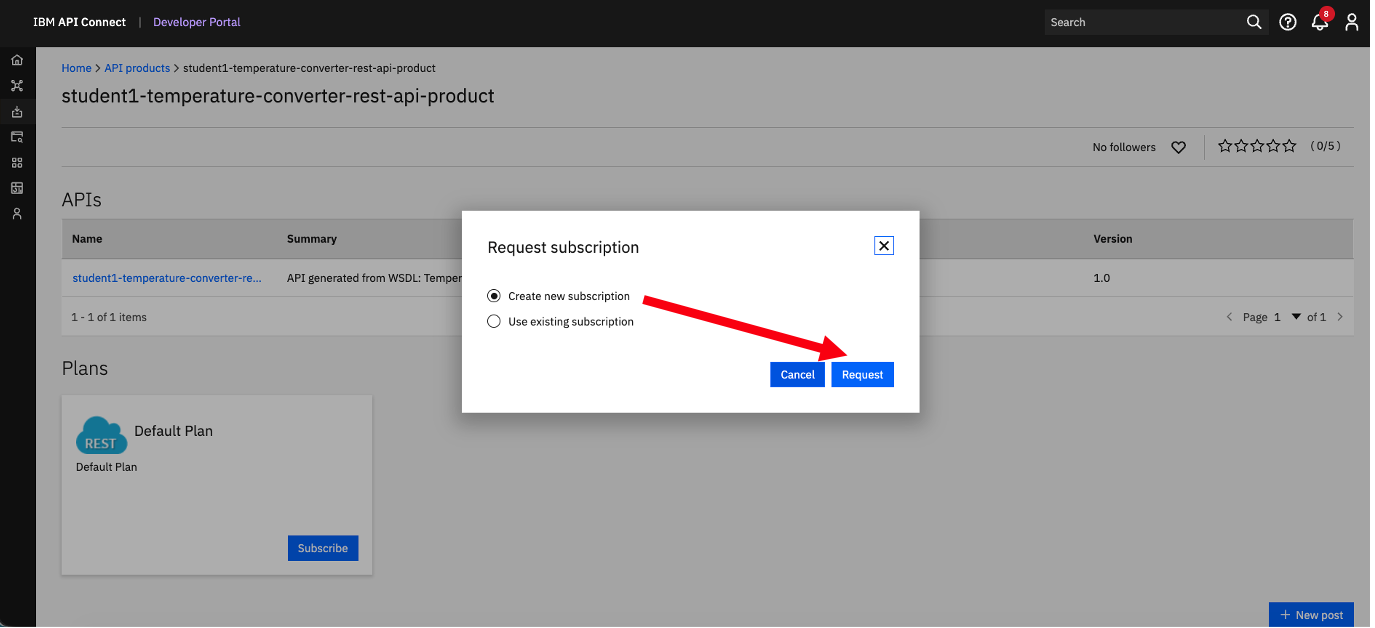
Select Create new subscription, then click Request.
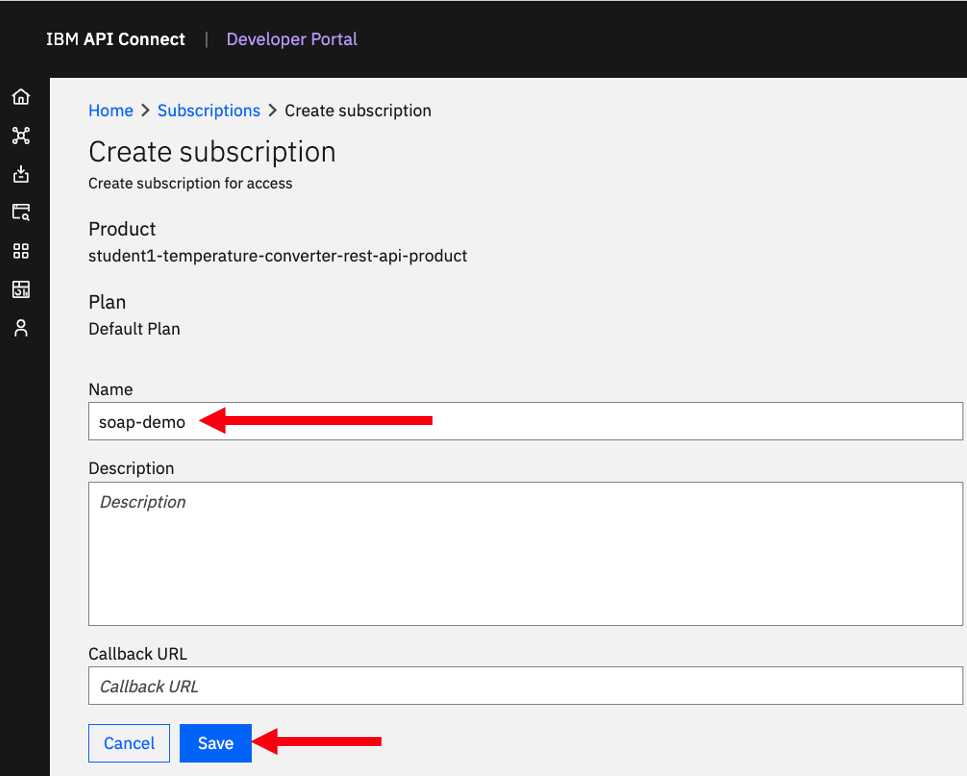
Click on soap-demo application.
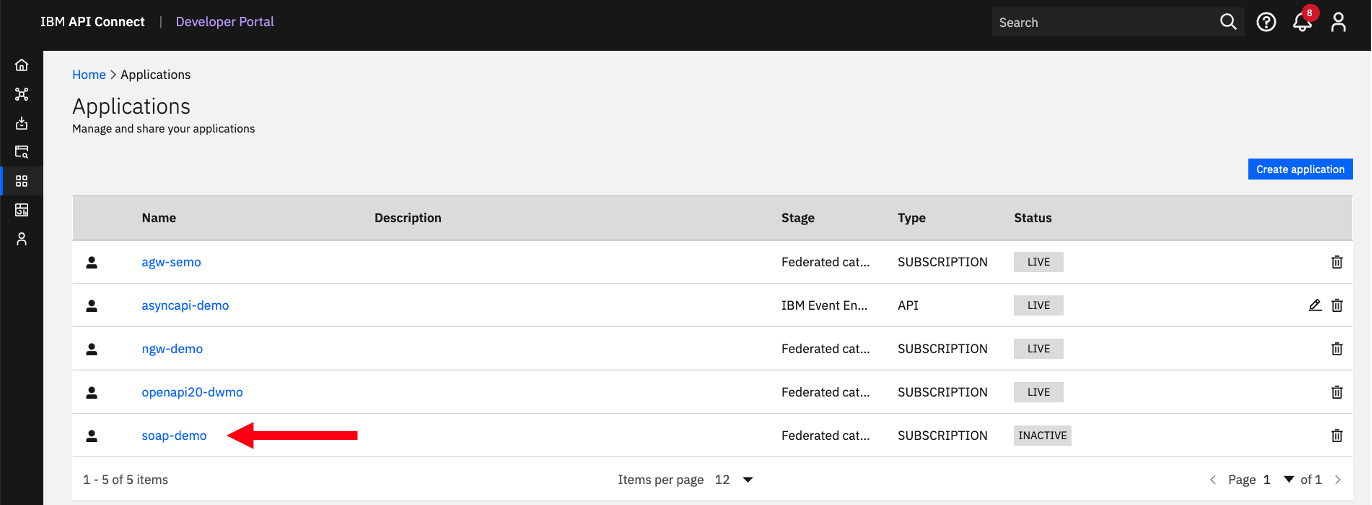
Click on the API.
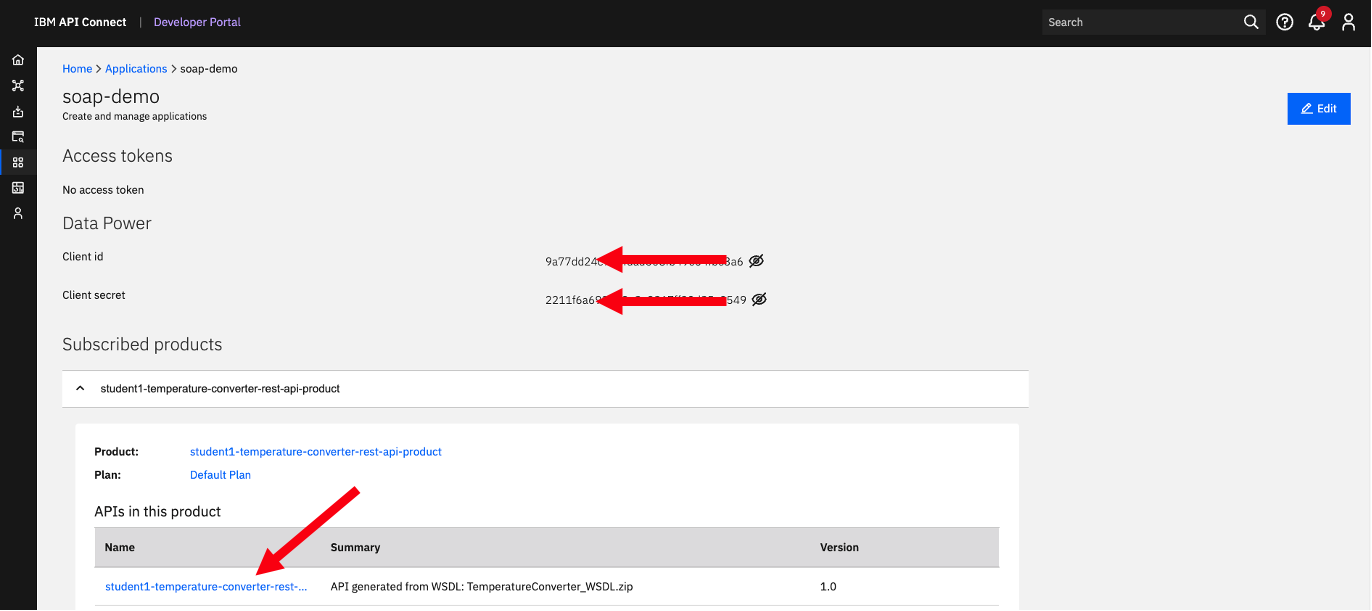
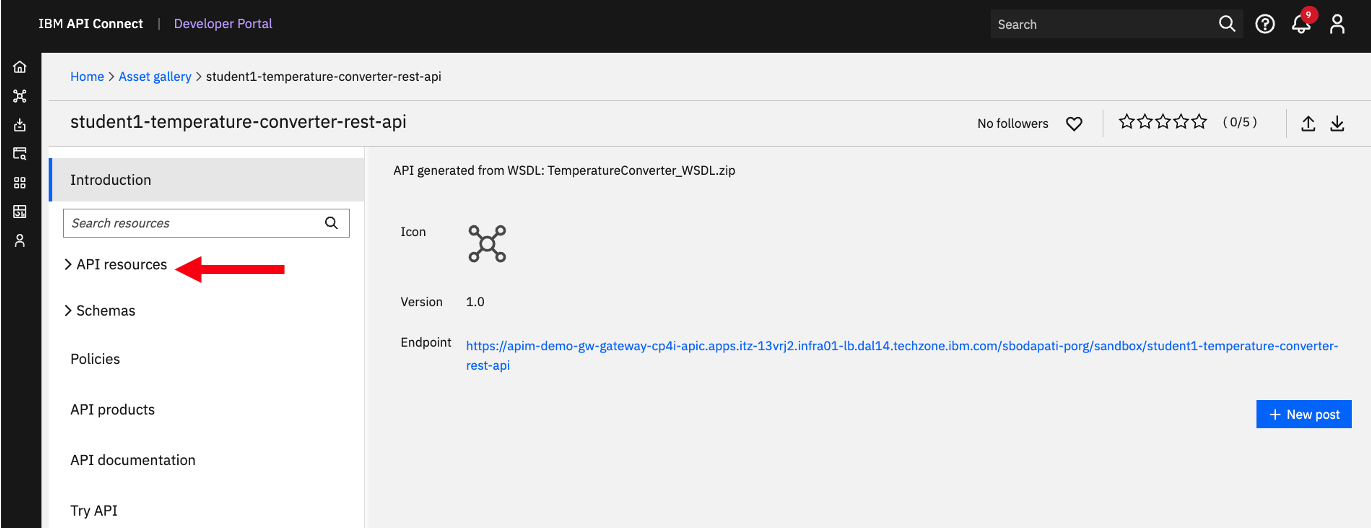
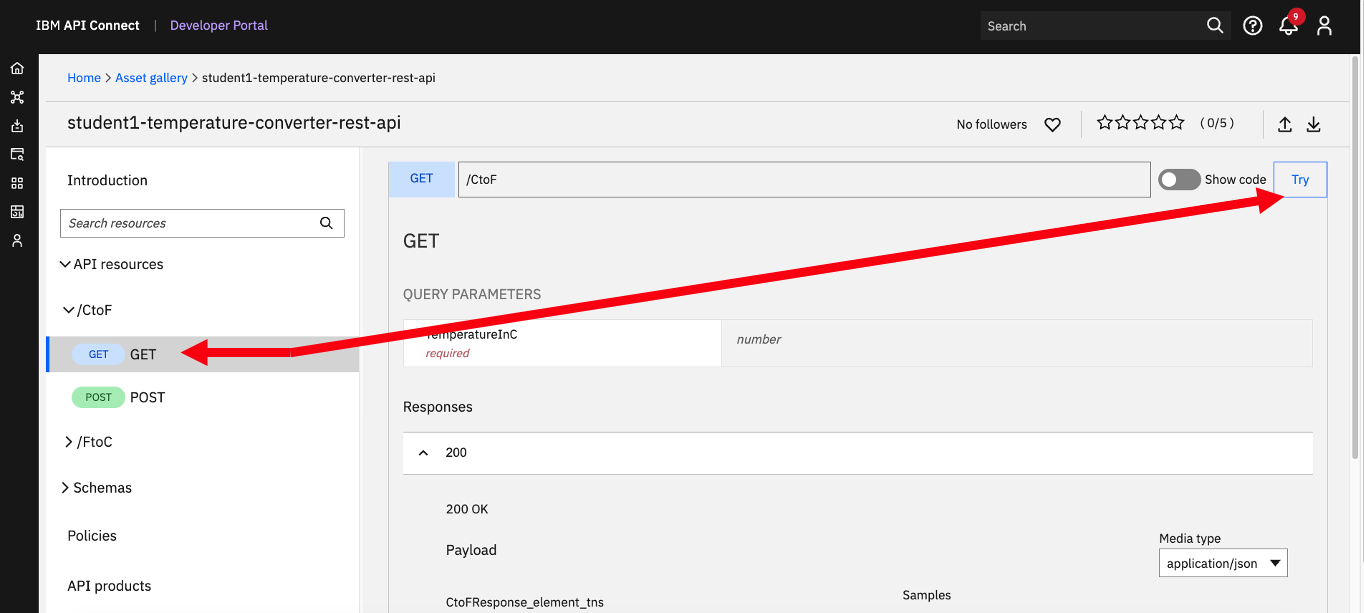
Select API Resources > /CtoF > GET, then click <Try> button.
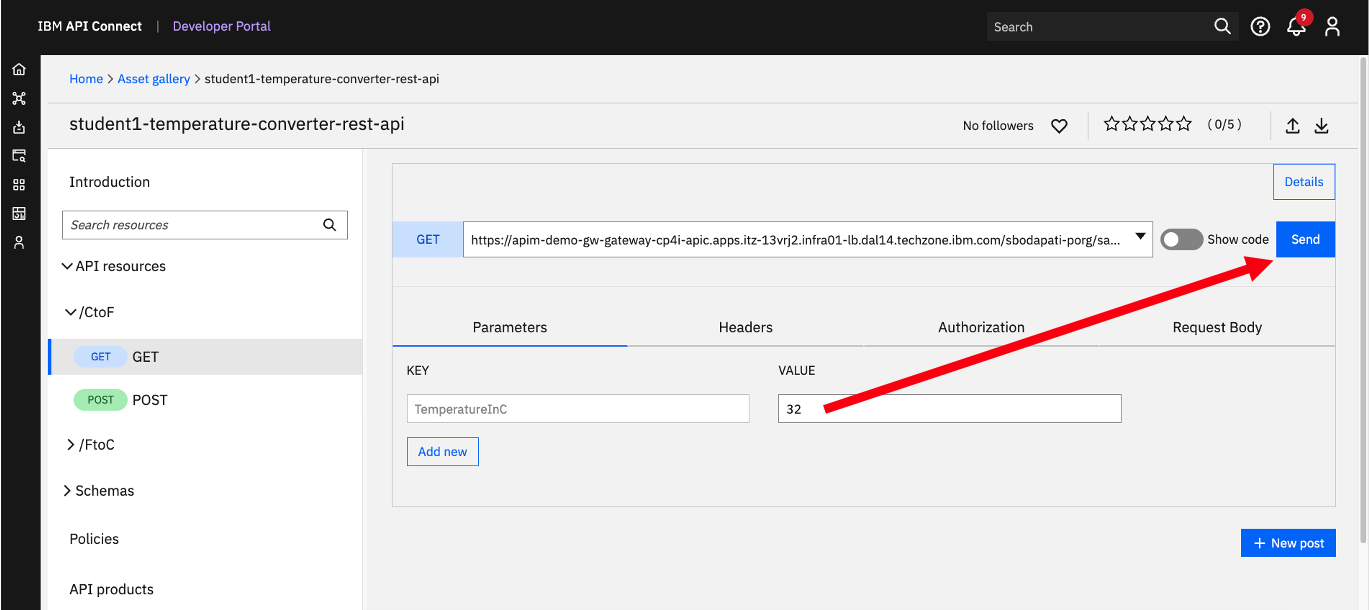
Enter a Centigrade value, and cick <Send>.
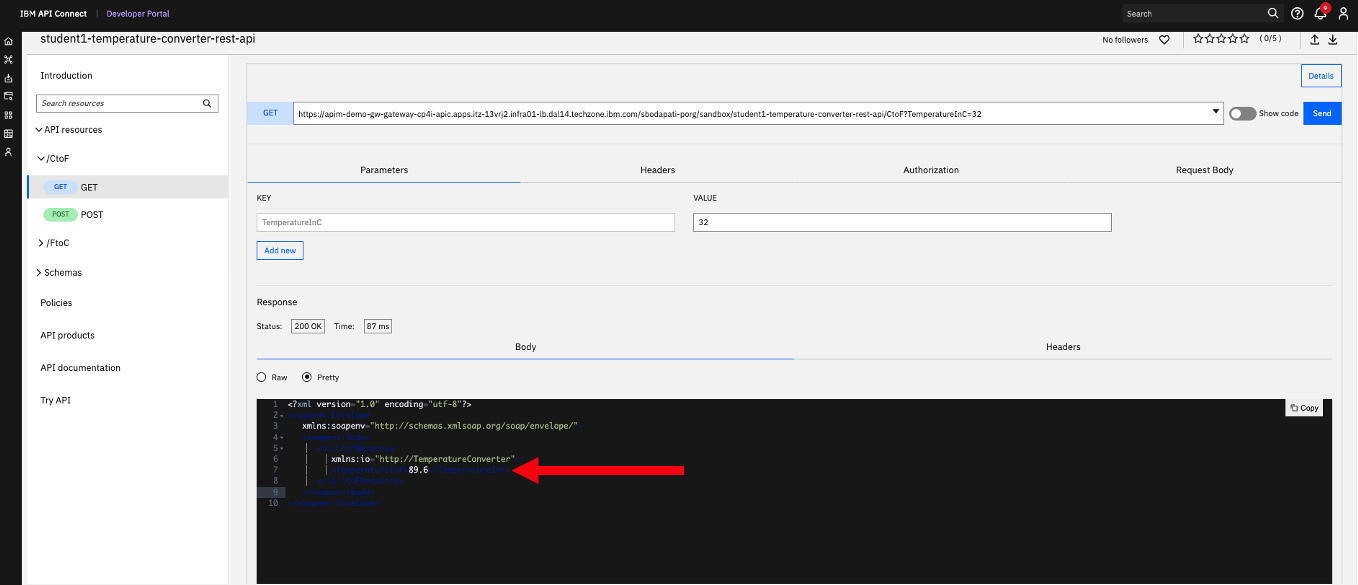
You should get the response with the Converted Fahrenheit value as below.
Optional test: You can also try POST CtoF operation and enter below in the Body tab.
5. Summary
Congratulations, you have exposed a SOAP WebService deployed on IBM App Connect to IBM API Connect as an REST API.